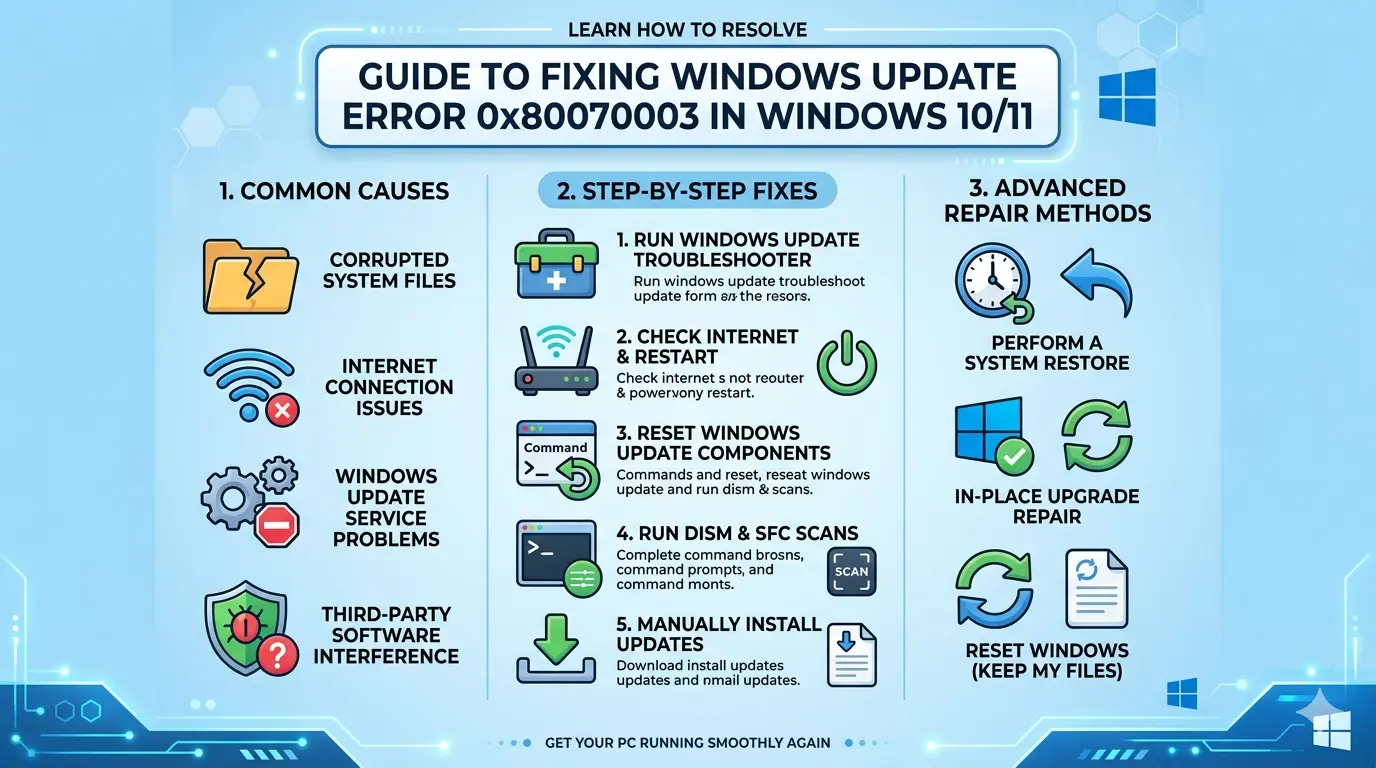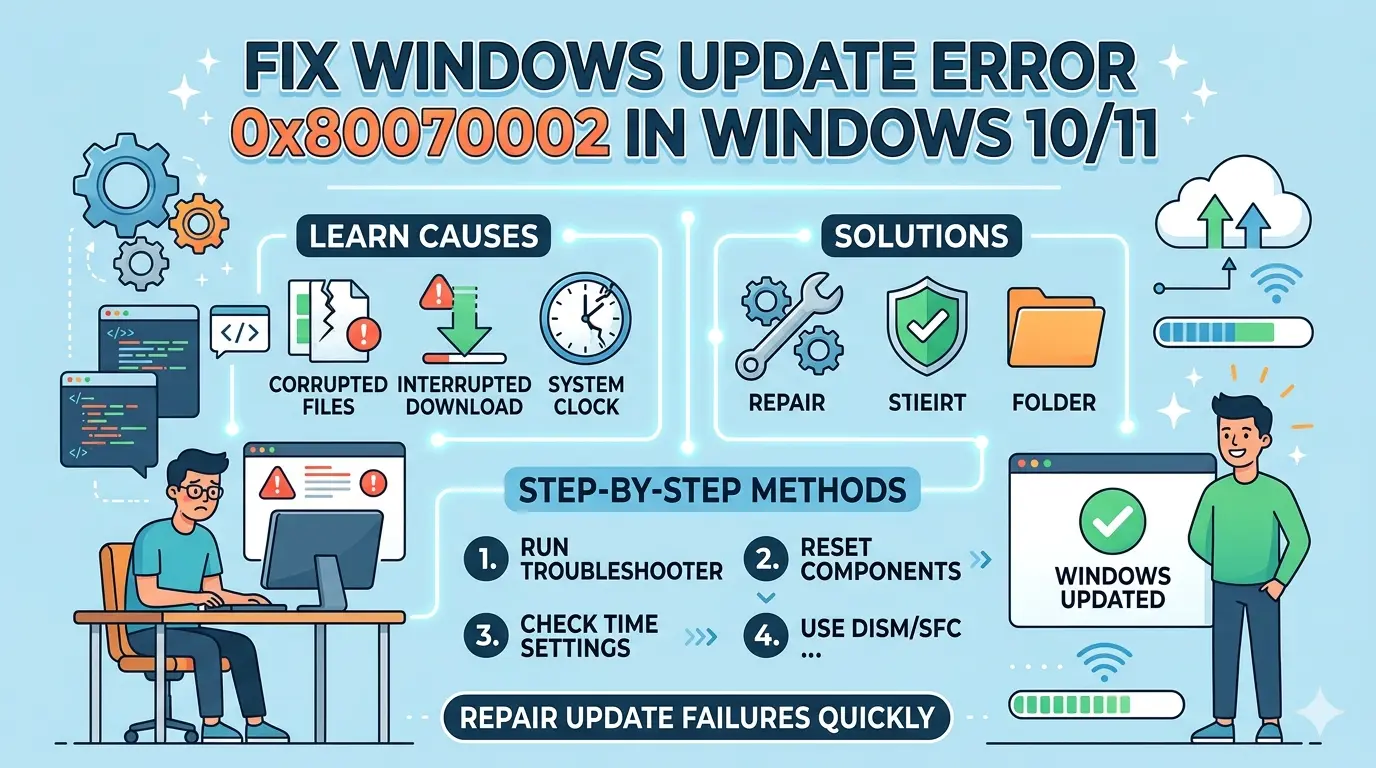
Windows Update Error 0x80070002 is one of the most common update failures in Windows 10 and Windows 11. It usually appears when the system cannot find required update files, or when update data becomes corrupted.
This guide explains the causes, fixes, and advanced solutions to help you fully resolve Windows Update Error 0x80070002.
What is Windows Update Error 0x80070002?
Windows Update Error 0x80070002 occurs when Windows cannot find or access the files required to install updates. This usually happens due to missing, corrupted, or incomplete update data, preventing updates from downloading or installing properly on Windows 10 or Windows 11 systems.
This error typically appears with messages like:
- “Windows could not search for new updates”
- “An error occurred while checking for updates”
- Error code: 0x80070002
It indicates that Windows Update is unable to locate or access required update files.
Main Causes of Error 0x80070002
The main causes of Windows Update Error 0x80070002 include missing or corrupted update files, damaged Windows Update cache, incorrect system date and time, interrupted internet connection, low disk space, file system errors, and corrupted system files. These issues prevent Windows from properly downloading or installing updates.
1. Missing or Corrupted Update Files
Some update files are incomplete or damaged.
2. Incorrect System Date and Time
Windows fails to verify update certificates.
3. Corrupted Windows Update Cache
Temporary update files become broken.
4. Disk Errors or Storage Issues
Low space or corrupted disk sectors can block updates.
5. Interrupted Internet Connection
Failed downloads can corrupt update data.
6. System File Corruption
Critical Windows files are missing or damaged.
How Windows Update Works
Windows Update relies on several components:
- Windows Update Service (wuauserv)
- Background Intelligent Transfer Service (BITS)
- Update cache folder (SoftwareDistribution)
- Microsoft update servers
If any of these components fail, updates break.
Method 1: Restart Windows Update Services
This is the simplest fix.
Steps:
- Press Win + R
- Type:
services.msc - Find:
- Windows Update
- Background Intelligent Transfer Service (BITS)
- Right-click → Restart
Method 2: Run Windows Update Troubleshooter
Windows has a built-in repair tool.
Steps:
- Go to Settings
- Click System
- Select Troubleshoot
- Click Other troubleshooters
- Run Windows Update Troubleshooter
Microsoft Guide:
https://support.microsoft.com/windows
Method 3: Fix Date and Time Settings
Incorrect time causes update verification failures.
Steps:
- Open Settings
- Go to Time & Language
- Enable:
- Set time automatically
- Set time zone automatically
- Click Sync Now
Method 4: Clear Windows Update Cache
This is one of the most effective fixes.
Steps:
- Open Command Prompt (Admin)
- Stop services:
net stop wuauserv
net stop bits
- Navigate to update folder:
C:\Windows\SoftwareDistribution
- Delete all files inside
- Restart services:
net start wuauserv
net start bits
Method 5: Run System File Checker (SFC)
sfc /scannow
Wait until scan completes.
Method 6: Repair Windows Image (DISM Tool)
If SFC is not enough:
DISM /Online /Cleanup-Image /RestoreHealth
This downloads clean system files from Microsoft servers.
Method 7: Check Disk for Errors
Storage issues can break updates.
Run CHKDSK:
chkdsk C: /f /r
Restart your PC when prompted.
Method 8: Reset Windows Update Components
Advanced reset method.
Steps:
Open Command Prompt (Admin):
net stop wuauserv
net stop cryptSvc
net stop bits
net stop msiserver

ren C:\Windows\SoftwareDistribution SoftwareDistribution.old
ren C:\Windows\System32\catroot2 catroot2.old

net start wuauserv
net start cryptSvc
net start bits
net start msiserver
Method 9: Free Up Disk Space
Windows updates require space.
Minimum recommended:
- 20 GB free space
Clean up tools:
- Disk Cleanup
- Storage Sense
Guide: https://support.microsoft.com/windows
Method 10: Disable Antivirus Temporarily
Some antivirus software blocks update files.
Steps:
- Disable real-time protection
- Retry Windows Update
- Re-enable protection afterward
Method 11: Use Microsoft Update Assistant
If Windows Update fails repeatedly:
Download tool:
https://www.microsoft.com/software-download/windows10
It forces manual update installation.
Method 12: Perform In-Place Upgrade Repair
This keeps files while repairing system.
Steps:
- Download Windows ISO
- Run setup.exe
- Choose Keep personal files and apps
Advanced Fix: Registry Check
Corrupted update entries may exist.
Warning:
Editing registry incorrectly may damage system.
Path:
HKEY_LOCAL_MACHINE\SOFTWARE\Microsoft\Windows\CurrentVersion\WindowsUpdate
Reset only if you know what you’re doing.
How to Prevent Windows Update Error 0x80070002
To prevent Windows Update Error 0x80070002, keep your system stable, updated, and free from corruption. Install updates regularly, maintain a reliable internet connection, and avoid interrupting updates. Ensure enough disk space is available, keep system date and time correct, and run regular maintenance like disk cleanup and system scans to prevent file corruption.
1. Keep Windows Updated Regularly
Avoid skipping updates for long periods.
2. Maintain Stable Internet Connection
Use wired connection for large updates.
3. Avoid Force Shutdowns
Interrupting updates causes corruption.
4. Clean Disk Regularly
Remove temporary files monthly.
5. Keep System Drivers Updated
Outdated drivers may interfere with updates.
Frequently Asked Questions (FAQ)
1. What does error 0x80070002 mean?
It means Windows cannot find required update files or they are corrupted.
2. Is error 0x80070002 serious?
Not critical, but it prevents Windows updates from installing.
3. Can I fix it without reinstalling Windows?
Yes, most cases are fixed using reset update components or SFC/DISM.
4. Why does Windows Update fail repeatedly?
Usually due to corrupted cache, missing files, or network issues.
5. Does antivirus cause this error?
Yes, some antivirus tools block update downloads.
6. Will resetting Windows fix this error?
Yes, but it should be the last option.
7. How long does DISM take?
Usually 10–30 minutes depending on system health.
8. Can low disk space cause this error?
Yes, Windows needs enough space to unpack updates.
Conclusion
The Windows Update Error 0x80070002 is mainly caused by missing files, corrupted update cache, or system inconsistencies. Fortunately, it can be fixed using built-in tools like Troubleshooter, SFC, DISM, or resetting update components.
By following the steps in this guide, most users can fully restore Windows Update functionality without reinstalling the system.
Keeping your system clean, updated, and stable is the best way to prevent this error in the future.