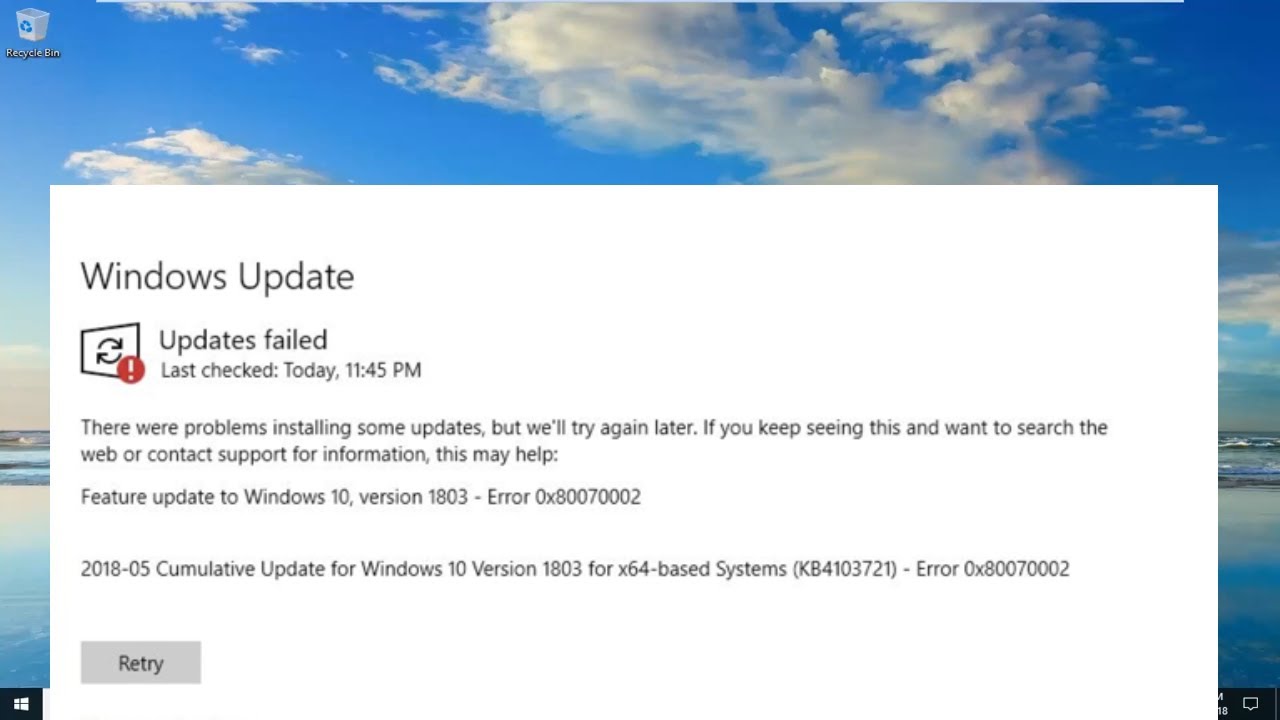


Keeping your Windows system up to date is essential for security, performance, and access to new features. However, update failures can disrupt this process and leave your system vulnerable. One of the most common issues users encounter is Windows Update Error 0x80070490.
This error typically appears when attempting to install updates and indicates that there is a problem with system files or the component-based servicing (CBS) store. While it may seem technical, the good news is that it’s usually fixable with a structured approach.
In this comprehensive guide, we’ll explore the causes of Windows Update Error 0x80070490 and provide step-by-step solutions to resolve it effectively.
What Is Windows Update Error 0x80070490?
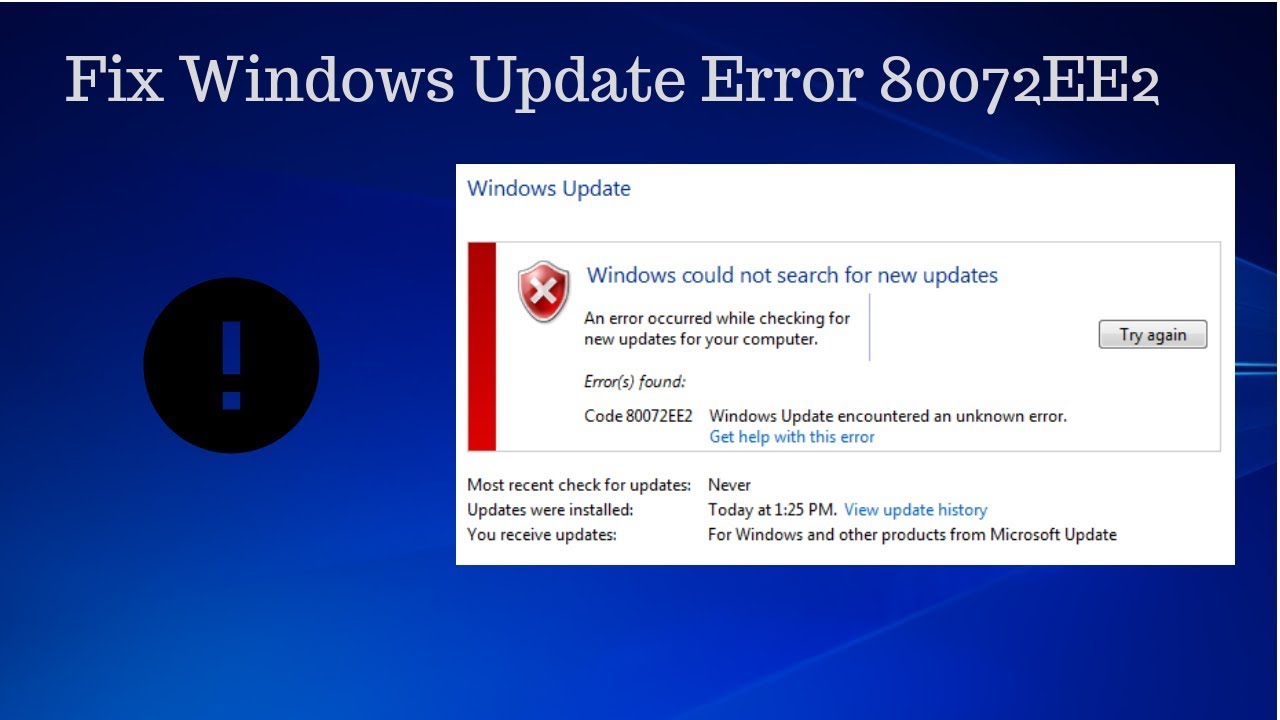
Error code 0x80070490 is commonly associated with corrupted system files or issues within the Windows Update service. It prevents updates from installing properly and may appear with messages like:
- “Something went wrong”
- “Updates failed to install”
- “Error 0x80070490 occurred”
This error affects various versions of Windows, including Windows 10 and Windows 11.
What Causes Error 0x80070490?
Understanding the root causes helps in applying the right fix. Common causes include:
- Corrupted system files
- Damaged Windows Update components
- Malware infections
- Incomplete or interrupted updates
- Faulty drivers
- Registry errors
- Misconfigured services
Symptoms of This Error
You may notice:
- Updates failing repeatedly
- Slow system performance
- Error messages during update attempts
- Missing security patches
- System instability
Fix Windows Update Error 0x80070490
Below are the most effective solutions to resolve this issue.
1. Run Windows Update Troubleshooter
Windows includes a built-in troubleshooter to detect and fix update problems.
Steps:
- Open Settings
- Go to Update & Security
- Click Troubleshoot
- Select Windows Update
- Run the troubleshooter
This tool automatically detects and resolves common issues.
2. Restart Windows Update Services
Sometimes services may stop working properly.
Steps:
- Press Windows + R
- Type
services.msc - Locate:
- Windows Update
- Background Intelligent Transfer Service (BITS)
- Restart both services
3. Run System File Checker (SFC)
Corrupted system files are a major cause of this error.
Steps:
- Open Command Prompt as Administrator
- Run:
sfc /scannow - Wait for the scan to complete
This repairs damaged system files.
4. Use DISM Tool
DISM repairs the Windows image.
Steps:
- Open Command Prompt as Administrator
- Run:
DISM /Online /Cleanup-Image /RestoreHealth - Wait for completion
5. Reset Windows Update Components
Resetting components can fix persistent issues.
Steps:
- Stop services:
net stop wuauserv net stop cryptSvc net stop bits net stop msiserver - Rename folders:
ren C:\Windows\SoftwareDistribution SoftwareDistribution.old ren C:\Windows\System32\catroot2 catroot2.old - Restart services:
net start wuauserv
net start cryptSvc
net start bits
net start msiserver
6. Check Date and Time Settings
Incorrect system time can cause update failures.
Fix:
- Ensure your date and time are correct
- Enable automatic time sync
7. Disable Antivirus Temporarily
Security software may block updates.
Steps:
- Disable antivirus temporarily
- Try updating again
- Re-enable protection afterward
8. Perform a Clean Boot
A clean boot eliminates software conflicts.
Steps:
- Press Windows + R
- Type
msconfig - Disable non-Microsoft services
- Restart your PC
9. Scan for Malware
Malware can interfere with updates.
Steps:
- Run a full system scan
- Remove any detected threats
10. Install Updates Manually
If automatic updates fail, try manual installation.
Steps:
- Visit Microsoft Update Catalog
- Search for the update code
- Download and install manually
11. Check Hard Drive for Errors
Disk issues can cause update failures.
Steps:
- Open Command Prompt
- Run:
chkdsk /f /r
12. Create a New User Profile
Corrupted user profiles can trigger errors.
Steps:
- Go to Settings > Accounts
- Create a new user account
- Try updating from the new account
13. Repair Windows Installation
If all else fails, repair Windows.
Options:
- In-place upgrade
- Reset this PC
Preventing Windows Update Errors
To avoid future issues:
- Keep your system updated regularly
- Avoid interrupting updates
- Maintain sufficient disk space
- Use reliable antivirus software
- Perform routine system maintenance
Benefits of Fixing Error 0x80070490
Resolving this issue ensures:
- Access to latest security patches
- Improved system performance
- Stability and reliability
- Compatibility with new software
Real-World Scenario
Imagine trying to install a critical security update, only to see Error 0x80070490 repeatedly. By running SFC and resetting update components, you restore functionality and successfully install updates.
Key Insight
This error highlights the importance of system integrity. When core components are damaged, even basic functions like updates can fail. Maintaining system health is crucial for long-term performance.
Conclusion
Windows Update Error 0x80070490 can be frustrating, but it’s not impossible to fix. By following the steps outlined in this guide—from running troubleshooters to repairing system files—you can resolve the issue and restore normal update functionality.
Start with basic fixes and gradually move to advanced solutions if needed. With patience and the right approach, your system will be back to updating smoothly in no time.
Keeping your Windows system updated is one of the most important steps in maintaining security and performance—so resolving this error should be a top priority.