

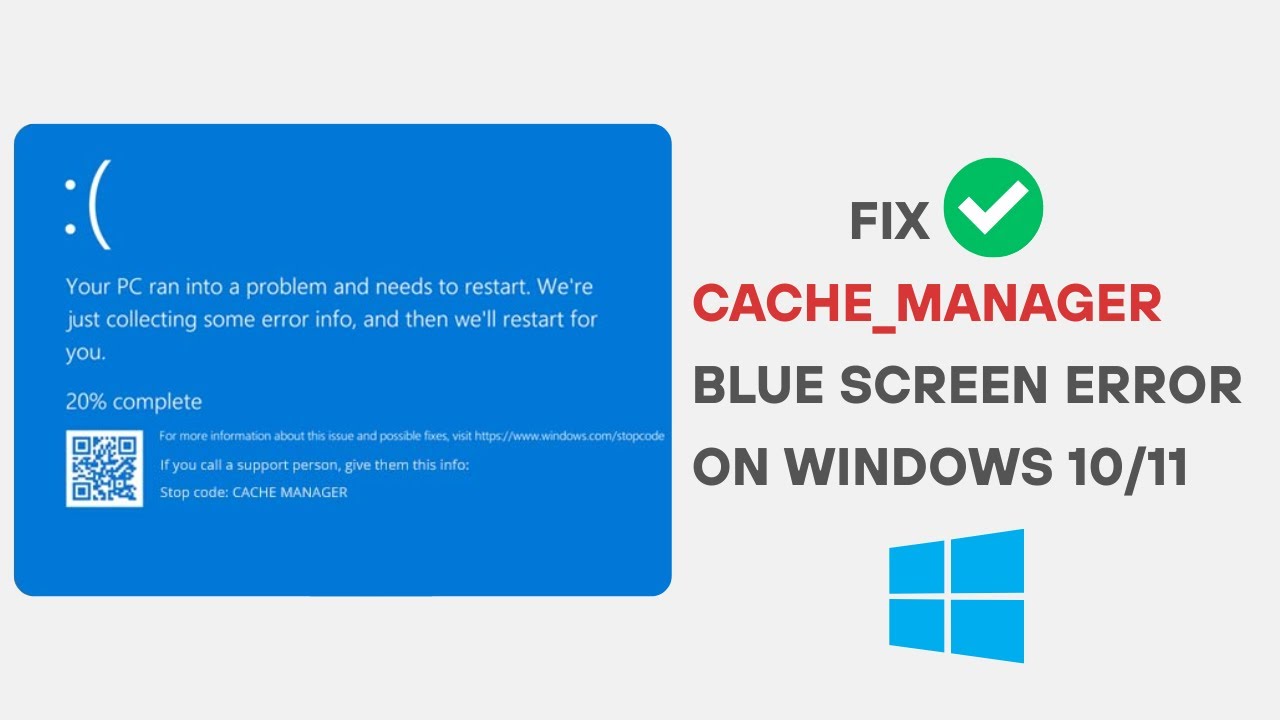
The CACHE_MANAGER BSOD in Windows is one of the most frustrating blue screen errors users can encounter. It usually appears suddenly while working, gaming, or even during startup, forcing your system to restart and potentially causing data loss. This error indicates that Windows has encountered a serious issue related to memory caching or system file management.
If you are struggling with the CACHE_MANAGER BSOD in Windows, don’t worry—this guide will walk you through all the proven fixes step by step. We will explore what causes the error, how to troubleshoot it, and how to prevent it from happening again.
What Is CACHE_MANAGER BSOD in Windows?
The CACHE_MANAGER blue screen error is a system crash that occurs when Windows detects a problem with how it manages cached data in memory or storage. Cache is used to temporarily store frequently accessed data to improve performance.
When something goes wrong in this process, Windows halts everything to prevent corruption, resulting in a BSOD (Blue Screen of Death).
Common Causes of CACHE_MANAGER BSOD in Windows
Understanding the root cause is essential for fixing the issue effectively.
1. Corrupted System Files
Damaged or missing system files can disrupt caching processes.
2. Faulty RAM (Memory Issues)
Bad memory modules often trigger cache-related errors.
3. Disk Errors or Bad Sectors
Hard drive corruption can interfere with cached data storage.
4. Outdated or Corrupt Drivers
Drivers that manage storage and memory can cause instability.
5. Antivirus Conflicts
Some security software interferes with system caching mechanisms.
6. Overclocking
Unstable CPU or RAM overclocking may lead to system crashes.
7. Malware Infection
Malicious software can damage system files and memory structures.
Symptoms of CACHE_MANAGER BSOD in Windows
You may notice:
- Sudden system crashes
- Blue screen with CACHE_MANAGER error
- Automatic restarts
- Slow performance before crash
- Random freezes or hangs
How to Fix CACHE_MANAGER BSOD in Windows
Below are the most effective solutions to resolve this issue permanently.
1. Restart Your Computer
A simple restart can sometimes clear temporary memory glitches.
Steps:
- Save your work
- Restart your PC
- Check if the error repeats
2. Run Windows Memory Diagnostic Tool
Faulty RAM is a common cause of CACHE_MANAGER BSOD in Windows.
Steps:
- Press Windows + R
- Type:
mdsched.exe - Choose Restart and check for problems
Your system will scan memory during reboot.
3. Run System File Checker (SFC)
Corrupted system files can trigger BSOD errors.
Steps:
- Open Command Prompt as Administrator
- Run:
sfc /scannow
Wait for the scan to complete and repair files automatically.
4. Use DISM Tool to Repair Windows Image
If SFC doesn’t fix the issue:
Steps:
- Run Command Prompt as admin
- Execute:
DISM /Online /Cleanup-Image /RestoreHealth
5. Check Disk for Errors (CHKDSK)
Disk corruption can cause cache failures.
Steps:
- Open Command Prompt
- Run:
chkdsk /f /r - Restart your computer
6. Update Device Drivers
Outdated drivers often cause system instability.
Focus on:
- Storage drivers
- Chipset drivers
- Graphics drivers
Steps:
- Open Device Manager
- Right-click device → Update driver
7. Disable Overclocking
If you overclock your CPU or RAM:
- Enter BIOS/UEFI
- Reset to default settings
- Save and restart
8. Run Antivirus Scan
Malware may damage system cache structures.
Steps:
- Use Windows Defender
- Run full system scan
- Remove detected threats
9. Update Windows
Microsoft often releases patches for BSOD issues.
Steps:
- Go to Settings
- Click Windows Update
- Install all updates
10. Uninstall Problematic Software
Recently installed apps may conflict with system caching.
Steps:
- Go to Control Panel
- Uninstall suspicious programs
- Restart PC
11. Check RAM Hardware
If the issue persists:
- Test each RAM stick individually
- Replace faulty modules
12. Restore System to Previous Point
If the error started recently:
Steps:
- Open System Restore
- Choose restore point
- Restore system state
13. Reset Windows (Last Resort)
If nothing works:
Steps:
- Go to Settings
- Select Recovery
- Choose Reset this PC
Advanced Fix for CACHE_MANAGER BSOD in Windows
For advanced users:
BIOS Update
- Update motherboard firmware
- Fix memory compatibility issues
Clean Boot
- Disable startup services
- Identify conflicting software
Preventing CACHE_MANAGER BSOD in Windows
To avoid future crashes:
- Keep Windows updated
- Avoid unstable overclocking
- Use reliable antivirus software
- Regularly check disk health
- Maintain proper cooling for hardware
Real-World Example
A user experiences repeated CACHE_MANAGER BSOD in Windows while gaming. After running memory diagnostics, they discover faulty RAM. Replacing the RAM completely resolves the issue.
Key Insight
The CACHE_MANAGER BSOD is fundamentally a memory and storage integrity failure. It highlights how closely Windows depends on stable hardware and clean system files to manage cached data efficiently.
Frequently Asked Questions
What is CACHE_MANAGER BSOD in Windows?
It is a blue screen error caused by memory or disk-related cache failures.
Is CACHE_MANAGER BSOD dangerous?
Yes, it can lead to data loss if not fixed properly.
Can RAM cause CACHE_MANAGER BSOD?
Yes, faulty RAM is one of the most common causes.
How do I permanently fix it?
By repairing system files, checking hardware, and updating drivers.
Conclusion
The CACHE_MANAGER BSOD in Windows is a serious system error, but it is usually fixable with proper troubleshooting. Whether caused by faulty RAM, corrupted system files, or outdated drivers, the solutions in this guide cover every possible angle.
Start with simple fixes like restarting and running diagnostic tools, then move to advanced methods such as disk checks and system restoration if needed.
By following these steps, you can restore system stability, prevent future crashes, and ensure your Windows PC runs smoothly and reliably.
Keeping your system healthy, updated, and free from hardware issues is the key to avoiding BSOD errors like CACHE_MANAGER in the future.