Broken desktop shortcuts are one of the most common issues Windows users face. You click an icon, and instead of opening the program or file, Windows shows an error like:
- “This shortcut has been changed or moved”
- “The item ‘…’ that this shortcut refers to has been changed or moved”
- Blank or missing icons
- Nothing happens when clicked
This guide will show you how to repair broken desktop shortcuts in Windows 10 and Windows 11 using multiple proven methods, from simple fixes to advanced system repairs.
What Causes Broken Desktop Shortcuts?
Broken desktop shortcuts usually happen when the original file is moved, renamed, or deleted. They can also break due to drive letter changes, corrupted .lnk files, software uninstallation, Windows updates, or damaged icon/cache and registry errors that disrupt shortcut paths.
1. Moved or Deleted Original File
The shortcut breaks when the original file is moved or deleted, so Windows can no longer find the target location it points to.
2. Drive Letter Changes
Shortcut breaks when a drive letter changes, causing Windows to lose the original file path on external drives or partitions.
3. Corrupted Shortcut (.lnk file)
A shortcut may stop working if its .lnk file becomes corrupted, preventing Windows from reading the correct target path.
4. Application Uninstalled
A shortcut breaks when the app is uninstalled but the shortcut remains, leaving Windows pointing to a program that no longer exists.
5. Windows Update Issues
Windows updates can break shortcuts by changing system paths, resetting permissions, or modifying how file locations are accessed.
6. Icon Cache Corruption
Icon cache corruption can cause shortcuts to display blank or incorrect icons because Windows fails to load the stored icon data properly.
How Windows Shortcuts Work
Windows shortcuts are small pointer files (.lnk) that do not contain the actual program or file. Instead, they store the target location, file path, icon data, and optional launch settings. When you click a shortcut, Windows reads this information and opens the original file. If the path changes or the file is missing, the shortcut breaks.
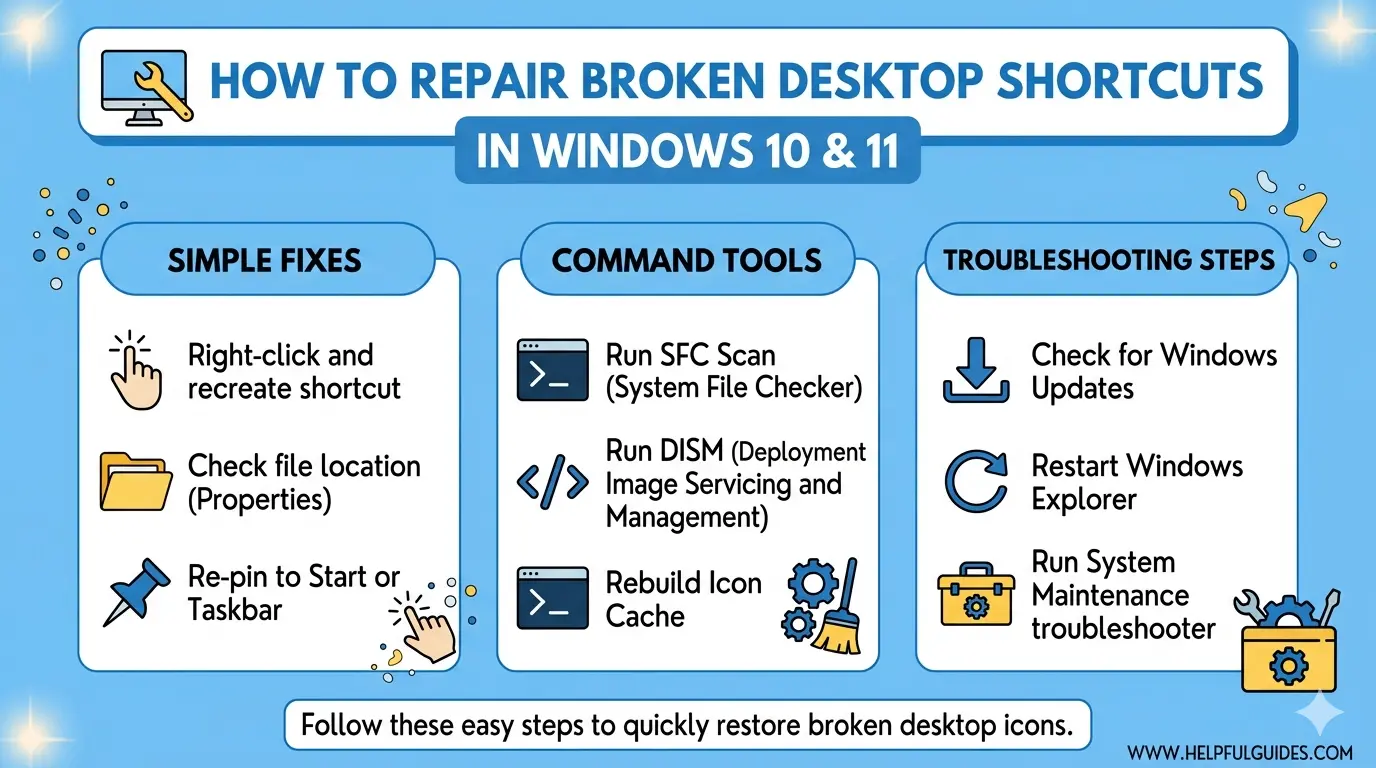
Method 1: Check the Original File Location
This is the fastest fix.
Steps:
- Right-click the broken shortcut
- Click Properties
- Check Target field
- Navigate to that path in File Explorer
Fix:
- If file is moved → update shortcut path
- If file is missing → reinstall application
Method 2: Recreate the Shortcut Manually
If the original shortcut is broken, recreate it.
Steps:
- Locate the program (.exe file)
- Right-click it
- Select Send to → Desktop (Create shortcut)
Example:
- Chrome:
C:\Program Files\Google\Chrome\Application\chrome.exe
Method 3: Fix Broken Shortcut Paths Automatically
Windows sometimes can auto-detect missing paths.
Steps:
- Right-click shortcut
- Select Properties
- Click Find Target
- Browse correct file location
- Click Apply
Method 4: Reinstall the Application
If the program is missing:
Steps:
- Open Control Panel
- Go to Programs → Programs and Features
- Find the app
- Click Uninstall
- Reinstall from official source
Official Download Sources:
- Microsoft Software: https://www.microsoft.com/software-download
- Windows Apps: https://apps.microsoft.com
Method 5: Fix Corrupted Shortcut Files
If shortcut file is damaged:
Steps:
- Delete broken shortcut
- Recreate using Method 2
Method 6: Rebuild Icon Cache (Fix Blank Icons)
If shortcuts exist but icons are blank or broken:
Steps:
- Open Command Prompt (Admin)
- Run:
taskkill /IM explorer.exe /F
del /A /Q "%localappdata%\IconCache.db"
start explorer.exe
Method 7: Check Drive Letter Changes
If shortcuts point to external drives:
Steps:
- Press Win + X
- Select Disk Management
- Check drive letters
- Restore original letter if changed
Method 8: Use Windows Troubleshooter
Windows can detect system-level shortcut issues.
Steps:
- Go to Settings
- Select System
- Click Troubleshoot
- Run Windows Store Apps Troubleshooter
Method 9: Fix Registry Issues (Advanced)
Broken shortcuts may come from registry corruption.
Warning:
Editing registry incorrectly can damage system.
Steps:
- Press Win + R
- Type:
regedit - Navigate to:
HKEY_CURRENT_USER\Software\Microsoft\Windows\CurrentVersion\Explorer\FileExts\.lnk - Delete corrupted entries (if needed)
Method 10: Restore System Files
If multiple shortcuts are broken:
Run System File Checker:
sfc /scannow
Then run DISM:
DISM /Online /Cleanup-Image /RestoreHealth
Method 11: Restore System Restore Point
If the issue started recently:
Steps:
- Press Win + R
- Type:
rstrui - Choose restore point
- Restore system
Method 12: Fix File Association (.lnk files)
If shortcuts do not open at all:
Steps:
- Open Command Prompt (Admin)
- Run:
assoc .lnk=lnkfile
Preventing Broken Desktop Shortcuts
Preventing broken desktop shortcuts starts with keeping original files and programs in their correct locations. Avoid moving installation folders manually and always uninstall apps properly through Settings or Control Panel. Use stable drive letters for external storage to prevent path changes. Regular system maintenance, including Windows Updates and disk checks, also helps keep shortcut links working correctly.
1. Do not move program folders manually
Avoid moving program installation folders manually, because shortcuts depend on fixed file paths. Always install apps in their default directories so Windows can reliably locate and launch them without breaking links.
2. Avoid renaming system folders
Do not rename system folders, especially “Program Files,” because Windows and installed applications rely on these exact folder names. Changing them can break file paths and cause shortcuts or programs to stop working correctly.
3. Use stable drive letters
Keep drive letters stable to prevent shortcut errors. Frequent changes in USB or partition letters can break file paths, so assign permanent letters in Disk Management when possible.
4. Regular system maintenance
Run:
- Disk Cleanup
- Windows Update
- Antivirus scan
Advanced Optimization Tip
If you frequently manage many shortcuts (developers, IT users), consider:
- Using taskbar pinning instead
- Using Start Menu shortcuts
- Using symbolic links (mklink)
Example:
mklink /D "C:\ShortcutFolder" "D:\ActualFolder"
Common Errors and Fixes
“Shortcut is not valid”
→ File moved or deleted
Blank icon
→ Rebuild icon cache
Nothing happens when clicked
→ Registry or file association issue
Shortcut opens wrong app
→ Wrong target path
Helpful Resources
- Microsoft Shortcut Documentation
https://support.microsoft.com/windows - Windows File Explorer Guide
https://learn.microsoft.com/windows/client-management/file-explorer - System File Checker (SFC) Guide
https://learn.microsoft.com/windows-hardware/manufacture/desktop/repair-a-windows-image
Frequently Asked Questions (FAQ)
1. Why do my desktop shortcuts suddenly stop working?
Most often due to moved files, deleted programs, or drive letter changes.
2. How do I fix all broken shortcuts at once?
Run SFC and DISM tools to repair system files automatically.
3. Can I recover deleted shortcut targets?
Only if original files still exist or via system restore.
4. Why are my shortcut icons blank?
This is usually caused by corrupted icon cache.
5. Is it safe to delete broken shortcuts?
Yes, they are just pointers—not actual programs.
6. Do Windows updates break shortcuts?
Sometimes updates change system paths or reset settings.
7. What is the fastest fix for broken shortcuts?
Delete and recreate them from the original executable.
8. Can antivirus cause broken shortcuts?
Yes, if it quarantines or moves program files.
Conclusion
Learning how to repair broken desktop shortcuts in Windows is essential for maintaining a clean and functional desktop environment. Most shortcut issues come from missing files, changed paths, or corrupted cache data.
By following the methods above—from simple shortcut recreation to advanced system repair—you can restore almost any broken shortcut in Windows 10 and Windows 11 without needing technical support.
If the issue persists, it usually indicates deeper system corruption, which can be fixed using SFC, DISM, or system restore.