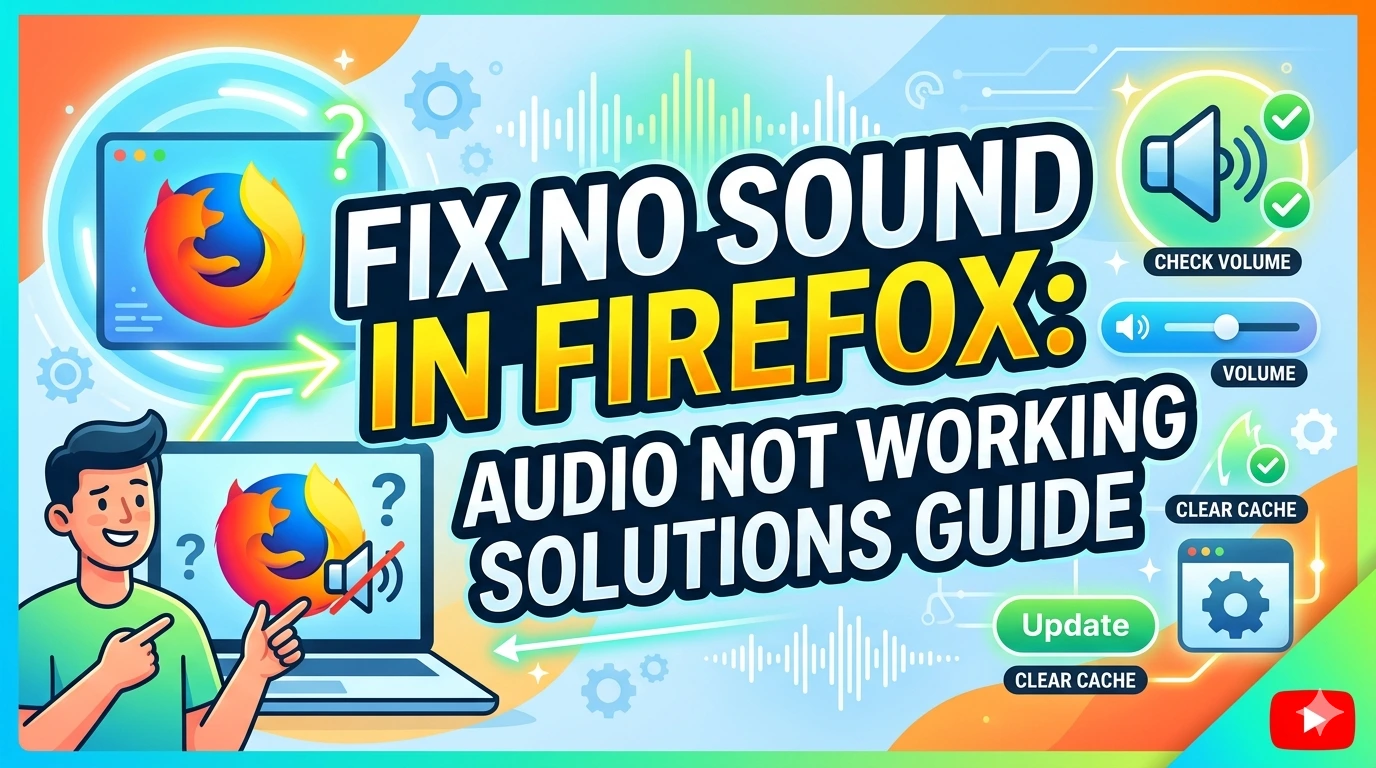
If you are facing fix no sound in Firefox issues, you are not alone. Many users experience situations where audio suddenly stops working while browsing, even though sound works in other applications on Microsoft Windows.
This problem can be caused by browser misconfiguration, system audio settings, outdated drivers, or conflicting extensions inside Mozilla Firefox.
In this complete guide, you will learn how to fix no sound in Firefox using simple and advanced troubleshooting methods. Each solution is explained step by step so you can restore audio quickly and permanently.
👉 Browser Issues Fixes: Chrome, Edge, Firefox
What Causes No Sound in Firefox?
No sound in Firefox can happen for several reasons, ranging from simple settings mistakes to deeper system or software conflicts. This issue in Mozilla Firefox running on Microsoft Windows is usually not serious, but it can interrupt videos, music, and online meetings.
1. Muted Tab or Browser Volume
One of the most common causes is an accidentally muted tab or browser.
- The tab may be muted manually
- System volume mixer may have Firefox disabled
2. Incorrect Audio Output Device
Sound may be directed to the wrong device.
- Headphones not connected properly
- Speakers not selected as default output
3. Disabled Website Audio Permissions
Some websites may be blocked from playing sound.
- Firefox site permissions may restrict audio
- Security settings may prevent media playback
4. Outdated or Corrupted Browser Data
Old cache or cookies can interfere with audio playback.
- Corrupted temporary files
- Broken media settings inside the browser
5. Faulty Extensions or Add-ons
Some extensions can block or alter audio behavior.
- Ad blockers or privacy tools may interfere
- Conflicting media extensions
6. Outdated Firefox Version
Older versions may contain bugs affecting audio playback.
- Missing updates
- Compatibility issues with modern websites
7. System Audio Driver Issues
Drivers control how sound works on your system.
- Outdated or corrupted drivers
- Missing audio device drivers
8. Windows Audio Service Problems
Sometimes system services stop working properly.
- Audio service not running
- Temporary system glitches in Microsoft Windows
9. Malware or Security Restrictions
Malicious software can interfere with browser functions.
- Audio settings modified by malware
- System restrictions applied by security tools
10. Hardware or Device Issues
Sometimes the problem is not software-related.
- Faulty speakers or headphones
- Loose audio cables
- Broken audio ports
Summary
No sound in Firefox is usually caused by simple configuration issues like muted tabs, blocked permissions, or outdated settings. In some cases, it may involve system-level problems or driver conflicts. Identifying the root cause is the first step to restoring proper audio playback in Mozilla Firefox.
How to Fix No Sound in Firefox (Step-by-Step Guide)
If you are experiencing no sound in Firefox, the issue is usually caused by simple configuration errors, browser settings, or system audio problems. Follow these step-by-step solutions to restore audio in Mozilla Firefox on Microsoft Windows.
Step 1: Check Tab and System Volume
A muted tab or system setting is the most common cause.
- Right-click the tab and check if it is muted
- Open Volume Mixer in Windows
- Ensure Firefox is not muted
Step 2: Restart Firefox and Your PC
Restarting clears temporary glitches.
- Close Firefox completely
- Restart your computer
- Reopen Firefox and test audio
Step 3: Check Website Audio Controls
Some websites control their own sound settings.
- Make sure video player is not muted
- Increase volume inside the media player
- Refresh the page
Step 4: Allow Audio Permissions
Firefox may block sound for certain websites.
- Click the lock icon in the address bar
- Open Permissions settings
- Enable “Play Sound”
Step 5: Clear Cache and Cookies
Corrupted browser data can break audio playback.
- Go to Settings → Privacy & Security
- Clear Cache and Cookies
- Restart Firefox
Step 6: Disable Extensions
Some add-ons interfere with audio.
- Open Add-ons Manager
- Disable all extensions
- Re-enable them one by one
Step 7: Update Firefox
Outdated versions may contain audio bugs.
- Go to Menu → Help → About Firefox
- Install available updates
Step 8: Check Windows Sound Settings
System settings may block audio output.
- Open Sound Settings in Microsoft Windows
- Select correct output device
- Test system sound
Step 9: Update Audio Drivers
Drivers are essential for sound functionality.
- Open Device Manager
- Update sound drivers
- Restart PC after updating
Step 10: Reset Firefox (Advanced Fix)
If nothing works, reset the browser.
- Go to Help → Troubleshooting Information
- Click “Refresh Firefox”
Step 11: Scan for Malware
Malware can interfere with audio playback.
Use Microsoft Defender Antivirus to perform a full system scan and remove threats.
Step 12: Reinstall Firefox (Last Option)
If the issue persists:
- Uninstall Firefox
- Download latest version from official site
- Reinstall clean copy
Tips:
Most no sound in Firefox issues are caused by simple settings or extensions. By following these steps carefully, you can quickly restore audio and improve browsing experience in Mozilla Firefox.
Advanced Troubleshooting for No Sound in Firefox
If basic fixes do not restore audio, the issue may be deeper and related to system configuration, drivers, or conflicts in Mozilla Firefox running on Microsoft Windows. These advanced methods help isolate and resolve persistent sound problems.
1. Check Windows Audio Service
Sometimes system audio services stop working or fail to restart properly.
Steps:
- Press
Windows + R - Type
services.mscand press Enter - Find Windows Audio
- Right-click and select Restart
This restores core audio functionality at the system level.
2. Verify Audio Output at System Level
Firefox may be working correctly, but output is routed incorrectly.
Steps:
- Open Sound Settings
- Select correct playback device
- Click Test to confirm sound output
3. Disable Exclusive Mode for Audio Devices
Some applications take full control of audio devices, blocking browser sound.
Steps:
- Open Sound Control Panel
- Select your playback device
- Go to Properties → Advanced
- Uncheck Allow applications to take exclusive control
4. Update or Reinstall Audio Drivers
Outdated or corrupted drivers are a common cause of missing sound.
Steps:
- Open Device Manager
- Expand Sound, video and game controllers
- Update or uninstall and reinstall drivers
You can also download official drivers from your hardware manufacturer or check updates via the Microsoft Update Guide.
5. Test Firefox in Safe Mode
Safe Mode disables extensions and custom settings.
Steps:
- Open Firefox menu
- Go to Help → Troubleshoot Mode
- Restart Firefox in Safe Mode
- Test audio playback
If sound works, an extension or setting is causing the issue.
6. Create a New Firefox Profile
A corrupted profile can break audio playback.
Steps:
- Type
about:profilesin address bar - Create a new profile
- Launch Firefox using the new profile
7. Check for Conflicting Software
Other applications may interfere with audio output.
- Disable third-party audio tools
- Close media players or communication apps
- Test Firefox again
8. Reinstall Firefox Cleanly
If all else fails, perform a clean reinstall.
- Uninstall Firefox completely
- Delete leftover profile folders
- Install the latest version
9. Scan for Malware or System Issues
Malware can disrupt system audio behavior.
Use Microsoft Defender Antivirus to run a full system scan and remove any detected threats.
Note:
Advanced no sound in Firefox issues are usually caused by system-level audio conflicts, corrupted profiles, or driver problems. Using these deeper troubleshooting steps helps restore stable audio performance in Mozilla Firefox and ensures consistent sound playback across your system.
How to Prevent No Sound in Firefox
Preventing no sound in Firefox is easier than fixing it after it happens. Most audio issues in Mozilla Firefox on Microsoft Windows come from outdated software, misconfigured settings, or system conflicts. With regular maintenance, you can avoid most of these problems.
Keep Firefox Updated
Outdated browser versions may contain bugs that affect audio playback.
- Enable automatic updates
- Check for updates regularly in Firefox settings
Maintain Windows Audio System
System-level audio issues often affect browser sound.
- Ensure correct playback device is selected
- Restart audio services if needed
- Keep system sound drivers updated
Avoid Excessive Extensions
Too many extensions can interfere with media playback.
- Install only trusted add-ons
- Remove unused extensions
- Disable suspicious extensions immediately
Clear Cache Periodically
Corrupted cache files can disrupt audio performance.
- Clear browsing data every few weeks
- Restart Firefox after clearing cache
Use Trusted Security Protection
Malware can silently affect browser audio behavior.
Use Microsoft Defender Antivirus to regularly scan your system and remove threats.
Keep Audio Drivers Updated
Outdated drivers are a common cause of sound issues.
- Update via Device Manager
- Or install official drivers from your hardware manufacturer
- Check system updates via the Microsoft Update Guide
Avoid Conflicting Audio Applications
Other software may take control of audio output.
- Close unnecessary media or voice apps
- Avoid running multiple audio-heavy programs simultaneously
Use Stable Browser Settings
Incorrect settings can disable or block sound.
- Avoid changing advanced settings without understanding them
- Reset Firefox if performance becomes unstable
Tips:
Most no sound in Firefox problems can be prevented with simple habits like updating software, managing extensions, and maintaining system health. A well-maintained system ensures stable audio performance in Mozilla Firefox and a smoother browsing experience overall.
Benefits of Fixing No Sound in Firefox
Fixing no sound in Firefox restores full media functionality and improves overall browsing experience in Mozilla Firefox running on Microsoft Windows. Audio issues may seem minor, but resolving them brings several important benefits.
1. Full Multimedia Experience
Restoring sound allows you to properly enjoy videos, music, webinars, and online courses without interruptions.
2. Improved Productivity
Many users rely on audio for meetings, tutorials, and work-related content. Fixing sound ensures you don’t miss important information.
3. Better Online Communication
Audio is essential for video calls, voice chats, and conferencing tools. Fixing the issue improves communication clarity and reliability.
4. Enhanced Website Compatibility
Some websites rely heavily on audio cues. Fixing sound ensures all web content functions as intended.
5. Reduced User Frustration
No sound issues can be frustrating and confusing. Resolving them creates a smoother and more enjoyable browsing experience.
6. Early Detection of System Issues
Fixing audio problems can also help identify deeper system issues such as driver conflicts or malware affecting your PC.
7. Improved System Stability
When audio settings and drivers are correctly configured, overall system performance becomes more stable.
8. Better Security Awareness
Troubleshooting sound issues often involves scanning for malware using tools like Microsoft Defender Antivirus, which improves system security.
9. Prevents Future Audio Problems
Once fixed, properly configured settings reduce the chances of recurring sound issues in Firefox.
10. Optimized Browser Performance
A properly functioning audio system ensures Firefox runs smoothly without conflicts or interruptions.
Note:
Fixing no sound in Firefox not only restores audio but also improves productivity, stability, and overall browsing quality. With proper maintenance, you can ensure consistent performance in Mozilla Firefox and a better experience across all online activities.
Frequently Asked Questions (FAQ)
Why is there no sound in Firefox but other browsers work?
This usually happens due to browser settings, muted tabs, or blocked permissions in Mozilla Firefox, while system audio in Microsoft Windows remains functional.
How do I quickly fix no sound in Firefox?
Start by checking tab volume, unmuting Firefox in the volume mixer, and restarting the browser. These steps solve most basic audio issues.
Can extensions cause no sound in Firefox?
Yes, some extensions can interfere with media playback or block audio scripts on websites.
Does clearing cache fix Firefox sound issues?
Yes, corrupted cache or cookies can affect media playback, and clearing them often restores sound.
Why does YouTube have no sound in Firefox?
It may be caused by muted tabs, incorrect site permissions, or browser cache issues.
Can outdated drivers cause no sound in Firefox?
Yes, audio driver issues in Microsoft Windows can prevent browsers from playing sound correctly.
Is Firefox Safe Mode useful for fixing sound problems?
Yes, Safe Mode disables extensions and helps identify whether an add-on is causing the issue.
Do Windows updates affect Firefox audio?
Yes, system updates can improve or sometimes temporarily affect audio performance, which can be fixed by updating drivers or settings.
Can malware affect sound in Firefox?
Yes, malware can interfere with system audio or browser behavior. Scanning with Microsoft Defender Antivirus is recommended.
Should I reinstall Firefox to fix no sound issues?
Reinstallation is a last resort, but it can fix corrupted files if other troubleshooting methods fail.
Conclusion
Fixing no sound in Firefox is usually straightforward once you identify the root cause. Most issues come from simple problems such as muted tabs, incorrect permissions, outdated drivers, or conflicting extensions in Mozilla Firefox running on Microsoft Windows.
By following systematic troubleshooting steps—starting from basic checks like volume settings to advanced solutions such as driver updates and Safe Mode testing—you can restore audio without needing complex repairs.
Regular maintenance also plays an important role. Keeping your browser updated, managing extensions carefully, and using security tools like Microsoft Defender Antivirus helps prevent future audio issues.
With the right approach, you can ensure stable sound performance, smoother browsing, and a better overall experience in Firefox.