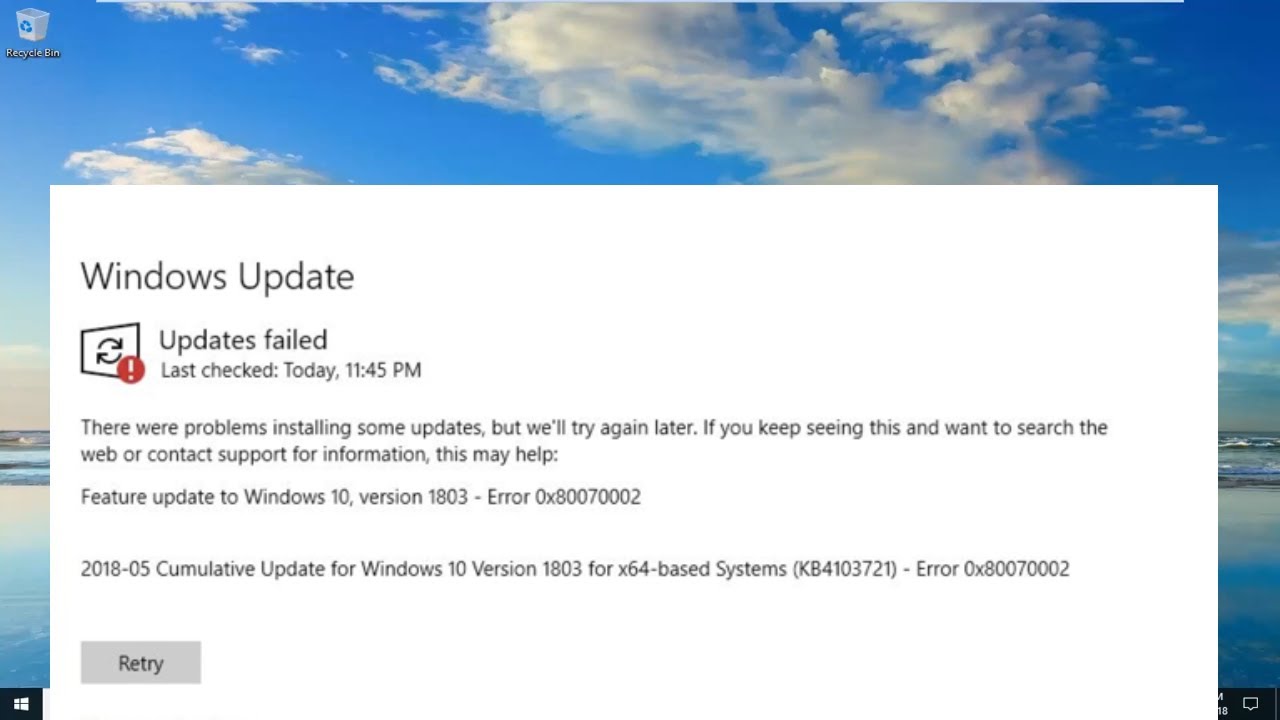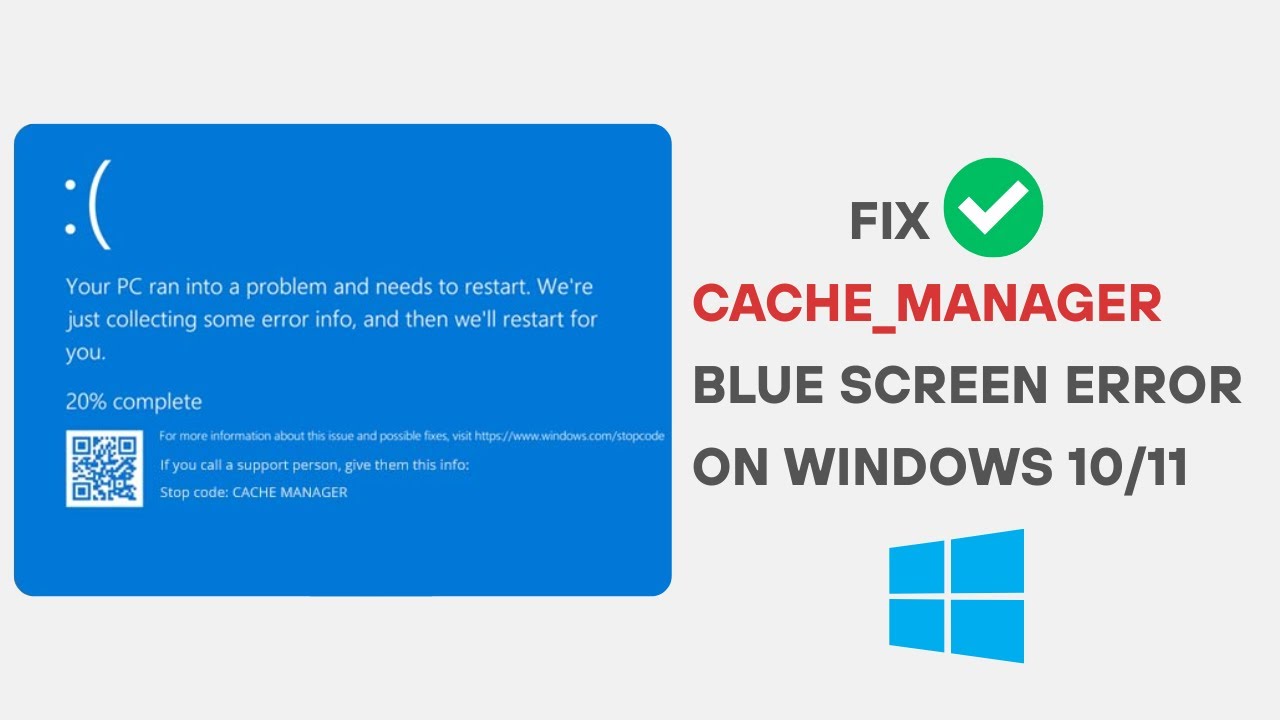



The fix Windows 11 black screen after login issue is one of the most frustrating problems users can face. You enter your password, Windows appears to load, and then the screen turns completely black with or without a cursor. This issue can be caused by corrupted system files, display driver problems, Windows Explorer failure, or even recent updates.
If you are stuck with a black screen after logging into Windows 11, don’t worry. This guide provides step-by-step solutions to help you restore your desktop and fix the problem permanently.
What Causes Windows 11 Black Screen After Login
Understanding the root cause is the first step to fixing the issue effectively.
1. Graphics Driver Failure
Outdated or corrupted GPU drivers are the most common cause.
2. Windows Explorer Not Starting
If Explorer.exe fails, the desktop does not load.
3. Corrupted System Files
Damaged Windows files can prevent normal startup.
4. Recent Windows Update Bugs
Some updates may cause display issues.
5. Fast Startup Conflicts
Fast Startup may interfere with boot processes.
6. Malware or Virus Infection
Malicious software can disrupt system display.
7. External Device Conflicts
USB devices or monitors can cause display errors.
Fix Windows 11 Black Screen After Login (Step-by-Step Solutions)
Below are the most effective fixes you can try.
1. Restart Windows Explorer
This is the quickest fix.
Steps:
- Press Ctrl + Shift + Esc
- Open Task Manager
- Find Windows Explorer
- Right-click → Restart
If it is not visible:
- Click File → Run new task
- Type:
explorer.exe
2. Boot into Safe Mode
Safe Mode helps isolate the issue.
Steps:
- Restart PC
- Press F8 or use recovery mode
- Select Safe Mode with Networking
More details:
👉 https://support.microsoft.com/windows/start-your-pc-in-safe-mode
3. Update Graphics Drivers
Driver issues are a major cause of black screen problems.
Steps:
- Open Device Manager
- Expand Display Adapters
- Update GPU driver
You can also download drivers from:
- NVIDIA: https://www.nvidia.com/Download/index.aspx
- AMD: https://www.amd.com/en/support
- Intel: https://www.intel.com/content/www/us/en/download-center/home.html
4. Uninstall Recent Updates
If the issue started after an update:
Steps:
- Go to Settings
- Windows Update → Update History
- Uninstall latest update
5. Disable Fast Startup
Fast Startup may cause boot conflicts.
Steps:
- Open Control Panel
- Power Options
- Choose what power buttons do
- Disable Fast Startup
6. Run System File Checker (SFC)
Fix corrupted system files.
Command:
sfc /scannow
7. Run DISM Tool
Repair Windows image.
Command:
DISM /Online /Cleanup-Image /RestoreHealth
8. Disconnect External Devices
Remove:
- USB drives
- External monitors
- Printers
Then restart your PC.
9. Check Display Output Settings
Sometimes Windows switches display mode.
Try:
- Win + P
- Select PC screen only
10. Disable App Readiness Service
This service can delay login display.
Steps:
- Open Services
- Find App Readiness
- Disable it temporarily
11. Perform Clean Boot
Eliminate software conflicts.
Steps:
- Run msconfig
- Disable non-Microsoft services
- Restart PC
12. Run Antivirus Scan
Malware may cause black screens.
Use Windows Defender or trusted tools:
👉 https://www.microsoft.com/en-us/windows/comprehensive-security
13. System Restore
Restore system to earlier state.
Steps:
- Search System Restore
- Choose restore point
- Restore system
14. Reset Display Driver
Shortcut method:
- Press Win + Ctrl + Shift + B
This refreshes GPU driver instantly.
15. Reset Windows (Last Option)
If nothing works:
- Go to Settings
- Recovery → Reset this PC
Advanced Fix for Persistent Black Screen
Check GPU Hardware
- Try another monitor
- Test GPU on another system
BIOS Reset
- Reset BIOS settings to default
Preventing Windows 11 Black Screen After Login
To avoid future issues:
- Keep drivers updated
- Install Windows updates carefully
- Avoid forced shutdowns
- Use stable GPU drivers
- Regularly scan for malware
Real-World Example
A user installs a Windows update and suddenly faces a black screen after login. By booting into Safe Mode and uninstalling the update, the system returns to normal.
Key Insight
The Windows 11 black screen after login issue is usually caused by driver failure or Windows Explorer malfunction. In most cases, it is not a hardware failure but a recoverable software problem.
Frequently Asked Questions
Why does Windows 11 show a black screen after login?
It is usually caused by driver issues, system file corruption, or update errors.
Can I fix black screen without reinstalling Windows?
Yes, most issues can be fixed using Safe Mode and driver updates.
Is black screen a serious problem?
It looks serious but is usually fixable with software troubleshooting.
Conclusion
The fix Windows 11 black screen after login issue can be stressful, but it is highly solvable with the right steps. From restarting Windows Explorer to updating graphics drivers and using Safe Mode, these solutions cover all possible causes.
By following this guide, you can restore your desktop quickly, prevent data loss, and ensure stable system performance.
Keeping your system updated, maintaining drivers, and avoiding unstable updates are key to preventing future black screen issues in Windows 11.