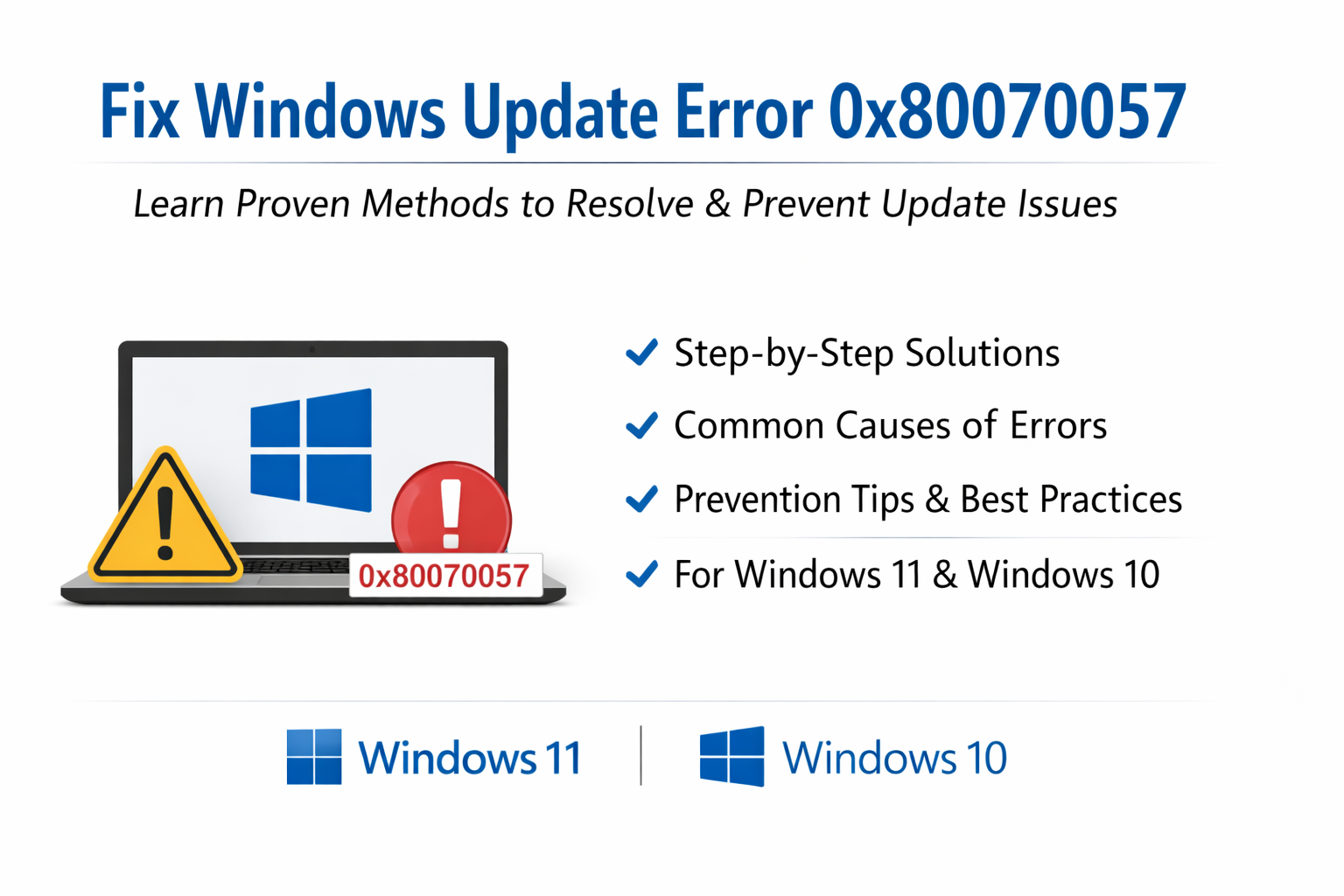
Windows Update Errors are among the most common issues faced by users of Windows 11 and Windows 10. These errors can prevent important security patches, feature updates, and bug fixes from installing properly—putting your system at risk.
In this comprehensive guide, you’ll learn everything about Windows Update Errors, including their causes, step-by-step fixes, and how to prevent them in the future.
What Are Windows Update Errors?
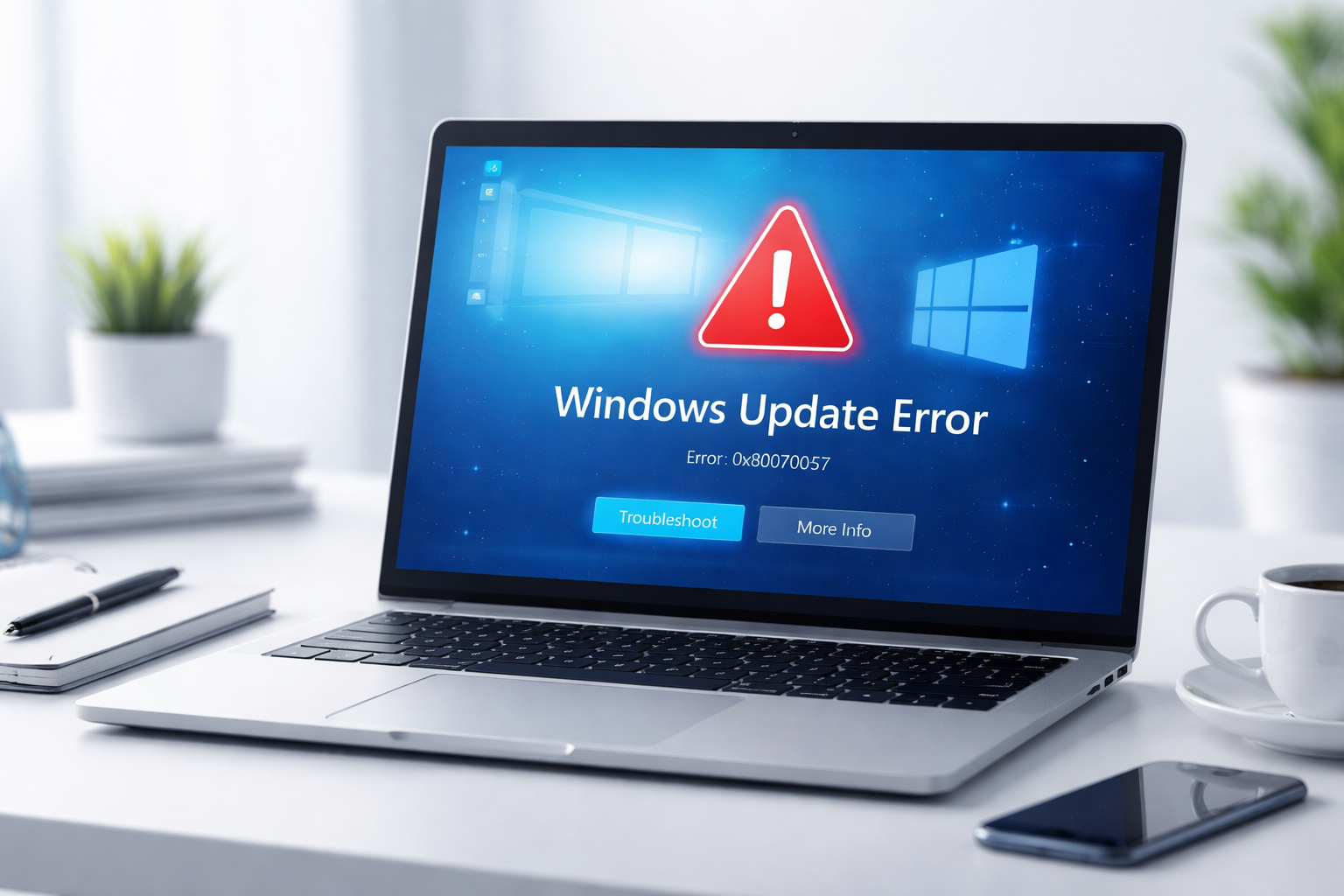
Windows Update Errors occur when the system fails to download, install, or verify updates. These errors typically appear with codes such as:
- 0x80070057
- 0x80070002
- 0x8024402F
- 0x800f0922
They can happen due to software conflicts, corrupted files, or incorrect system configurations.
For official troubleshooting steps, visit Microsoft Windows Update Support.
Common Causes of Windows Update Errors
Identifying the root cause is essential for resolving update issues effectively, as it allows you to apply the right solution, avoid repeated errors, and ensure your system updates smoothly and reliably.
1. Corrupted System Files
Corrupted or damaged system files can disrupt the update process, preventing proper installation and causing verification errors or failed updates.
2. Internet Connection Problems
Poor or unstable internet connections can disrupt downloads, causing updates to fail, pause, or become corrupted during the installation process.
3. Insufficient Disk Space
Insufficient disk space can block updates from downloading or installing, leading to errors or incomplete installations that affect system performance.
4. Misconfigured System Settings
Incorrect system settings, such as wrong date, time, or region, can interfere with update validation and prevent updates from installing correctly.
5. Software Conflicts
Conflicts with third-party antivirus or firewall software can block update processes, preventing downloads or installations from completing successfully.
6. Windows Update Service Issues
Problems with Windows Update services, such as being disabled or malfunctioning, can stop updates from downloading or installing successfully.
How to Fix Windows Update Errors (Step-by-Step)
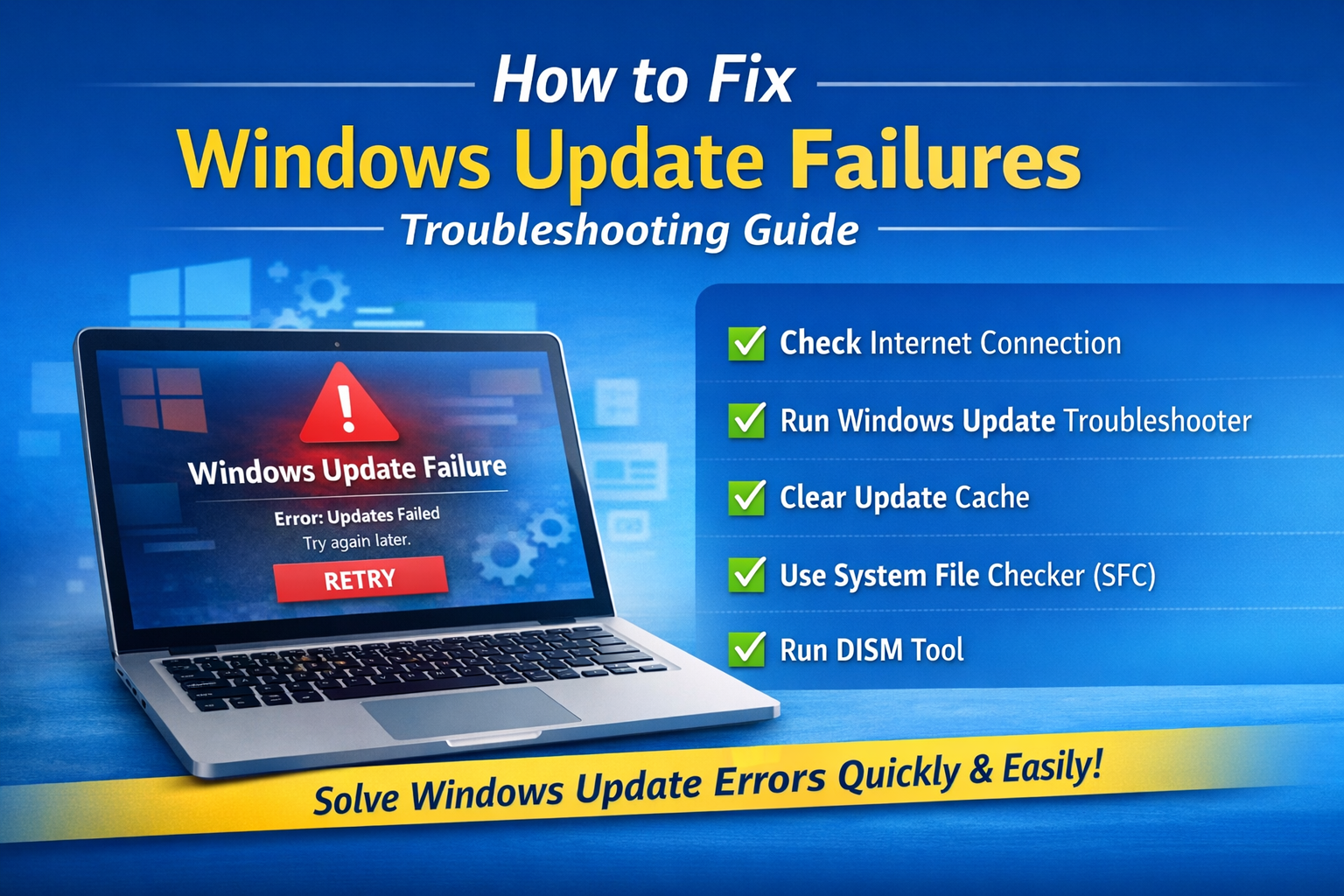
Below are proven and effective solutions to fix most Windows Update Errors. These step-by-step methods address common causes like corrupted files, service issues, and configuration problems, helping restore smooth update functionality and ensuring your system stays secure and up to date.
1. Run Windows Update Troubleshooter
Run the built-in Windows Update Troubleshooter, which automatically detects common issues and applies fixes to restore proper update functionality quickly and efficiently.
Steps:
- Go to Settings
- Click System → Troubleshoot
- Select Other troubleshooters
- Run Windows Update
2. Restart Windows Update Services
Restart Windows Update services to resolve glitches, as resetting them can clear temporary issues and restore proper update functionality.
Steps:
- Open Command Prompt as Administrator
- Run the following commands:
net stop wuauserv
net stop bits
net start wuauserv
net start bits
3. Clear Windows Update Cache
Clear the Windows Update cache to remove corrupted files, as damaged data can cause repeated update failures and prevent successful installations.
Steps:
- Stop Windows Update service
- Navigate to:
C:\Windows\SoftwareDistribution - Delete all files
- Restart the service
4. Run SFC and DISM Scans
Run SFC and DISM scans to repair corrupted system files, helping restore system integrity and fix issues that may prevent updates from installing properly.
Commands:
sfc /scannow
DISM /Online /Cleanup-Image /RestoreHealth
5. Check Disk Space
Check available disk space and ensure at least 10–20 GB is free, as insufficient storage can prevent updates from downloading and installing properly.
6. Disable Antivirus Temporarily
Temporarily disable third-party antivirus software, as it may block update processes. After disabling, try running Windows Update again to see if the issue is resolved.
7. Perform a Clean Boot
A clean boot removes software conflicts.
Steps:
- Press Windows + R
- Type
msconfig - Disable non-Microsoft services
- Restart PC
8. Update Drivers
Update your device drivers regularly, as outdated or incompatible drivers can lead to conflicts and prevent updates from installing successfully.
Use Device Manager or download updates from your manufacturer’s website.
9. Manually Install Updates
Download updates directly from the Microsoft Update Catalog:
Microsoft Update Catalog
10. Use Windows Media Creation Tool
If all else fails, repair Windows using the official tool:
Windows Media Creation Tool
Advanced Fixes for Persistent Windows Update Errors
When Windows Update keeps failing repeatedly, the issue is usually not temporary—it often involves corrupted update components, system file damage, or misconfigured services in Windows Update. The following advanced methods are designed to fully reset and repair the update system.
Reset Windows Update Components
Reset Windows Update Components rebuilds update services and clears corrupted cache, fixing stuck or failed Windows updates effectively.
Modify Registry Settings
Modify Registry Settings carefully to fix update errors; wrong entries can break Windows Update, so always back up registry before changes.
Check Group Policy Settings
Check Group Policy Settings to ensure Windows Update isn’t disabled or restricted by policies that may block installation or downloads.
How to Prevent Windows Update Errors
Preventing Windows Update errors is easier than fixing them by keeping system updated, maintaining disk space, and avoiding misconfigurations.
1. Keep Your System Updated
Keep Your System Updated by installing updates regularly to prevent backlog, reduce errors, and maintain system stability and security.
2. Maintain Disk Health
Maintain Disk Health by regularly scanning for bad sectors and file system errors to prevent Windows Update failures and system instability.
3. Use Reliable Antivirus Software
Use Reliable Antivirus Software that doesn’t interfere with system processes, since overly aggressive tools can block Windows Update and cause errors.
4. Avoid Interrupting Updates
Avoid Interrupting Updates by not shutting down or restarting during installation, as this can corrupt files and trigger Windows Update errors.
5. Backup Your Data
Backup Your Data before major updates to protect files from unexpected errors, corruption, or failed Windows Update installations.
Best Practices for Smooth Windows Updates
- Use a stable internet connection
- Schedule updates during idle hours
- Keep drivers updated
- Monitor system performance
Frequently Asked Questions (FAQs)
1. What causes Windows Update Errors?
They are usually caused by corrupted files, network issues, or software conflicts.
2. Can I ignore Windows Update Errors?
No. Ignoring them can expose your system to security vulnerabilities.
3. How long does it take to fix Windows Update Errors?
Most issues can be resolved within 10–30 minutes using basic troubleshooting steps.
4. Are Windows Update Errors dangerous?
Not directly, but they can leave your system unprotected.
5. Do I need to reinstall Windows to fix update errors?
Only in extreme cases. Most problems can be fixed using built-in tools.
Conclusion
Windows Update Errors can be frustrating, but they are usually easy to fix with the right approach. By understanding their causes and applying the solutions outlined in this guide, you can restore your system’s update functionality quickly.
Regular maintenance, proper system configuration, and proactive troubleshooting will help you avoid these issues in the future—keeping your PC secure, stable, and up to date.