Google Chrome is designed to be fast and efficient, but over time it can slow down due to heavy usage, background processes, extensions, and system limitations in Microsoft Windows. For users who want more control over performance, Chrome offers a hidden set of advanced settings called Chrome Flags.
Chrome Flags are experimental features that allow users to optimize browsing speed, improve rendering performance, and reduce resource usage. While they are not enabled by default, many of them can significantly enhance browsing efficiency when used correctly.
In this guide, you will learn the best Chrome Flags for faster browsing, how they work, and how to enable them safely for better performance in Google Chrome.
👉 Browser Issues Fixes: Chrome, Edge, Firefox
What Are Chrome Flags?
Chrome Flags are experimental features hidden inside Google Chrome that allow users to test advanced settings before they become part of the standard browser experience. These features are designed for developers and advanced users who want to improve performance, speed, and functionality.
You can access Chrome Flags by typing chrome://flags in the address bar. From there, you can enable or disable various experimental options that may enhance browsing speed, reduce memory usage, or improve rendering performance.
Some Chrome Flags focus on speeding up page loading, while others optimize how the browser uses system resources in Microsoft Windows. However, since these features are still in testing, they may sometimes cause instability or unexpected behavior.
In simple terms, Chrome Flags are hidden performance and customization tools that let you fine-tune how Chrome works before features are officially released.
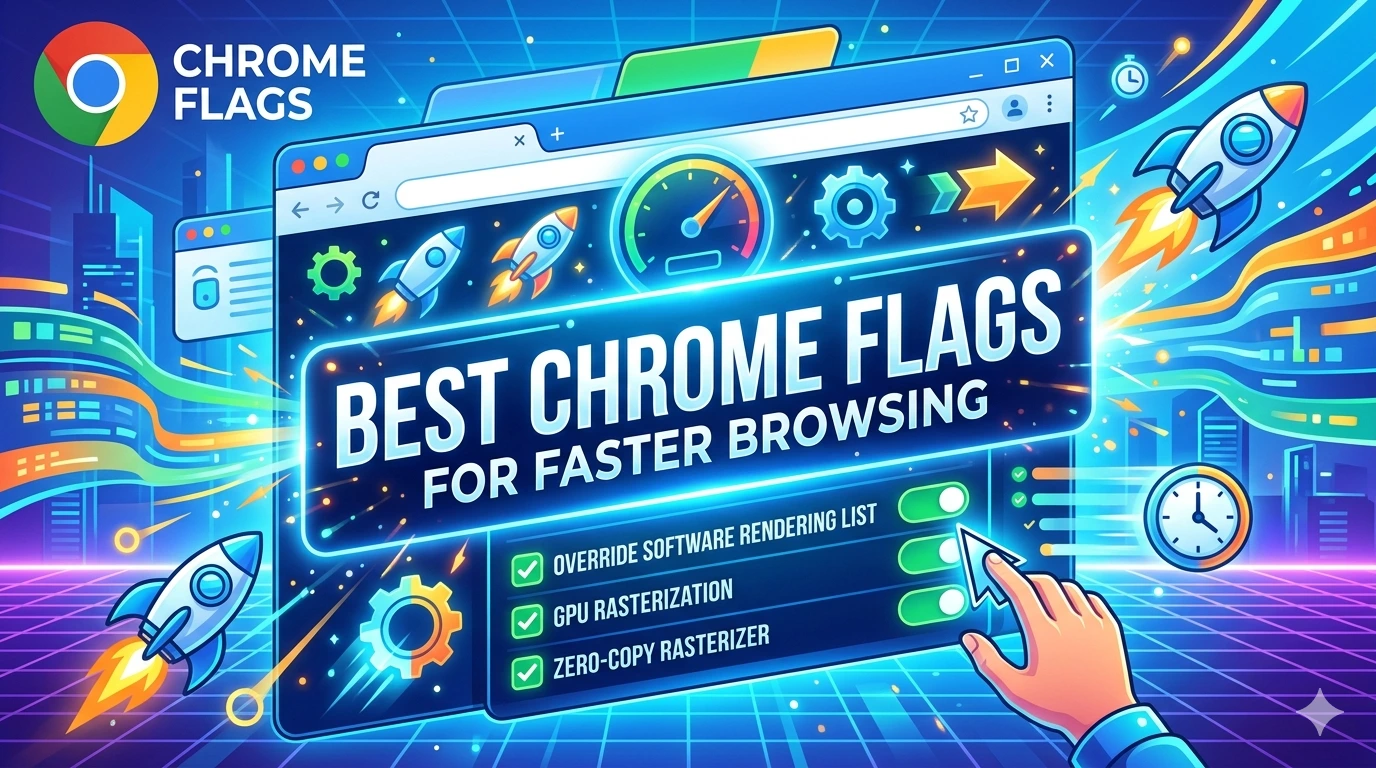
Best Chrome Flags for Faster Browsing
Chrome Flags are experimental settings in Google Chrome that can significantly improve speed, reduce lag, and optimize performance when used correctly in Microsoft Windows. Below are the most effective Chrome Flags for faster browsing.
Parallel Downloading
Speeds up file downloads by splitting them into multiple connections, allowing Chrome to download faster and more efficiently.
GPU Rasterization
Forces Chrome to use your GPU instead of CPU for rendering web pages, improving page load speed and reducing system strain.
Override Software Rendering List
Enables GPU acceleration even on systems where it is normally disabled, improving graphics and browsing performance.
Zero-Copy Rasterizer
Reduces memory usage during page rendering, which can improve performance on lower-end systems.
Back-Forward Cache
Stores recently visited pages in memory so they load instantly when you go back or forward between pages.
Tab Groups Collapse Freezing
Automatically suspends inactive tabs, freeing up RAM and improving overall browser speed.
Fast Tab/Window Close
Reduces delay when closing tabs or browser windows, making Chrome feel more responsive.
Enable QUIC Protocol
Improves connection speed by reducing latency during data transfer between browser and websites.
Smooth Scrolling
Enhances scrolling performance, making page navigation feel faster and more fluid.
Lazy Image Loading
Loads images only when they are needed, reducing initial page load time and improving browsing speed.
Tips:
Chrome Flags can noticeably improve browsing performance when used correctly, but they are experimental features. Always enable only the ones you need and monitor performance changes to avoid instability in Microsoft Windows.
How to Enable Chrome Flags Safely
Chrome Flags are experimental features in Google Chrome that can improve speed, performance, and functionality. However, because they are not fully tested, enabling them incorrectly may cause instability. Follow these safe steps to use them properly on Microsoft Windows.
Step 1: Open Chrome Flags Page
- Open Google Chrome
- Type
chrome://flagsin the address bar - Press Enter
This will open the hidden experimental features menu.
Step 2: Search for the Feature You Need
Use the search bar at the top of the page to find specific flags such as performance or speed improvements.
Step 3: Enable Only One Flag at a Time
- Select the flag you want
- Click the dropdown menu
- Choose “Enabled”
Avoid enabling multiple flags at once to prevent conflicts.
Step 4: Restart Your Browser
After enabling a flag, click the Relaunch button to apply changes safely.
Step 5: Monitor Browser Performance
Check if Chrome is faster or stable after enabling the flag. If issues occur, revert the setting.
Step 6: Reset Flags if Needed
If something goes wrong:
- Go to
chrome://flags - Click Reset all to default
- Restart Chrome
Safety Tips for Using Chrome Flags
- Only enable flags you understand
- Avoid experimental flags marked as unstable
- Keep Chrome updated regularly
- Disable flags if you notice crashes or slowdowns
Tips:
Chrome Flags can improve browsing speed and performance, but they should be used carefully. Always test one setting at a time and keep your browser updated for the best experience in Microsoft Windows.
How Chrome Flags Improve Browsing Speed
Chrome Flags are experimental features in Google Chrome that allow users to optimize how the browser handles loading, rendering, and system resources. When enabled correctly on Microsoft Windows, they can significantly improve browsing speed and responsiveness.
Faster Page Rendering
Some Chrome Flags enable GPU acceleration, allowing the graphics processor to handle page rendering instead of the CPU. This reduces load time and makes websites appear faster.
Reduced Memory Usage
Flags like tab freezing or memory optimization help suspend inactive tabs. This frees up RAM and prevents slowdowns when many tabs are open.
Improved Download Speed
Features such as parallel downloading split files into multiple connections, allowing Chrome to download content more quickly.
Lower Latency Connections
Experimental network protocols like QUIC reduce the time it takes to connect to websites, resulting in faster page loading.
Smoother Navigation
Back-forward cache stores recently visited pages in memory, allowing instant switching between pages without reloading.
Optimized Image Loading
Lazy loading ensures images are only loaded when needed, reducing initial page load time and improving speed on content-heavy websites.
Better Resource Management
Chrome Flags help balance CPU and GPU usage, preventing system overload and improving overall browser responsiveness.
Final Impact on Browsing Speed
When used correctly, Chrome Flags can:
- Reduce page load times
- Improve scrolling and navigation
- Lower memory consumption
- Enhance overall browser responsiveness
However, since these features are experimental, they should be enabled carefully to maintain stability in Microsoft Windows.
How to Prevent Browser Slowdowns
Browser slowdowns in Google Chrome, Microsoft Edge, and Mozilla Firefox often occur due to overloaded system resources, outdated software, or poor browsing habits. Preventing these issues helps maintain smooth performance on Microsoft Windows.
Keep Your Browser Updated
Outdated browsers can become slow and incompatible with modern websites.
- Enable automatic updates
- Regularly check version settings in Chrome, Edge, or Firefox
Limit Open Tabs
Too many open tabs consume memory and slow down performance.
- Close unused tabs
- Use bookmarks instead of keeping pages open
Manage Extensions Carefully
Extensions can significantly affect speed and stability.
- Remove unnecessary extensions
- Disable ones you rarely use
- Only install trusted add-ons
Clear Cache and Cookies Regularly
Old or corrupted data can slow down browsing.
- Clear browsing data every few weeks
- Restart browser after clearing cache
Use Lightweight Settings
Reduce resource usage by adjusting browser settings.
- Enable performance or efficiency modes
- Disable hardware-heavy features if needed
Scan for Malware
Malware can slow down or hijack browser activity.
- Use Microsoft Defender Antivirus for full system scans
- Remove any detected threats immediately
Monitor System Resources
High CPU or RAM usage can slow browsers.
- Use Task Manager to identify heavy processes
- Close background applications
Keep Your System Updated
System updates improve browser compatibility and stability. Check updates via the Microsoft Update Guide.
Avoid Heavy Websites Running Simultaneously
Streaming, gaming, and multiple media-heavy sites can overload your browser.
- Limit resource-intensive tabs
- Use one heavy application at a time
Tips:
Preventing browser slowdowns is about regular maintenance and smart usage. Keeping your browser clean, updated, and optimized ensures faster performance and a smoother experience in Microsoft Windows.
Frequently Asked Questions (FAQ)
Why is my browser getting slow over time?
Browsers slow down due to accumulated cache, too many extensions, outdated versions, or high memory usage in Microsoft Windows.
How do I make my browser faster again?
You can improve speed by clearing cache, disabling unused extensions, updating your browser, and closing unnecessary tabs.
Do extensions slow down browsers?
Yes, some extensions consume system resources and can reduce performance, especially if many are active at the same time.
Is clearing cache safe?
Yes, clearing cache and cookies is safe and often helps fix slow loading and display issues.
Can too many tabs slow down my computer?
Yes, each tab uses memory and CPU resources, which can slow down both the browser and the system.
Does malware affect browser speed?
Yes, malware can run background processes that slow down browsing. Using Microsoft Defender Antivirus helps prevent this.
Should I update my browser regularly?
Yes, updates improve performance, fix bugs, and enhance security.
Can browser settings affect speed?
Yes, enabling heavy features or misconfigured settings can reduce performance.
Do Chrome flags improve speed?
Some Chrome flags can improve speed, but they are experimental and should be used carefully in Google Chrome.
How often should I maintain my browser?
Basic maintenance like clearing cache and checking extensions should be done every few weeks for best performance.
Conclusion
Preventing browser slowdowns is mainly about consistent maintenance and smart usage habits. Most performance issues in Chrome, Edge, and Firefox can be avoided by keeping the browser updated, managing extensions, clearing cache regularly, and monitoring system resources in Microsoft Windows.
Security also plays an important role—using protection tools like Microsoft Defender Antivirus helps prevent malware that can silently reduce browser performance.
When combined with proper settings and regular optimization, these practices ensure faster loading, smoother navigation, and a more stable browsing experience across all modern web browsers, including Google Chrome.