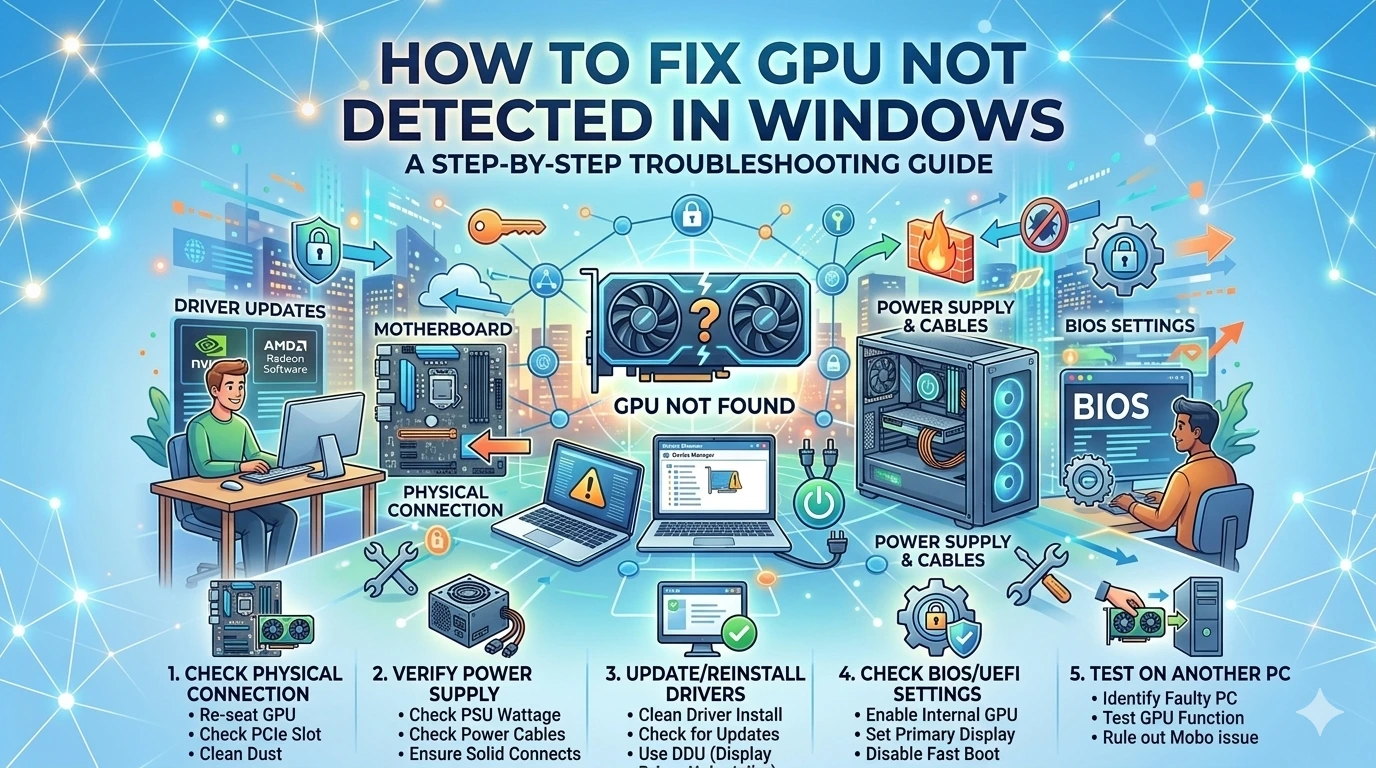
If your GPU not detected in Windows, your system may rely on integrated graphics, causing poor performance and display issues. This problem can affect gaming, video editing, and everyday tasks.
Fortunately, most GPU Not Detected issues in Microsoft Windows can be fixed with a few troubleshooting steps. This guide walks you through proven solutions.
Common Causes of GPU Not Detected in Windows
When your GPU not detected in Microsoft Windows, it is usually due to software conflicts, hardware issues, or incorrect system settings. Understanding the root causes can help you troubleshoot more effectively.
Outdated or Corrupted Drivers
Graphics drivers that are outdated, missing, or corrupted can prevent Windows from recognizing your GPU properly.
Disabled GPU in Device Manager
Sometimes the GPU is accidentally disabled in Device Manager, making it invisible to the system.
Incorrect BIOS/UEFI Settings
If the dedicated GPU is disabled or not prioritized in BIOS/UEFI, the system may only use integrated graphics.
Loose or Improper Hardware Installation
A poorly seated graphics card or loose power connectors can prevent the GPU from being detected, especially in desktop PCs.
Insufficient Power Supply
If your power supply unit (PSU) does not provide enough power, the GPU may fail to initialize or be recognized.
Faulty GPU or PCIe Slot
Hardware failure in the graphics card or motherboard slot can cause detection issues.
Windows Update Conflicts
Certain updates in Microsoft Windows may introduce compatibility issues with GPU drivers.
Missing or Hidden Device in Device Manager
Windows may hide the GPU due to driver errors or system conflicts, making it appear as if it is not detected.
Driver Conflicts or Incorrect Installation
Installing incompatible or multiple GPU drivers can cause conflicts that prevent proper detection.
BIOS Firmware Outdated
An outdated BIOS may not support newer GPUs, leading to compatibility and detection problems.
Identifying these common causes helps you choose the right troubleshooting steps and restore proper GPU functionality in your system.
How to Fix GPU Not Detected in Windows
If your GPU not detected in Microsoft Windows, your system may default to integrated graphics, resulting in poor performance. Follow these step-by-step solutions to fix the issue.
1. Restart Your Computer
A simple reboot can resolve temporary system glitches that prevent Windows from recognizing your GPU.
2. Check Device Manager
- Press Windows + X → Device Manager
- Expand Display adapters
- If your GPU appears disabled, right-click and select Enable device
3. Update or Reinstall GPU Drivers
Outdated or corrupted drivers are the most common cause.
- Download the latest drivers from NVIDIA or AMD
- Perform a clean installation
- Alternatively, update via Device Manager
You can also check updates through the Microsoft Security Update Guide.
4. Show Hidden Devices
- Open Device Manager
- Click View → Show hidden devices
- Check if your GPU appears in the list
5. Enable GPU in BIOS/UEFI
- Restart your PC and enter BIOS (DEL or F2)
- Locate graphics settings
- Set primary display to PCIe or dedicated GPU
6. Run Windows Update
- Go to Settings → Windows Update
- Install all available updates
- Restart your system
👉 Windows Update Errors Fix Guide
7. Check Hardware Connections (Desktop Users)
- Power off and unplug your PC
- Reseat the GPU in the PCIe slot
- Ensure all power connectors are firmly attached
8. Check Power Supply Unit (PSU)
Make sure your PSU provides sufficient wattage for your GPU. Insufficient power may prevent detection.
9. Reset BIOS Settings
Reset BIOS to default settings to fix incorrect configurations.
10. Use Windows Troubleshooter
Use official diagnostics from the Microsoft Support Page to identify issues.
If none of these steps work, test your GPU in another computer to determine whether the issue is hardware-related. Fixing GPU not detected problems usually involves a combination of driver updates, system configuration, and hardware checks.
Advanced Fixes for GPU Not Detected in Windows
If basic troubleshooting doesn’t resolve the issue, these advanced methods can help fix GPU not detected problems in Microsoft Windows.
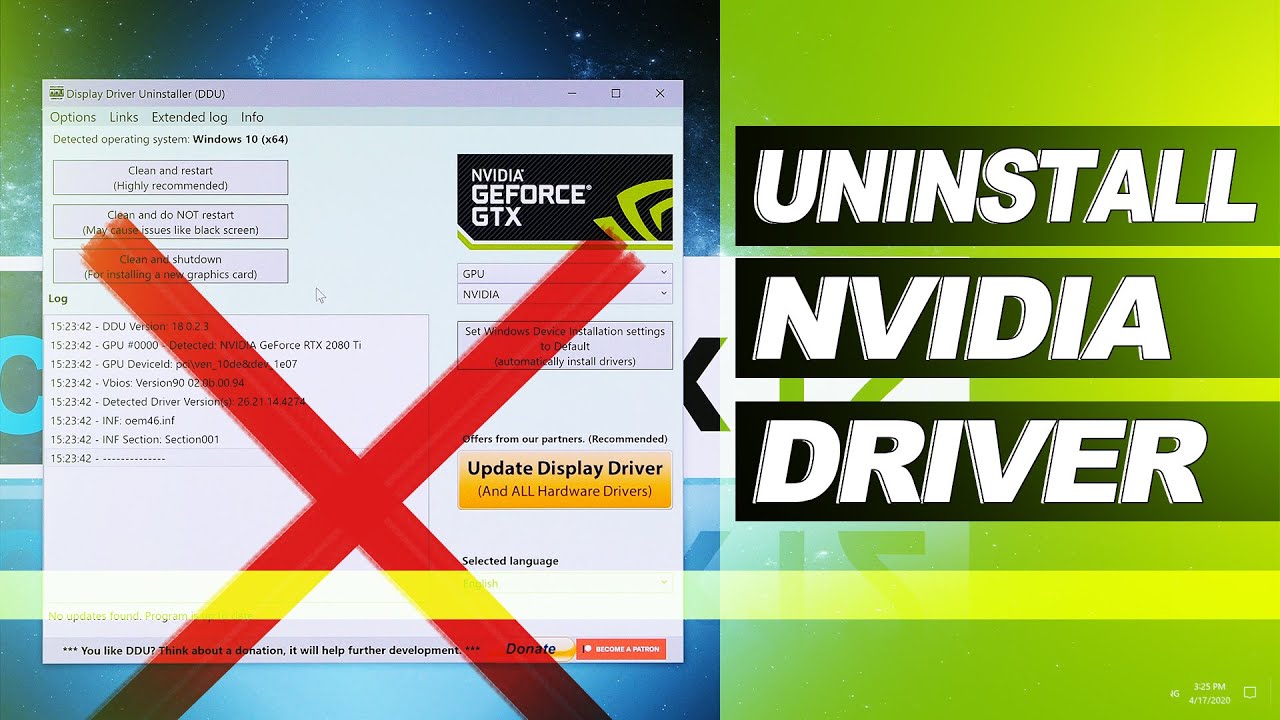
Perform a Clean Driver Reinstallation
Corrupted drivers are a common cause.
- Uninstall current drivers via Device Manager
- Use a cleanup tool (e.g., DDU) to remove leftover files
- Reinstall the latest drivers from NVIDIA or AMD
Update BIOS/UEFI Firmware
An outdated BIOS may not support your GPU properly.
- Visit your motherboard manufacturer’s website
- Download the latest BIOS update
- Follow official instructions carefully
Adjust PCIe Slot Settings
Incorrect PCIe configuration can prevent detection.
- Enter BIOS/UEFI
- Set PCIe as the primary display output
- Try a different PCIe slot if available
Disable Integrated Graphics
Integrated graphics can sometimes override the dedicated GPU.
- Access BIOS settings
- Disable integrated graphics (if your system allows it)
Check Power Delivery
Ensure your GPU receives enough power.
- Verify PSU wattage meets GPU requirements
- Confirm all PCIe power cables are securely connected
Test GPU on Another System
This helps determine whether the issue is hardware-related.
- If the GPU fails on another PC, it may be faulty
- If it works, the issue is likely your system configuration
Update Chipset Drivers
Outdated chipset drivers can affect how the motherboard communicates with the GPU.
- Download latest chipset drivers from your motherboard manufacturer
Reset BIOS to Default Settings
Incorrect BIOS configurations can block GPU not detected.
- Enter BIOS/UEFI
- Select “Load Default Settings” or similar option
Check for Hardware Conflicts
Disconnect unnecessary peripherals and expansion cards to rule out conflicts.
Reinstall Windows (Last Resort)
If all else fails, reinstalling Microsoft Windows can resolve deep system issues or driver conflicts.
Advanced fixes involve deeper system changes, so proceed carefully—especially when updating BIOS or handling hardware. If you are unsure, seeking professional assistance is recommended to avoid further complications.
How to Prevent GPU Not Detected Issues
Preventing GPU not detected problems in Microsoft Windows requires regular maintenance, proper hardware handling, and keeping your system up to date. Follow these best practices to avoid future issues.
Keep GPU Drivers Updated
Always install the latest graphics drivers from trusted sources like NVIDIA or AMD to ensure compatibility and stability.
Install Windows Updates Regularly
System updates fix bugs and improve hardware compatibility. Check updates via the Microsoft Security Update Guide.
Use a Reliable Power Supply
Ensure your PSU provides sufficient wattage for your GPU to prevent power-related detection issues.
Properly Install Hardware
Make sure the GPU is securely seated in the PCIe slot and all power connectors are firmly attached.
Avoid Driver Conflicts
Do not install multiple or incompatible GPU drivers. Remove old drivers before installing new ones.
Keep Your System Clean
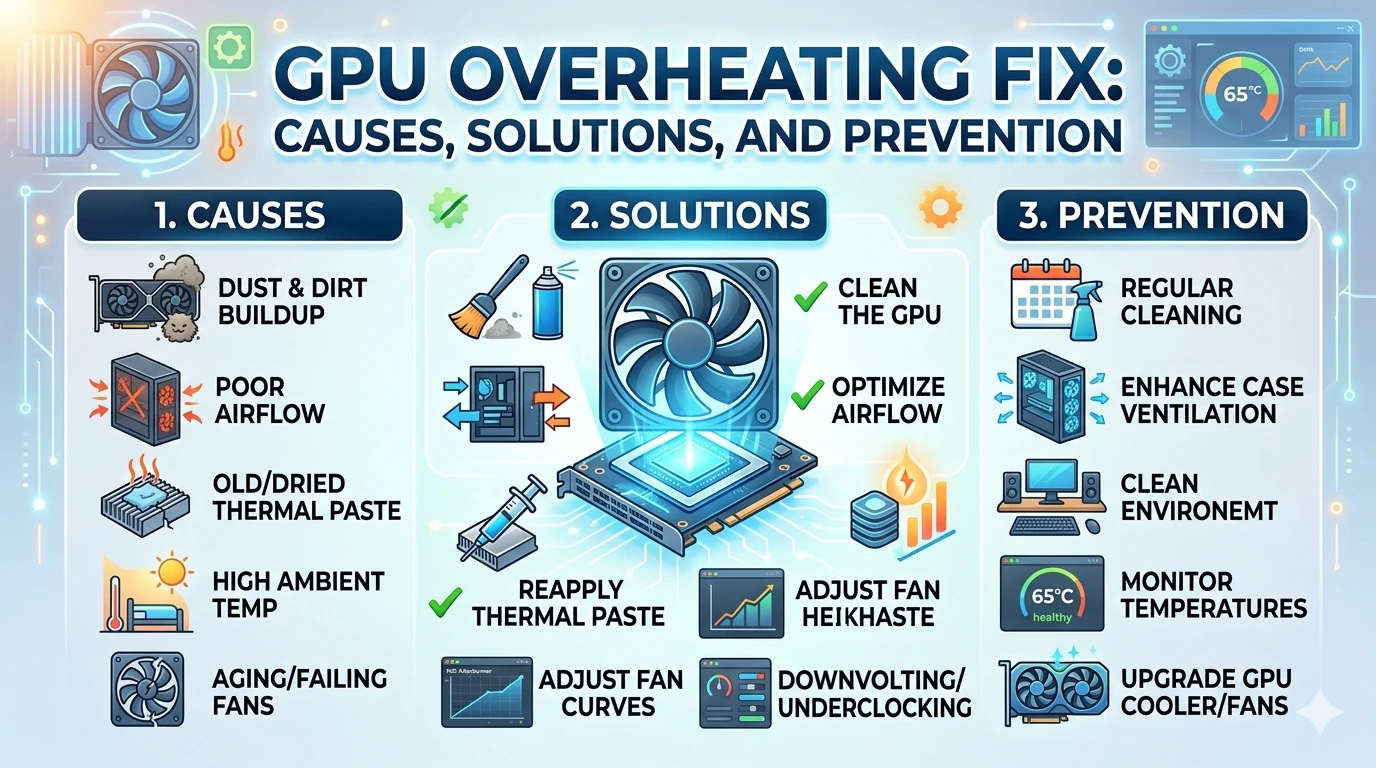
Dust buildup can cause overheating and hardware malfunction. Regularly clean your PC components.
Update BIOS/UEFI Firmware
Keeping BIOS up to date improves compatibility with newer GPUs and prevents detection problems.
Monitor System Health
Use monitoring tools to track GPU temperature and performance, helping detect issues early.
Avoid Sudden Shutdowns
Improper shutdowns can corrupt drivers or system files, leading to hardware detection issues.
Check Compatibility Before Upgrading
Ensure your GPU is compatible with your motherboard, PSU, and system requirements before installation.
Preventive maintenance is key to avoiding GPU not detected issues. By keeping your system updated, clean, and properly configured, you can ensure stable performance and long-term reliability.
Frequently Asked Questions (FAQ)
Why is my GPU not detected in Windows?
This usually happens due to outdated or corrupted drivers, disabled devices in Device Manager, incorrect BIOS settings, or hardware connection issues in Microsoft Windows.
How do I fix GPU not showing in Device Manager?
You can fix this by enabling hidden devices, reinstalling GPU drivers, updating Windows, or checking BIOS settings to ensure the GPU is enabled.
Can a faulty GPU cause detection issues?
Yes, a damaged or failing graphics card may not be recognized by the system. Testing the GPU in another computer can help confirm this.
Does updating drivers fix GPU detection problems?
In most cases, yes. Installing the latest drivers from NVIDIA or AMD can resolve compatibility and detection issues.
Can BIOS settings affect GPU detection?
Yes, incorrect BIOS/UEFI settings may disable the GPU or prioritize integrated graphics over the dedicated GPU.
Do I need to update BIOS to fix this issue?
Only if your current BIOS version is outdated or incompatible with your GPU. Always update BIOS carefully following official instructions.
Can power supply issues prevent GPU detection?
Yes, insufficient or unstable power from the PSU can stop the GPU from initializing properly.
Is reinstalling Windows necessary?
Reinstalling Microsoft Windows is usually a last resort when all other troubleshooting methods fail.
Why does my GPU disappear after a Windows update?
Some updates may cause driver conflicts. Reinstalling or updating drivers usually fixes the issue.
How can I prevent GPU detection issues in the future?
Keep drivers updated, install Windows updates regularly, ensure proper hardware installation, and maintain your system to avoid future problems.
Conclusion
Fixing a GPU not detected issue in Microsoft Windows requires a combination of software troubleshooting and hardware checks. From updating drivers and adjusting BIOS settings to verifying connections and power supply, most problems can be resolved with the right approach.
Using reliable drivers from NVIDIA or AMD and keeping your system up to date are key steps in maintaining proper GPU functionality.
By following the methods outlined in this guide and practicing regular system maintenance, you can prevent future GPU not detected issues and ensure smooth, optimal performance for gaming, design, and everyday use.