GPU overheating is a common issue that affects both gaming and professional systems, especially when running demanding applications for long periods. A graphics processing unit generates a significant amount of heat, and if it is not properly cooled, performance can drop and system stability may be affected in Microsoft Windows environments.
When a GPU exceeds safe temperature limits, it may throttle performance, display visual artifacts, or even cause unexpected shutdowns to protect the hardware. This not only reduces efficiency but can also shorten the lifespan of the graphics card.
👉 Windows Slow Performance Fix Guide
In this guide, you will learn the main causes of GPU overheating, how to fix it, and the best ways to prevent it from happening again.
What Is GPU Overheating?
GPU overheating occurs when a graphics processing unit (GPU) operates at temperatures higher than its safe or recommended range. This usually happens during heavy workloads such as gaming, video rendering, or running graphics-intensive applications in Microsoft Windows.
Most modern GPUs are designed to run safely under load between approximately 60°C and 85°C, depending on the model. When temperatures exceed safe limits, the system automatically reduces performance (thermal throttling) or may shut down to prevent permanent hardware damage.
Overheating can also lead to symptoms such as screen stuttering, visual glitches, unexpected crashes, or reduced frame rates. If left unresolved, it can shorten the lifespan of the GPU and affect overall system stability.
In simple terms, GPU overheating means your graphics card is getting too hot to operate efficiently and needs better cooling, reduced load, or maintenance to restore normal performance.
Common Causes of GPU Overheating
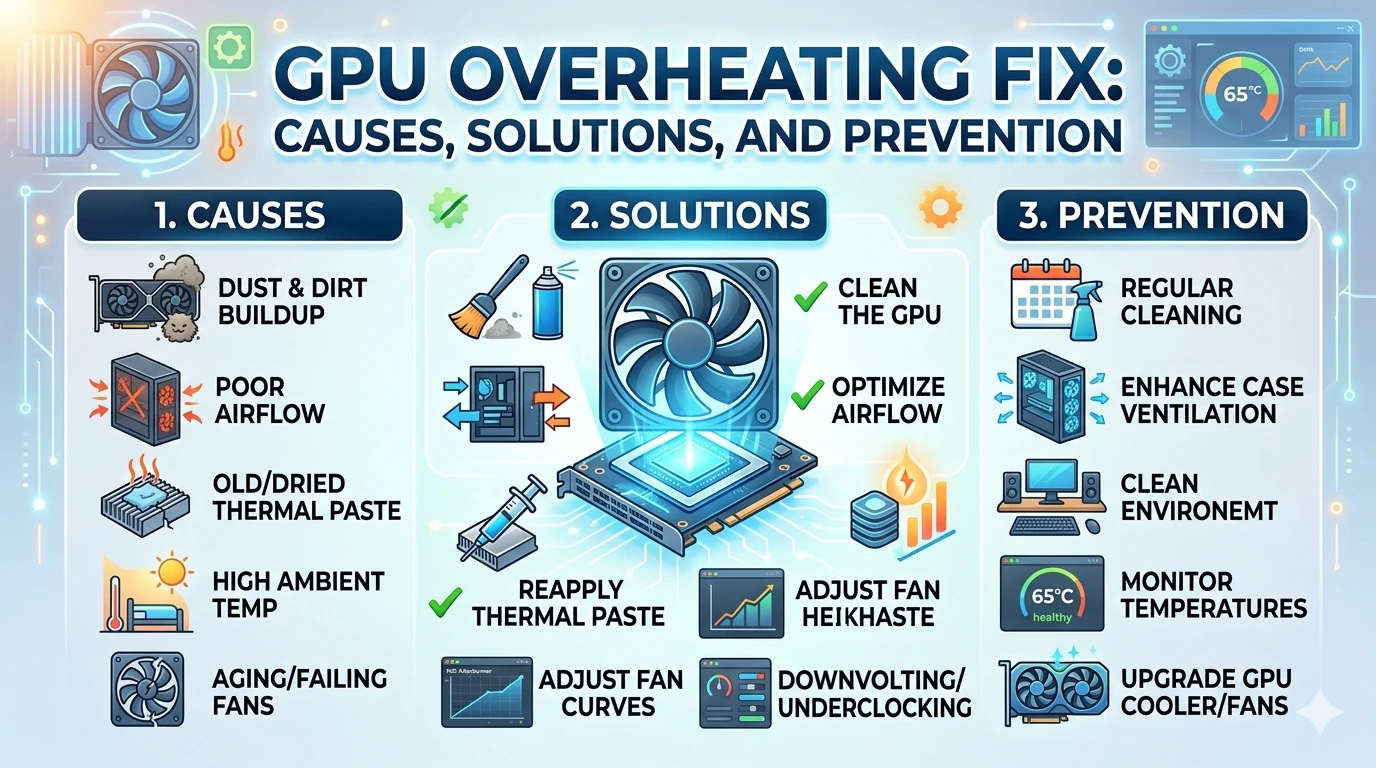
GPU overheating happens when the graphics card cannot properly dissipate heat during operation. This can reduce performance, cause crashes, and even damage hardware over time. Understanding the causes helps you fix the problem effectively in Microsoft Windows systems.
Dust Accumulation
Dust is one of the most common causes of overheating. It blocks airflow and clogs fans and heatsinks, reducing cooling efficiency.
Poor Airflow in PC Case
If your computer case has limited ventilation or poor fan placement, hot air gets trapped inside, increasing GPU temperatures.
High Graphics Workload
Running demanding games, 3D rendering software, or mining applications for long periods puts heavy stress on the GPU.
Faulty or Weak Cooling Fans
Damaged, slow, or non-functioning GPU fans cannot properly cool the graphics card, leading to rapid temperature rise.
Dried or Old Thermal Paste
Thermal paste helps transfer heat from the GPU chip to the heatsink. Over time, it dries out and becomes less effective.
Overclocking
Pushing the GPU beyond its factory settings increases power consumption and heat output, often leading to overheating if cooling is insufficient.
High Ambient Temperature
Using your PC in a hot environment reduces cooling efficiency and increases overall system temperature.
Background Processes
Unnecessary background applications can increase GPU usage, causing higher temperatures even when not gaming.
Poor Cable Management
Blocked airflow caused by messy internal cables can restrict ventilation inside the case.
Inefficient Cooling Design
Some older or low-end GPUs have weaker cooling systems that struggle under heavy load.
Identifying these causes is the first step toward fixing GPU overheating issues and maintaining stable performance.
How to Fix GPU Overheating
GPU overheating can lead to performance drops, system instability, and potential hardware damage. If your GPU is running too hot in Microsoft Windows, follow these proven solutions to bring temperatures under control.
1. Clean Your GPU and PC Internals
Dust buildup is one of the main causes of overheating.
- Power off and unplug your PC
- Use compressed air to clean fans, vents, and heatsinks
- Remove dust from the case interior regularly
2. Improve Airflow in Your Case
Good airflow helps keep temperatures stable.
- Add intake and exhaust fans
- Organize cables to avoid blocking airflow
- Keep your PC in a well-ventilated area
3. Check GPU Fan Operation
Faulty fans can cause rapid temperature increases.
- Monitor fan speed using GPU software
- Replace damaged or noisy fans if needed
4. Replace Thermal Paste
Old thermal paste reduces heat transfer efficiency.
- Remove the GPU cooler (if experienced)
- Apply high-quality thermal paste
- Reassemble carefully
5. Lower GPU Load
Reducing workload helps immediately lower temperatures.
- Lower graphics settings in games
- Close unnecessary background applications
6. Adjust Fan Curve
Increasing fan speed improves cooling performance.
- Use tools from NVIDIA or AMD
- Set a more aggressive fan curve for better cooling
7. Stop Overclocking
Overclocking increases heat output significantly.
- Reset GPU settings to default
- Avoid unstable overclock profiles
8. Monitor GPU Temperature
Keep track of temperatures in real time.
- Use official tools or trusted monitoring software
- Watch for spikes above safe limits
9. Improve Room Temperature
High ambient temperatures affect GPU cooling.
- Use air conditioning or fans
- Avoid placing PC in enclosed spaces
10. Update Drivers and System Software
Optimized drivers can improve thermal performance. Check updates via the Microsoft Update Guide.
Consistent maintenance is key to preventing GPU overheating. Cleaning your system, optimizing airflow, and monitoring performance will keep your graphics card running safely and efficiently.
How to Prevent GPU Overheating
Preventing GPU overheating is easier than fixing it after it happens. With proper maintenance and smart system setup in Microsoft Windows, you can keep your graphics card running cool, stable, and efficient.
Keep Your PC Clean Regularly
Dust buildup is one of the main causes of overheating.
- Clean fans, vents, and heatsinks every few months
- Use compressed air to remove dust safely
- Avoid placing your PC on the floor where dust accumulates
Maintain Good Airflow
Proper airflow helps hot air escape quickly.
- Use at least one intake and one exhaust fan
- Keep cables organized to avoid blocking airflow
- Ensure proper spacing inside the case
Use a Quality Cooling System
A good cooling setup is essential for GPU health.
- Use high-quality case fans
- Consider aftermarket GPU coolers if needed
- Ensure fans are working properly
Avoid Overclocking Without Proper Cooling
Overclocking increases heat output significantly.
- Stick to factory settings if cooling is limited
- Only overclock if you have strong cooling solutions
Monitor GPU Temperature Regularly
Tracking temperature helps you catch problems early.
- Use monitoring tools from NVIDIA or AMD
- Watch for unusual temperature spikes
Keep Drivers and System Updated
Optimized drivers can improve performance and thermal efficiency. You can check updates via the Microsoft Update Guide.
Ensure Proper PC Placement
Where you place your PC affects cooling performance.
- Avoid enclosed cabinets
- Keep the system in a cool, ventilated room
- Do not block air vents
Use a Reliable Power Supply
A stable PSU ensures consistent GPU performance and reduces overheating risks.
Reduce Background Load
Too many running applications increase GPU usage.
- Close unnecessary programs
- Limit background processes while gaming or rendering
Consistent maintenance and proper system setup are the best ways to prevent GPU overheating. A cool GPU not only performs better but also lasts significantly longer.
Frequently Asked Questions (FAQ)
Why is my GPU overheating so fast?
Your GPU may overheat quickly due to dust buildup, poor airflow, high game settings, or a failing cooling system. Running demanding applications in Microsoft Windows without proper ventilation can also increase temperatures.
What is a safe GPU temperature?
Most GPUs operate safely between 60°C and 85°C under load. Temperatures above this range may cause thermal throttling or instability.
Can GPU overheating damage my PC?
Yes, prolonged overheating can reduce GPU lifespan, cause crashes, and in severe cases lead to permanent hardware damage.
How do I check my GPU temperature?
You can use monitoring tools provided by NVIDIA or AMD, or third-party software to track real-time temperatures.
Why does my GPU overheat while gaming?
Gaming pushes the GPU to high usage levels. Combined with poor cooling or high graphics settings, this can cause temperature spikes.
Does cleaning my PC help reduce GPU temperature?
Yes, removing dust from fans and heatsinks improves airflow and cooling efficiency, significantly lowering GPU temperatures.
Should I replace thermal paste on my GPU?
If your GPU is old or consistently overheating, replacing thermal paste can improve heat transfer and reduce temperatures.
Can overclocking cause GPU overheating?
Yes, overclocking increases power consumption and heat output. Without proper cooling, it can easily lead to overheating.
How can I prevent GPU overheating in the future?
Maintain good airflow, clean your PC regularly, avoid excessive overclocking, and monitor temperatures consistently.
Is GPU overheating normal?
Mild heating under load is normal, but consistently high temperatures indicate a cooling or hardware issue that should be fixed.
Conclusion
GPU overheating is a serious issue that can impact system performance, stability, and hardware lifespan in Microsoft Windows. While some heat generation is normal during heavy workloads, consistently high temperatures indicate that your cooling system or setup needs attention.
By understanding the common causes—such as dust buildup, poor airflow, overclocking, or faulty cooling—you can take targeted steps to fix the problem. Simple actions like cleaning your system, improving ventilation, and monitoring temperatures regularly can make a significant difference.
Using reliable tools from NVIDIA or AMD also helps you keep track of performance and thermal behavior.
Ultimately, prevention is the best strategy. With proper maintenance and good cooling practices, you can ensure your GPU runs efficiently, stays cool, and delivers consistent performance over time.