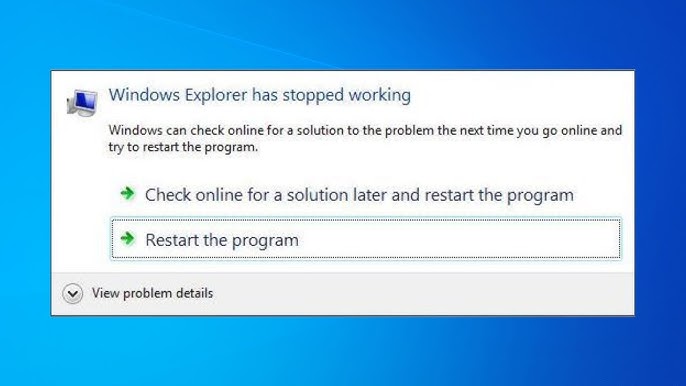
Web Browser such as Google Chrome, Microsoft Edge, and Mozilla Firefox are essential tools for accessing the internet, but they can sometimes develop performance and stability issues. Users may experience problems like slow page loading, frequent crashes, unresponsive tabs, or websites not displaying correctly while using Microsoft Windows.
These Browser Issues are often caused by outdated browser versions, overloaded cache, incompatible extensions, or system-level conflicts. In some cases, malware or incorrect network settings can also interfere with normal browser behavior.
This guide provides clear, practical solutions to help you fix common Browser Issues, improve performance, and ensure a smoother and more secure browsing experience.
Common Browser Issues
Web browsers like Google Chrome, Microsoft Edge, and Mozilla Firefox are generally stable, but users often encounter performance and functionality problems while using Microsoft Windows. These issues can affect productivity, browsing speed, and overall user experience.
Browser Running Slowly
One of the most common problems is slow performance. This is usually caused by too many open tabs, overloaded cache, or resource-heavy extensions consuming system memory.
Pages Not Loading Properly
Websites may fail to load due to DNS issues, unstable internet connections, corrupted cache, or server-side problems.
Frequent Browser Crashes
Browsers may unexpectedly close or freeze due to incompatible extensions, outdated versions, or insufficient system resources.
High Memory or CPU Usage
Browsers like Chrome can consume significant RAM when multiple tabs or heavy web applications are open, leading to system slowdown.
Login and Authentication Issues
Cookies or blocked scripts can prevent users from logging into websites or maintaining active sessions.
Extensions Causing Conflicts
Some browser extensions may interfere with website functionality or cause performance degradation.
Display or Layout Errors
Web pages may appear broken or incorrectly formatted due to outdated browser versions or disabled features like JavaScript.
Security Warnings or Blocked Sites
Browsers may block access to websites if they detect potential security risks or expired certificates.
Download Failures
Downloads may stop or fail due to network interruptions, security settings, or insufficient storage space.
Syncing Problems
Users may experience issues syncing bookmarks, passwords, or settings across devices due to account or network errors.
Understanding these common browser issues is the first step toward applying effective troubleshooting methods and restoring smooth browsing performance.
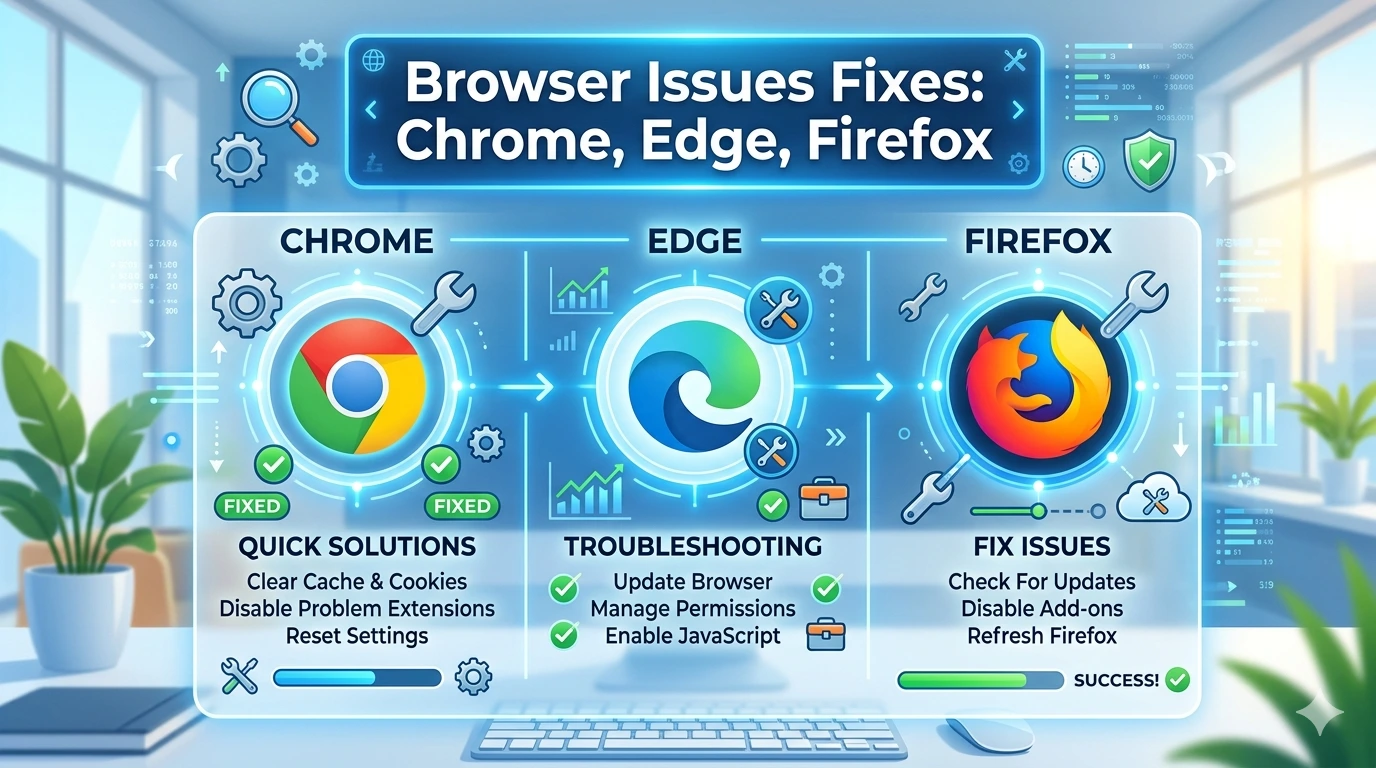
How to Fix Chrome, Edge, and Firefox Issues
Browser Issues in Google Chrome, Microsoft Edge, and Mozilla Firefox are common, but most can be fixed with simple troubleshooting steps in Microsoft Windows. Follow the methods below to restore normal browsing performance.
1. Clear Cache and Cookies
Corrupted or outdated browser data can cause slow performance and loading issues.
- Open browser settings
- Clear browsing data (cache and cookies)
- Restart the browser
2. Disable Problematic Extensions
Extensions can conflict with websites or slow down your browser.
- Disable all extensions
- Re-enable them one by one to find the issue
- Remove unnecessary add-ons
3. Update Your Browser
Outdated browsers may cause crashes and compatibility problems.
- Chrome: Settings → About Chrome
- Edge: Settings → About Microsoft Edge
- Firefox: Settings → About Firefox
Keeping your browser updated improves security and stability.
4. Reset Browser Settings
Resetting restores default configuration and removes unwanted changes.
- Use the built-in reset option in each browser
- This can fix performance and redirect issues
5. Check Internet Connection
A weak or unstable connection can cause pages not to load.
- Restart your router
- Test connection on another device
6. Scan for Malware
Malware can affect browser behavior and performance.
- Run a full system scan using Microsoft Defender Antivirus
- Remove any detected threats
7. Disable Hardware Acceleration
Sometimes hardware acceleration causes crashes or display issues.
- Available in Chrome, Edge, and Firefox settings
- Turn it off and restart the browser
8. Reinstall the Browser
If issues persist, reinstalling can fix corrupted files.
- Download the latest version from the official website
- Install fresh copy after uninstalling
9. Update Windows System
System updates improve browser compatibility and performance. Check updates via the Microsoft Update Guide.
10. Check DNS Settings
Incorrect DNS can prevent websites from loading.
- Switch to Google DNS or Cloudflare DNS for better reliability
👉 Known DNS Providers Compared: Speed Security Guide
Note:
Most browser issues in Chrome, Edge, and Firefox are caused by cache, extensions, or outdated software. Regular maintenance and updates will keep your browsing experience smooth and stable.
Browser-Specific Tips
Each browser—Google Chrome, Microsoft Edge, and Mozilla Firefox—has unique features and optimization settings that can help improve performance and fix common issues in Microsoft Windows. Below are practical tips tailored for each browser.
Google Chrome Tips
- Use Chrome Task Manager (Shift + Esc) to identify and close heavy tabs or extensions
- Enable Memory Saver Mode to reduce RAM usage
- Keep Chrome updated via Settings → About Chrome
- Remove unused extensions to improve speed
Chrome is powerful but can consume high memory when many tabs are open.
Microsoft Edge Tips
- Enable Efficiency Mode to reduce CPU and battery usage
- Use Sleeping Tabs to free up system resources automatically
- Turn off unnecessary startup boost features if the browser feels slow
- Keep Edge updated through Settings → About Microsoft Edge
Edge is optimized for Windows and performs well with system integration features.
Mozilla Firefox Tips
- Use Refresh Firefox to reset the browser without full reinstall
- Reduce content process limit in performance settings if system is low on RAM
- Disable unused add-ons for better stability
- Clear cache regularly for smoother performance
Firefox is highly customizable and offers strong privacy controls.
General Tip for All Browsers
Regular updates and security scans using Microsoft Defender Antivirus help prevent malware-related browser issues. You can also check system updates via the Microsoft Update Guide to ensure compatibility and stability.
Note:
Using browser-specific optimization features can significantly improve speed, reduce crashes, and enhance overall browsing experience. Choosing the right settings for each browser ensures smoother and more efficient web usage.
How to Prevent Browser Issues
Preventing Browser Issues in Google Chrome, Microsoft Edge, and Mozilla Firefox is easier than fixing them later. With proper maintenance and safe browsing habits in Microsoft Windows, you can keep your browser fast, stable, and secure.
Keep Your Browser Updated
Always use the latest version of your browser to avoid bugs, security issues, and compatibility problems.
- Enable automatic updates
- Regularly check version settings
Limit Browser Extensions
Too many extensions can slow down performance and cause conflicts.
- Install only trusted extensions
- Remove unused or unnecessary add-ons
- Review permissions regularly
Clear Cache and Cookies Periodically
Stored data can become corrupted over time.
- Clear browsing data every few weeks
- Avoid saving unnecessary temporary files
Use Reliable Security Protection
Malware can directly affect browser performance.
- Use Microsoft Defender Antivirus for real-time protection
- Avoid downloading files from unknown sources
Keep Your System Updated
System updates improve browser compatibility and security. Check updates via the Microsoft Update Guide.
Avoid Suspicious Websites
Unsafe websites can inject malware or unwanted scripts into your browser.
- Do not click unknown links
- Avoid pirated or unsafe downloads
Manage Open Tabs Wisely
Too many open tabs can slow down performance and increase memory usage.
- Close unused tabs
- Use bookmarks instead of keeping tabs open
Monitor Browser Performance
Check for unusual slowdowns or crashes early.
- Use built-in task managers in Chrome and Edge
- Identify heavy extensions or tabs
Enable Safe Browsing Features
Most browsers include built-in protection against malicious sites.
- Enable Safe Browsing in settings
- Keep security features turned on
Note:
Consistent maintenance and safe browsing habits are the best ways to prevent browser issues. Keeping your browser clean, updated, and secure ensures smooth performance and a better overall web experience.
Frequently Asked Questions (FAQ)
Why is my browser slow in Chrome, Edge, or Firefox?
Slow performance is usually caused by too many open tabs, outdated versions, heavy extensions, or cached data. Running Microsoft Windows with low system resources can also contribute.
How do I fix browser crashes?
You can fix crashes by disabling extensions, clearing cache, updating the browser, or resetting settings to default.
Which browser is best for performance?
It depends on usage. Google Chrome is fast but resource-heavy, Microsoft Edge is optimized for Windows, and Firefox offers strong customization and privacy.
Can extensions cause browser problems?
Yes, faulty or outdated extensions can slow down your browser, cause crashes, or break website functionality.
How do I reset my browser?
All major browsers (Chrome, Edge, Firefox) include a reset option in settings that restores default configuration without full reinstallation.
Does malware affect browsers?
Yes, malware can redirect pages, slow down performance, or steal data. Using Microsoft Defender Antivirus helps protect your system.
Why are websites not loading properly?
This can be caused by cache issues, DNS errors, unstable internet connection, or browser misconfiguration.
Should I reinstall my browser to fix issues?
Reinstalling is a last resort, but it can fix corrupted files and persistent problems that other methods cannot resolve.
How often should I clear browser cache?
Clearing cache every few weeks helps maintain performance and prevents loading issues.
Can Windows updates affect browser performance?
Yes, system updates in Microsoft Windows can improve compatibility or occasionally cause temporary issues that are fixed in later updates.
Conclusion
Browser issues in Chrome, Edge, and Firefox are common but usually easy to resolve with the right troubleshooting steps. Problems like slow performance, crashes, or pages not loading are often caused by cached data, outdated software, conflicting extensions, or system-related issues in Microsoft Windows.
By regularly updating your browser, managing extensions, clearing cache, and maintaining system security using tools like Microsoft Defender Antivirus, you can significantly improve stability and performance.
Staying proactive with updates and safe browsing habits ensures a smoother, faster, and more secure web experience across all major browsers.