Configuring geolocation in Chrome is essential for accessing accurate location-based services like maps, weather updates, ride-hailing apps, and local search results. If your browser shows the wrong location, blocks access, or fails to detect your position, it can disrupt your browsing experience and reduce the usefulness of many modern web applications.
In this comprehensive guide, you’ll learn everything about configuring geolocation in Chrome, including how it works, common issues, step-by-step fixes, advanced settings, privacy considerations, and expert tips to ensure accurate and secure location detection.
What Is Geolocation in Chrome?
Geolocation in Google Chrome allows websites to determine your physical location using a combination of:
- GPS (on supported devices)
- Wi-Fi network positioning
- IP address detection
- Bluetooth signals
This feature helps websites provide personalized and location-specific services.
Why Configuring Geolocation in Chrome Matters
Properly configuring geolocation ensures:
- Accurate map navigation
- Relevant local search results
- Correct weather forecasts
- Seamless food delivery services
- Better user experience on location-based apps
Without proper configuration, websites may display incorrect or irrelevant information.
How Geolocation Works in Chrome
When a website requests your location:
- Chrome prompts for permission
- You allow or block access
- Chrome retrieves location data from your system
- Data is shared with the website
Chrome relies heavily on system-level location services and network data.
Common Problems When Configuring Geolocation in Chrome
Users often encounter several issues:
1. Location Access Denied
Permission may be blocked.
2. Incorrect Location Display
Often caused by IP-based detection.
3. Location Not Updating
Cached data may interfere.
4. No Permission Prompt
Previously denied access prevents prompts.
5. VPN or Proxy Interference
Masks your actual location.
6. Disabled System Location Services
Chrome depends on OS-level settings.
Configuring Geolocation in Chrome Step by Step
Follow these steps carefully to fix and optimize geolocation.
Step 1: Enable Location Services on Your Device
Chrome depends on system settings.
On Windows:
- Open Settings
- Go to Privacy & Security
- Click Location
- Enable location services
👉 Windows location settings guide
Step 2: Allow Location Access in Chrome
Steps:
- Open Chrome
- Click three-dot menu
- Select Settings
- Go to Privacy & Security
- Click Site Settings
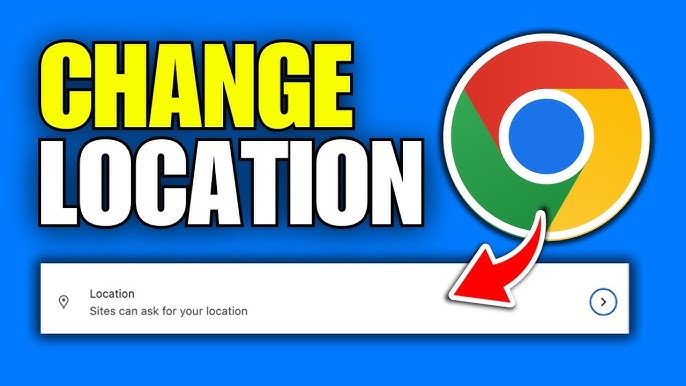
- Select Location
- Enable “Sites can ask for your location”
Step 3: Manage Website Permissions
You can control access per site.
Steps:
- Scroll to Allowed/Blocked section
- Remove blocked sites if needed
- Refresh website
Step 4: Clear Browser Cache and Cookies
Old data can affect location accuracy.
Steps:
- Settings → Privacy
- Clear browsing data
- Select Cookies and Cache
- Clear data
Step 5: Disable VPN or Proxy Services
VPN changes your IP location.
- Turn off VPN
- Refresh browser
Step 6: Check Chrome Flags (Advanced Users)
Steps:
- Type:
chrome://flags - Search for geolocation
- Reset modified flags
Step 7: Update Chrome Browser
Outdated versions may cause bugs.
Step 8: Test Your Location
Use online tools:
Step 9: Restart Browser and System
Applies all changes properly.
Step 10: Reset Chrome Settings
Steps:
- Settings → Reset settings
- Restore defaults
Advanced Settings for Configuring Geolocation in Chrome
Override Location Using Developer Tools
Developers can simulate location:
- Press F12
- Open Sensors tab
- Set custom location
Use Google Location Accuracy
Enable better accuracy:
- Turn on Wi-Fi scanning
- Allow Google services
Modify Permissions via Chrome Policies
Advanced users can use enterprise policies to control location access.
Privacy Considerations When Configuring Geolocation in Chrome
Location sharing involves sensitive data.
Best Practices:
- Only allow trusted websites
- Regularly review permissions
- Clear browsing data periodically
- Avoid public Wi-Fi when sharing location
Learn about Chrome privacy:
👉 Google Chrome privacy policy
Benefits of Proper Geolocation Configuration
- Faster local search results
- Improved navigation accuracy
- Better user experience
- Enhanced app functionality
Risks of Incorrect Configuration
- Wrong location results
- Privacy exposure
- Website errors
- Reduced functionality
Troubleshooting Persistent Geolocation Issues
If problems persist:
1. Update Operating System
2. Disable conflicting extensions
3. Reset network settings
4. Check firewall permissions
5. Reinstall Chrome
Real-World Example
A user in Indonesia searches for nearby restaurants but sees results from another country. After disabling VPN and clearing Chrome cache, the correct location is detected instantly.
Key Insight
Configuring geolocation in Chrome is not just about enabling a setting—it involves system configuration, browser permissions, and network conditions working together.
Frequently Asked Questions
Why is Chrome showing wrong location?
Due to IP detection, VPN, or cached data.
Can I manually set location?
Yes, using developer tools temporarily.
Is geolocation safe?
Yes, if used with trusted websites.
Why is location not updating?
Cached data or disabled services.
Does Wi-Fi improve accuracy?
Yes, significantly better than Ethernet.
Conclusion
Mastering configuring geolocation in Chrome ensures accurate, fast, and secure access to location-based services. From enabling system settings to managing browser permissions and optimizing network conditions, every step plays a role in achieving reliable geolocation.
By following this complete guide, you can fix common issues, improve accuracy, and maintain privacy while using modern web applications.
With proper configuration, Google Chrome becomes a powerful tool that delivers precise, location-aware browsing—enhancing your overall digital experience.