An Outdated Windows operating system can significantly slow down your computer, expose it to security vulnerabilities, and cause software compatibility issues. Whether you’re using Windows 7, Windows 8, or an unpatched version of Windows 10 or 11, running an outdated system puts your data and performance at risk. In this comprehensive guide, you’ll learn how to identify problems, update safely, and optimize an Outdated Windows operating system for maximum performance and security.
Why an Outdated Windows Operating System Becomes a Problem
An Outdated Windows operating system lacks critical updates that Microsoft releases to improve security, fix bugs, and enhance performance. Over time, this leads to system instability and compatibility issues with modern software.
Microsoft regularly highlights the importance of updates for system security and reliability:
https://learn.microsoft.com/en-us/windows/deployment/update/
Without updates, your system becomes vulnerable to:
- Malware attacks and ransomware
- Driver incompatibility
- Application crashes
- Slower performance
- Network security risks
Common Signs of an Outdated Windows Operating System
Recognizing the symptoms early can help prevent major system failures. Here are the most common signs:
1. Slow Boot and Shutdown Times
Older systems take longer to start due to outdated startup processes.
2. Frequent Error Messages
Errors such as missing DLLs or system crashes are common.
3. Software Compatibility Issues
New applications may refuse to install or run properly.
4. Security Warnings
Antivirus programs may alert you about outdated patches.
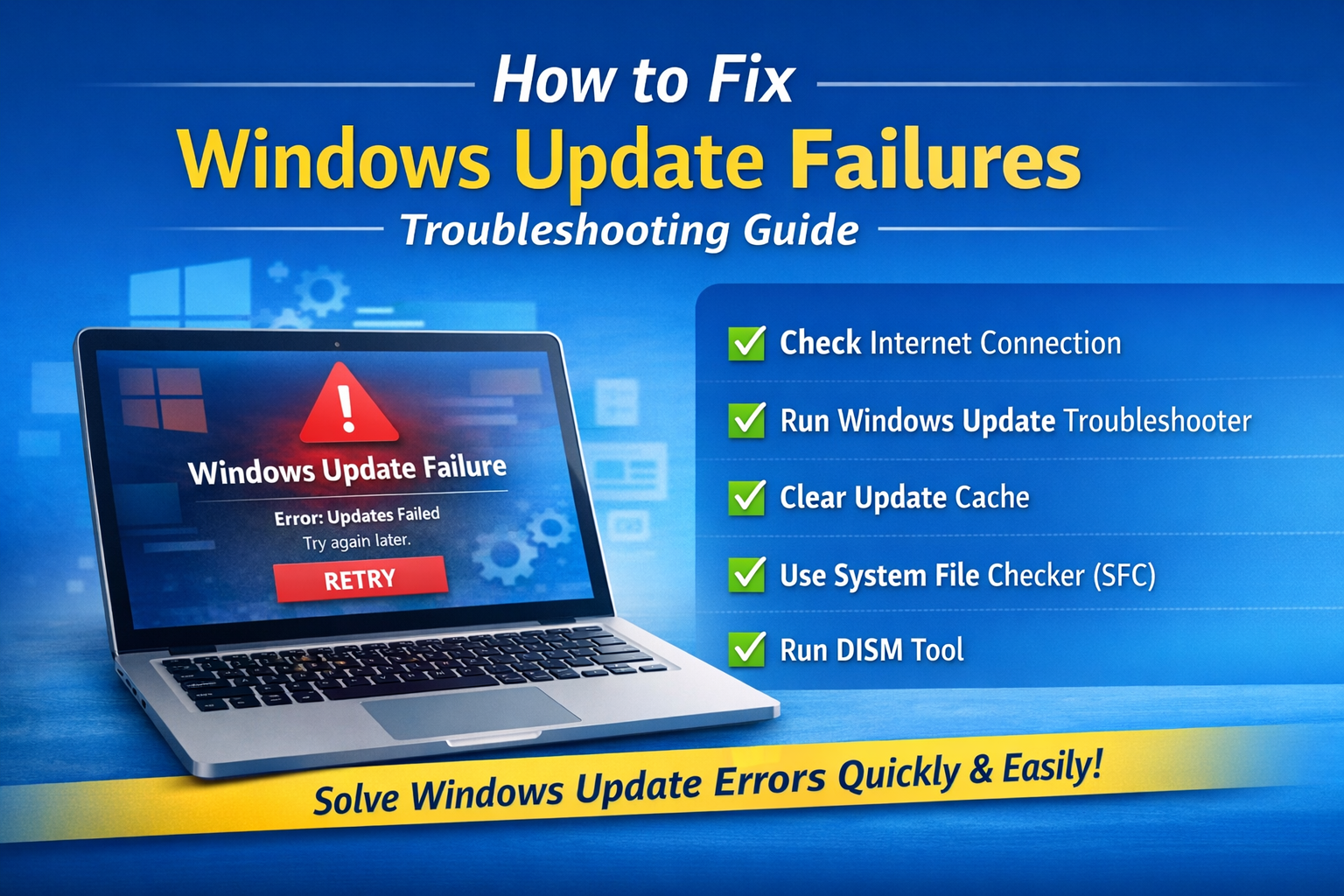
5. Windows Update Failures
Continuing to use an outdated version exposes you to serious risks:
Security Vulnerabilities
Hackers often target older Windows versions because they lack modern security patches.
Data Loss
System instability can lead to file corruption or accidental data loss.
Reduced Productivity
Slow performance affects work efficiency and multitasking.
Lack of Support
Microsoft eventually ends support for older Windows versions, leaving them unprotected.
More details on Windows lifecycle policies:
https://learn.microsoft.com/en-us/lifecycle/products/
How to Fix an Outdated Windows Operating System
Fixing an outdated system involves a combination of updates, cleanup, and optimization.
Update Windows to the Latest Version
The most important step is upgrading your operating system.
Steps:
- Go to Settings
- Click Update & Security
- Select Windows Update
- Click Check for updates
- Install all available updates
If you are using an older version like Windows 7 or 8, consider upgrading to Windows 10 or Windows 11.
Microsoft official upgrade page:
https://www.microsoft.com/en-us/software-download/windows10
Run Windows Update Troubleshooter
If updates fail, use the built-in troubleshooter:
Steps:
- Open Settings
- Go to Update & Security
- Click Troubleshoot
- Select Windows Update
- Run the troubleshooter
This tool fixes corrupted update components automatically.
Clean Up Your System for Better Performance
An outdated system often accumulates junk files and cache.
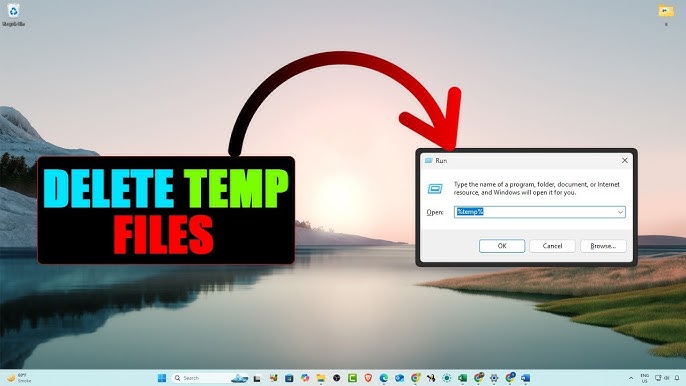
Use Disk Cleanup:
- Search “Disk Cleanup”
- Select system drive
- Remove temporary files, system cache, and recycle bin items
Advanced Cleanup:
You can also use Storage Sense for automatic cleanup:
Settings → System → Storage → Enable Storage Sense
Upgrade Hardware Drivers
Outdated drivers contribute heavily to system instability.
How to update:
- Open Device Manager
- Right-click hardware components
- Select “Update driver”
You can also download drivers from manufacturer websites like:
- Intel: https://www.intel.com
- NVIDIA: https://www.nvidia.com
- AMD: https://www.amd.com
Optimize Startup Programs
Too many startup programs slow down outdated systems.
Steps:
- Press Ctrl + Shift + Esc
- Open Task Manager
- Go to Startup tab
- Disable unnecessary applications
This improves boot time significantly.
Upgrade from an Outdated Windows Operating System
If your system is too old, upgrading is the best solution.
Upgrade Options:
- Windows 7 → Windows 10 / 11
- Windows 8 → Windows 10 / 11
- Windows 10 → Latest Windows 11 version
Before upgrading:
- Backup your data
- Check system requirements
- Ensure enough storage space
Security Improvements for Outdated Windows Operating System
Security is the biggest concern with an outdated Windows operating system.
Install Antivirus Software
Use trusted security tools such as:
- Microsoft Defender
- Bitdefender
- Kaspersky
Enable Firewall
Always ensure Windows Firewall is active.
Avoid Suspicious Downloads
Do not install software from unknown sources.
Performance Optimization Techniques
Even after updates, optimization is necessary.
1. Adjust Visual Effects
- Open System Properties
- Go to Performance Settings
- Select “Adjust for best performance”
2. Increase Virtual Memory
Helps older systems handle multitasking better.
3. Defragment Hard Drive (HDD only)
SSD users should skip this step.
How to Check If Your Windows Is Outdated
You can quickly check system status:
Method:
- Go to Settings
- Click System → About
- Check Windows version and build number
Compare it with the latest version listed on Microsoft’s official release page.
Advanced Fix: Fresh Windows Installation
If your system is heavily outdated or corrupted, a clean install may be required.
Steps:
- Backup all files
- Create bootable USB using Media Creation Tool
- Install fresh Windows copy
- Reinstall drivers and apps
This provides the best performance improvement.
Preventing an Outdated Windows Operating System
Prevention is key to avoiding future issues.
Best Practices:
- Enable automatic updates
- Regularly restart your PC
- Keep drivers updated
- Clean system monthly
- Avoid pirated software
Benefits of Keeping Windows Updated
A well-maintained system offers:
- Faster performance
- Stronger security
- Better software compatibility
- Fewer system crashes
- Improved user experience
Frequently Asked Questions (FAQ)
1. What is an outdated Windows operating system?
It is a version of Windows that no longer receives updates or critical security patches from Microsoft.
2. Is it safe to use an outdated Windows OS?
No, it increases risks of malware, hacking, and system instability.
3. How do I know if my Windows is outdated?
Check your Windows version in Settings → System → About and compare it with Microsoft’s latest version.
4. Can I update an old Windows version for free?
Yes, in many cases Windows 10 or 11 upgrades are available through Microsoft’s official update tools.
5. What happens if I don’t update Windows?
Your system becomes slower, less secure, and incompatible with modern software.
6. How often should I update Windows?
Ideally, you should install updates as soon as they are released by Microsoft.
7. Will updating Windows delete my files?
Normally no, but it is always recommended to back up your data before major updates.
Conclusion
An Outdated Windows operating system is more than just a performance issue—it is a serious security and compatibility risk. By keeping your system updated, optimizing performance, and following best practices, you can ensure your computer remains fast, secure, and reliable.
Regular updates, proper maintenance, and occasional upgrades are essential to keeping your Windows environment healthy and future-proof.