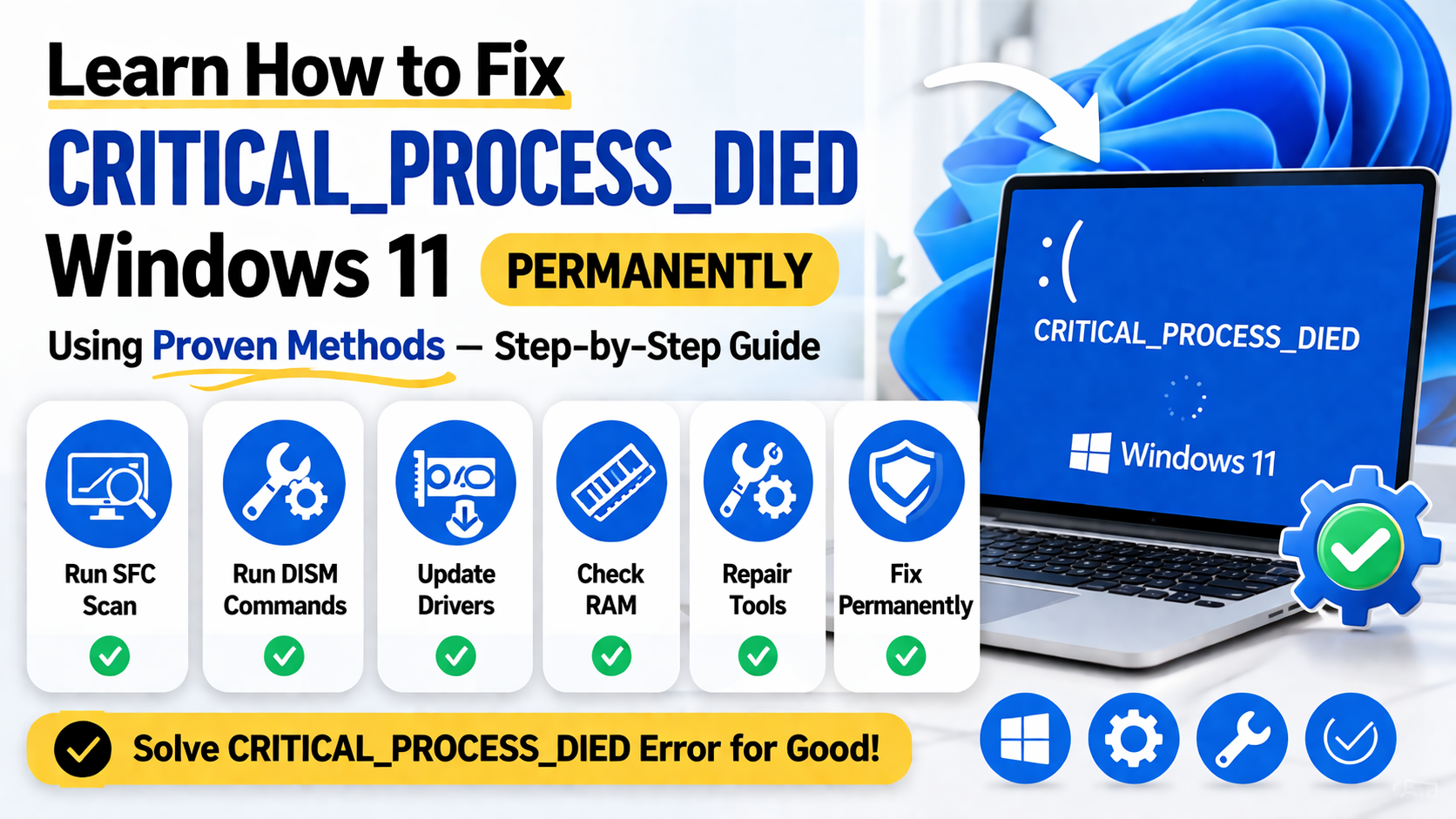
The how to fix critical_process_died Windows 11 permanently issue is one of the most serious Blue Screen of Death (BSOD) errors users encounter. When this error appears, Windows stops functioning because a critical system process has failed or been terminated unexpectedly. In this detailed guide, you will learn how to fix critical_process_died Windows 11 permanently using advanced troubleshooting methods, system repair tools, and preventive strategies to ensure long-term stability.
What Is critical_process_died Error in Windows 11?
The critical_process_died error occurs when a vital Windows system process crashes or becomes corrupted. Since Windows relies on core processes to operate, the system immediately shuts down to prevent damage.
Microsoft explains system recovery mechanisms and crash handling here:
https://learn.microsoft.com/en-us/windows-hardware/drivers/debugger/bug-check-0xef-critical-process-died
This error is usually associated with:
- Corrupted system files
- Faulty drivers
- Hardware failures
- Malware infections
- Disk errors
- Windows update corruption
Common Causes of critical_process_died Windows 11 Error
Malware or virus infections can target and damage critical system-level processes, causing errors, instability, data corruption, and serious security vulnerabilities in Windows systems.
5. Windows Update Issues
Windows Update issues, especially incomplete or failed installations, can break essential system dependencies, leading to errors, instability, performance problems, and software compatibility issues.
6. Hardware Failure
Hardware failure such as faulty RAM or a damaged SSD/HDD can lead to sudden system crashes, data corruption, and frequent instability in Windows performance and operations.
Symptoms of critical_process_died Windows 11
Before the crash, you may notice:
- Sudden system restart
- Blue screen with error code
- Apps freezing or crashing
- Slow system performance
- Login failures after boot
How to Fix critical_process_died Windows 11 Permanently
Below are tested and proven methods to permanently fix this BSOD error, restore system stability, and prevent recurring crashes or critical system failures in Windows.
Run System File Checker (SFC Scan)
SFC scans and repairs missing or corrupted system files, restoring essential Windows components and helping fix errors, improve stability, and prevent system crashes or failures.
Steps:
- Open Command Prompt (Admin)
- Run:
sfc /scannow
- Wait for completion and restart PC
Microsoft reference:
https://learn.microsoft.com/en-us/windows-server/administration/windows-commands/sfc
This fixes corrupted system processes responsible for BSOD.
Use DISM Tool to Repair System Image
DISM fixes deeper Windows image corruption by restoring the system image health, repairing damaged components, and ensuring Windows functions properly and remains stable.
Run these commands:
DISM /Online /Cleanup-Image /CheckHealth
DISM /Online /Cleanup-Image /ScanHealth
DISM /Online /Cleanup-Image /RestoreHealth
Microsoft documentation:
https://learn.microsoft.com/en-us/windows-hardware/manufacture/desktop/repair-a-windows-image
This ensures system integrity is restored.
Update or Roll Back Drivers
Driver issues are a major cause of the critical_process_died Windows 11 error, often leading to system crashes, instability, and hardware communication failures in Windows.
Steps:
- Press Windows + X
- Open Device Manager
- Update drivers (especially display, storage, chipset)
- If issue started recently, roll back driver
Recommended driver sources:
Run CHKDSK to Fix Disk Errors
Storage corruption can lead to BSOD errors by damaging essential system files on the drive, causing Windows to fail during critical operations and resulting in system crashes.
Command:
chkdsk /f /r
Restart your PC to allow disk scanning.
This fixes bad sectors and file system corruption.
Check RAM for Hardware Issues
Faulty RAM is a common cause of system crashes, leading to data corruption, unexpected restarts, and Blue Screen of Death errors due to unstable memory operations in Windows.
Use Windows Memory Diagnostic:
- Press Windows + R
- Type:
mdsched.exe
- Restart and check results
For advanced testing, use MemTest86:
https://www.memtest86.com/
Uninstall Recent Windows Updates
In some cases, Windows updates can introduce instability by causing compatibility issues, system errors, or conflicts with existing drivers and software, leading to unexpected crashes.
Steps:
- Go to Settings
- Windows Update
- Update history
- Uninstall latest update
This is useful if the error started after a patch.
Perform System Restore
System Restore allows you to roll back your computer to a previous working state, undoing recent system changes, updates, and configuration modifications that may have caused issues or instability now.
Steps:
- Search “System Restore”
- Choose restore point
- Restore system to earlier state
This is one of the safest recovery methods.
Scan for Malware
Malware can damage or corrupt essential system processes, leading to instability, crashes, performance issues, and security risks that may affect overall system functionality and reliabilitygreatly.
Recommended actions:
- Run Microsoft Defender Full Scan
- Use Offline Scan mode
- Remove detected threats
Microsoft security guide:
https://www.microsoft.com/en-us/windows/comprehensive-security
Update BIOS and Firmware
An outdated BIOS may lead to system instability, compatibility issues, and unexpected crashes, affecting hardware performance and overall system reliability during normal computer operation over time.
Steps:
- Visit motherboard manufacturer site
- Download latest BIOS
- Follow update instructions carefully
⚠ BIOS updates should be done cautiously.
Disable Fast Startup
Fast Startup may create boot conflicts on some systems. Disabling it can help resolve startup issues, improve stability, and ensure a full shutdown and clean boot process each time.
Steps:
- Control Panel → Power Options
- Choose “What power buttons do”
- Disable Fast Startup
Restart system.
Perform Clean Boot
Clean Boot starts Windows with only essential services, helping isolate software conflicts, identify problematic apps or drivers, and improve system stability during troubleshooting process effectively.
Steps:
- Run msconfig
- Disable non-Microsoft services
- Restart PC
If error disappears, a third-party app is the cause.
Reset Windows 11 (Last Resort Fix)
If all fixes fail, resetting Windows can restore system stability by reinstalling the OS, removing corrupted files, and giving you a fresh, clean start while keeping or removing personal data.
Steps:
- Settings → System → Recovery
- Click Reset this PC
- Choose Keep Files
This reinstalls Windows while preserving personal data.
Advanced Fix: Clean Windows Installation
For a permanent fix, perform a clean Windows installation to fully remove corruption, reset system files, and ensure a fresh, stable, and reliable operating system environment from scratch.
For permanent resolution:
Steps:
- Backup files
- Create bootable USB
- Install fresh Windows 11
Microsoft tool:
https://www.microsoft.com/software-download/windows11
This guarantees removal of deep system corruption.
How to Prevent critical_process_died Windows 11 Permanently
To prevent Critical_Process_Died on Windows 11, keep drivers updated, run regular malware scans, avoid corrupted software, maintain disk health, install updates carefully, and monitor system stability.
1. Keep Windows Updated
Keep Windows updated by installing regular patches to fix bugs, close security gaps, improve compatibility, and enhance overall system stability and performance for smoother operation.
2. Use Reliable Drivers
Use only trusted, official drivers from your device manufacturer or Windows Update to ensure compatibility, improve stability, and reduce the risk of system crashes or errors.
3. Maintain Disk Health
Maintain disk health by running CHKDSK regularly to detect and fix file system errors, bad sectors, and prevent data corruption that could lead to system instability or crashes.
4. Install Antivirus Protection
Install reliable antivirus protection to detect and block malware, protect system files, prevent infections, and reduce risks of crashes, data corruption, and security vulnerabilities.
5. Avoid Forced Shutdowns
Avoid forced shutdowns and always use proper shutdown options to prevent file corruption, protect system processes, and maintain overall Windows stability and data integrity.
Why critical_process_died Keeps Happening
If the error keeps happening, it may be caused by corrupted system files, failing hardware, bad drivers, malware infection, or problematic Windows updates affecting system stability.
- Failing SSD or HDD
- Corrupt Windows installation
- Hardware instability
- Persistent malware infection
- Driver conflicts
In such cases, hardware replacement may be required.
Frequently Asked Questions (FAQ)
1. What is critical_process_died in Windows 11?
It is a BSOD error indicating a critical system process has failed or stopped.
2. Can I fix critical_process_died without reinstalling Windows?
Yes, using SFC, DISM, and driver fixes often resolves it.
3. Is critical_process_died a hardware issue?
It can be caused by RAM, SSD, or motherboard issues.
4. Why does critical_process_died happen after updates?
Faulty or incompatible updates may break system processes.
5. Does Safe Mode help fix critical_process_died?
Yes, Safe Mode helps diagnose and remove conflicting drivers or apps.
6. Can malware cause critical_process_died?
Yes, malware can damage system files and trigger BSOD errors.
7. What is the fastest fix for critical_process_died?
Running SFC and DISM combined with driver updates is the fastest effective fix.
Conclusion
The how to fix critical_process_died Windows 11 permanently issue requires a structured approach involving system repair tools, driver updates, hardware checks, and malware removal. By following the methods in this guide, you can restore system stability and prevent future crashes.
Regular maintenance, updated drivers, and system protection are essential to ensure critical_process_died Windows 11 never returns.