

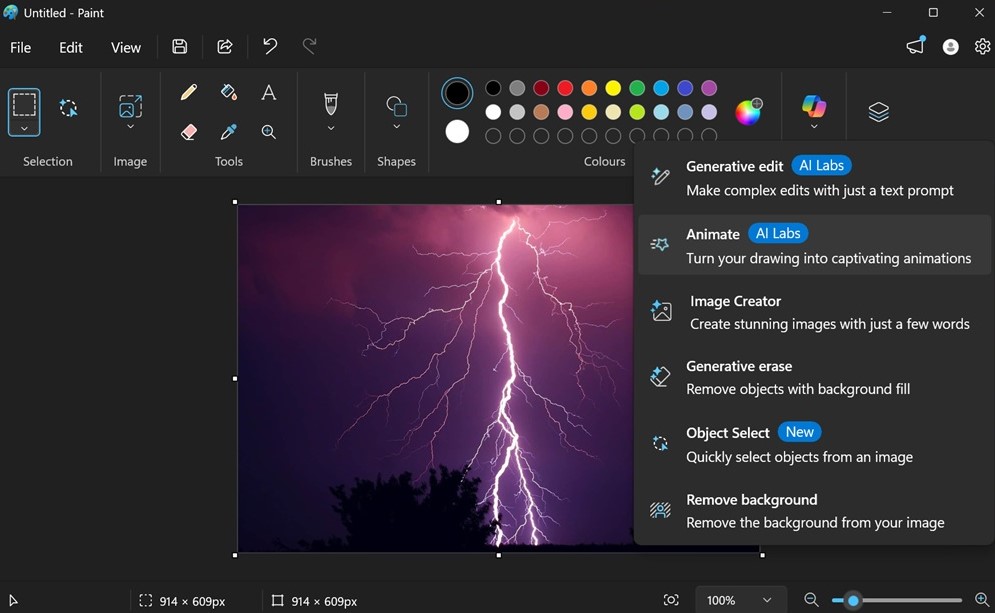
Windows 11 has transformed many classic tools into modern, AI-powered applications—and one of the biggest upgrades is the new Paint app. With features like Cocreator, background removal, and generative AI drawing assistance, Microsoft Paint has become more powerful than ever.
However, not everyone wants AI features enabled. Some users prefer a lightweight, traditional experience, while others may be concerned about privacy, performance, or simply want full manual control over their drawings. If you’re one of them, you may be searching for how to disable AI features in Windows 11 Paint app.
In this detailed guide, we’ll explain what AI features exist in Paint, why users disable them, and most importantly—how to turn them off or limit them effectively.
What AI Features Exist in Windows 11 Paint?
Before disabling anything, it’s important to understand what you’re dealing with. Microsoft has integrated several AI-powered tools into Paint, including:
1. Cocreator (Generative AI Drawing)
- Generates images from text prompts
- Uses cloud-based AI models
- Helps create artwork automatically
2. Background Removal Tool
- Automatically removes image backgrounds
- AI detects objects and edges
3. AI Image Enhancements
- Auto-adjusts colors and lighting
- Improves image clarity
4. Smart Selection Tools
- Object detection for easier editing
- Intelligent cut-and-paste features
These features make Paint more powerful but also change its traditional workflow.
Why Users Want to Disable AI Features in Paint
There are several reasons users prefer turning off AI tools:
1. Performance Concerns
AI features may slow down older PCs or low-spec devices.
2. Privacy Concerns
Some AI features rely on cloud processing.
3. Simplicity Preference
Many users prefer classic Paint without automation.
4. Unwanted Suggestions
AI tools can interrupt manual creative workflows.
5. Internet Dependency
Some features require an active internet connection.
Can You Fully Disable AI in Paint?
Here’s the important truth:
👉 Microsoft does not currently offer a single “Turn off all AI features” button in Paint.
However, you can disable, limit, or avoid most AI features using several effective methods.
Let’s go step-by-step.
Method 1: Disable Cocreator via Microsoft Account Settings
Cocreator is the most prominent AI feature in Paint.
Steps:
- Open the Paint app
- Look for Cocreator panel
- Sign out of your Microsoft account (if signed in)
- Restart Paint
👉 Cocreator often requires account authentication. Without it, the feature becomes unavailable or limited.
Method 2: Use Local Account Instead of Microsoft Account
Many AI features are tied to cloud services.
Steps:
- Open Settings
- Go to Accounts
- Select Your Info
- Choose Sign in with a local account instead
This reduces access to cloud-based AI tools.
Method 3: Disable Background AI Features via Privacy Settings
Windows privacy settings can limit AI functionality.
Steps:
- Open Settings
- Go to Privacy & Security
- Click Speech, Inking & Typing
- Turn off personalization options
This reduces AI-driven suggestions across apps, including Paint.
Method 4: Turn Off Optional Features in Paint Settings
Some versions of Paint include toggles for experimental features.
Steps:
- Open Paint
- Go to Settings (gear icon)
- Look for AI or experimental features
- Disable available toggles
👉 Note: Availability depends on your version.
Method 5: Block Internet Access for Paint (Advanced)
AI tools often require internet connectivity.
Steps (Firewall Method):
- Open Windows Defender Firewall
- Go to Advanced Settings
- Create a new outbound rule
- Block Paint app (mspaint.exe)
This prevents cloud-based AI features from working.
Method 6: Use an Older Version of Paint
If AI features are too intrusive:
- You can use legacy Paint (Windows 10 version)
- Or install third-party lightweight editors
Method 7: Disable App Updates (Not Recommended Long-Term)
AI features are often introduced through updates.
Steps:
- Pause Windows updates temporarily
- Avoid updating Paint via Microsoft Store
⚠️ Not recommended for security reasons.
Method 8: Use Group Policy Editor (Windows Pro Users)
For advanced users:
Steps:
- Press Windows + R
- Type
gpedit.msc - Navigate to:
Computer Configuration > Administrative Templates > Windows Components - Look for app restrictions
👉 This may limit AI-related components indirectly.
Method 9: Remove Paint AI Features via Microsoft Store Version
If Paint was installed via Microsoft Store:
- Go to Store settings
- Disable experimental previews
- Opt out of insider features
Method 10: Use Alternative Apps Without AI
If you want complete control, consider alternatives:
Lightweight editors:
- Paint.NET
- GIMP
- Krita
These do not rely heavily on AI automation.
What Happens After Disabling AI Features?
Once AI features are disabled or limited:
- Paint behaves more like classic Windows tools
- No automatic image generation
- Reduced background processing
- Improved performance on older systems
Pros and Cons of Disabling AI in Paint
Pros:
- Faster performance
- More manual control
- Less internet dependency
- Cleaner user experience
Cons:
- No generative AI tools
- Limited smart editing features
- Less automation
Real-World Example
Imagine you’re working on a simple sketch in Paint, but Cocreator keeps suggesting AI-generated images. After disabling AI features, the interface becomes cleaner, faster, and fully focused on manual drawing.
Key Insight
Microsoft Paint is evolving from a simple drawing tool into an AI-assisted creative platform. Disabling AI features is not about removing functionality—it’s about restoring control and simplicity.
Frequently Asked Questions
Can I permanently turn off AI in Paint?
Not completely, but you can significantly limit it using account and privacy settings.
Does disabling AI improve performance?
Yes, especially on low-end devices.
Is Cocreator mandatory?
No, it can be ignored or restricted.
Will future updates remove this option?
Microsoft may change controls in future updates.
Conclusion
Knowing how to disable AI features in Windows 11 Paint app is useful for users who prefer simplicity, speed, and full manual control. While Microsoft does not offer a single toggle to turn everything off, several effective methods—such as using a local account, adjusting privacy settings, and blocking cloud access—can significantly reduce or eliminate AI functionality.
Whether you want a distraction-free workspace or better performance on older hardware, these solutions help you tailor Paint to your preferences.
As Windows continues to evolve, users will always have a choice between smart automation and traditional control—and now you know how to choose the experience that suits you best.