

The Windows 11 update error 0x80070002 is one of the most common problems users face when trying to install system updates. This error usually indicates that Windows cannot find specific update files or that some system components are missing or corrupted. As a result, updates fail to install, leaving your system outdated and potentially vulnerable.
In this comprehensive guide, we will explain what causes the Windows 11 update error 0x80070002, how to fix it step by step, and how to prevent it from happening again. Whether you are a beginner or an advanced user, these solutions will help restore your Windows Update functionality quickly.
What Is Windows 11 Update Error 0x80070002?
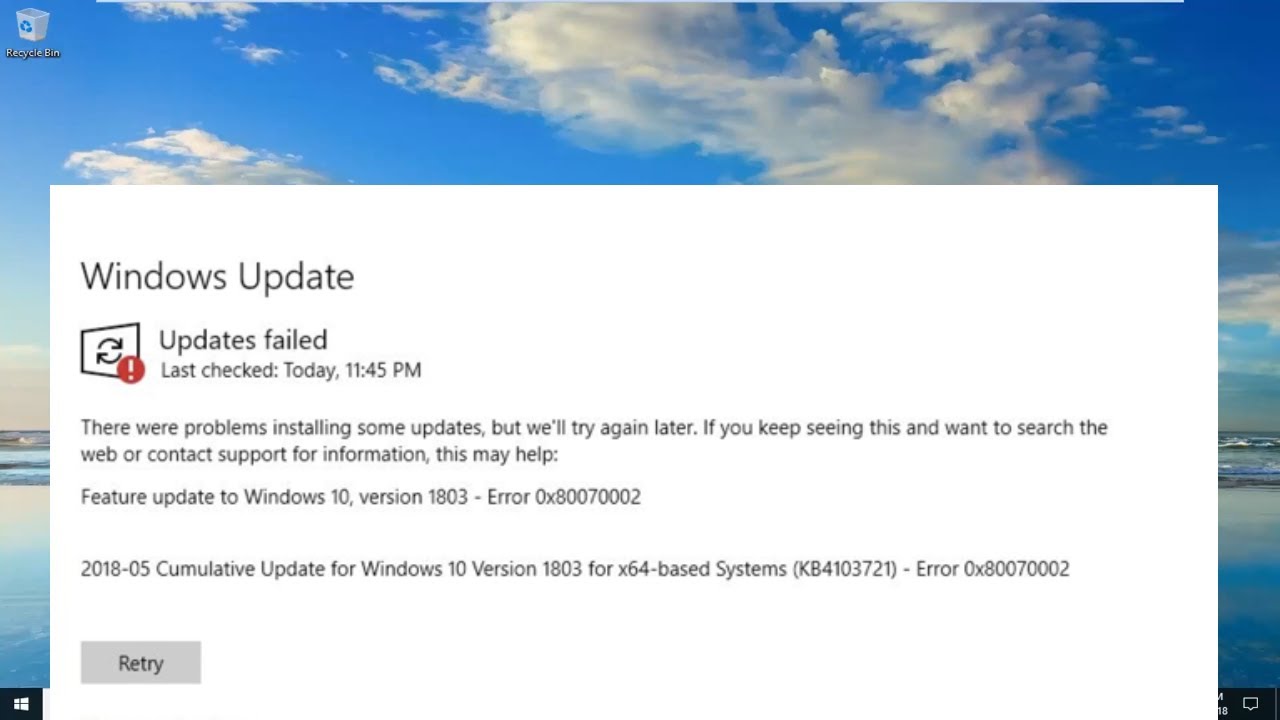
The error code 0x80070002 typically appears when Windows Update cannot locate necessary files during the update process. It is often associated with missing, corrupted, or incorrectly configured update data.
You may see messages such as:
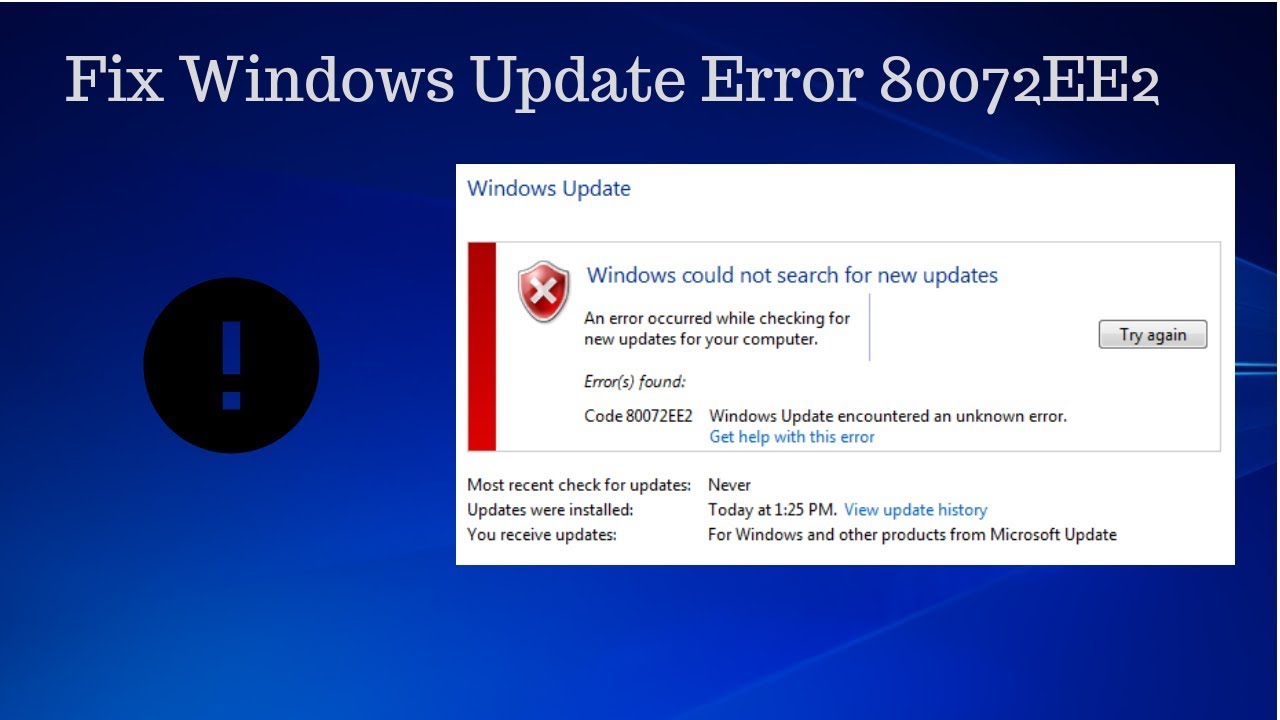
- “Windows Update encountered an unknown error”
- “Some update files are missing or have problems”
- Error code: 0x80070002
Common Causes of Windows 11 Update Error 0x80070002
Understanding the root causes helps you apply the right fix.
1. Corrupted Windows Update Files
Temporary update files may become damaged.
2. Incorrect System Date and Time
Windows Update requires accurate system time.
3. Missing System Files
Important system components may be deleted or corrupted.
4. Disk Errors
Bad sectors or storage issues can block updates.
5. Interrupted Updates
Power failure or forced shutdown during updates.
6. Antivirus Interference
Security software may block update processes.
7. Software Distribution Folder Issues
This folder stores update cache files that may become corrupted.
How to Fix Windows 11 Update Error 0x80070002
Below are proven solutions to resolve the issue effectively.
1. Restart Your Computer
A simple restart can fix temporary glitches.
Steps:
- Save your work
- Restart Windows 11
- Try updating again
2. Run Windows Update Troubleshooter
Microsoft provides a built-in tool for update issues.
Steps:
- Open Settings
- Go to System → Troubleshoot
- Click Other Troubleshooters
- Run Windows Update Troubleshooter
More details from Microsoft:
👉 https://support.microsoft.com/windows/windows-update-troubleshooter
3. Correct Date and Time Settings
Incorrect time can block updates.
Steps:
- Open Settings
- Go to Time & Language
- Enable automatic time sync
4. Clear Software Distribution Folder
This is one of the most effective fixes.
Steps:
- Open Command Prompt as Admin
- Run:
net stop wuauserv net stop bits - Navigate to:
C:\Windows\SoftwareDistribution - Delete all files inside
- Restart services:
net start wuauserv
net start bits
5. Run System File Checker (SFC)
Fix corrupted system files.
Command:
sfc /scannow
6. Use DISM Tool
Repair Windows image files.
Command:
DISM /Online /Cleanup-Image /RestoreHealth
7. Check Disk for Errors
Fix storage issues.
Command:
chkdsk /f /r
8. Disable Antivirus Temporarily
Security software may block updates.
- Turn off antivirus
- Retry update
- Re-enable afterward
9. Reset Windows Update Components
Resetting components often fixes persistent errors.
Steps:
- Stop update services
- Rename update folders
- Restart services
10. Perform Clean Boot
Eliminate software conflicts.
Steps:
- Open msconfig
- Disable non-Microsoft services
- Restart PC
11. Manually Install Updates
If automatic updates fail:
👉 Visit Microsoft Update Catalog:
https://www.catalog.update.microsoft.com/
- Search update KB number
- Download manually
12. Update Device Drivers
Outdated drivers can interfere with updates.
- Open Device Manager
- Update chipset and storage drivers
13. Free Up Disk Space
Low storage can block updates.
- Delete temporary files
- Use Storage Sense
14. Run Malware Scan
Malware may disrupt update services.
- Use Windows Defender
- Run full system scan
15. Repair Windows Installation
If nothing works:
- Use “Repair Install” option
- Or reset PC (keep files option)
Advanced Fix for Persistent Error 0x80070002
If the error keeps returning:
Check Windows Logs
- Open Event Viewer
- Look for update failure logs
Reset PC Without Losing Files
- Settings → Recovery → Reset this PC
Preventing Windows 11 Update Error 0x80070002
To avoid future issues:
- Keep Windows updated regularly
- Avoid interrupting updates
- Maintain stable internet connection
- Clean temporary files regularly
- Use trusted antivirus software
Real-World Example
A user tries installing a Windows 11 update but repeatedly sees error 0x80070002. After clearing the Software Distribution folder and running SFC scan, the update installs successfully without further issues.
Key Insight
The Windows 11 update error 0x80070002 is mainly caused by missing or corrupted update files. Fixing system integrity and resetting update components resolves most cases.
Frequently Asked Questions
What causes error 0x80070002?
Missing update files or corrupted system data.
Is this a serious error?
It prevents updates but can be fixed easily.
Can I fix it without reinstalling Windows?
Yes, most fixes are simple system repairs.
Why does it keep coming back?
Usually due to corrupted update cache or disk issues.
Conclusion
The Windows 11 update error 0x80070002 can be frustrating, but it is highly fixable using the right troubleshooting steps. From clearing update caches to running system repair tools, the solutions in this guide cover every possible cause.
By following these methods, you can restore Windows Update functionality, keep your system secure, and ensure smooth performance.
Regular maintenance and timely updates are the best way to prevent this error from occurring again and keep your Windows 11 system running efficiently.