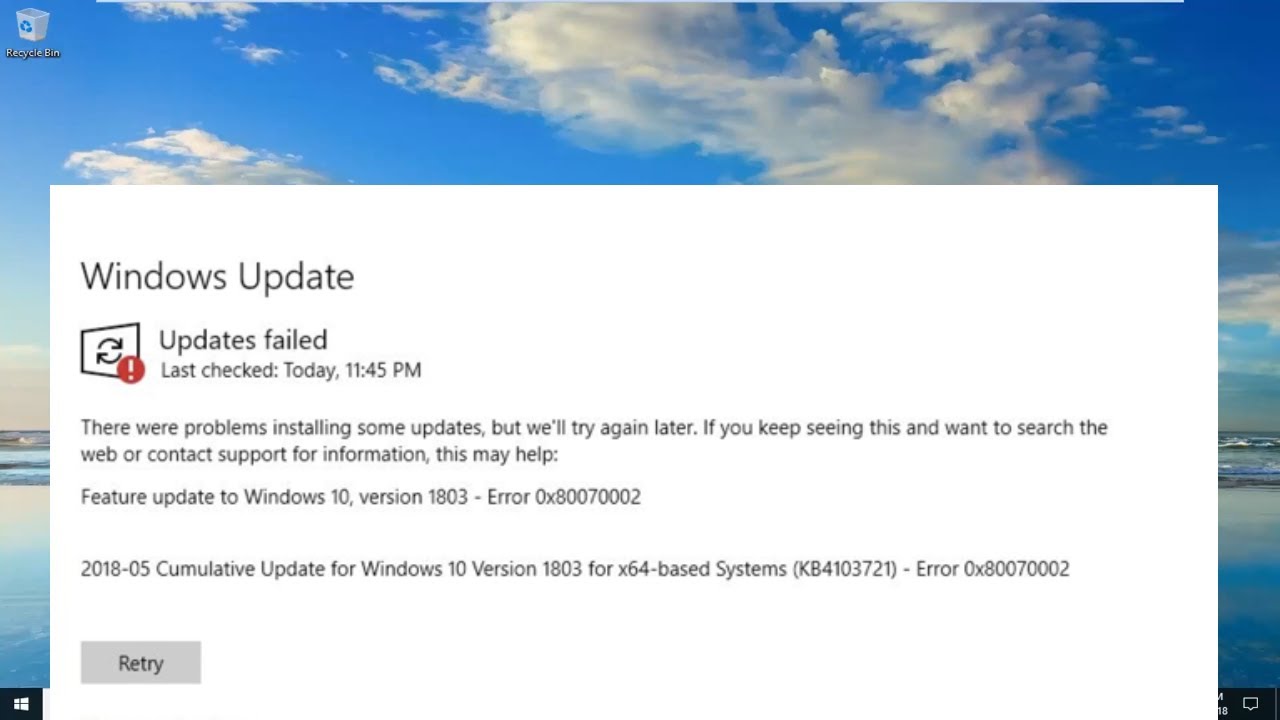


Keeping your Windows system updated is essential for security, performance, and stability. However, update errors can disrupt this process and leave your system vulnerable. One of the most common issues users face is Windows Update Error 80072ee2.
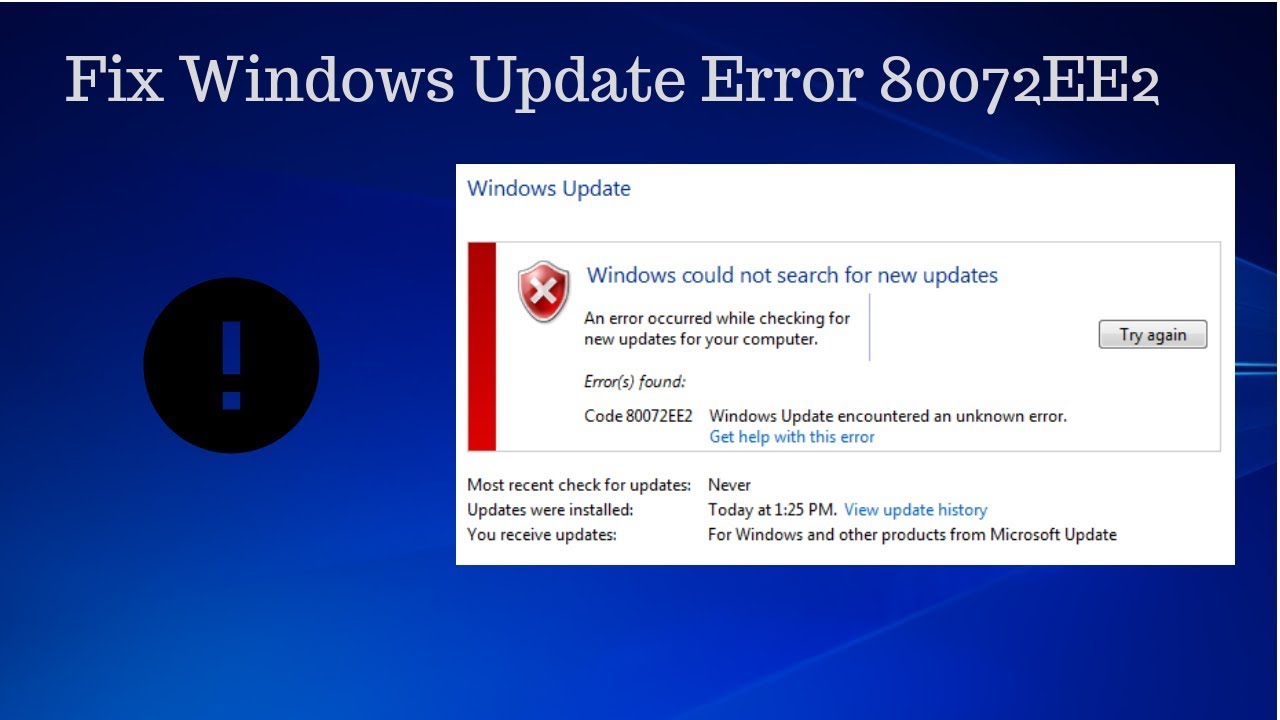
This error typically indicates a connection problem between your computer and the Windows Update servers. When it occurs, your system fails to download or install updates, often displaying messages such as:
- “Windows could not search for new updates”
- “Error code 80072ee2”
- “The operation timed out”
Although this error can seem complicated, it is usually easy to fix with the right troubleshooting steps. In this comprehensive guide, we will explore the causes, solutions, and preventive measures for resolving Windows Update Error 80072ee2.
What Is Windows Update Error 80072ee2?
Error 80072ee2 is a Windows Update error code that usually occurs when your system cannot connect to Microsoft’s update servers within a specific time frame. This timeout prevents updates from downloading or installing.
Common Causes of Error 80072ee2
Understanding the root cause is key to resolving the issue effectively.
1. Internet Connection Problems
Slow or unstable connections can cause timeouts.
2. Firewall or Antivirus Blocking Updates
Security software may block Windows Update servers.
3. Incorrect Proxy Settings
Improper proxy configurations can prevent connections.
4. DNS Issues
Domain Name System problems can block server access.
5. Windows Update Service Errors
Stopped or malfunctioning services can cause update failures.
6. Corrupted System Files
Damaged files may interfere with update processes.
7. Misconfigured Registry Settings
Incorrect registry entries can disrupt updates.
Symptoms of This Error
You may notice:
- Updates failing repeatedly
- Long delays when checking for updates
- Error messages during update attempts
- System security vulnerabilities
How to Fix Windows Update Error 80072ee2
Follow these proven solutions step by step.
1. Check Your Internet Connection
Ensure your internet is stable and working properly.
Steps:
- Restart your router
- Try opening websites
- Switch to a wired connection if possible
2. Disable Firewall Temporarily
Firewall settings may block update servers.
Steps:
- Open Control Panel
- Go to Windows Defender Firewall
- Turn off temporarily
- Try updating again
👉 Remember to turn it back on afterward.
3. Disable Antivirus Software
Some antivirus programs interfere with updates.
Steps:
- Disable antivirus temporarily
- Retry Windows Update
4. Reset Windows Update Components
Resetting components often resolves persistent issues.
Steps:
- Open Command Prompt as Administrator
- Run:
net stop wuauserv net stop bits - Rename folders:
ren C:\Windows\SoftwareDistribution SoftwareDistribution.old - Restart services:
net start wuauserv
net start bits
5. Run Windows Update Troubleshooter
Windows includes a built-in tool for fixing update issues.
Steps:
- Go to Settings
- Select Update & Security
- Click Troubleshoot
- Run Windows Update Troubleshooter
6. Check Proxy Settings
Incorrect proxy settings can block connections.
Steps:
- Press Windows + R
- Type:
inetcpl.cpl - Go to Connections > LAN Settings
- Uncheck Use a proxy server
7. Change DNS Settings
Switching DNS servers can improve connectivity.
Recommended DNS:
- Google DNS:
- 8.8.8.8
- 8.8.4.4
8. Modify Registry Settings
Incorrect registry values can cause this error.
Steps:
- Press Windows + R → type
regedit - Navigate to:
HKEY_LOCAL_MACHINE\SOFTWARE\Policies\Microsoft\Windows\WindowsUpdate - Delete entries like:
- WUServer
- WUStatusServer
9. Run System File Checker (SFC)
Repair corrupted system files.
Steps:
- Open Command Prompt as Administrator
- Run:
sfc /scannow
10. Use DISM Tool
Repair Windows image issues.
Steps:
- Run:
DISM /Online /Cleanup-Image /RestoreHealth
11. Increase Timeout Settings
Adjusting timeout values can help.
Steps:
- Open Registry Editor
- Navigate to:
HKEY_LOCAL_MACHINE\SOFTWARE\Microsoft\Windows\CurrentVersion\WindowsUpdate\Auto Update - Modify timeout values if present
12. Perform a Clean Boot
Eliminate software conflicts.
Steps:
- Open msconfig
- Disable non-Microsoft services
- Restart your PC
13. Check Date and Time Settings
Incorrect time settings can affect connections.
Fix:
- Enable automatic date and time
- Sync with internet time server
14. Install Updates Manually
If automatic updates fail:
Steps:
- Visit Microsoft Update Catalog
- Search for update KB number
- Download and install manually
Preventing Error 80072ee2
To avoid future issues:
- Maintain stable internet connection
- Keep system updated
- Avoid unnecessary proxy configurations
- Use reliable antivirus software
- Regularly scan for malware
Real-World Example
A user attempting to update their system repeatedly encounters Error 80072ee2. After checking their proxy settings and disabling a restrictive firewall rule, the update installs successfully within minutes.
Key Insight
This error highlights how network connectivity is critical for system updates. Even minor disruptions can prevent communication with update servers.
Benefits of Fixing This Error
Resolving Windows Update Error 80072ee2 ensures:
- Improved system security
- Access to latest features
- Better system stability
- Reduced risk of vulnerabilities
When to Seek Help
If the error persists after all fixes:
- Contact Microsoft Support
- Consult a professional technician
Conclusion
Windows Update Error 80072ee2 can be frustrating, but it is usually caused by connection-related issues that are easy to fix. By following the steps in this guide—checking internet settings, disabling firewalls, resetting update components, and repairing system files—you can restore your system’s ability to update properly.
Start with basic solutions and move to advanced fixes if necessary. With the right approach, your Windows system will be updating smoothly again in no time.
Keeping your system updated is essential—so resolving this error should be a priority for maintaining a secure and efficient computing experience.