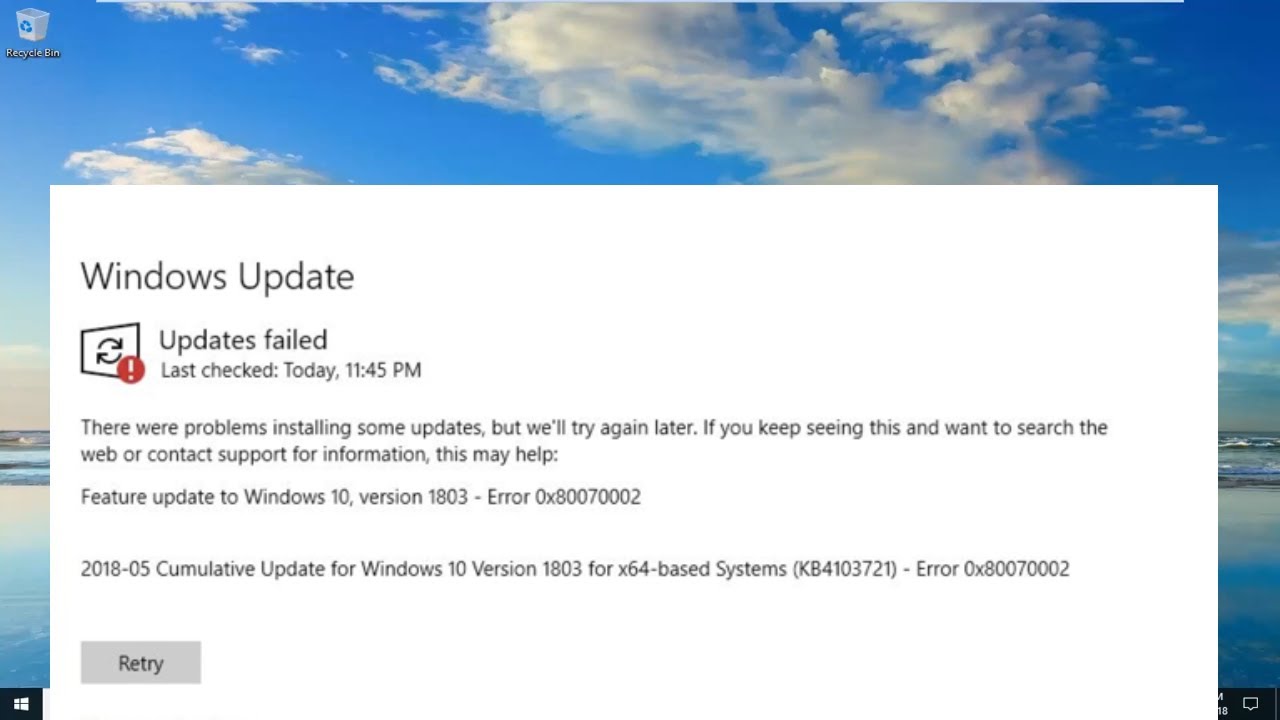


The how to fix error code 0x80070057 in Windows 11 issue is one of the most frequently reported problems by Windows users. This error often appears during Windows Update, system backup, file transfer, or installation processes. It usually indicates that Windows has encountered incorrect parameters, corrupted system files, or misconfigured settings that prevent a task from completing successfully.
If you are facing this error, don’t worry. In this comprehensive guide, you will learn how to fix error code 0x80070057 in Windows 11 step by step using proven troubleshooting methods. These solutions are safe, beginner-friendly, and effective for both personal and professional users.
What Is Error Code 0x80070057 in Windows 11?
Error 0x80070057 is a Windows system error that typically means:
“The parameter is incorrect.”
It occurs when Windows cannot process a request due to invalid data, corrupted files, or system misconfiguration.
Common scenarios where it appears:
- Windows Update failure
- Backup and restore errors
- File copy or transfer issues
- Disk formatting problems
- Installation errors
How to Fix Error Code 0x80070057 in Windows 11: Main Causes
Before fixing the issue, it’s important to understand what triggers it.
1. Corrupted System Files
Damaged Windows files can cause invalid parameter errors.
2. Incorrect Date and Time Settings
Wrong system configuration can interfere with updates.
3. Windows Update Cache Corruption
Broken update files stored in cache cause failures.
4. Disk Errors or Bad Sectors
Storage issues prevent proper file operations.
5. Registry Misconfiguration
Incorrect registry entries may trigger system errors.
6. Antivirus Interference
Security software may block system operations.
7. Insufficient Disk Space
Low storage can cause incomplete processes.
How to Fix Error Code 0x80070057 in Windows 11 (Step-by-Step Guide)
Now let’s go through the most effective solutions in detail.
1. Restart Your Computer
A restart clears temporary system glitches.
- Save your work
- Restart PC
- Retry the operation
2. Run Windows Update Troubleshooter
Microsoft provides built-in repair tools.
Steps:
- Open Settings
- Go to System → Troubleshoot
- Click Other Troubleshooters
- Run Windows Update Troubleshooter
Official Microsoft support:
👉 https://support.microsoft.com/windows/windows-update-troubleshooter
3. Check Date, Time, and Region Settings
Incorrect system settings often cause parameter errors.
Steps:
- Settings → Time & Language
- Enable automatic time
- Set correct region
4. Run System File Checker (SFC)
SFC repairs corrupted system files.
Command:
sfc /scannow
5. Use DISM Tool
DISM repairs Windows system image.
Command:
DISM /Online /Cleanup-Image /RestoreHealth
6. Clear Windows Update Cache
Fix corrupted update files.
Steps:
- Open Command Prompt (Admin)
- Stop services:
net stop wuauserv net stop bits - Delete:
C:\Windows\SoftwareDistribution - Restart services:
net start wuauserv
net start bits
7. Check Disk for Errors
Repair storage issues.
Command:
chkdsk /f /r
8. Free Up Disk Space
Low storage causes incomplete processes.
- Delete temporary files
- Use Disk Cleanup
- Remove unused apps
9. Disable Antivirus Temporarily
Some security tools block system operations.
- Disable antivirus
- Retry task
- Re-enable afterward
Learn more about Windows security:
👉 https://www.microsoft.com/en-us/windows/comprehensive-security
10. Perform Clean Boot
Eliminate software conflicts.
Steps:
- Run msconfig
- Disable non-Microsoft services
- Restart PC
11. Modify Registry Settings (Advanced)
⚠️ Backup registry before changes.
Steps:
- Open Registry Editor
- Navigate system update keys
- Fix incorrect values
12. Reset Windows Update Components
Fix persistent update issues.
- Stop services
- Rename update folders
- Restart services
13. Install Updates Manually
If updates fail automatically:
👉 Visit:
https://www.catalog.update.microsoft.com/
- Search KB update
- Download manually
14. Run System Restore
Restore system to previous working state.
Steps:
- Open System Restore
- Select restore point
- Restore system
15. Reset This PC (Last Resort)
If nothing works:
- Settings → Recovery
- Reset PC (Keep files option available)
Advanced Fixes for Error 0x80070057 in Windows 11
BIOS Update
Improves system compatibility and stability.
Hardware Diagnostics
Check for:
- Faulty RAM
- Damaged SSD/HDD
Clean Installation of Windows 11
If system corruption is severe.
How to Fix Error Code 0x80070057 in Windows 11 During Windows Update
If the error occurs during updates:
- Clear SoftwareDistribution folder
- Reset update services
- Run Windows Update Troubleshooter
- Install updates manually
How to Fix Error Code 0x80070057 in Windows 11 During Backup
If backup fails:
- Check storage space
- Verify backup drive
- Reset backup settings
- Disable antivirus temporarily
How to Fix Error Code 0x80070057 in Windows 11 During Installation
If installation fails:
- Check ISO file integrity
- Use Media Creation Tool
- Disable secure boot temporarily
Preventing Error Code 0x80070057 in Windows 11
To avoid future issues:
- Keep Windows updated
- Maintain enough disk space
- Avoid interrupting updates
- Use reliable antivirus software
- Regularly scan system files
Real-World Example
A user experiences repeated 0x80070057 errors during Windows Update. After clearing update cache and running SFC scan, the updates install successfully without further issues.
Key Insight
The how to fix error code 0x80070057 in Windows 11 process focuses on correcting system parameters, repairing corrupted files, and resetting update components. Most cases are software-related and fully fixable without reinstalling Windows.
Frequently Asked Questions
What does error 0x80070057 mean?
It means Windows encountered incorrect parameters or corrupted data.
Is error 0x80070057 serious?
It can block updates and operations but is usually fixable.
Can I fix it without reinstalling Windows?
Yes, most fixes are software-based.
Conclusion
Learning how to fix error code 0x80070057 in Windows 11 is essential for maintaining a stable and efficient system. This error may seem complex, but it is usually caused by simple issues like corrupted files, incorrect settings, or update cache problems.
By following the step-by-step solutions in this guide, you can quickly restore system functionality and prevent future errors.
Regular maintenance, system updates, and proper configuration are key to keeping Windows 11 error-free and running smoothly.