

ZIP files are one of the most widely used formats for compressing and sharing files. Whether you’re downloading software, receiving documents, or backing up data, ZIP archives make file management easier and more efficient. However, encountering the issue of a ZIP file not extracting on Windows can be frustrating—especially when you urgently need access to the files inside.
This problem is more common than you might think and can occur due to several reasons, including file corruption, permission issues, or software limitations. Fortunately, most ZIP extraction problems can be resolved quickly with the right troubleshooting steps.
In this comprehensive guide, you’ll learn exactly how to fix ZIP file extraction issues on Windows, understand the causes, and prevent them from happening again.
What Is a ZIP File?
A ZIP file is a compressed archive that reduces file size and bundles multiple files into a single container. It uses lossless compression, meaning the original data remains intact after extraction.
Benefits of ZIP Files:
- Saves storage space
- Speeds up file transfers
- Simplifies file organization
- Supports password protection
Why ZIP Files Fail to Extract on Windows
Before jumping into solutions, it’s important to understand why this issue occurs.
Common Causes:
- Corrupted or incomplete ZIP file
- Unsupported compression method
- Windows built-in extractor limitations
- Insufficient disk space
- File permission restrictions
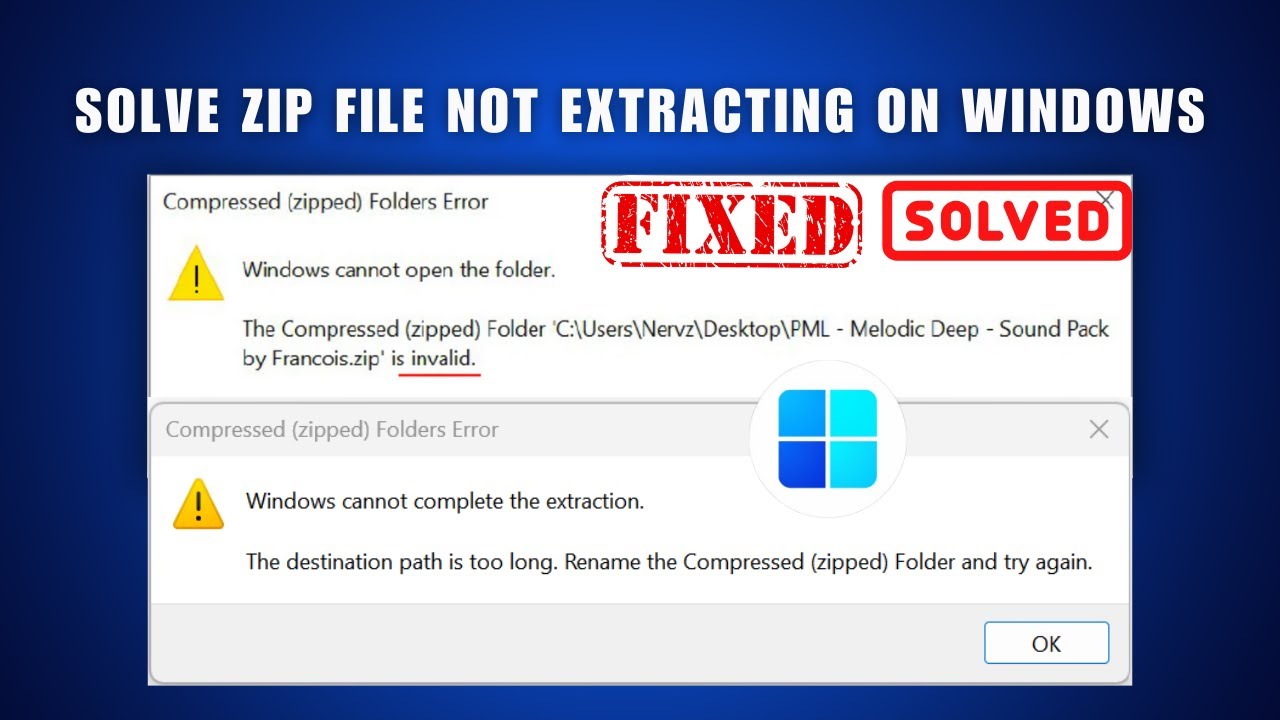
- Long file path errors
- Antivirus interference
- File already in use
Common Error Messages
You may encounter messages such as:
- “Compressed (zipped) folder is invalid”
- “Cannot extract file”
- “Access denied”
- “Unexpected end of archive”
- “File is in use by another program”
Step-by-Step Fixes for ZIP File Not Extracting on Windows
Let’s go through the most effective solutions.
1. Re-Download the ZIP File
Corrupted downloads are the most common cause.
Fix:
- Delete the existing ZIP file
- Download it again from a trusted source
👉 Ensure a stable internet connection.
2. Use a Different Extraction Tool
Windows built-in extractor has limitations.
Recommended tools:
- 7-Zip
- WinRAR
- PeaZip
These tools support advanced compression formats and often fix extraction errors instantly.
3. Check Available Disk Space
Extraction requires sufficient storage.
Fix:
- Free up disk space
- Ensure enough room for extracted files
4. Run Extraction as Administrator
Permission issues can block extraction.
Steps:
- Right-click the ZIP file
- Select Extract All
- Run as administrator
5. Extract to a Different Location
Sometimes the folder path causes issues.
Fix:
- Extract files to Desktop or Documents
- Avoid deeply nested folders
6. Fix Long File Path Issues
Windows has a file path length limitation.
Solution:
- Move the ZIP file to a root folder (e.g., C:)
- Shorten file names
7. Disable Antivirus Temporarily
Antivirus software may block extraction.
Steps:
- Disable antivirus briefly
- Extract the file
- Re-enable protection afterward
8. Repair the ZIP File
If the file is corrupted, try repairing it.
Using WinRAR:
- Open the ZIP file
- Click Tools → Repair Archive
- Save the repaired file
9. Check File Permissions
Ensure you have access rights.
Steps:
- Right-click the file
- Select Properties
- Go to Security tab
- Ensure full control
10. Close Background Applications
Other programs may lock the file.
Fix:
- Close unnecessary apps
- Restart your PC
11. Use Command Prompt
Advanced users can extract via command line.
Steps:
- Open Command Prompt
- Run:
tar -xf filename.zip
12. Update Windows
Outdated systems may cause compatibility issues.
Steps:
- Go to Settings
- Click Update & Security
- Install updates
13. Scan for Malware
Malicious files may prevent extraction.
Fix:
- Run a full system scan
- Remove threats
14. Check Disk for Errors
Disk problems can affect file operations.
Steps:
- Open Command Prompt
- Run:
chkdsk /f
15. Try Extracting on Another PC
The issue may be system-specific.
Fix:
- Transfer the ZIP file
- Extract it on another computer
Advanced Fixes
Enable Long Path Support (Windows 10/11)
- Open Group Policy Editor
- Navigate to:
Computer Configuration > Administrative Templates > System > Filesystem - Enable Win32 long paths
Use PowerShell
Expand-Archive -Path file.zip -DestinationPath folder
Preventing ZIP Extraction Problems
To avoid future issues:
- Download files from trusted sources
- Avoid interrupting downloads
- Keep software updated
- Use reliable extraction tools
- Maintain sufficient disk space
Real-World Example
You download a ZIP file containing important documents, but it fails to extract. After switching to 7-Zip and moving the file to Desktop, extraction succeeds instantly.
This shows how simple adjustments can resolve the issue quickly.
Key Insight
ZIP extraction failures often result from compatibility or file integrity issues. Using the right tools and ensuring clean downloads can prevent most problems.
Benefits of Fixing ZIP Extraction Issues
Resolving this problem helps you:
- Access important files
- Improve workflow efficiency
- Prevent data loss
- Save time and effort
Frequently Asked Questions
Why does my ZIP file say it’s invalid?
It may be corrupted or incomplete.
Can I recover a damaged ZIP file?
Yes, using repair tools like WinRAR.
Is it safe to disable antivirus?
Only temporarily and for trusted files.
Why does extraction fail halfway?
Possible causes include corruption, low storage, or software limitations.
Conclusion
Dealing with a ZIP file not extracting on Windows can be frustrating, but it’s usually easy to fix with the right approach. From re-downloading files to using advanced tools like 7-Zip or PowerShell, the solutions in this guide cover every scenario.
Start with basic fixes and move to advanced methods if needed. With a systematic approach, you can quickly resolve extraction issues and regain access to your files.
ZIP files are designed to simplify data management—so when problems arise, knowing how to troubleshoot them ensures you stay productive and stress-free.