Windows Security (formerly Windows Defender) is Microsoft’s built-in antivirus and antimalware solution. It protects your system against viruses, ransomware, spyware, and other malicious software. While Windows Security usually updates its signatures automatically, there are times when you may need to manually update them. This could be due to network restrictions, failed automatic updates, or the need to ensure your system has the latest definitions immediately.
In this article, we’ll explore how to manually update Windows Security signatures, why it’s important, and provide a detailed step-by-step guide. By the end, you’ll have a clear understanding of how to keep your system secure even when automatic updates fail.
Why Manual Updates Matter
- Network Restrictions: Some organizations block automatic updates for security or bandwidth reasons.
- Offline Systems: Computers not connected to the internet need manual updates.
- Failed Automatic Updates: Occasionally, Windows Update may fail, requiring manual intervention.
- Immediate Protection: If a new threat emerges, you may want to update signatures right away instead of waiting for scheduled updates.
Understanding Windows Security Signatures
Windows Security signatures are essentially definition files that tell the antivirus engine what threats to look for. Without updated signatures, your system may not recognize the latest malware. Microsoft releases new definitions multiple times per day, making updates critical.
Methods to Update Signatures Manually
1. Using Windows Security App
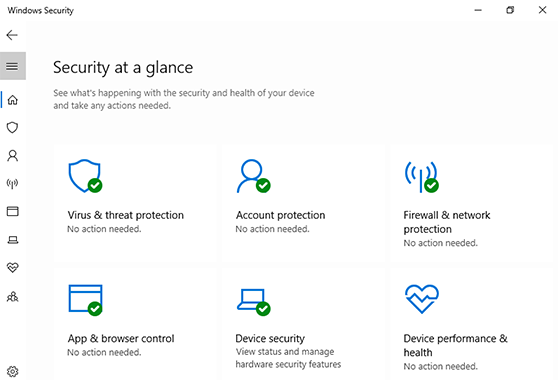
- Open Start Menu → type Windows Security → press Enter.
- Navigate to Virus & threat protection.
- Under Virus & threat protection updates, click Check for updates.
- Windows will download and install the latest definitions.
2. Using Command Prompt
- Open Command Prompt as Administrator.
- Type:
Code
“%ProgramFiles%Windows DefenderMpCmdRun.exe” -SignatureUpdate
- Press Enter.
- This forces Windows Security to update its signatures.
3. Using PowerShell
- Open PowerShell as Administrator.
- Run:
Code
Update-MpSignature
- This command updates the malware definitions instantly.
4. Downloading Definitions Manually
- Visit Microsoft’s official Security Intelligence Updates (microsoft.com in Bing).
- Download the latest definition package for your system (32-bit or 64-bit).
- Run the installer to update signatures manually.
Troubleshooting Manual Updates
- Error Codes: If updates fail, note the error code and search Microsoft’s support site.
- Network Issues: Ensure your PC has internet access if using online updates.
- Corrupted Files: If definitions fail to install, delete old definition files and retry.
- Firewall Restrictions: Check if your firewall blocks Windows Update services.
Best Practices for Signature Updates
- Update Daily: Malware evolves quickly; daily updates are recommended.
- Enable Automatic Updates: Even if you prefer manual updates, keep automatic updates enabled as a backup.
- Verify Update Success: Always check the timestamp of the last update in Windows Security.
- Use Group Policy (Enterprise): Administrators can enforce update policies across multiple systems.
Security Risks of Outdated Signatures
- Zero-Day Vulnerabilities: Without updates, your system may miss new threats.
- Increased Malware Exposure: Outdated definitions leave gaps in protection.
- Compliance Issues: Organizations may fail audits if systems aren’t updated.
Step-by-Step Guide: Manual Update Process
Check Current Signature Version
- Open Windows Security → Virus & threat protection → Check update version.
Download Latest Definitions
- Visit Microsoft’s official site.
Install Definitions
- Run the downloaded installer.
Verify Update
- Reopen Windows Security and confirm the new version is installed.
Advanced Options for IT Administrators
- WSUS (Windows Server Update Services): Manage updates across enterprise systems.
- SCCM (System Center Configuration Manager): Automate signature deployment.
- Offline Updates: Use USB drives to update air-gapped systems.
Frequently Asked Questions (FAQ)
Q: How often should I update Windows Security signatures manually?
A: Ideally, once per day or whenever new definitions are released.
Q: Can I schedule manual updates?
A: Yes, using Task Scheduler with PowerShell commands.
Q: Do manual updates replace automatic updates?
A: No, they complement them. Automatic updates should remain enabled.
Conclusion
Manually updating Windows Security signatures ensures your system stays protected even when automatic updates fail. Whether you’re an individual user or an IT administrator, knowing how to perform manual updates is essential for maintaining strong security. By following the steps outlined in this guide, you can safeguard your system against the latest threats and maintain compliance with security standards.
Related Article: How to Flash Android Factory Image Safely