Windows Update Error 0x80070003 is a common issue that prevents updates from installing properly in Windows 10 and Windows 11. This error typically occurs when the system cannot find required files or update paths, often due to corruption or missing components.
In this guide, you’ll learn how to resolve Windows Update Error 0x80070003 quickly, including causes, step-by-step fixes, and advanced repair methods.
What is Windows Update Error 0x80070003?
Error 0x80070003 usually appears when Windows cannot locate specific update files or directories needed for installation. It may show messages like:
- “Windows Update failed”
- “The system cannot find the path specified”
- Error code: 0x80070003
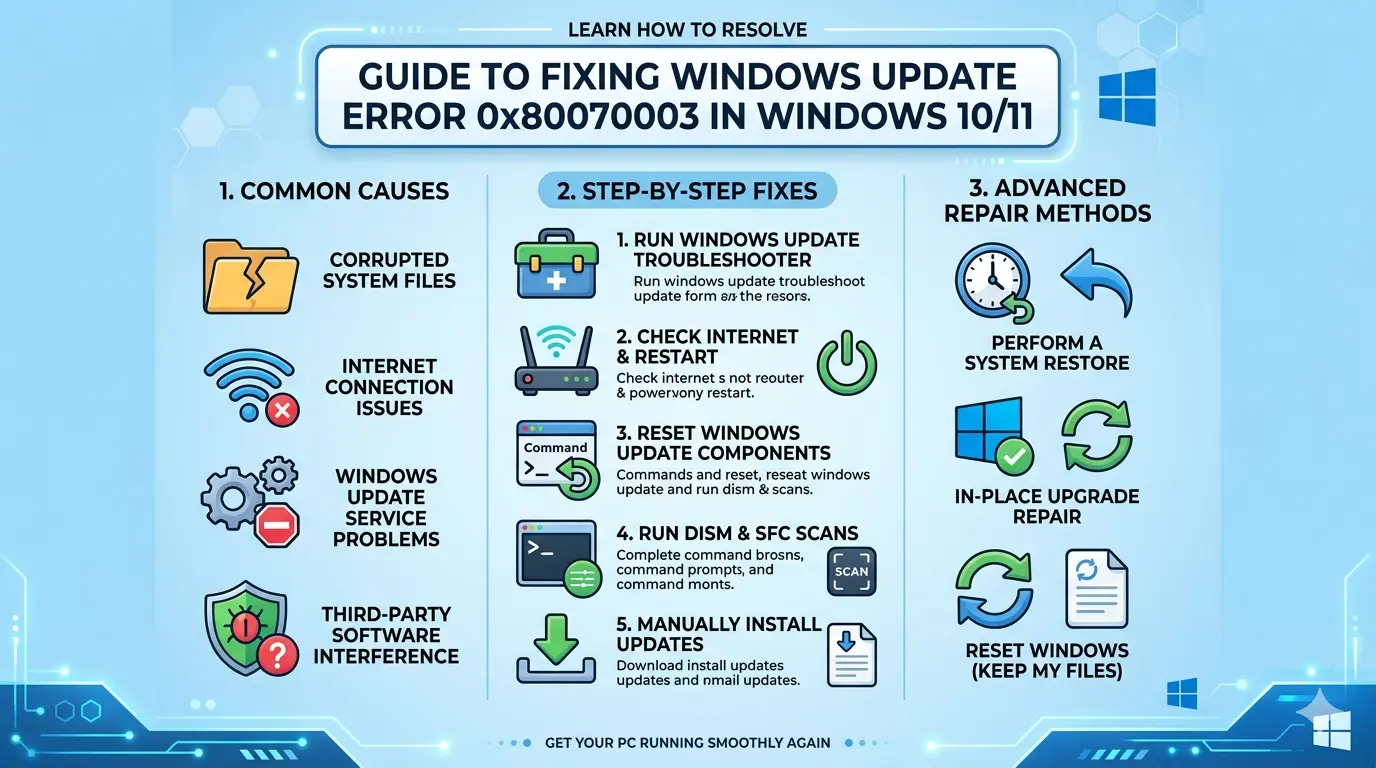
Main Causes of Error 0x80070003
1. Missing or Corrupted Update Files
Update components are incomplete or damaged.
2. Corrupted SoftwareDistribution Folder
The update cache folder becomes unusable.
3. Incorrect System Path
Windows cannot locate required update directories.
4. Disk or File System Errors
Drive corruption prevents file access.
5. Interrupted Update Process
Updates were stopped before completion.
6. System File Corruption
Essential Windows files are damaged.
How Windows Update Works
Windows Update downloads files from Microsoft servers, stores them locally, verifies their integrity, and installs them using system services like Windows Update and BITS. If any part of this process fails, errors like 0x80070003 occur.
Method 1: Restart Windows Update Services
Refreshing services can fix temporary issues.
Steps:
- Press Win + R
- Type:
services.msc - Restart:
- Windows Update
- Background Intelligent Transfer Service (BITS)
Method 2: Run Windows Update Troubleshooter
Automatically detects and fixes update problems.
Steps:
- Open Settings
- Go to System → Troubleshoot
- Click Other troubleshooters
- Run Windows Update
Official Guide:
Microsoft Support – Troubleshoot Windows Update
Method 3: Clear SoftwareDistribution Folder
This is the most effective fix.
Steps:
- Open Command Prompt (Admin)
- Stop services:
net stop wuauserv
net stop bits
- Navigate to:
C:\Windows\SoftwareDistribution
- Delete all files inside
- Restart services:
net start wuauserv
net start bits
Method 4: Run System File Checker (SFC)
sfc /scannow
Method 5: Use DISM Tool
Repair Windows image:
DISM /Online /Cleanup-Image /RestoreHealth
Method 6: Check Disk for Errors
Fix storage-related issues:
chkdsk C: /f /r
Restart your PC when prompted.
Method 7: Verify System Date and Time
Incorrect time can block updates.
Steps:
- Enable automatic time sync
- Set correct time zone
Method 8: Reset Windows Update Components
Advanced fix:
net stop wuauserv
net stop cryptSvc
net stop bits
net stop msiserver

ren C:\Windows\SoftwareDistribution SoftwareDistribution.old
ren C:\Windows\System32\catroot2 catroot2.old

net start wuauserv
net start cryptSvc
net start bits
net start msiserver
Method 9: Free Up Disk Space
Ensure at least 20 GB free space for updates.
Use:
- Disk Cleanup
- Storage Sense
Method 10: Perform In-Place Upgrade Repair
Reinstall Windows without losing files.
Steps:
- Download Windows installer
- Run setup
- Select Keep personal files and apps
Download tool:
Windows Download Page
How to Prevent Windows Update Error 0x80070003
To prevent Windows Update Error 0x80070003, you need to keep your system clean, stable, and properly configured so update files and paths don’t become corrupted or missing.
1. Keep Windows Updated Regularly
Install updates frequently to avoid broken or outdated update components.
2. Maintain Stable Internet Connection
Use a reliable connection to prevent incomplete or corrupted downloads.
3. Avoid Interrupting Updates
Do not shut down or restart your PC while updates are installing.
4. Keep Enough Free Disk Space
Ensure at least 20 GB of free space so updates can download and install properly.
5. Clean the Update Cache Periodically
Clear temporary files and use Disk Cleanup to prevent cache corruption.
6. Run Regular System Maintenance
Use tools like SFC, DISM, and CHKDSK to keep system files and storage healthy.
7. Keep Date and Time Correct
Enable automatic time sync to avoid update verification failures.
8. Avoid Manual System Changes
Do not modify system folders or update-related services unless necessary.
By following these practices, you can significantly reduce the risk of encountering Windows Update Error 0x80070003 and ensure smoother system updates.
Frequently Asked Questions (FAQ)
1. What does error 0x80070003 mean?
It means Windows cannot find required update files or paths.
2. Is error 0x80070003 serious?
No, but it prevents updates from installing.
3. What is the fastest fix?
Clearing the SoftwareDistribution folder is usually the quickest solution.
4. Can I fix it without reinstalling Windows?
Yes, most issues are resolved using SFC, DISM, or resetting update components.
5. Does disk corruption cause this error?
Yes, bad sectors or file system issues can block updates.
6. Will resetting Windows fix it?
Yes, but it should be a last resort.
7. How long does DISM take?
Typically 10–30 minutes depending on system performance.
8. Can antivirus block updates?
Yes, some antivirus tools interfere with update files.
Conclusion
Windows Update Error 0x80070003 is mainly caused by missing files, corrupted update cache, or system inconsistencies. Fortunately, it can be fixed using built-in tools like Troubleshooter, SFC, DISM, and cache reset methods.
By following this guide, you can resolve Windows Update Error 0x80070003 quickly and restore your system’s ability to update properly without reinstalling Windows.