Windows Fast Startup is a feature designed to help your PC boot faster by combining elements of shutdown and hibernation. While it can significantly reduce startup time, it may also cause compatibility issues in certain situations.
In this complete guide, you’ll learn how Windows Fast Startup works, how to enable or disable it, and how to fix common problems related to this feature.
What is Windows Fast Startup?
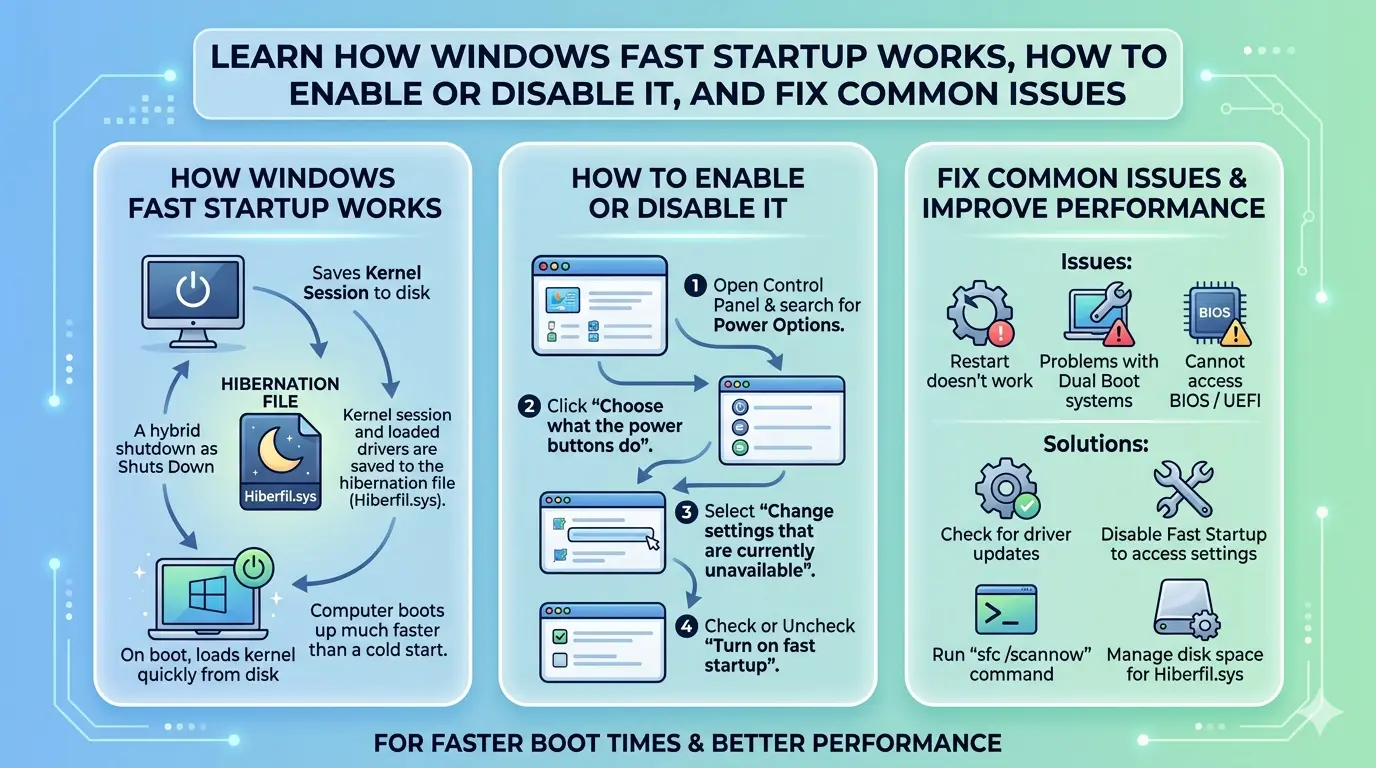
Windows Fast Startup is a hybrid shutdown feature that saves part of your system state to a file when you shut down your PC. This allows Windows to start faster the next time you turn it on.
Unlike a full shutdown, Fast Startup keeps essential system information ready to reload quickly.
How Windows Fast Startup Works
When you shut down your computer with Fast Startup enabled:
- Windows logs off all users
- System kernel session is saved to a file (hiberfil.sys)
- Drivers and system state are preserved
- On next boot, Windows reloads this data instead of starting from scratch
This process is similar to hibernation but only applies to system-level processes.
Benefits of Windows Fast Startup
1. Faster Boot Time
Reduces startup time significantly, especially on HDD systems.
2. Improved Performance Perception
System feels quicker to start and ready to use.
3. Efficient Resource Loading
Loads drivers and kernel faster than full boot.
Drawbacks of Fast Startup
1. Can Cause Update Issues
Some updates may not install properly after shutdown.
2. Driver Compatibility Problems
Older drivers may not reload correctly.
3. Dual Boot Issues
Can interfere with Linux or other OS setups.
4. BIOS/UEFI Access Problems
May prevent access to firmware settings.
How to Enable Windows Fast Startup
Steps:
- Open Control Panel
- Go to Hardware and Sound
- Click Power Options
- Select Choose what the power buttons do
- Click Change settings that are currently unavailable
- Check Turn on fast startup (recommended)
- Click Save changes
How to Disable Windows Fast Startup
Disabling may fix certain issues.
Steps:
- Open Control Panel
- Navigate to Power Options
- Click Choose what the power buttons do
- Click Change settings that are currently unavailable
- Uncheck Turn on fast startup
- Save changes
When Should You Disable Fast Startup?
You should disable Fast Startup if:
- Windows updates fail to install
- You experience driver issues
- Your PC does not shut down properly
- You use dual-boot systems
- BIOS access is blocked
Fix Common Fast Startup Issues
1. Fast Startup Missing Option
Fix:
Enable hibernation:
powercfg /hibernate on
2. PC Not Fully Shutting Down
Fix:
Disable Fast Startup temporarily and test shutdown behavior.
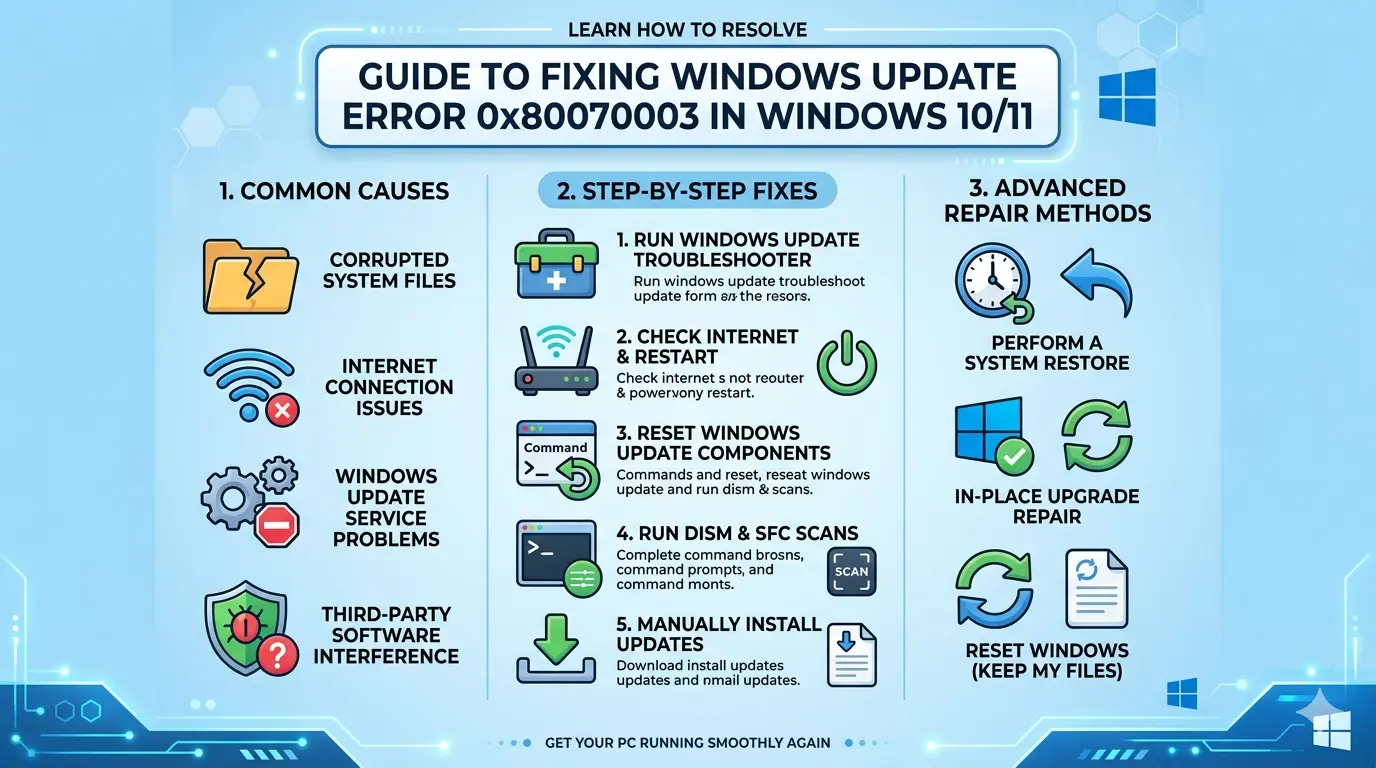
3. Windows Update Problems
Fix:
Disable Fast Startup before installing updates, then re-enable later.
4. Driver Conflicts
Fix:
Update drivers from manufacturer websites.
Advanced Method: Control Fast Startup via Command Line
Disable Fast Startup:
powercfg -h off
Enable Fast Startup:
powercfg -h on
How Fast Startup Differs from Other Modes
| Feature | Full Shutdown | Fast Startup | Hibernate |
|---|---|---|---|
| Saves session | No | Partial | Yes |
| Boot speed | Slow | Fast | Fast |
| Power usage | None | None | None |
Does Fast Startup Improve Performance?
Yes—but only for boot time. It does NOT improve:
- Gaming performance
- CPU speed
- RAM usage
It mainly reduces startup delay.
👉 Windows Slow Performance Fix Guide Speed Up
👉 Windows Startup Settings Documentation
Frequently Asked Questions (FAQ)
1. Is Fast Startup safe?
Yes, it’s safe for most users, but may cause minor compatibility issues.
2. Should I enable Fast Startup?
Yes, if you want faster boot times and don’t face system issues.
3. Why is Fast Startup missing?
It’s usually because hibernation is disabled.
4. Does Fast Startup affect SSD lifespan?
No, it has minimal impact on SSD wear.
5. Can Fast Startup cause update errors?
Yes, sometimes it prevents updates from installing correctly.
6. Is Fast Startup the same as sleep mode?
No, Fast Startup is a hybrid shutdown, not a sleep state.
7. Does Fast Startup drain battery?
No, your PC is fully powered off.
8. Should gamers disable Fast Startup?
Only if they experience driver or hardware issues.
Conclusion
Windows Fast Startup is a useful feature that can significantly reduce boot time by saving system state during shutdown. However, it may cause compatibility issues with updates, drivers, or dual-boot setups.
By understanding how it works and when to enable or disable it, you can optimize your system for both speed and stability.
For most users, keeping Fast Startup enabled is beneficial—but knowing when to disable it is just as important.