The keyword Disable AI features in Paint app in Windows has become increasingly relevant as Microsoft continues integrating artificial intelligence into core Windows applications, including the classic Paint app. While AI tools like generative fill, background removal, and Copilot-style enhancements improve productivity, many users prefer a lightweight, traditional editing experience.
This guide explains everything you need to know about disabling AI features in Paint, including settings adjustments, system-level controls, registry options, and alternative solutions for users who want a simpler workflow.
What Are AI Features in Microsoft Paint?
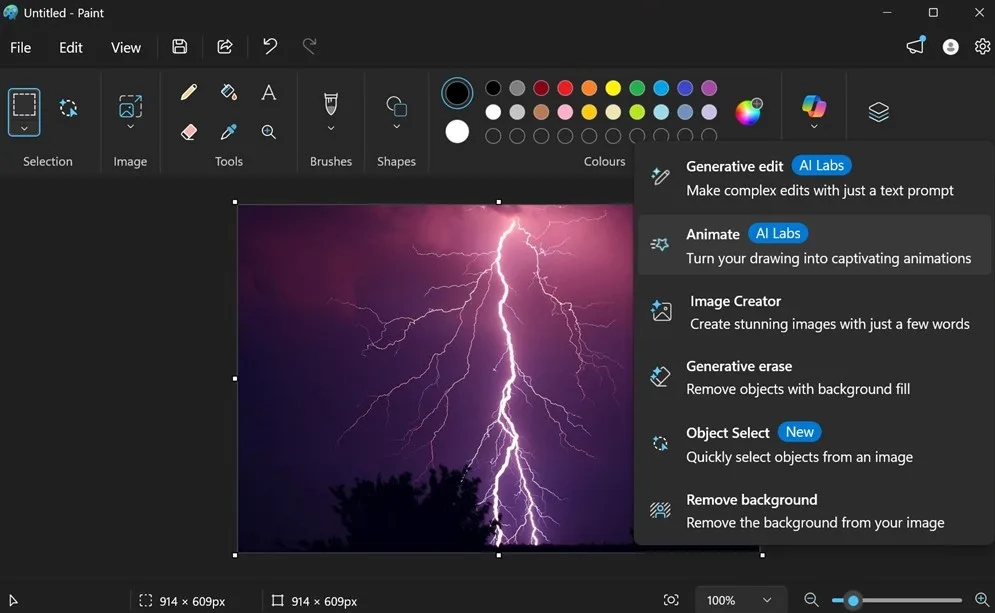
Microsoft Paint has evolved significantly in Windows 11 and newer builds. AI features are designed to automate image editing tasks and enhance user creativity.
Common AI features include:
- Background removal with one click
- Generative fill (AI content creation)
- Smart selection tools
- AI-based image enhancement
- Copilot integration (in some Windows builds)
These tools are powered by Microsoft’s cloud-based AI systems and integrated into Paint and other apps like Photos and Snipping Tool.
Official reference:
https://support.microsoft.com/windows
Why Disable AI Features in Paint App in Windows?
There are several practical reasons users choose to disable AI features in Paint app in Windows. Many prefer better performance, as AI tools can increase CPU, RAM, and GPU usage. Others disable them for privacy, especially when cloud-based processing is involved. Some users simply want a simpler, traditional Paint experience without automated suggestions or changes. It also helps maintain full manual control over editing tasks.
1. Performance Optimization
AI tools use extra CPU, RAM, and GPU power, which can slow performance. Disabling them helps improve speed and system efficiency.
2. Privacy Concerns
Some AI features upload images to cloud servers for processing, which may raise privacy concerns when working with sensitive or personal files.
3. Simplicity Preference
Many users prefer the classic Microsoft Paint experience because it offers a simple, distraction-free interface without automated AI suggestions or enhancements, allowing full manual control over editing tasks.
4. Offline Usage
AI tools in Paint often depend on cloud services, meaning an internet connection is required. Disabling them helps ensure full offline functionality and uninterrupted productivity.
5. Control Over Editing
Manual editing gives users full control over every detail, allowing more precise adjustments compared to AI-generated changes, which can sometimes override or simplify creative intent.
Can You Fully Disable AI in Paint?
The short answer is: not completely in all versions of Windows.
Microsoft has integrated AI features deeply into Windows 11 apps. However, you can significantly reduce or disable them using the methods below.
Method 1: Disable AI Features via Paint Settings
Some versions of Microsoft Paint include built-in settings that allow users to manage or disable AI-powered tools. By accessing the Paint settings menu, you may find toggles for features like AI editing, smart suggestions, or generative tools. Turning these options off helps restore a simpler, traditional editing experience with better performance and fewer automated enhancements.
Steps:
- Open Paint
- Click the Settings (gear icon)
- Look for options like:
- AI Tools
- Copilot Features
- Smart Editing
- Turn off available toggles
If these options are not visible, use the next method.
Method 2: Disable AI Features in Windows Settings
Windows 11 can manage AI features in Paint at the system level. By opening Windows Settings, users may disable AI-related permissions such as cloud processing, smart suggestions, and Copilot integration. This reduces AI activity across Paint and helps maintain a more manual and privacy-focused editing experience.
Steps:
- Open Settings
- Go to Privacy & Security
- Click Windows Permissions
- Select AI & Copilot features
- Disable:
- Image suggestions
- Cloud-based processing
- Personalized AI tools
This reduces AI integration across Paint and other apps.
Method 3: Disable Paint AI Using Group Policy Editor (Pro Users)
The Group Policy Editor in Windows Pro and Enterprise editions allows advanced users to manage system-wide features, including AI functions in Paint. By adjusting specific policies, you can disable AI-assisted editing, Copilot integration, and cloud-based suggestions. This method provides deeper control over Windows behavior and helps enforce a more traditional, offline-focused Paint experience across the system.
Steps:
- Press
Win + R - Type
gpedit.msc - Navigate to:
Computer Configuration → Administrative Templates → Windows Components - Look for Paint or Copilot policies
- Disable:
- AI-assisted editing
- Cloud suggestions
Restart your PC afterward.
Method 4: Registry Editor Method (Advanced Users)
The Registry Editor method is an advanced way to disable AI features in Paint for experienced Windows users. By modifying specific registry values, you can turn off AI tools such as smart suggestions, Copilot integration, and cloud-based processing. However, incorrect changes may affect system stability, so careful editing and proper backups are strongly recommended before making any adjustments.
Steps:
- Press
Win + R - Type
regedit - Navigate to:
HKEY_LOCAL_MACHINE\SOFTWARE\Microsoft\Paint
- Create or modify:
EnableAI= 0EnableCopilot= 0
- Restart your system
This method may vary depending on Windows updates.
Method 5: Use an Older Version of Paint
If AI features are too deeply integrated into the latest Paint app, one practical solution is to use an older version of Paint or an alternative image editor. Classic Paint versions (from older Windows releases) do not include AI tools, offering a simpler, faster, and fully manual editing experience without smart suggestions or cloud-based features.
- Installing classic Paint (Windows 10 version)
- Using offline image editors like:
- Paint.NET
- GIMP
- IrfanView
These tools do not include AI features by default.
Method 6: Block AI Features via Internet Restrictions
Since many AI features in Paint rely on cloud connectivity, you can limit or block them by restricting internet access for the app. Using Windows Defender Firewall or network rules, you can prevent Paint from connecting to online AI services. This may disable features like generative tools and cloud-based suggestions, ensuring a more offline and privacy-focused editing experience.
Steps:
- Open Windows Defender Firewall
- Create outbound rule
- Block Paint app network access
This may disable:
- Generative fill
- Cloud-based AI suggestions
Pros and Cons of Disabling AI Features
Advantages:
- Faster app performance
- More privacy
- Traditional editing workflow
- Offline usability
Disadvantages:
- No smart editing tools
- Manual work increases
- Reduced automation
Impact of Disabling AI in Paint on User Experience
When you disable AI features in Paint app in Windows, the experience becomes more traditional and lightweight. The app responds faster with lower CPU and RAM usage, and editing is fully manual without automated suggestions. However, you lose access to smart tools like background removal, generative fill, and AI enhancements that can speed up creative workflows.
- More lightweight
- Less resource-intensive
- Fully manual in editing workflow
However, you lose access to advanced features like AI background editing and intelligent selection tools.
Best Alternative Tools Without AI Features
If you prefer a clean, traditional editing experience without AI tools, there are several reliable alternatives to Microsoft Paint. These apps focus on manual control, lightweight performance, and offline usability. Popular options include Paint.NET for simple editing with plugins, GIMP for advanced open-source image manipulation, and IrfanView for fast viewing and basic editing without AI-driven features.
If you want a clean experience, consider:
These tools provide full control without AI interference.
Troubleshooting: AI Features Still Showing
If AI features are still appearing after you’ve disabled them, it usually means the settings haven’t fully applied or Windows updates have re-enabled them. Start by restarting Paint and Windows Explorer, then check for pending Windows updates. If needed, reapply your settings or policy changes, and clear Microsoft Store cache. In some cases, reinstalling Paint can also reset lingering AI integrations.
Try these fixes:
- Restart Windows Explorer
- Update Windows settings
- Reinstall Paint app
- Clear Microsoft Store cache
- Check system updates
Future of AI in Microsoft Paint
Microsoft is gradually expanding AI integration in Windows apps. Future updates may include:
- More generative editing tools
- AI-assisted drawing suggestions
- Real-time object enhancement
This means fully removing AI may become harder in future versions, but user-level controls will likely remain available.
Frequently Asked Questions (FAQ)
1. Can I completely remove AI from Paint?
Not entirely. You can disable most features, but some may remain integrated in Windows 11.
2. Does disabling AI affect Paint performance?
Yes, it usually improves speed and reduces memory usage.
3. Is Paint AI available in Windows 10?
No, most AI features are exclusive to Windows 11 and newer builds.
4. Will disabling AI break Paint?
No. Paint will continue working normally with basic features.
5. Can I reinstall Paint without AI?
Only older versions of Paint or third-party apps can guarantee no AI features.
6. Why does Microsoft add AI to Paint?
To improve productivity, automate editing tasks, and enhance creativity for users.
7. Is there a shortcut to turn off AI quickly?
Not currently. You must use settings, policy editor, or registry methods.
Conclusion
The ability to Disable AI features in Paint app in Windows is increasingly important for users who prefer a simple, fast, and privacy-focused editing experience. While Microsoft continues to integrate artificial intelligence deeply into Windows applications, there are still multiple ways to reduce or control these features.
By using settings adjustments, system policies, or alternative tools, you can regain full control over your editing workflow while keeping Paint lightweight and efficient.
As Windows continues to evolve, staying informed about these options ensures you always maintain the balance between automation and manual control.