If your computer feels slow, storage is filling up, or apps are lagging, learning How to Clean Temporary Files in Windows can make a huge difference. Temporary files are created by apps and the system running Microsoft Windows, and over time, they accumulate and reduce performance.
In this complete guide for PC-Status readers, you’ll learn How to Clean Temporary Files in Windows, why it matters, and step-by-step methods to safely remove unnecessary files and improve your system speed.
How to Clean Temporary Files in Windows (Why It Matters)
Understanding How to Clean Temporary Files in Windows is essential for maintaining a fast and efficient PC.
What Are Temporary Files?
Temporary files are short-term data stored by:
- Applications
- Browsers
- Windows system processes
They are meant to be deleted automatically, but often they remain and build up over time.
Problem: Why Temporary Files Slow Down Your PC
Many users ignore temporary files until performance drops.
Common Issues Caused by Temporary Files:
- Slow system performance
- Low disk space
- Application crashes
- Windows update errors
- Longer boot times
These files can take up gigabytes of space and impact system responsiveness.
👉 Check your driver status to ensure performance
👉 Learn how to fix Windows slow performance
How to Clean Temporary Files in Windows (Step by Step)
Below are the best methods to clean temporary files safely.
Method 1: Use Windows Settings (Recommended)
Steps:
- Open Settings
- Go to System → Storage
- Click Temporary Files
- Select files to delete
- Click Remove Files
This is the safest and easiest method.
Method 2: Use Disk Cleanup Tool
The built-in Disk Cleanup tool removes unnecessary files.
Steps:
- Press Win + R
- Type:
cleanmgr
- Select drive (usually C:)
- Check:
- Temporary files
- Recycle Bin
- System cache
- Click OK → Delete Files
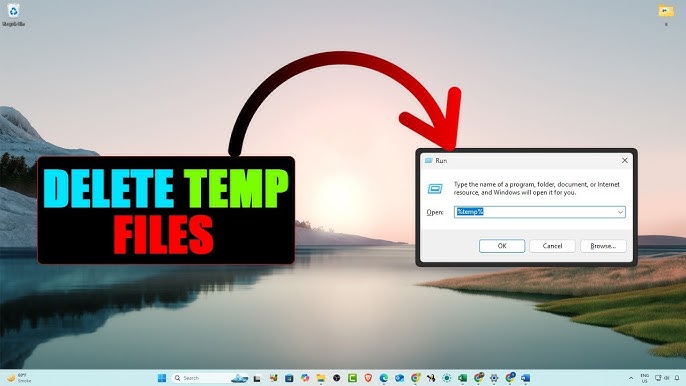
Method 3: Delete Temp Files Manually
Steps:
- Press Win + R
- Type:
%temp%
- Press Enter
- Select all files
- Delete them
Repeat with:
temp
Method 4: Use Command Prompt
Steps:
- Open Command Prompt
- Run:
del /q/f/s %TEMP%*
This removes all temporary files quickly.
Method 5: Enable Storage Sense
Storage Sense automatically deletes temporary files.
Steps:
- Go to Settings → System → Storage
- Enable Storage Sense
- Configure automatic cleanup
How Often Should You Clean Temporary Files?
Recommended Frequency:
- Once a week for heavy users
- Once a month for normal users
- After installing/uninstalling programs
Additional Tips to Optimize Storage
1. Clear Browser Cache
Browsers store large amounts of temporary data.
2. Uninstall Unused Programs
Remove unnecessary apps to free space.
3. Use Cloud Storage
Move files to cloud platforms.
4. Clean Recycle Bin
Deleted files still occupy space until emptied.
5. Update System Regularly
System updates improve storage management.
Common Mistakes to Avoid
1. Deleting Important Files
2. Using Untrusted Cleaning Tools
3. Ignoring Regular Cleanup
4. Cleaning System Files Without Knowledge
Real-World Example
A user notices their PC is slow and storage is nearly full. After cleaning temporary files, they free up 10GB of space and significantly improve system speed.
Benefits of Cleaning Temporary Files
1. Faster System Performance
2. More Free Storage Space
3. Fewer Errors and Crashes
4. Improved Boot Time
Key Insight
Learning How to Clean Temporary Files in Windows is one of the easiest ways to boost your computer’s performance without installing additional software.
Frequently Asked Questions
What are temporary files in Windows?
Temporary files are short-term files created by Microsoft Windows and applications to store data while programs are running. They are usually safe to delete.
Is it safe to delete temporary files in Windows?
Yes, it is generally safe to delete temporary files because they are not essential for system operation and are recreated when needed.
How do I clean temporary files in Windows quickly?
You can clean temporary files using:
- Settings → System → Storage → Temporary Files
- Disk Cleanup tool
- Manual deletion via %temp% folder
How often should I clean temporary files?
It is recommended to clean temporary files once a week or at least once a month depending on usage.
Do temporary files slow down Windows?
Yes. Accumulated temporary files can take up storage space and may slow down system performance over time.
What is the safest method to remove temporary files?
Using Windows Settings or Disk Cleanup is the safest method because they only remove non-essential system files.
Can I delete temporary files manually?
Yes. You can use Run command (%temp%) or temp folder, but be careful not to delete files currently in use.
Does Windows automatically delete temporary files?
Sometimes. Windows uses Storage Sense to automatically remove temporary files if enabled.
Conclusion
Understanding How to Clean Temporary Files in Windows is essential for maintaining a fast, clean, and efficient computer. By using built-in tools like Settings, Disk Cleanup, and Storage Sense, you can easily remove unnecessary files and improve system performance.
For PC-Status readers, regular maintenance like this ensures your system running Microsoft Windows stays optimized, responsive, and free from unnecessary clutter.
By combining regular cleanup with good system habits, you can extend your PC’s lifespan and enjoy smoother performance every day.
{
“@context”: “https://schema.org”,
“@type”: “FAQPage”,
“mainEntity”: [
{
“@type”: “Question”,
“name”: “What are temporary files in Windows?”,
“acceptedAnswer”: {
“@type”: “Answer”,
“text”: “Temporary files are short-term files created by Microsoft Windows and applications to store temporary data during program execution.”
}
},
{
“@type”: “Question”,
“name”: “Is it safe to delete temporary files in Windows?”,
“acceptedAnswer”: {
“@type”: “Answer”,
“text”: “Yes, deleting temporary files is generally safe because they are not required for long-term system operation and are recreated when needed.”
}
},
{
“@type”: “Question”,
“name”: “How do I clean temporary files in Windows quickly?”,
“acceptedAnswer”: {
“@type”: “Answer”,
“text”: “You can clean temporary files via Settings > System > Storage > Temporary Files, Disk Cleanup tool, or by manually deleting files in the %temp% folder.”
}
},
{
“@type”: “Question”,
“name”: “How often should I clean temporary files?”,
“acceptedAnswer”: {
“@type”: “Answer”,
“text”: “It is recommended to clean temporary files once a week or at least once a month depending on system usage.”
}
},
{
“@type”: “Question”,
“name”: “Do temporary files slow down Windows?”,
“acceptedAnswer”: {
“text”: “Yes, accumulated temporary files can consume storage space and reduce overall system performance over time.”
}
},
{
“@type”: “Question”,
“name”: “What is the safest way to delete temporary files?”,
“acceptedAnswer”: {
“@type”: “Answer”,
“text”: “The safest methods are using Windows Settings or Disk Cleanup because they only remove non-essential system files.”
}
},
{
“@type”: “Question”,
“name”: “Can I delete temporary files manually?”,
“acceptedAnswer”: {
“@type”: “Answer”,
“text”: “Yes, you can manually delete temporary files using the Run command %temp% or the temp folder, but ensure no files are currently in use.”
}
},
{
“@type”: “Question”,
“name”: “Does Windows automatically delete temporary files?”,
“acceptedAnswer”: {
“@type”: “Answer”,
“text”: “Yes, Windows can automatically delete temporary files if Storage Sense is enabled.”
}
}
]
}