The Fix Blue Screen of Death (BSOD) process is essential for anyone using Microsoft Windows, as this critical error can suddenly crash your system and disrupt your workflow. Whether you’re dealing with a random reboot or repeated system failures, understanding how to fix BSOD errors will help you restore your PC quickly and safely.
In this guide, you’ll learn the exact causes of Blue Screen of Death (BSOD) issues in Microsoft Windows, along with step-by-step methods to fix them effectively. It also includes expert tips to help you prevent future system crashes by maintaining drivers, checking hardware health, updating your system regularly, and avoiding common software conflicts that can lead to instability and unexpected errors.
What Is the Blue Screen of Death (BSOD)?
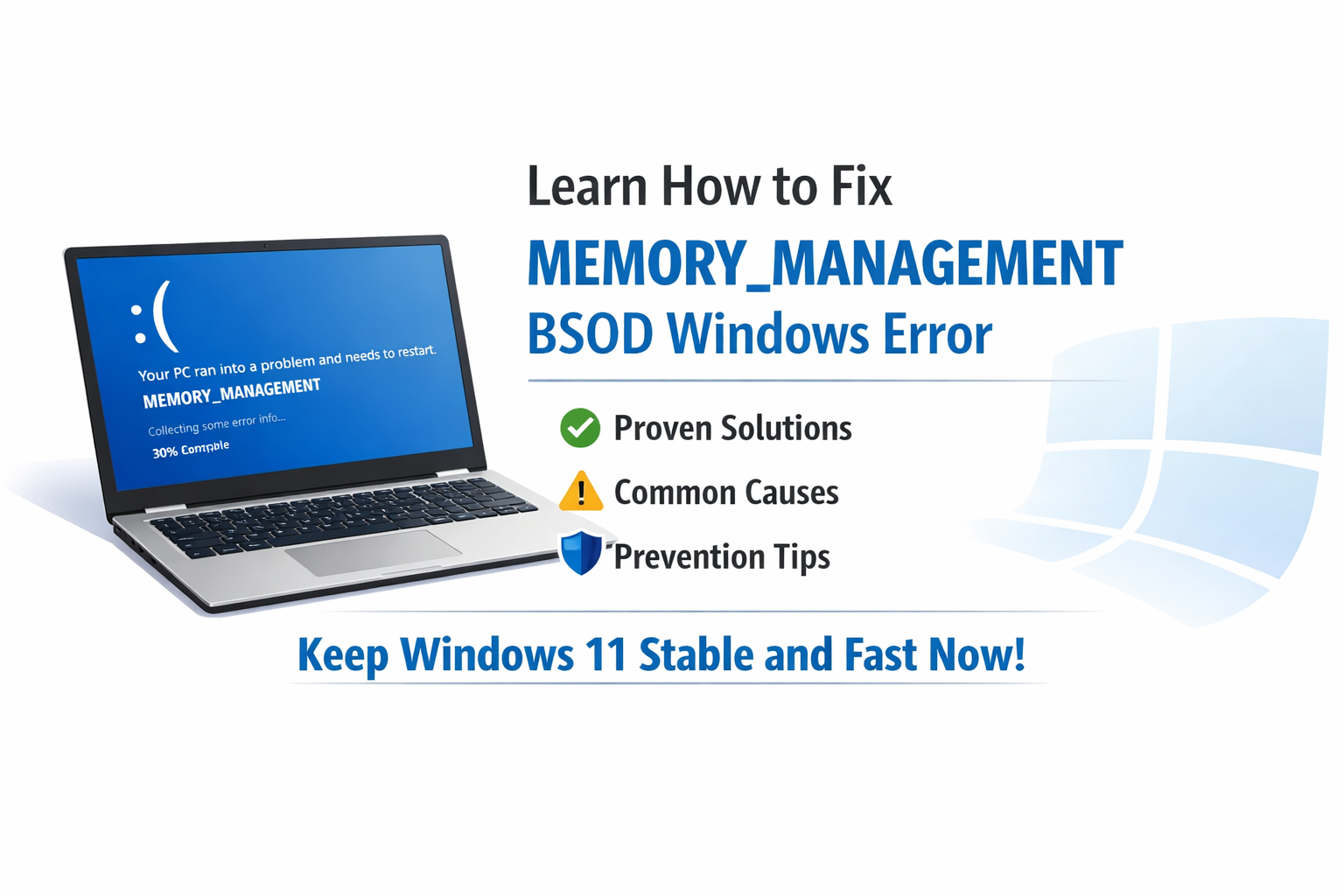
The Blue Screen of Death (BSOD) is a critical error screen in Microsoft Windows that appears when the system encounters a serious problem it cannot safely recover from. It forces the computer to stop all operations and restart to prevent damage to hardware or data. BSODs are typically caused by faulty drivers, hardware failures, or corrupted system files. The screen displays a stop code and error message to help diagnose the issue.
Common BSOD error messages include:
- CRITICAL_PROCESS_DIED
- MEMORY_MANAGEMENT
- IRQL_NOT_LESS_OR_EQUAL
- SYSTEM_SERVICE_EXCEPTION
Fix Blue Screen of Death (BSOD): Common Causes
Fix Blue Screen of Death (BSOD): Common Causes refers to identifying and resolving the main reasons behind system crashes in Microsoft Windows that trigger the Blue Screen of Death. These common causes include outdated or incompatible drivers, hardware failures such as faulty RAM or hard drives, corrupted system files, and software conflicts after updates or installations. By understanding these root issues, users can apply the correct fixes—such as updating drivers, scanning for errors, or repairing system files—to restore system stability and prevent recurring BSOD errors.
Understanding the root cause is the first step to resolving BSOD errors effectively.
1. Hardware Issues
Hardware issues in Microsoft Windows systems can cause Blue Screen of Death (BSOD) errors. Faulty RAM, failing storage drives, overheating components, or damaged hardware can lead to system instability, crashes, and unexpected shutdowns that require diagnosis and repair.
2. Driver Conflicts
Outdated or incompatible drivers in Microsoft Windows can lead to system instability and trigger Blue Screen of Death (BSOD) errors. When drivers do not match hardware or system updates, they may cause conflicts, crashes, and unexpected system failures.
3. Corrupt System Files
Damaged system files in Microsoft Windows can cause crashes during normal operation and may lead to Blue Screen of Death (BSOD) errors. Corruption can disrupt essential processes, resulting in instability, unexpected shutdowns, and system failures that require repair or restoration.
4. Malware or Viruses
Malicious software in Microsoft Windows can interfere with essential system processes, causing instability and triggering Blue Screen of Death (BSOD) errors. Viruses or malware may corrupt files, alter settings, or overload resources, leading to crashes and performance issues.
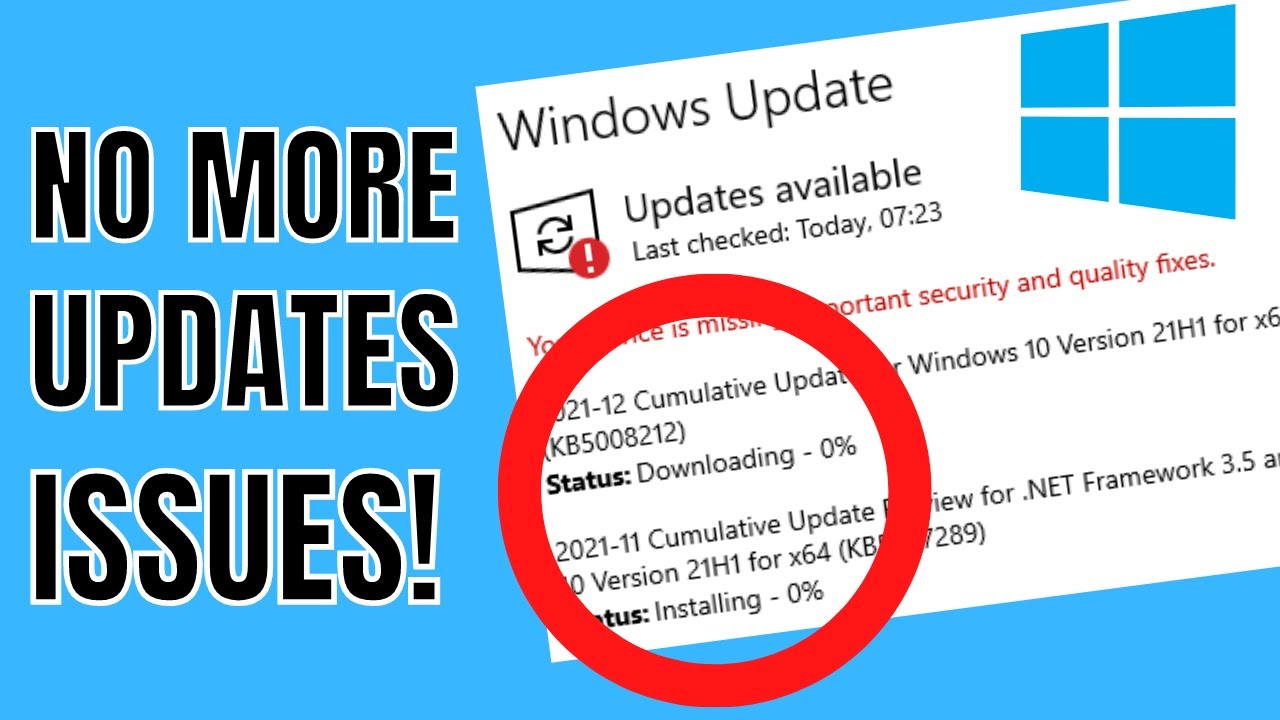
5. Windows Update Problems
Incomplete or buggy updates in Microsoft Windows can introduce system errors that lead to instability and Blue Screen of Death (BSOD) crashes. Failed installations or incompatible patches may disrupt drivers, system files, or settings, causing unexpected failures during normal use.
Fix Blue Screen of Death (BSOD): Step-by-Step Solutions
Follow these proven methods to fix Blue Screen of Death (BSOD) errors on your Microsoft Windows PC. These steps help identify and resolve common causes like driver issues, hardware faults, and system file corruption to restore stability and prevent future crashes.
1. Restart Your Computer
Sometimes, a simple restart in Microsoft Windows can fix temporary glitches that trigger a Blue Screen of Death (BSOD). Restarting clears memory, resets system processes, and can resolve minor software or driver conflicts causing the error.
2. Boot Into Safe Mode
Safe Mode in Microsoft Windows starts the system with only essential drivers and services. This minimal environment helps you troubleshoot BSOD issues by isolating problematic drivers, software, or settings without interference from unnecessary background processes.
Steps:
- Restart your PC
- Press F8 or Shift + Restart
- Select Safe Mode
3. Update Drivers
Outdated drivers are one of the most common causes of Blue Screen of Death (BSOD) in Microsoft Windows. When drivers are not updated, they can become incompatible with system updates or hardware, leading to crashes, instability, and unexpected system errors.
Steps:
- Open Device Manager
- Right-click hardware
- Select Update Driver
👉 Read more: How to Check Driver Version in Windows Easily
4. Run System File Checker (SFC)
This tool in Microsoft Windows scans and repairs corrupted system files that may cause BSOD or system instability. It automatically detects missing or damaged files and restores them to ensure Windows runs smoothly and reduces the risk of crashes and errors.
Command:
sfc /scannow
Run it in Command Prompt as Administrator.
5. Use Windows Memory Diagnostic
Check for RAM issues in Microsoft Windows by using Windows Memory Diagnostic or similar tools. Faulty or unstable RAM can cause BSOD, crashes, and data errors. Running a memory test helps detect defects so you can replace or fix the problematic RAM module.
Check for RAM issues:
Steps:
- Press Windows + R
- Type
mdsched.exe
- Restart and scan
6. Check for Disk Errors
Run CHKDSK in Microsoft Windows to detect and fix disk-related problems that may cause BSOD. It scans your drive for bad sectors, file system errors, and corruption, then repairs them automatically. This helps improve system stability and prevent crashes.
Run CHKDSK to fix disk-related problems:
chkdsk /f /r
7. Uninstall Recent Software
If BSOD started after installing new software in Microsoft Windows, uninstall the recently added program. It may be incompatible or conflicting with system drivers. Restart your PC and check for updates or restore your system to a stable point if the issue continues.
Steps:
- Go to Control Panel
- Uninstall recently added apps
8. Update Windows
Ensure your system is up-to-date in Microsoft Windows by regularly installing the latest updates. Updates include security patches, bug fixes, driver improvements, and stability enhancements that help prevent Blue Screen of Death (BSOD) errors and keep your PC running smoothly.
Ensure your system is up-to-date:
- Go to Settings → Update & Security
- Click Check for updates
Learn more from Microsoft official guide: Windows troubleshooting guide
9. Scan for Malware
Use Windows Security or trusted antivirus tools in Microsoft Windows to scan and remove malware that may cause BSOD. Regular scans help keep your system safe and stable.
10. Restore System
If BSOD persists in Microsoft Windows, use System Restore to revert your PC to a previous stable state. It can undo recent changes causing driver, software, or system conflicts.
If the issue persists, perform a System Restore:
- Go to Recovery options
- Select a restore point before the issue began
Advanced Methods to Fix BSOD
Advanced Methods to Fix BSOD in Microsoft Windows involve deeper troubleshooting steps to identify and resolve critical system errors. These include analyzing dump files using debugging tools, running System File Checker (SFC) and DISM scans to repair corrupted files, updating or rolling back problematic drivers, checking hardware with memory and disk diagnostics, and adjusting BIOS/UEFI settings. In severe cases, performing a system restore or clean installation of Windows may be required to fully eliminate persistent BSOD issues.
Update BIOS
Outdated BIOS on a system running Microsoft Windows can cause hardware compatibility issues, system instability, and even BSOD errors. To fix this, visit your motherboard manufacturer’s official website, download the correct BIOS version for your model, and follow their instructions carefully to update it safely and improve system performance and stability.
Analyze Dump Files
Analyzing dump files in Microsoft Windows involves reviewing crash data automatically saved when a Blue Screen of Death (BSOD) occurs. These dump files contain detailed information about the system state at the time of the crash, including the error code, driver activity, and memory usage. By using tools like WinDbg or Windows Debugging Tools, you can identify the exact driver or process causing the issue and apply targeted fixes such as updating, reinstalling, or removing the problematic component.
Use tools like:
- Windows Debugger (WinDbg)
These help identify the exact cause of crashes.
Reinstall Windows
As a last resort, reinstalling Microsoft Windows can help fix persistent Blue Screen of Death (BSOD) issues by removing corrupted system files, damaged settings, and problematic software. A clean installation restores the operating system to its default state, which can resolve deep system errors that other troubleshooting methods cannot fix. However, it should be done after backing up important data, as it will erase installed applications and personal settings.
How to Prevent Blue Screen of Death (BSOD)
Preventing the Blue Screen of Death (BSOD) in Microsoft Windows involves maintaining system stability and avoiding common error triggers. Keep your operating system and drivers up to date, regularly scan for malware, and avoid installing incompatible software. Monitor hardware health—especially RAM, storage, and temperatures—to prevent failures. Running built-in tools like System File Checker and keeping your system clean from corrupted files can also reduce the risk of unexpected crashes.
Prevention is better than troubleshooting. Follow these tips:
- Keep drivers updated
- Avoid installing unknown software
- Regularly scan for malware
- Monitor system temperature
- Backup important data
Frequently Asked Questions (FAQ)
1. What causes Blue Screen of Death (BSOD)?
The Blue Screen of Death (BSOD) in Microsoft Windows is caused by critical errors like faulty drivers, hardware failures, corrupted system files, or software conflicts.
2. Can BSOD fix itself?
A BSOD in Microsoft Windows may fix itself after a restart if caused by a temporary glitch, but recurring errors usually need manual fixes like updating drivers or repairing system files.
3. Is BSOD dangerous?
A Blue Screen of Death (BSOD) in Microsoft Windows isn’t always dangerous. Occasional crashes are usually harmless, but frequent BSODs may indicate hardware issues, driver errors, or system corruption that can lead to data loss or reduced performance if ignored.
4. How do I read BSOD error codes?
To read BSOD error codes in Microsoft Windows, note the stop code shown on the blue screen (e.g., IRQL_NOT_LESS_OR_EQUAL) and search its meaning. It helps identify causes like driver issues, hardware faults, or system file errors for accurate troubleshooting.
5. Will resetting Windows fix BSOD?
Resetting Microsoft Windows can fix BSOD if caused by corrupted files, bad settings, or software conflicts. However, it won’t solve hardware failures or faulty drivers, so additional troubleshooting may still be needed if the issue persists.
Conclusion
Fixing the Fix Blue Screen of Death (BSOD) issue doesn’t have to be complicated. By following the step-by-step solutions above, you can quickly diagnose and resolve system crashes. From updating drivers to running system scans, each method targets a specific cause to restore your PC’s stability.
For long-term performance, keep your system updated and regularly maintain your PC. With the right approach, you can prevent BSOD errors and enjoy a smooth computing experience.