The Windows Camera Frame Server is a background system component responsible for managing camera access between multiple applications in Windows. When it works properly, apps like Zoom, Microsoft Teams, Skype, and the Camera app can all use your webcam smoothly. However, when something goes wrong, users may experience lag, camera not working, black screen issues, or even high CPU usage linked to the Windows Camera Frame Server.
In this guide, we will explain what the Windows Camera Frame Server is, why it causes problems, and how to fix it using step-by-step solutions. This article is designed for beginners and advanced users who want to restore stable webcam performance on Windows 10 and Windows 11.
What Is Windows Camera Frame Server?
The Windows Camera Frame Server is a system service that acts as a bridge between your webcam hardware and applications that need camera access. Instead of allowing direct access, it manages and distributes camera streams efficiently.
This system service helps:
- Allow multiple apps to use the camera
- Prevent driver conflicts
- Improve compatibility between apps and webcams
- Manage camera permissions
You can learn more about Windows services from Microsoft’s official documentation here:
👉 https://learn.microsoft.com/en-us/windows/win32/services/services
Windows Camera Frame Server Problems Explained
When the Windows Camera Frame Server malfunctions, users may notice:
- Camera not detected
- Black screen in camera apps
- High CPU or memory usage
- Webcam freezing or lagging
- Apps crashing when using camera
These issues often appear after Windows updates, driver changes, or corrupted system files.
Common Causes of Windows Camera Frame Server Issues
Understanding the root cause helps fix the problem faster.
1. Outdated Camera Drivers
Old or incompatible drivers often break camera functionality.
2. Windows Update Bugs
Some updates may introduce Frame Server glitches.
3. Conflicting Applications
Multiple apps trying to access the camera simultaneously can cause crashes.
4. Corrupted System Files
Damaged system components may disrupt the service.
5. Privacy Settings Restrictions
Windows may block camera access for apps.
6. Antivirus Interference
Security software may block camera services.
How to Fix Windows Camera Frame Server Issues
Below are the most effective solutions.
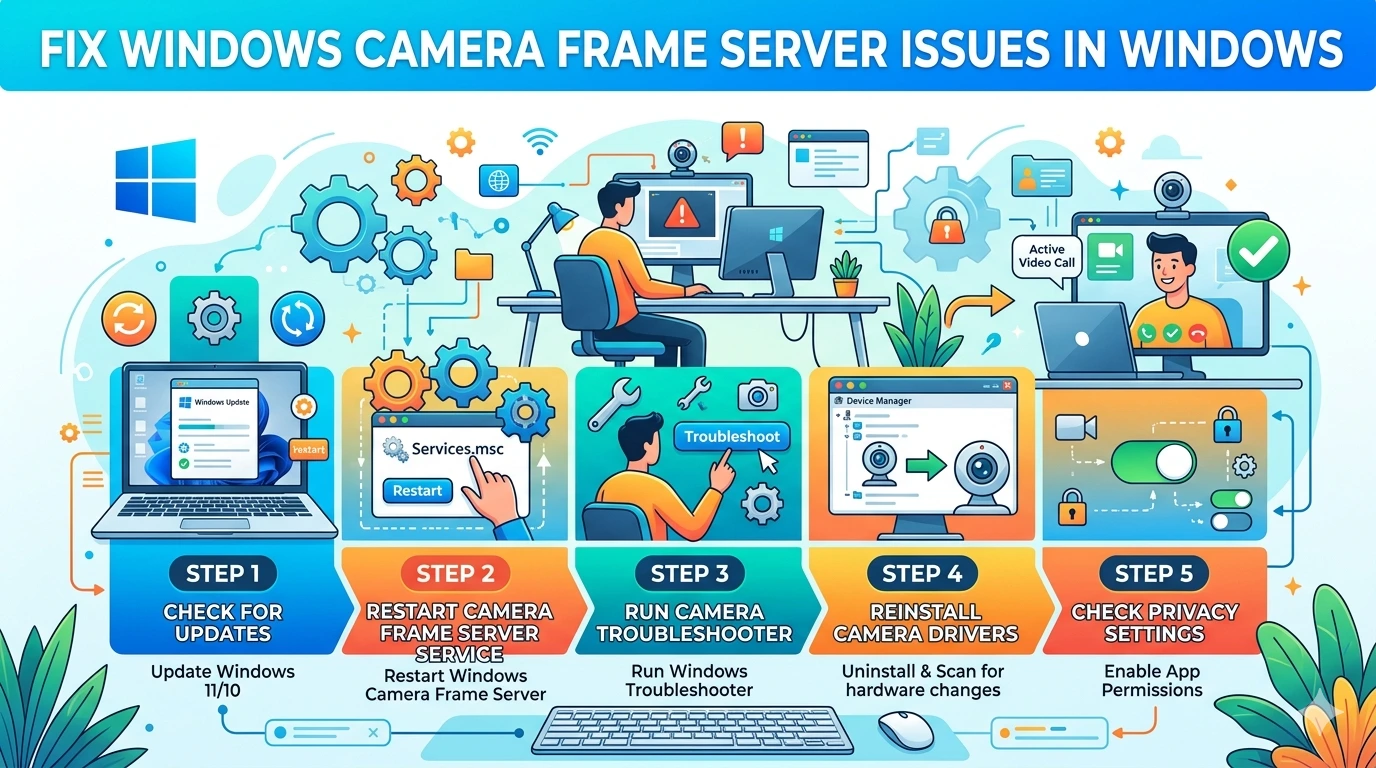
1. Restart Camera Frame Server Service
Restarting the service can fix temporary glitches.
Steps:
- Press Windows + R
- Type:
services.msc - Find Windows Camera Frame Server
- Right-click → Restart
2. Update Camera Drivers
Outdated drivers are a major cause of issues.
Steps:
- Open Device Manager
- Expand Cameras
- Right-click webcam
- Select Update driver
You can also download drivers from your manufacturer’s official site.
3. Check Camera Privacy Settings
Windows may block camera access.
Steps:
- Go to Settings
- Click Privacy & Security
- Select Camera
- Enable access for apps
4. Run Windows Troubleshooter
Microsoft provides built-in troubleshooting tools.
Steps:
- Open Settings
- Go to System → Troubleshoot
- Run Camera Troubleshooter
5. Disable Conflicting Apps
Some apps may lock the camera.
Common culprits:
- Zoom
- Skype
- OBS Studio
- Browser tabs using camera
Close all apps and retry.
6. Reset Camera App
Resetting the Camera app can fix corruption.
Steps:
- Settings → Apps
- Camera → Advanced Options
- Click Reset
7. Run SFC and DISM Tools
System file corruption can break Frame Server.
Run SFC:
sfc /scannow
Run DISM:
DISM /Online /Cleanup-Image /RestoreHealth
8. Disable Background Apps
Too many background apps can overload the service.
Steps:
- Go to Settings → Apps
- Disable unnecessary startup apps
9. Reinstall Camera Drivers
If updating doesn’t work:
Steps:
- Device Manager → Cameras
- Uninstall device
- Restart PC
Windows will reinstall drivers automatically.
10. Check Windows Updates
Microsoft often fixes Frame Server bugs via updates.
Steps:
- Settings → Windows Update
- Install all updates
11. Disable Antivirus Temporarily
Some antivirus tools block camera access.
Try temporarily disabling and testing camera functionality.
12. Change Camera Access via Registry (Advanced)
Only for advanced users:
- Open Registry Editor
- Navigate to camera policies
- Ensure permissions are correct
13. Check Hardware Issues
If nothing works, test hardware:
- Try external webcam
- Test camera on another PC
Performance Fix: Reduce CPU Usage
If Windows Camera Frame Server is using high CPU:
- Close unused apps
- Disable background camera access
- Update drivers
- Restart service
Preventing Windows Camera Frame Server Issues
To avoid future problems:
- Keep Windows updated
- Update drivers regularly
- Avoid multiple camera apps running at once
- Maintain clean system files
- Use trusted antivirus software
Real-World Example
A user experiences black screen issues in Microsoft Teams. After checking, they find that Windows Camera Frame Server is stuck using high CPU. Restarting the service and updating drivers immediately restores normal webcam functionality.
Key Insight
The Windows Camera Frame Server is essential for modern multi-app camera usage. However, it becomes unstable when drivers, privacy settings, or system files are misconfigured. Proper maintenance ensures smooth video functionality across all applications.
Frequently Asked Questions
What is Windows Camera Frame Server used for?
It manages webcam access between multiple apps in Windows.
Why is my camera not working?
It may be due to driver issues, privacy settings, or Frame Server errors.
Can I disable Windows Camera Frame Server?
Not recommended, as it may break camera functionality in apps.
Why is it using high CPU?
Usually caused by driver bugs or conflicting apps.
Conclusion
The Windows Camera Frame Server is a crucial component of modern Windows systems, but when it malfunctions, it can cause serious webcam issues. Fortunately, most problems can be fixed using simple troubleshooting steps like updating drivers, restarting services, and adjusting privacy settings.
By following this guide, you can restore stable camera performance, reduce CPU usage, and ensure smooth video functionality across all applications.
Keeping your system updated and properly configured is the best way to prevent future Camera Frame Server issues and maintain reliable webcam performance.