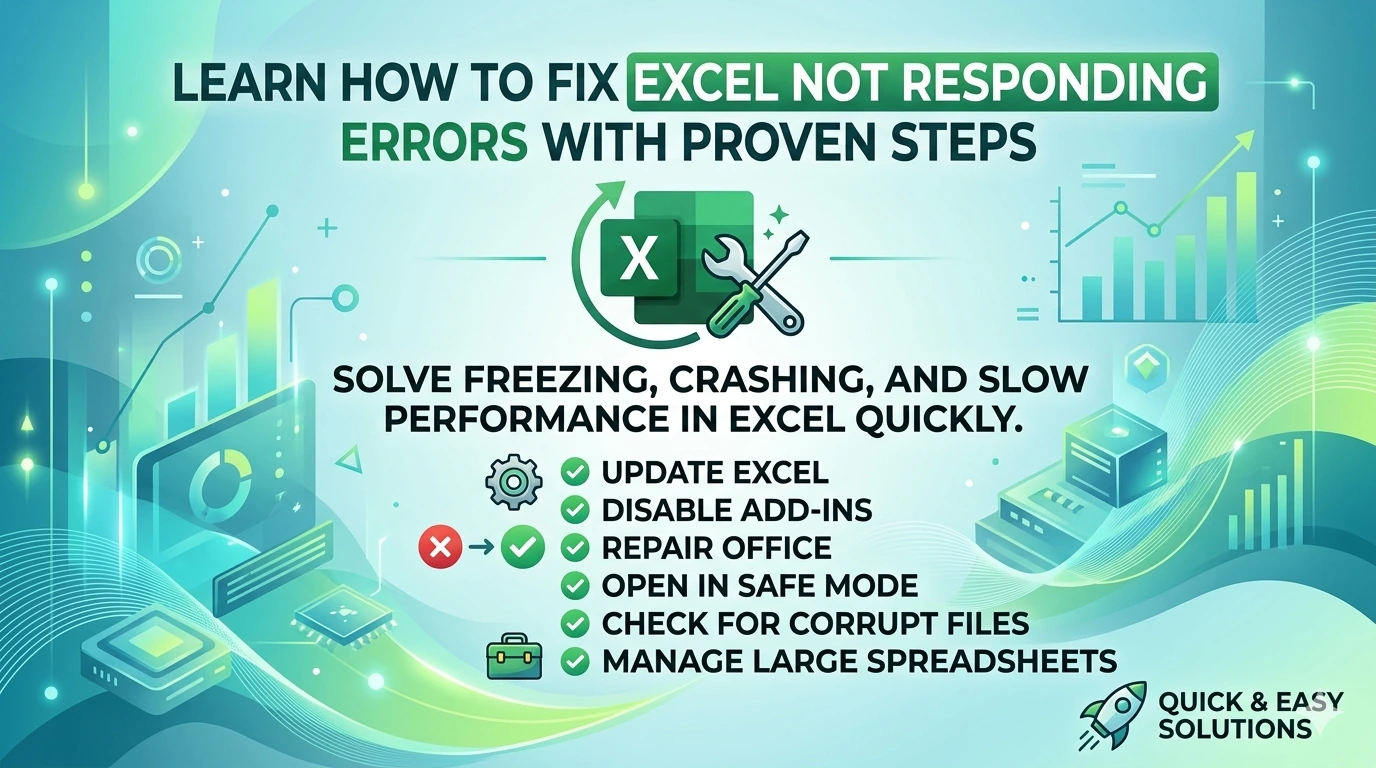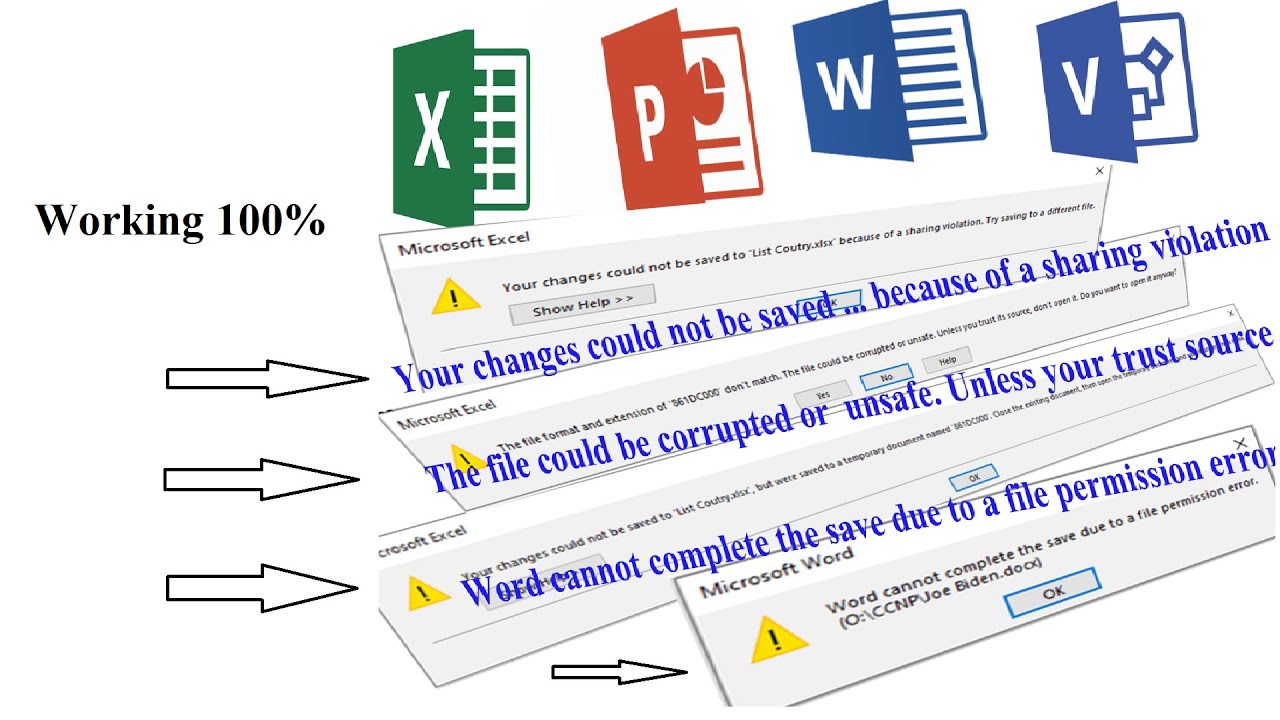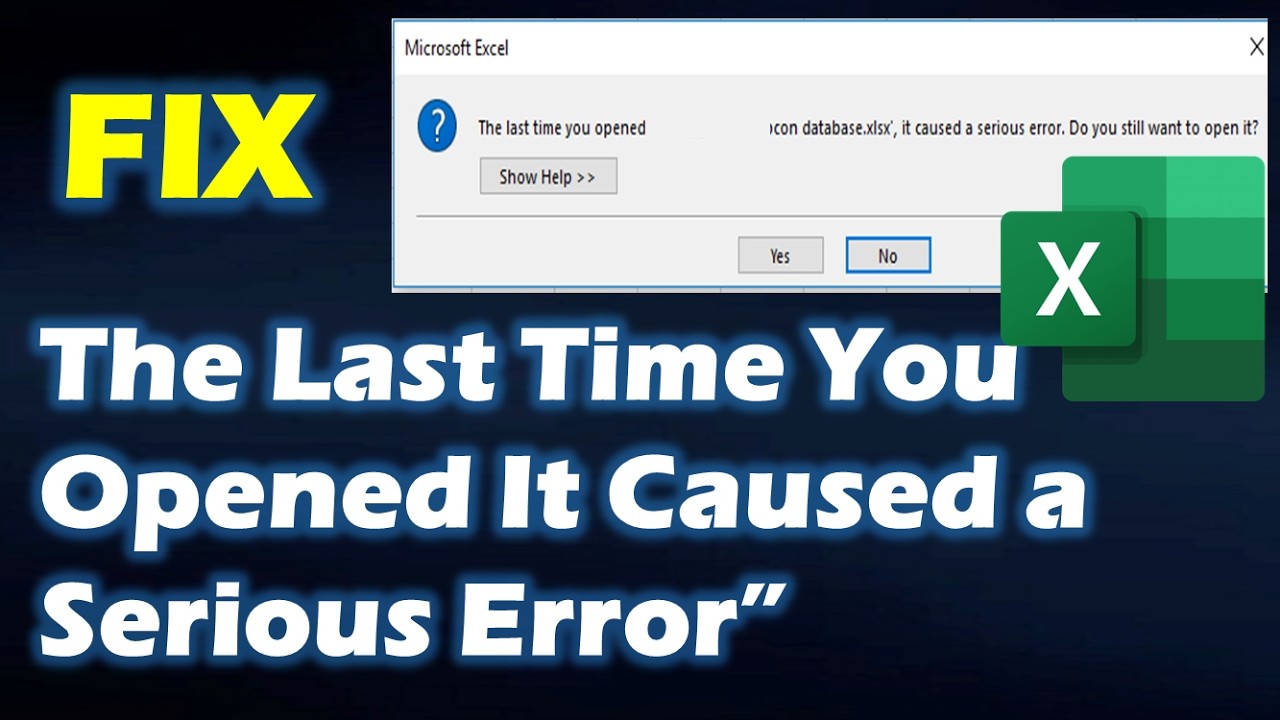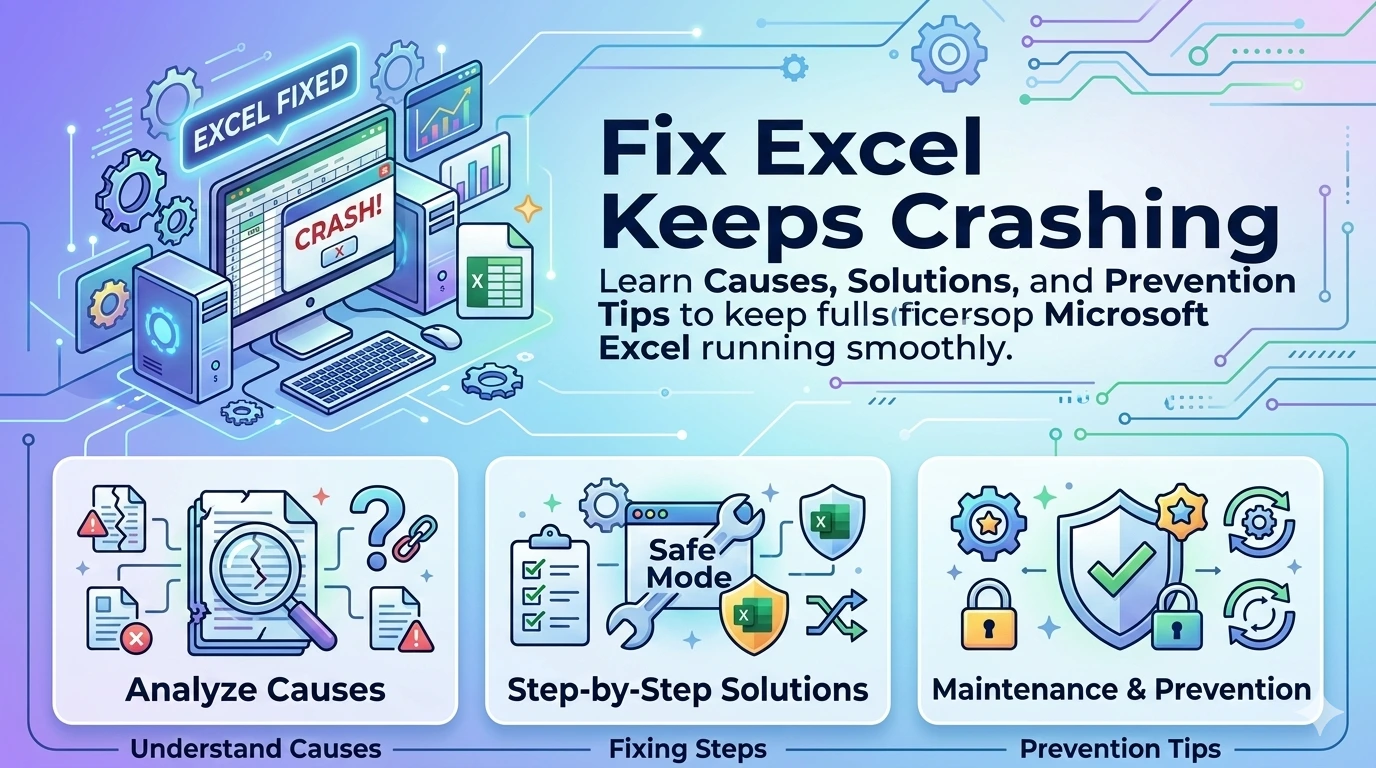
If Excel keeps crashing, you’re not alone. Many users of Microsoft Excel experience sudden shutdowns, freezing, or failure to open files. This issue can disrupt productivity, especially when working on important spreadsheets.
In this guide, you’ll learn why Excel crashes and how to fix it step by step.
Common Causes of Excel Keeps Crashing
Understanding the cause helps you fix the problem faster. Here are the most common reasons:
1. Outdated Software
Using an outdated version of Microsoft Excel can lead to compatibility issues, crashes, and errors when opening modern files or using newer features.
2. Corrupted Excel Files
Corrupted .xlsx or .xls files can cause Excel to crash, freeze, or fail to open properly, especially if key data structures or formatting are damaged.
3. Faulty Add-ins
Third-party add-ins can conflict with Excel, causing crashes, slow performance, or unexpected errors, especially if they are outdated or incompatible.
4. Insufficient System Resources
Limited RAM or sudden CPU spikes can make Excel unstable, leading to slow performance, freezing, or unexpected crashes during heavy tasks.
5. Graphics Acceleration Issues
Hardware acceleration can sometimes trigger display-related issues in Microsoft Excel, leading to screen glitches, freezing, or unexpected crashes.
6. Office Installation Problems
A corrupted installation of Microsoft Office can cause frequent crashes, errors, and instability across apps like Excel, Word, and PowerPoint.
How to Fix Excel Keeps Crashing
1. Start Excel in Safe Mode
Safe Mode disables add-ins and helps identify conflicts.
- Press Windows + R
- Type:
excel /safe - Press Enter
If Excel works fine, an add-in is likely the problem.
2. Disable Add-ins
- Open Excel
- Go to File > Options > Add-ins
- Select COM Add-ins
- Click Go
- Uncheck all add-ins and restart Excel
3. Update Microsoft Excel
Keeping Excel updated is essential for stability.
- Open Excel
- Go to File > Account
- Click Update Options > Update Now
For official guidance, visit Microsoft Support – Update Office
4. Repair Microsoft Office
- Open Control Panel
- Go to Programs > Programs and Features
- Select Microsoft Office
- Click Change
- Choose Quick Repair or Online Repair
5. Disable Hardware Graphics Acceleration
- Open Excel
- Go to File > Options > Advanced
- Scroll to Display
- Check Disable hardware graphics acceleration
6. Check for Corrupted Files
Try opening Excel in a different file:
- If only one file crashes → file is corrupted
- Use:
- Open > Browse
- Click arrow next to Open
- Select Open and Repair
7. Clear Excel Cache & Temporary Files
- Press Windows + R
- Type:
%temp% - Delete unnecessary files
8. Reinstall Microsoft Office
If nothing works:
- Uninstall Office
- Download latest version from Microsoft Office official site
- Reinstall and update
Advanced Fixes Excel Keeps Crashing
Run System File Checker
- Open Command Prompt (Admin)
- Run:
sfc /scannow
👉 Run System File Checker to Fix Windows System Errors
Check Event Viewer Logs
- Press Windows + X
- Select Event Viewer
- Look for Excel-related errors
Best Practices to Prevent Excel Keeps Crashing
- Keep Microsoft Excel updated
- Avoid large, complex formulas when possible
- Disable unused add-ins
- Save files in
.xlsxformat instead of.xls - Use autosave and backups
- Upgrade RAM if working with large datasets
Frequently Asked Questions (FAQ)
Why does Excel keep crashing when opening a file?
This usually happens due to a corrupted file, incompatible add-ins, or outdated Excel version.
How do I fix Excel not responding?
Start Excel in Safe Mode, disable add-ins, and update the software.
👉 Fix Excel Not Responding in Windows 10/11
Can add-ins cause Excel to crash?
Yes, faulty or outdated add-ins are one of the most common causes.
Is reinstalling Excel necessary?
Only if repair methods fail. Reinstalling ensures a clean setup.
Why does Excel crash with large files?
Large files consume more memory and processing power, leading to instability on low-spec systems.
Conclusion
When Excel keeps crashing, the issue is usually tied to add-ins, outdated software, or corrupted files. By following the steps above, you can quickly restore stability and prevent future crashes.
If the Excel keeps crashing persists, consider upgrading your system or reinstalling Microsoft Office for a fresh start.