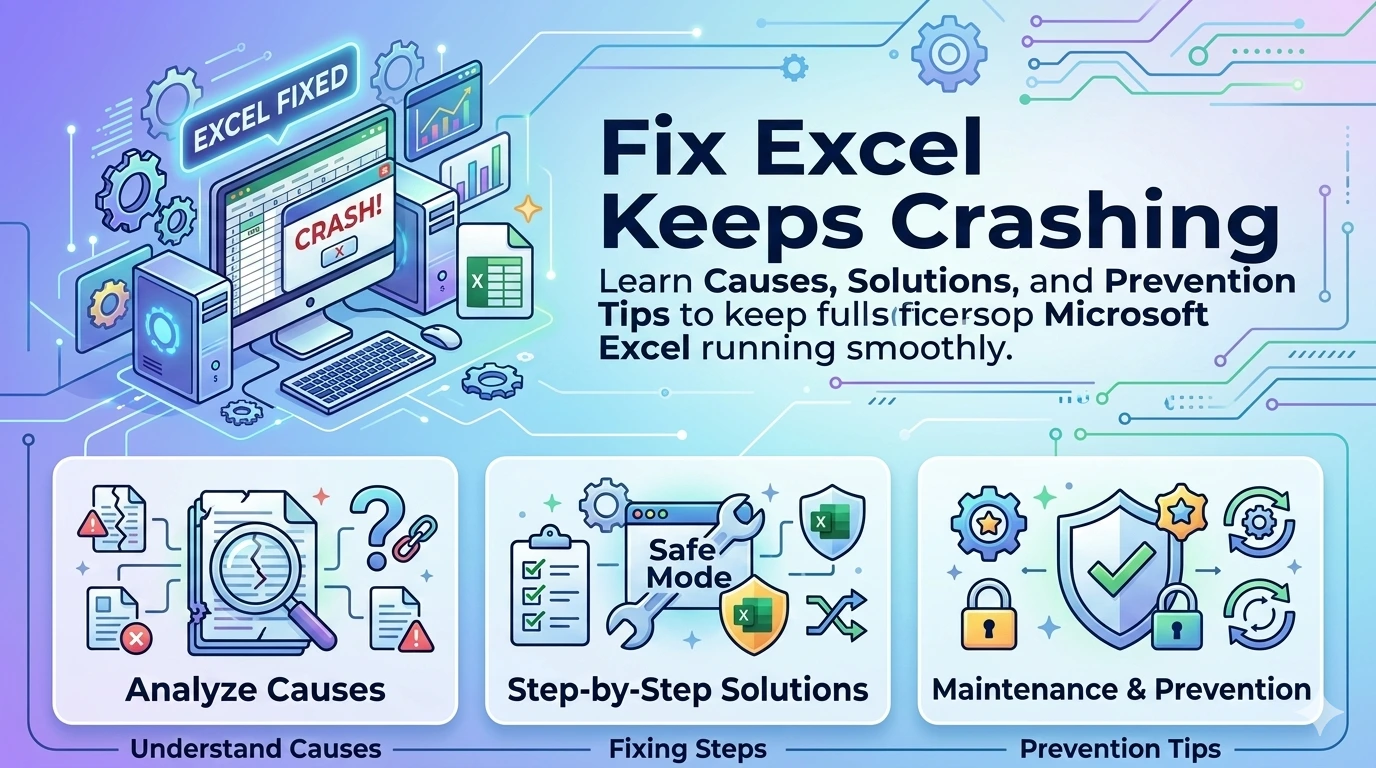
If you’re dealing with Excel not responding, you’re not alone. Many users of Microsoft Excel experience freezing, crashing, or slow performance—especially on Microsoft Windows systems.
This guide will walk you through proven fixes to resolve Excel issues quickly and prevent them from happening again.
Common Causes of Excel Not Responding
Understanding the root cause helps fix the issue faster:
- Too many add-ins enabled
- Corrupted Excel files
- Outdated Excel or Windows version
- Large or complex spreadsheets
- Conflicts with other software
- Hardware limitations
How to Fix Excel Not Responding
1. Start Excel in Safe Mode
Launch Excel in Safe Mode to disable add-ins and isolate issues. This helps identify conflicts causing Excel to freeze or stop responding.
Steps:
- Press
Windows + R - Type:
excel /safe - Press Enter
If Excel works fine, an add-in is likely causing the issue.
2. Disable Add-ins
Disable Excel add-ins to improve performance and prevent freezing. Removing unnecessary extensions helps reduce conflicts and stabilize Excel operation.
Steps:
- Open Excel
- Go to File > Options > Add-ins
- Select COM Add-ins > Go
- Uncheck all add-ins
- Restart Excel
3. Update Excel and Windows
Update Microsoft Excel and Microsoft Windows to fix bugs, improve stability, and prevent crashes or freezing issues.
- Update Excel via Microsoft Office
- Update your OS through Windows Update
Helpful resource:
Visit Microsoft Office Update Guide
4. Repair Microsoft Office
Repair Microsoft Office to automatically fix corrupted files and restore normal functionality, helping resolve crashes, errors, and performance issues.
Steps:
- Open Control Panel
- Go to Programs > Programs and Features
- Select Microsoft Office
- Click Change > Quick Repair
If needed, use Online Repair.
5. Check File Size and Complexity
Check file size and complexity in Microsoft Excel, as large or formula-heavy spreadsheets can slow performance and cause freezing issues.
Tips:
- Remove unnecessary formulas
- Delete unused sheets
- Convert formulas to values
- Avoid excessive conditional formatting
6. Disable Hardware Graphics Acceleration
Disable hardware graphics acceleration in Microsoft Excel to prevent display-related issues that can cause freezing or unresponsive behavior.
Steps:
- Go to File > Options > Advanced
- Scroll to Display
- Check “Disable hardware graphics acceleration”
7. Scan for Malware
Scan your system with Windows Defender to detect and remove malware that may slow down or disrupt Excel performance.
Use trusted tools like:
- Windows Defender
Run a full system scan and remove threats.
8. Reinstall Excel
Reinstall Microsoft Excel to fix persistent issues. A fresh installation can resolve corruption and restore normal performance.
Steps:
- Uninstall Microsoft Office
- Restart your PC
- Reinstall Office from official source
Best Practices to Prevent Excel Not Responding
- Keep Excel updated regularly
- Avoid opening too many files at once
- Use lightweight spreadsheets when possible
- Disable unnecessary add-ins
- Upgrade RAM for heavy workloads
👉 Solve Program Not Responding Error
Frequently Asked Questions (FAQ)
Why does Excel keep freezing randomly?
Excel may freeze due to add-ins, large files, outdated software, or system resource limitations.
How do I force close Excel when it is not responding?
Press Ctrl + Shift + Esc, open Task Manager, select Excel, and click End Task.
Can corrupted files cause Excel to stop responding?
Yes, damaged Excel files are a common reason for crashes and freezing.
Is Safe Mode helpful for fixing Excel issues?
Yes, Safe Mode disables add-ins and helps identify the root cause of the problem.
Will reinstalling Excel fix the issue permanently?
Reinstalling can resolve deep corruption issues, but prevention steps are still important.
Conclusion
Fixing Excel not responding issues doesn’t have to be complicated. By following the steps above, you can quickly restore normal performance in Microsoft Excel and prevent future problems.
If the Excel not responding issue persists, consider upgrading your system or optimizing your workflow to handle large data more efficiently.