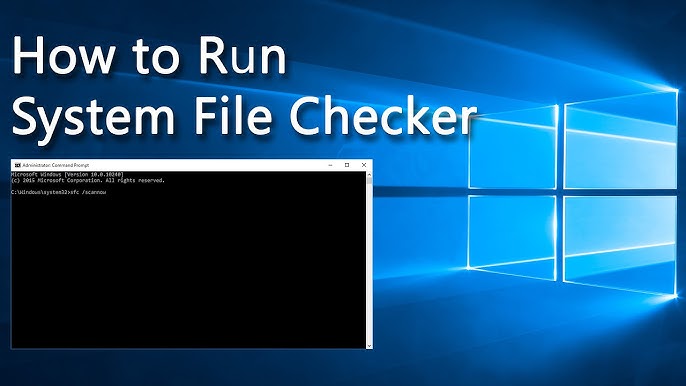
If your PC is crashing, running slowly, or showing unexpected errors, learning how to Run System File Checker can help you fix many of these issues quickly. The System File Checker (SFC) tool is built into Microsoft Windows and is designed to scan and repair corrupted system files that may be causing instability.
In this guide for PC-Status readers, you will learn how to Run System File Checker, why it is important, common problems it fixes, and step-by-step instructions to use it effectively.
Run System File Checker in Windows (Why It Matters)
Understanding how to Run System File Checker is essential for maintaining a healthy Windows system. Corrupted system files are one of the most common causes of performance issues.
What System File Checker Does:
- Scans protected system files
- Detects corrupted or missing files
- Replaces damaged files automatically
- Restores system stability
Problem: Why You Need to Run System File Checker
Over time, Windows system files can become corrupted due to:
- Sudden power failures
- Malware infections
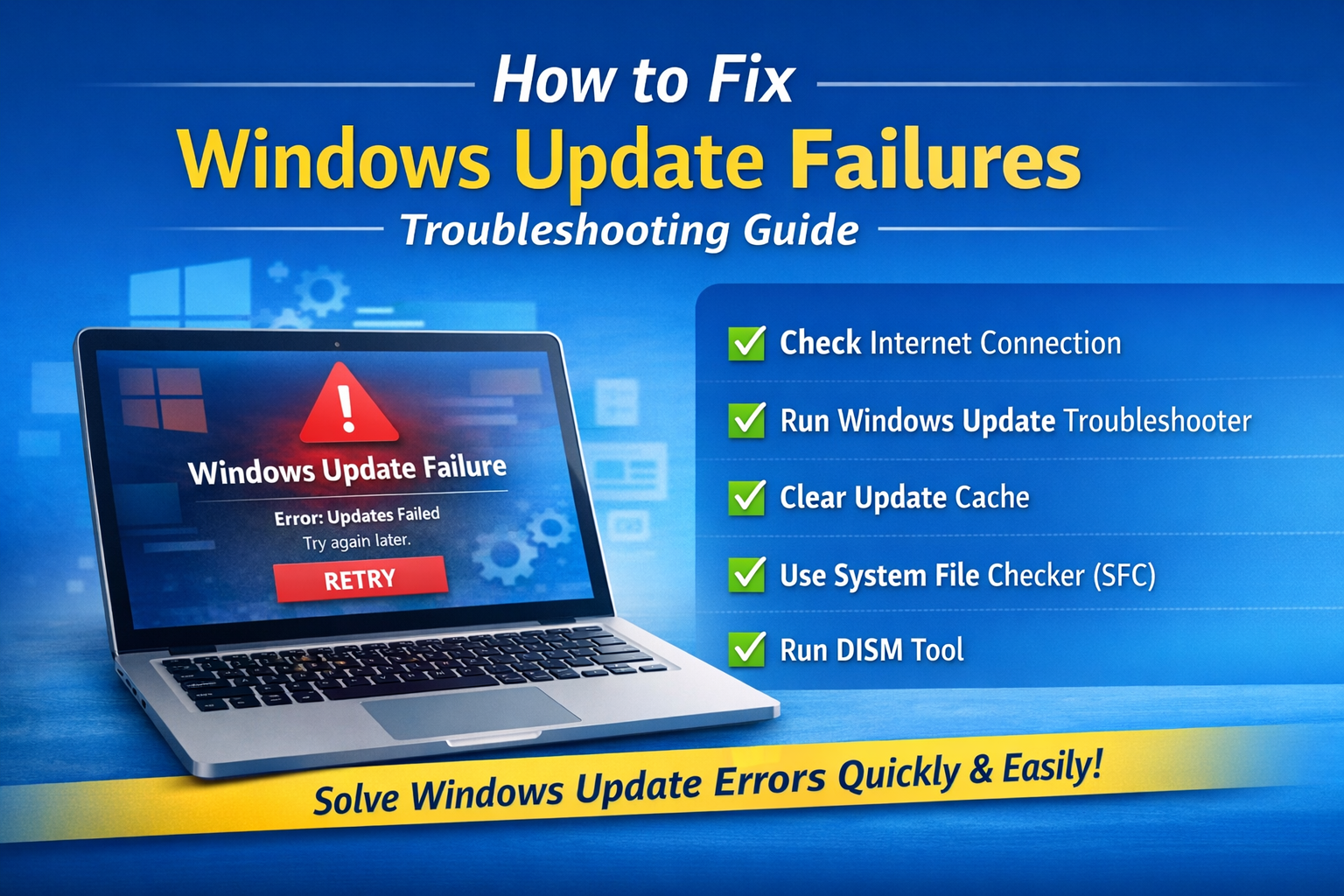
- Failed Windows updates
- Improper shutdowns
- Software conflicts
Common Symptoms:
- Blue Screen of Death (BSOD)
- Apps not opening
- System crashes
- Slow performance
- Missing DLL errors
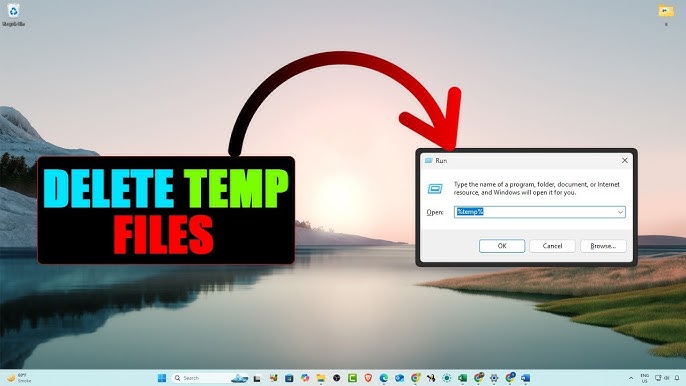
👉 Clean Temporary Files in Windows Guide
How to Run System File Checker (Step-by-Step)
Follow these steps carefully to run SFC correctly.
Step 1: Open Command Prompt as Administrator
- Click Start
- Search “cmd”
- Right-click Command Prompt
- Select Run as administrator
Step 2: Run SFC Command
Type the following command:
sfc /scannow
Press Enter.
Step 3: Wait for Scan to Complete
The scan may take 10–30 minutes.
Possible results:
- No integrity violations found
- Corrupted files repaired
- Some files could not be fixed
Step 4: Restart Your PC
Restart to apply repairs.
Advanced Method: Use DISM Tool First
If SFC does not fix the issue, use DISM.
Command:
DISM /Online /Cleanup-Image /RestoreHealth
👉 Outbound link:
https://learn.microsoft.com/en-us/windows-hardware/manufacture/desktop/repair-a-windows-image
Then run SFC again.
When Should You Run System File Checker?
You should run SFC when:
- System crashes frequently
- Windows updates fail
- Files are missing or corrupted
- Performance drops suddenly
Benefits of Running System File Checker
- Fix hidden system errors
- Improve stability
- Restore missing files
- Prevent BSOD errors
- Enhance performance
Common Mistakes When Running SFC
- Not running as Administrator
- Interrupting the scan
- Ignoring DISM step
- Not restarting after scan
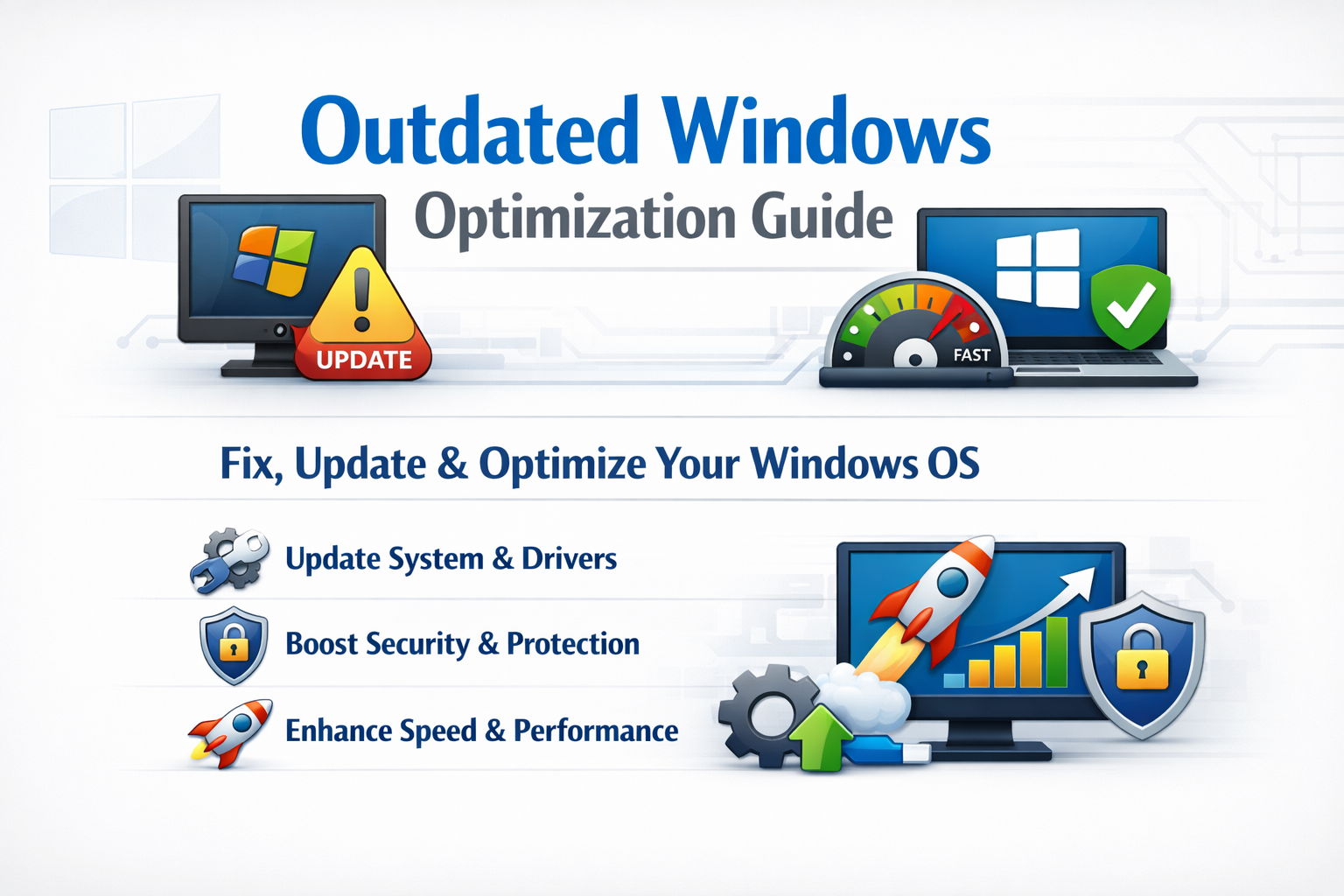
Additional Optimization Tips
1. Update Windows Regularly
👉 https://support.microsoft.com/windows/windows-update
2. Check Disk Health
chkdsk /f /r
3. Remove Temporary Files
👉 Internal link: How to Clean Temporary Files in Windows
4. Update Drivers
👉 Internal link: How to Check Driver Version in Windows
Real-World Example
A user experiencing constant system crashes ran sfc /scannow and discovered corrupted system files. After repair, their PC became stable again without reinstalling Windows.
Key Insight
Learning how to Run System File Checker is one of the simplest yet most powerful troubleshooting steps for Windows users. It helps fix deep system issues without reinstalling the operating system.
Frequently Asked Questions
What is System File Checker?
System File Checker is a built-in Windows tool that scans and repairs corrupted system files.
How do I Run System File Checker?
Open Command Prompt as Administrator and run sfc /scannow.
How long does SFC take?
Usually between 10 and 30 minutes depending on system speed.
What if SFC cannot fix files?
Run DISM tool first, then run SFC again.
Is System File Checker safe?
Yes, it is a safe and official Windows tool.
Can SFC fix all Windows errors?
No, but it fixes many system file-related issues.
Conclusion
Knowing how to Run System File Checker is essential for maintaining a stable and healthy Windows system. It helps repair corrupted files, improve performance, and fix common system errors without advanced technical skills.
By combining SFC with other tools like DISM and regular maintenance, your system running Microsoft Windows can stay fast, stable, and reliable.