Microsoft Excel is an essential tool for data management, analysis, and reporting. Whether you’re working on financial spreadsheets, project tracking, or business analytics, Excel plays a critical role in productivity. However, encountering errors during crucial moments—like saving your work—can be incredibly frustrating.
One such issue is the warning:
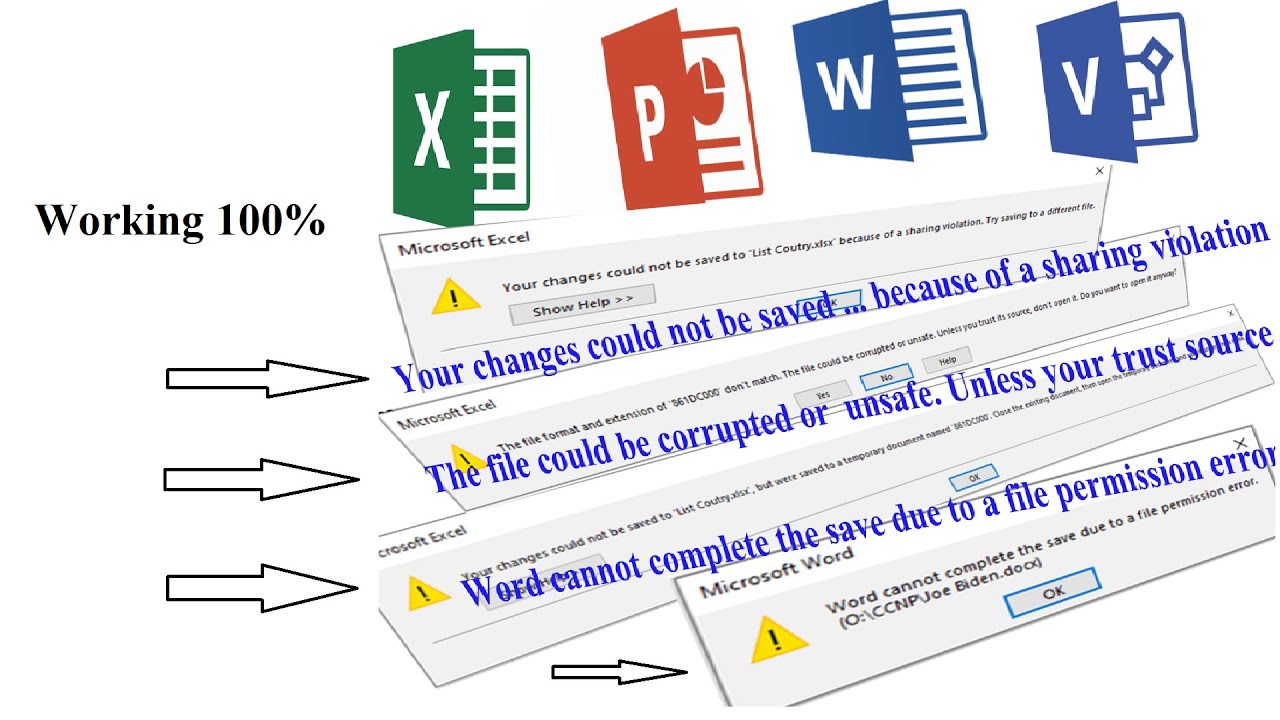
“Your changes could not be saved to ‘FileName’ because of a sharing violation. Try saving to a different file.”
This error often appears during manual saving or auto-saving, and it can lead to loss of recent edits if not handled properly. Fortunately, this problem is common and usually fixable with the right troubleshooting steps.
In this comprehensive guide, we’ll explore what causes this error, how to fix it, and how to prevent it in the future.
What Is a Sharing Violation in Excel?
A sharing violation occurs when Excel cannot access or modify a file because it is being used, locked, or restricted by another process or user.
In simple terms, Excel is trying to save your file but is blocked from doing so due to a conflict—either internal or external.
Why This Error Is a Serious Concern
This error is more than just an inconvenience. It can:
- Prevent you from saving your latest changes
- Interrupt workflows
- Cause data inconsistency
- Lead to accidental overwriting
- Increase risk of file corruption
Since it often occurs during AutoSave, it may go unnoticed until significant work is lost.
Common Causes of the Sharing Violation Error
Understanding the root cause helps in applying the correct fix. Here are the most common reasons:
1. File Is Open in Another Instance
The file may already be open:
- In another Excel window
- On another computer
- By another user on a shared network
2. Temporary Lock Files
Excel creates hidden temporary files (lock files) to prevent simultaneous editing. If these are not removed properly, they can block saving.
3. Cloud Sync Conflicts
Files stored in cloud services like:
- OneDrive
- Google Drive
- Dropbox
can experience sync conflicts, especially with unstable internet connections.
4. Antivirus or Backup Software
Security tools may lock files while scanning or backing them up.
5. Insufficient Permissions
If you don’t have full control over the file or folder, Excel may fail to save changes.
6. Network Drive Issues
Saving files on shared or mapped drives can introduce access conflicts.
7. Excel AutoSave Glitches
AutoSave can sometimes clash with manual saves or syncing processes.
8. Corrupted File or Workbook
A damaged Excel file may fail to save properly.
Immediate Action: Prevent Data Loss
When you encounter this error, act quickly:
Save a Copy
- Click File → Save As
- Choose a different name or location
- Save immediately
This ensures your recent work is safe and prevents loss.
Step-by-Step Solutions to Fix the Error
1. Close All Excel Instances
Make sure no other instance of Excel is running.
Steps:
- Close all Excel windows
- Open Task Manager (Ctrl + Shift + Esc)
- End all Excel processes
- Reopen your file
2. Delete Temporary Lock Files
Hidden lock files can block saving.
Steps:
- Navigate to your file’s folder
- Look for files starting with:
~$FileName.xlsx - Delete them (only if Excel is closed)
3. Save File to a Different Location
Try saving the file locally.
Best locations:
- Desktop
- Documents folder
Avoid saving directly to network drives or cloud folders during troubleshooting.
4. Pause Cloud Sync Services
If using cloud storage:
- Pause syncing temporarily
- Save the file
- Resume syncing afterward
This prevents real-time conflicts.
5. Disable AutoSave
AutoSave may interfere with manual saving.
Steps:
- Toggle AutoSave off
- Save the file manually
6. Check File Permissions
Ensure you have proper access.
Steps:
- Right-click the file
- Select Properties
- Go to Security
- Verify you have Full Control
7. Restart Your Computer
A simple restart can clear:
- File locks
- Background processes
- Memory conflicts
8. Disable Antivirus Temporarily
Some antivirus programs lock files during scans.
Steps:
- Disable antivirus briefly
- Try saving again
- Re-enable after testing
9. Use Open and Repair Feature
If the file is corrupted:
Steps:
- Open Excel
- Click File → Open
- Select the file
- Click arrow next to Open
- Choose Open and Repair
10. Check for Duplicate Files
Multiple versions can confuse Excel.
Example:
- FileName.xlsx
- FileName (1).xlsx
Ensure you’re editing the correct file.
11. Disable Add-ins
Add-ins can interfere with file operations.
Steps:
- Go to File → Options → Add-ins
- Disable all add-ins
- Restart Excel
12. Update Excel
Software bugs may cause saving issues.
Steps:
- Go to File → Account → Update Options → Update Now
13. Work in a New Workbook
If the file is severely corrupted:
Steps:
- Create a new workbook
- Copy data from the old file
- Save the new file
Advanced Troubleshooting
Use Safe Mode
Safe Mode disables add-ins and custom settings.
Steps:
- Press Windows + R
- Type:
excel /safe - Press Enter
Repair Office Installation
If Excel itself is damaged:
Steps:
- Open Control Panel
- Go to Programs and Features
- Select Microsoft Office
- Click Change
- Choose Quick Repair or Online Repair
Preventing Sharing Violation Errors
To avoid this issue in the future:
1. Avoid Multiple Access Points
- Do not open the same file on multiple devices simultaneously
2. Use Stable Internet
- Ensure reliable connection when working on cloud files
3. Save Frequently
- Use manual saves regularly instead of relying only on AutoSave
4. Maintain File Hygiene
- Avoid cluttered folders
- Remove unnecessary temporary files
5. Keep Software Updated
- Regular updates fix bugs and improve stability
6. Limit Background Applications
- Reduce interference from other programs
Real-World Scenario
Imagine working on a financial report for hours, only to encounter this error when saving. Without immediate action, you risk losing critical updates.
By quickly saving a copy and identifying the cause—whether it’s a sync issue or file lock—you can recover your work and prevent future disruptions.
Key Takeaway
This error represents a conflict in file ownership or access. Multiple processes or systems attempt to control the same file simultaneously, resulting in a block.
In structured systems, such conflicts highlight the importance of single-point control and synchronization—a principle that applies not just in computing but in many organized systems.
Conclusion
The “Your changes could not be saved because of a sharing violation” error in Excel can be alarming, especially when it threatens your work. However, it is usually caused by manageable issues like file locks, permissions, or syncing conflicts.
By following the solutions in this guide—starting with saving a copy, then checking file access, disabling AutoSave, and resolving conflicts—you can quickly fix the problem and restore normal functionality.
With proper practices and preventive measures, you can ensure a smooth and uninterrupted Excel experience, safeguarding your data and productivity.
Staying proactive is the key: keep your files organized, your software updated, and your workflow streamlined to avoid such interruptions in the future.