If you’re struggling with system errors, app failures, or programs not launching, learning how to Fix missing .exe files in Windows 10/11 is essential. Executable (.exe) files are critical components of the Windows operating system, and when they go missing or become corrupted, your PC may stop functioning properly.
Missing .exe files can prevent applications from opening, trigger system errors, or even block Windows features from running. This issue can occur due to malware infections, accidental deletion, corrupted system files, or failed updates.
In this comprehensive guide, you’ll learn step-by-step solutions to restore missing executable files, repair system integrity, and prevent the issue from happening again.
What Are .exe Files and Why Are They Important?
Executable (.exe) files are programs that contain instructions for your computer to perform specific tasks. Every application you run—whether it’s a browser, game, or system tool—relies on .exe files.
Examples include:
- Application launchers
- System utilities
- Installer programs
- Background processes
Without these files, Windows cannot execute commands properly.
Common Causes of Missing .exe Files
Understanding the common causes of missing .exe files is essential for applying the right solution. Issues like malware infections, accidental deletion, corrupted system files, or faulty updates can remove or damage executable files, leading to errors, crashes, and programs failing to launch properly in Windows.
1. Malware or Virus Infection
Malware or viruses can delete, hide, or corrupt .exe files, causing programs to fail or system errors, making your Windows PC unstable and unsafe.
2. Accidental Deletion
Users may accidentally delete important .exe files while cleaning storage or uninstalling apps, causing programs to stop working or fail to launch properly in Windows.
3. Corrupted System Files
Improper shutdowns, crashes, or power failures can corrupt system files, including .exe files, leading to errors, failed launches, and unstable Windows performance.
4. Faulty Windows Updates
Faulty or incomplete Windows updates can replace, corrupt, or remove essential .exe files, causing system errors, app failures, and performance issues.
5. Antivirus False Positives
Antivirus false positives can mistakenly flag safe .exe files as threats, moving them to quarantine or deleting them, which may cause programs to stop working or fail to launch.
Signs You Have Missing .exe Files
Common signs of missing .exe files include programs failing to open, error messages like “.exe file not found,” broken shortcuts, blank icons, or system tools not responding properly. You may also experience frequent crashes or apps that won’t launch at all.
You may notice:
- Programs not opening
- Error messages like “.exe file not found”
- System tools failing to launch
- Blank icons or broken shortcuts
- Windows features not working
Fix Missing .exe Files in Windows 10/11 Using Built-in Tools
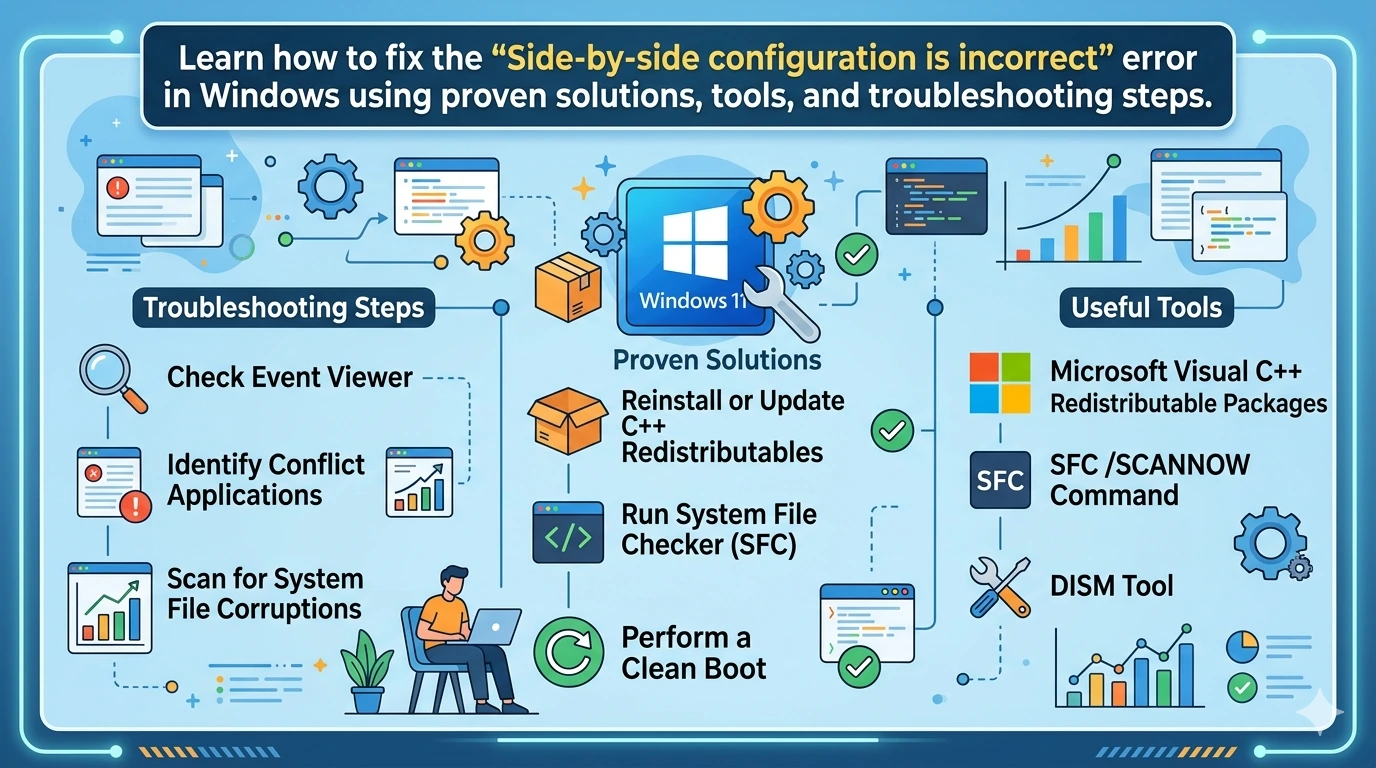
You can fix missing .exe files in Windows 10/11 using built-in tools designed to repair system issues and restore lost files. Utilities like System File Checker (SFC), DISM, and System Restore help scan for corruption, replace missing executables, and return your system to a stable working state without needing third-party software.
Method 1: Run System File Checker (SFC)
Run System File Checker (SFC) to scan and repair corrupted or missing system files in Windows. It helps restore essential .exe files and improves system stability.
Steps:
- Open Command Prompt as Administrator
- Type:
sfc /scannow
- Press Enter and wait for the scan to complete
- Restart your PC
This tool automatically restores missing system .exe files.
Method 2: Use DISM Tool
Use the DISM tool to repair Windows system images and fix deeper corruption issues. It helps restore missing or damaged files that SFC cannot repair, improving system stability.
Steps:
- Open Command Prompt as Administrator
- Run:
DISM /Online /Cleanup-Image /RestoreHealth
- Wait for completion
- Restart your system
Method 3: Restore from Recycle Bin
Restore missing .exe files from the Recycle Bin if they were accidentally deleted. Simply locate the file, restore it, and regain access without needing complex recovery tools.
Steps:
- Open Recycle Bin
- Locate the missing .exe file
- Right-click → Restore
Advanced Methods to Fix Missing .exe Files
Method 4: Perform System Restore
Use System Restore to revert Windows to a previous working state. It can recover missing .exe files, fix errors, and restore system stability without affecting personal files.
Steps:
- Search “System Restore”
- Select a restore point
- Follow on-screen instructions
This can recover missing executables.
Method 5: Reinstall the Affected Program
Reinstall the affected program to restore missing or corrupted .exe files. This replaces essential components and ensures the application runs properly without errors.
If only one app is affected:
Steps:
- Uninstall the program
- Download from official website
- Reinstall it
This restores missing .exe files for that application.
Method 6: Check Antivirus Quarantine
Check your antivirus quarantine, as it may mistakenly remove safe .exe files. Restoring these files can quickly fix programs that fail to launch or show errors.
Steps:
- Open your antivirus
- Go to Quarantine
- Restore flagged files
Fix File Association for .exe Files
Fixing file association for .exe files ensures Windows correctly recognizes and runs executable programs. If associations are broken, apps won’t open or may trigger errors. Resetting the .exe association restores normal functionality and allows programs to launch properly again.
If .exe files exist but won’t open:
Steps:
- Press
Win + R - Type:
regedit
- Navigate to:
HKEY_CLASSES_ROOT\.exe
- Ensure default value is:
exefile
Scan for Malware
Scan for malware to detect and remove threats that may delete or hide .exe files. A full system scan helps restore security, prevent further damage, and keep programs running properly.
Use trusted tools like:
- Windows Security
- Malwarebytes
Run a full system scan and remove threats.
Use Reliable File Recovery Tools
Use reliable file recovery tools to restore permanently deleted .exe files. These tools scan your storage for lost data and help recover important programs quickly and safely.
If files are permanently deleted:
These tools can recover lost .exe files.
Prevent Missing .exe Files in the Future
1. Keep Windows Updated
Keep Windows updated regularly to fix bugs, patch security vulnerabilities, and improve system stability. Updates also ensure better compatibility with drivers and applications.
2. Use Trusted Antivirus
Use a trusted antivirus solution to protect your system without removing safe files. Reliable security software helps prevent malware while avoiding false positives that could delete important .exe files.
3. Avoid Deleting Unknown Files
Avoid deleting unknown files, as they may be essential system or application components. Always verify file purpose before removal to prevent errors or missing programs.
4. Backup Important Data
Backup important data regularly using cloud services or external storage devices. This ensures you can quickly restore files if they are lost, deleted, or corrupted.
5. Avoid Untrusted Downloads
Avoid untrusted downloads, as they may contain malware that deletes or corrupts .exe files. Always install software from official, verified sources to keep your system safe.
Outbound reference:
Microsoft Windows support
Impact of Missing .exe Files on System Performance
Missing .exe files can severely impact system performance by preventing applications and system processes from running properly. This can lead to frequent errors, crashes, slow response times, and reduced overall stability, making your Windows experience unreliable and inefficient.
When .exe files are missing:
- Applications fail to start
- System becomes unstable
- Errors increase
- Productivity drops
Fixing these issues improves performance and reliability.
When to Reset or Reinstall Windows
You should consider resetting or reinstalling Windows when missing .exe files cause persistent errors, apps won’t open, or system tools fail despite trying fixes like SFC, DISM, or System Restore. This step restores all system files, resolves deep corruption, and ensures a clean, stable environment.
If none of the methods work:
Consider:
- Resetting Windows (Keep files option)
- Clean installation
This ensures all system files are restored.
Frequently Asked Questions (FAQ)
1. What causes .exe files to disappear?
Malware, accidental deletion, corrupted files, or antivirus actions.
2. Can I recover deleted .exe files?
Yes, using Recycle Bin or recovery tools.
3. Is it safe to download .exe files again?
Only from official or trusted sources.
4. Will SFC fix all missing files?
It fixes most system files, but not third-party apps.
5. Why won’t my .exe files open?
File association issues or corruption may be the cause.
6. Can antivirus delete important files?
Yes, sometimes due to false positives.
7. Do I need to reinstall Windows?
Only if all other fixes fail.
Conclusion
Learning how to Fix missing .exe files in Windows 10/11 is crucial for maintaining a stable and functional system. Missing executable files can disrupt your workflow, prevent apps from launching, and cause serious system errors.
By using tools like SFC, DISM, System Restore, and antivirus scans, you can effectively restore missing files and ensure your system runs smoothly. Preventive measures such as regular updates, safe downloads, and backups will help you avoid this issue in the future.
Taking a proactive approach to system maintenance ensures long-term performance, security, and reliability for your Windows PC.