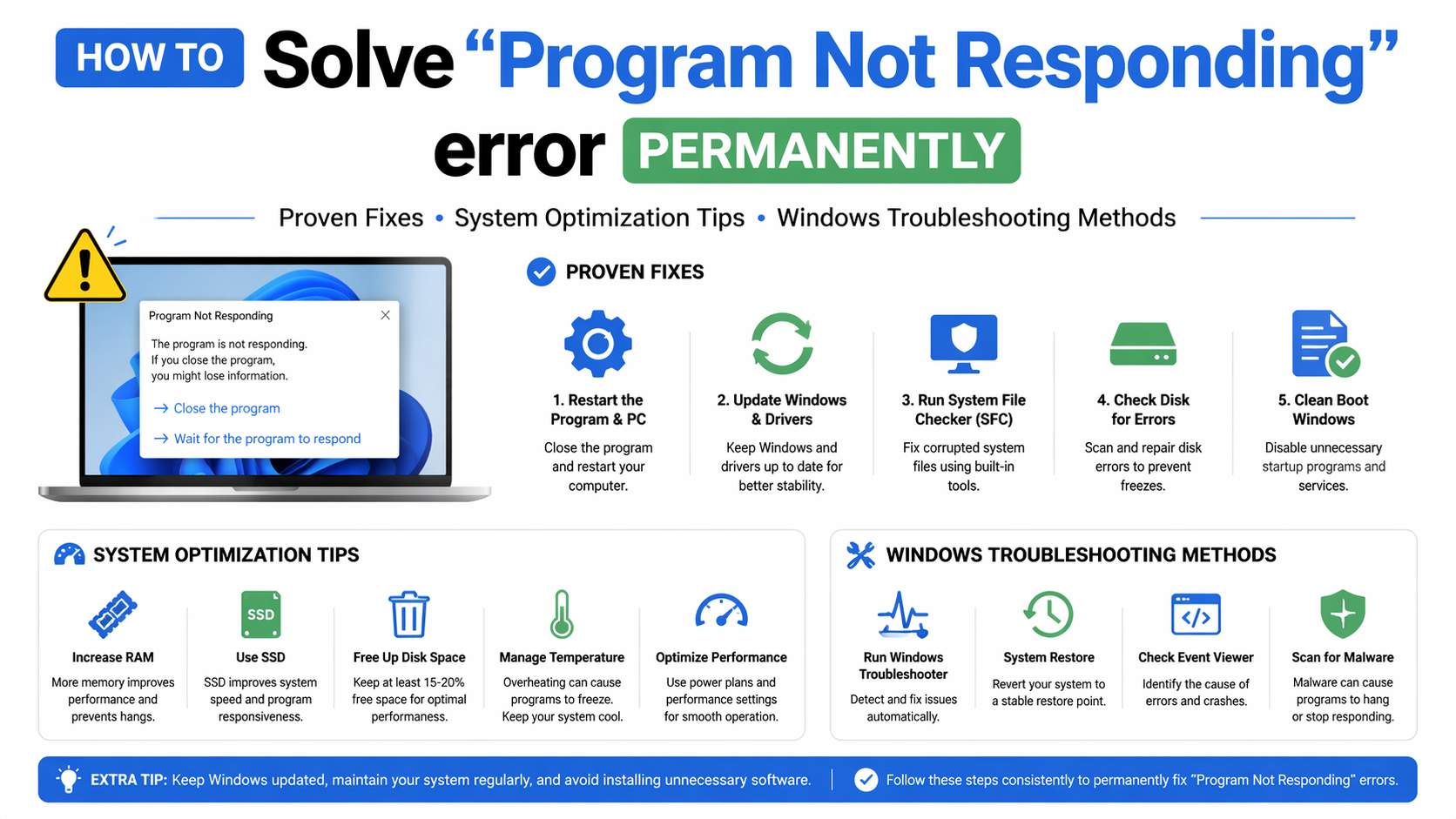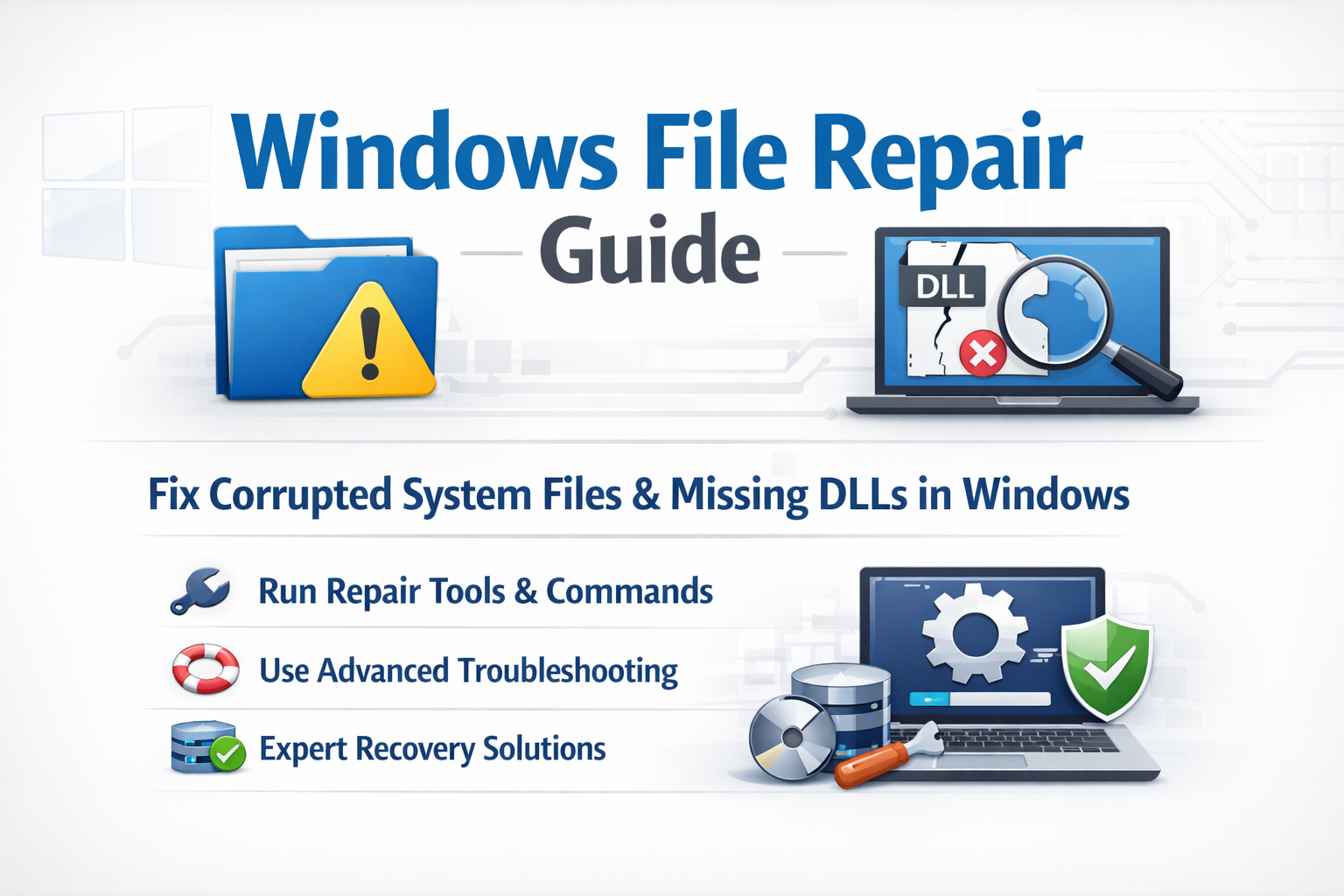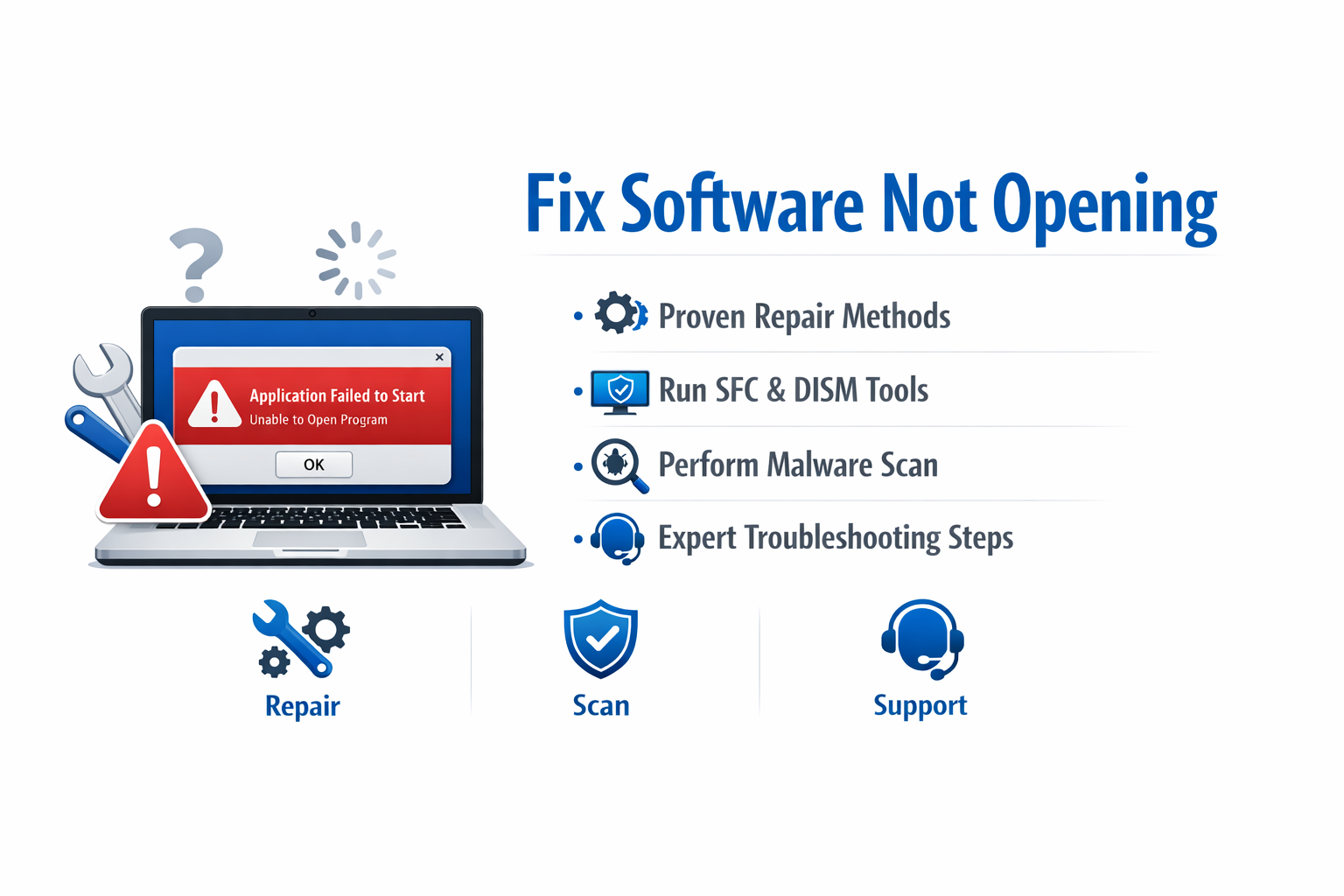
If you need to Troubleshoot frequent software crashes in Windows, this in-depth guide will help you identify causes, apply proven fixes, and prevent future system instability. Software crashes are one of the most frustrating issues for Windows users, often leading to data loss, productivity drops, and system slowdowns. In this article, you will learn step-by-step solutions to effectively Troubleshoot frequent software crashes in Windows using both built-in tools and advanced optimization methods.
What Causes Software Crashes in Windows?
Software crashes are usually caused by a combination of system errors, hardware limitations, or software conflicts. When you try to Troubleshoot frequent software crashes in Windows, understanding the root causes is the first step toward solving the issue.
Common causes include:
- Outdated Windows system or drivers
- Insufficient RAM or CPU overload
- Corrupted system files
- Malware or virus infections
- Incompatible software versions
- Faulty updates or installations
- Hardware issues like overheating or failing storage
Each of these issues can trigger instability, forcing programs to close unexpectedly.
How to Troubleshoot frequent software crashes in Windows
To effectively Troubleshoot frequent software crashes in Windows, you need a structured approach. Instead of guessing the problem, follow systematic fixes that isolate and resolve issues step by step.
Below are the most effective solutions used by IT professionals and advanced users.
Check System Requirements
One of the most overlooked causes of crashes is incompatible hardware. If a program requires more memory or processing power than your system can provide, it will crash repeatedly.
Steps:
- Check software minimum requirements
- Compare with your system specs
- Upgrade RAM or storage if needed
Ensuring compatibility is the foundation to Troubleshoot frequent software crashes in Windows successfully.
Update Windows OS
Updating Windows OS is essential to fix bugs, improve performance, and enhance system stability. Outdated versions may cause software crashes, security risks, and compatibility issues. Installing the latest updates ensures better protection, smoother operation, and overall improved system reliability.
To update:
- Go to Settings
- Click Windows Update
- Install all available updates
Microsoft frequently releases patches that help you Troubleshoot frequent software crashes in Windows caused by system-level errors.
For official updates, visit:
https://www.microsoft.com/windows
Update Device Drivers
Drivers act as communication bridges between hardware and software. Outdated drivers are a major cause of crashes.
Key drivers to update:
- Graphics card drivers
- Audio drivers
- Network adapters
- Chipset drivers
Updating drivers is essential when you want to Troubleshoot frequent software crashes in Windows efficiently.
Fix Software Compatibility Issues
Older applications may not work correctly on newer Windows versions due to compatibility issues. This can lead to errors or crashes. Using compatibility settings, updates, or patches helps ensure smoother performance and allows legacy software to run more reliably on modern systems.
To fix compatibility issues:
- Right-click application → Properties
- Select Compatibility tab
- Choose older Windows version mode
This simple adjustment can help you Troubleshoot frequent software crashes in Windows without reinstalling software.
Scan for Malware and Viruses
Malware is a hidden but serious cause of crashes. Viruses can corrupt files, overload memory, or disrupt system processes.
Use:
- Windows Defender
- Malwarebytes
- Trusted antivirus tools
Regular scanning is essential to Troubleshoot frequent software crashes in Windows and maintain system health.
Repair Corrupted System Files
Windows includes built-in tools like System File Checker (SFC) and DISM to repair corrupted system files. These utilities scan for missing or damaged files and restore them automatically, helping improve stability, fix errors, and ensure smooth system performance without requiring manual file replacement.
Run System File Checker:
sfc /scannow
Then use DISM:
DISM /Online /Cleanup-Image /RestoreHealth
These tools are powerful when you need to Troubleshoot frequent software crashes in Windows caused by system corruption.
Manage RAM and CPU Usage
High memory and CPU usage can overload your system, leading to frequent software crashes and slow performance. Managing RAM and CPU usage by closing unnecessary programs, limiting background processes, and monitoring resource consumption helps ensure smoother operation, better stability, and improved overall system efficiency.
To optimize performance:
- Close unnecessary background apps
- Disable startup programs
- Monitor Task Manager usage
Efficient resource management is critical when trying to Troubleshoot frequent software crashes in Windows.
Clean Boot to Identify Conflicts
A clean boot starts Windows using only essential services and drivers, helping you identify software conflicts that may cause crashes. By disabling non-Microsoft services and startup programs, you can isolate problematic applications, improve system stability, and troubleshoot performance issues more effectively.
Steps:
- Type
msconfigin Run - Disable non-Microsoft services
- Restart system
This helps identify conflicting software and is a key step to Troubleshoot frequent software crashes in Windows effectively.
Reinstall Problematic Applications
If a single program keeps crashing, reinstalling it can often resolve the issue. Uninstall the application completely, remove leftover files, and install the latest version. This helps fix corrupted files, restore missing components, and ensures the software runs smoothly and stably on your system.
- Uninstall the application
- Delete leftover files
- Reinstall latest version
Reinstallation often fixes corrupted program files and helps Troubleshoot frequent software crashes in Windows quickly.
Check Event Viewer Logs
Windows Event Viewer records detailed system, application, and error logs that help identify the cause of crashes. By checking these logs, you can find specific error codes, pinpoint faulty programs or drivers, and gain valuable insights to troubleshoot and resolve system instability more effectively.
To use it:
- Press Windows + X
- Open Event Viewer
- Check Application Logs
These logs provide insights when you need to Troubleshoot frequent software crashes in Windows at a deeper level.
Use Windows Troubleshooter Tools
Windows includes built-in troubleshooting tools designed to automatically detect and fix common system problems. These troubleshooters can resolve issues with programs, hardware, compatibility, and performance. Running them helps quickly identify errors, apply recommended fixes, and restore system stability without requiring advanced technical knowledge.
- Program Compatibility Troubleshooter
- Hardware and Devices Troubleshooter
These automated tools help users quickly Troubleshoot frequent software crashes in Windows without technical expertise.
Optimize Storage and Disk Health
A failing or cluttered hard drive can significantly impact system performance and lead to frequent software crashes. Optimizing storage by removing junk files, checking disk health, and running tools like CHKDSK helps improve stability, prevent data errors, and ensure smoother and more reliable system operation.
Steps:
- Run CHKDSK tool
- Defragment HDD (not SSD)
- Free up disk space
Healthy storage is essential to Troubleshoot frequent software crashes in Windows effectively.
Disable Overclocking and Background Apps
Overclocking can push hardware beyond safe limits, leading to overheating, instability, and frequent software crashes. Disabling overclocking restores default performance settings. Additionally, closing unnecessary background apps reduces system load, improves resource availability, and helps maintain smoother, more stable overall Windows performance.
To fix:
- Reset BIOS settings
- Disable overclocking tools
- Limit background applications
This ensures stability while you Troubleshoot frequent software crashes in Windows.
Advanced Methods to Troubleshoot frequent software crashes in Windows
Advanced users can try:
- Registry repair tools
- BIOS updates
- Driver rollback
- System Restore points
These advanced techniques are highly effective when basic methods fail to Troubleshoot frequent software crashes in Windows.
Preventing Future Software Crashes
Prevention is better than repair. Follow these tips:
- Keep Windows updated
- Avoid pirated software
- Install trusted applications only
- Monitor system temperature
- Use antivirus protection
These habits significantly reduce the need to Troubleshoot frequent software crashes in Windows repeatedly.
FAQs
1. Why do programs keep crashing on Windows?
Usually due to outdated drivers, insufficient memory, or corrupted files.
2. How do I quickly fix software crashes?
Restart, update Windows, and reinstall the application.
3. Can viruses cause software crashes?
Yes, malware can corrupt files and cause instability.
4. Does RAM affect software stability?
Absolutely, low or faulty RAM can lead to frequent crashes.
5. Is reinstalling Windows necessary?
Only in severe cases where all other fixes fail.
6. How often should I update drivers?
Every 2–3 months or whenever issues appear.
Conclusion
Learning how to Troubleshoot frequent software crashes in Windows is essential for maintaining a smooth and productive computing experience. From updating drivers and scanning for malware to repairing system files and optimizing performance, each method plays a vital role in system stability.
By following the steps in this guide, you can confidently Troubleshoot frequent software crashes in Windows, reduce downtime, and ensure long-term system reliability.