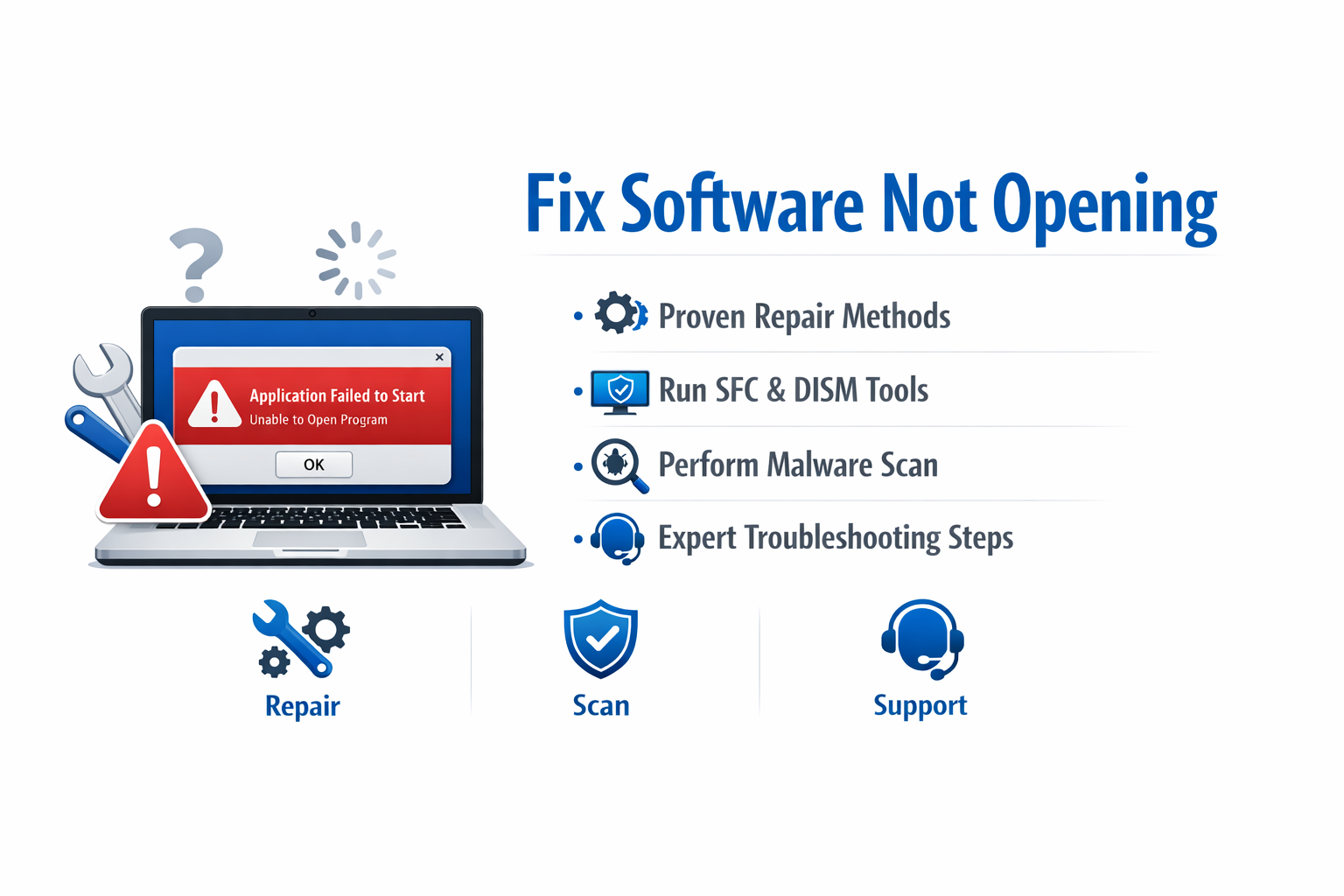
If you are searching for how to fix software not opening in Windows, you are dealing with one of the most common Windows errors affecting both Windows 10 and Windows 11 users. Applications may refuse to open, crash on startup, or run silently in the background without showing any window.
This guide explains how to fix software not opening in Windows using proven methods such as system repair tools, compatibility fixes, malware removal, and advanced troubleshooting techniques to restore full system functionality.
Why Software Not Opening in Windows Happens
Understanding the root cause is essential before applying fixes. Most software launch failures in Microsoft Windows are caused by corrupted system files, incompatible or outdated drivers, missing updates, software conflicts, or insufficient system resources that prevent proper execution.
👉 These issues in Microsoft Windows can affect both system applications and third-party software. Problems like corrupted files, driver conflicts, or missing updates may cause apps to crash, fail to launch, or behave unpredictably across different programs.
How to Fix Software Not Opening in Windows (Basic Solutions)
Start with these quick and safe fixes in Microsoft Windows before moving to advanced troubleshooting methods. Simple steps like restarting, updating drivers, or running basic scans can often resolve issues faster without needing complex repairs or system changes.
1. Restart Your Windows PC
A system restart helps eliminate temporary glitches by refreshing system memory, closing background processes, and resetting essential services. This process can improve performance, resolve minor errors, and restore normal functionality when software or system components become unresponsive fastly.
✔ Close all applications
✔ Restart Windows
✔ Try opening the software again
This simple step fixes up to 30% of software launch issues.
2. Run Software as Administrator
Some applications require elevated permissions to start. Without administrative rights, they may fail to launch or may not function correctly. Granting higher privileges allows the software to access protected system resources, modify system settings, and run essential background processes required for stable and proper operation.
Steps:
- Right-click the software icon
- Select Run as administrator
If this works, adjust permanent settings:
- Properties → Compatibility → Run as Administrator
3. End Background Process via Task Manager
Sometimes the software is already running silently in the background, even if it does not appear on the screen. It may be minimized to the system tray or operating as a hidden process, preventing it from launching again until the existing instance is closed. Check Task Manager before reopening.
Steps:
- Press
Ctrl + Shift + Esc
- Find the app process
- Click End Task
- Reopen the software
Advanced Methods to Fix Software Not Opening in Windows
If the issue continues, try advanced troubleshooting methods. These may include repairing system files, reinstalling the application, updating drivers, checking compatibility settings, or performing a clean boot. These steps help identify deeper system conflicts that basic fixes cannot resolve effectively.
4. Update Windows to the Latest Version
Outdated Windows builds can lead to compatibility problems with newer applications and updates. Missing system patches, security fixes, or driver support may prevent software from launching correctly. Keeping Windows up to date ensures better stability, improved performance, and smoother compatibility with modern programs.
Steps:
- Go to Settings → Windows Update
- Click Check for updates
- Install all updates
🔗 Microsoft Support: https://support.microsoft.com/windows
Keeping Windows updated improves stability and fixes known bugs.
5. Reinstall the Problematic Software
Corrupted installation files in Microsoft Windows are a major cause of launch failures. They prevent programs from loading properly, leading to errors, crashes, or failed startup attempts.
Steps:
- Uninstall the software
- Delete leftover folders in:
- Download latest version from official site
- Reinstall cleanly
6. Run System File Checker (SFC Scan)
SFC scans and repairs missing or corrupted system files in Windows. It restores damaged system components to their original state, helping fix errors, improve stability, and ensure programs and services run properly again.
Open Command Prompt (Admin):
sfc /scannow
✔ Scans system integrity
✔ Repairs damaged files automatically
🔗 Microsoft Reference:https://learn.microsoft.com/en-us/windows-server/administration/windows-commands/sfc
7. Use DISM Tool for Deep System Repair
If SFC cannot resolve the issue, DISM can repair deeper Windows image corruption. It restores system health by fixing the component store, allowing SFC and other tools to function correctly afterward.
DISM /Online /Cleanup-Image /RestoreHealth
✔ Repairs Windows system image
✔ Fixes hidden corruption issues
8. Scan for Viruses and Malware
Malware can silently interfere with system processes and block applications from running. It may restrict execution, damage files, or alter settings without visible signs, making security scans essential to detect and remove threats that disrupt normal software operation and system stability.
Steps:
- Open Windows Security
- Go to Virus & Threat Protection
- Run Full Scan
- Run Offline Scan (recommended)
✔ Removes hidden threats
✔ Restores system behavior
9. Disable Startup Conflicts
Too many startup applications can slow the system and prevent other software from launching properly. They consume memory and CPU resources in the background, causing conflicts or delays that may block new programs from opening until system load is reduced or unnecessary startup items are disabled.
Steps:
- Open Task Manager
- Go to Startup tab
- Disable unnecessary apps
- Restart PC
10. Fix Compatibility Mode Issues
Older software may not be fully compatible with modern Windows versions. Changes in system architecture, security policies, and dependencies can prevent it from launching or functioning correctly, often requiring compatibility mode, updates, or alternative versions to ensure proper performance.
Steps:
- Right-click app → Properties
- Compatibility tab
- Enable:
- Run in compatibility mode
- Try Windows 7 or 8 mode
11. Update Device Drivers
Outdated drivers can stop applications from launching correctly because they fail to communicate properly with hardware or the system. Updating drivers ensures compatibility, fixes bugs, and improves stability, allowing software to run smoothly without errors or unexpected crashes.
Update:
- Graphics driver
- Audio driver
- Chipset driver
Use:
- Device Manager
- Or official vendor tools (NVIDIA, Intel, AMD)
12. Create a New Windows User Profile
A corrupted user profile can prevent software from launching properly. Damaged settings or permissions may interfere with application access, causing errors or silent failures. Creating a new user profile often helps restore normal functionality and resolves these profile-related issues effectively.
Steps:
- Settings → Accounts → Add User
- Create new account
- Login and test software
13. Perform Clean Boot (Advanced Fix)
A Clean Boot helps identify software conflicts by starting Windows with only essential services and drivers. This isolates problematic background programs, making it easier to detect what is blocking an application from launching and resolve the issue efficiently.
Steps:
- Run
msconfig
- Disable non-Microsoft services
- Restart system
- Test software
14. Reset Built-in Windows Apps
For Microsoft Store apps, issues can often be fixed by resetting the app cache, repairing the app through Settings, or reinstalling it. Ensuring the Microsoft Store is updated and signed in properly can also help resolve launch or performance problems quickly.
For Microsoft Store apps:
- Settings → Apps
- Select app → Advanced Options
- Click Reset
Frequently Asked Questions (FAQ Section for Rank Math Schema)
Why is my software not opening in Windows?
It may be caused by corrupted files, malware, outdated Windows, or missing permissions.
How do I fix apps not opening in Windows 10 or 11?
Run SFC scan, reinstall the app, update Windows, and check compatibility mode.
Can viruses stop software from opening?
Yes, malware can block or modify executable files and system processes.
What is the fastest way to fix this issue?
Restart PC or run the application as administrator.
Do I need to reinstall Windows to fix this?
Only if all repair methods fail and system corruption is severe.
Conclusion
If you are struggling with how to fix software not opening in Windows, the issue is usually caused by corrupted system files, software conflicts, or outdated system components. By following the structured fixes in this guide—from basic troubleshooting to advanced system repair—you can restore full software functionality without reinstalling Windows.
This complete approach ensures higher system stability, better performance, and fewer future errors.