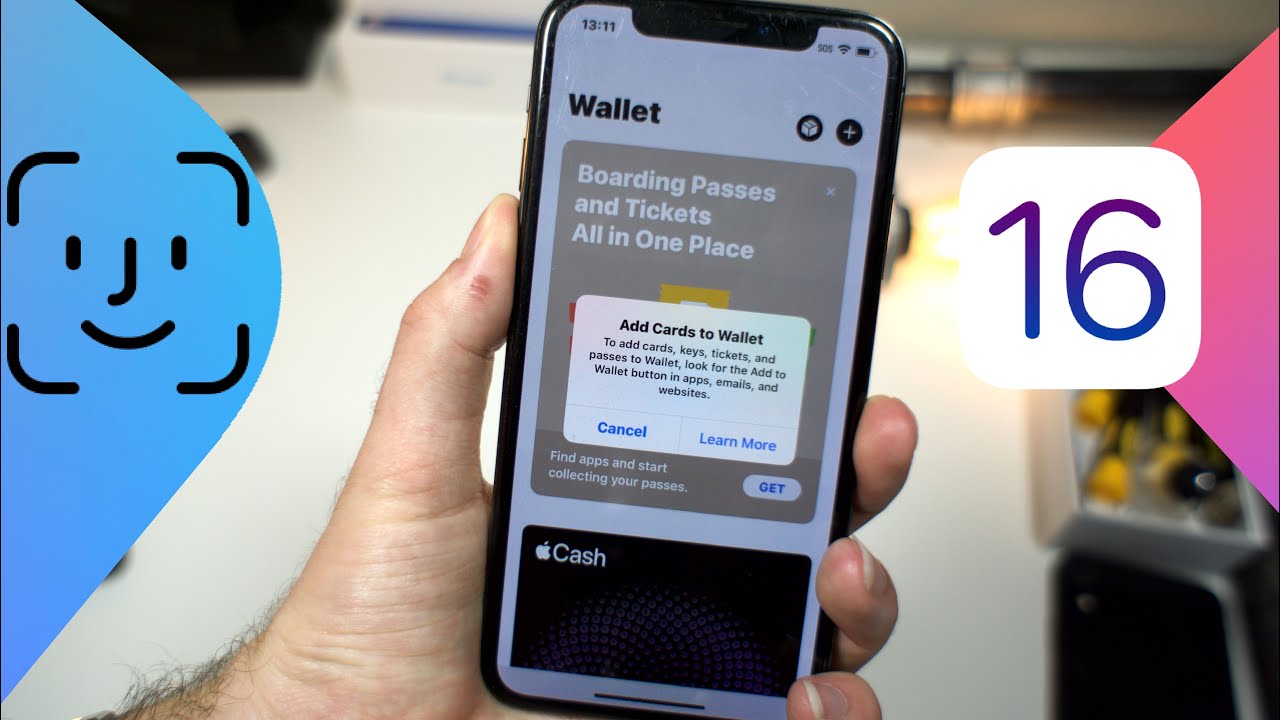
Seeing the “Card Not Added” message when trying to use Apple Pay can be frustrating—especially when you need to make a payment quickly. Whether you’re setting up a new card or re-adding one after an update, this issue usually happens due to verification problems, regional restrictions, device compatibility, or bank-related errors.
If you’re using an iPhone, Apple Watch, or iPad, this guide will walk you through every possible fix step by step.
By the end of this article, you’ll know:
- Why Apple Pay refuses to add your card
- How to fix verification issues
- How to resolve bank compatibility problems
- What device settings to check
- Advanced troubleshooting solutions
Let’s fix the issue quickly and safely.
Why Does “Card Not Added” Happen?
The “Card Not Added” error in Apple Pay can appear for many reasons. The most common causes include:
- Bank does not support Apple Pay
- Incorrect card information
- Expired or blocked card
- Region restrictions
- Apple ID issues
- Outdated iOS
- Poor internet connection
- VPN interference
- Device not compatible
Understanding the root cause makes troubleshooting much easier.
Step 1: Check If Your Bank Supports Apple Pay
Not all banks or card issuers support Apple Pay in every region.
What to Do:
- Visit your bank’s website.
- Search for Apple Pay support.
- Confirm your card type is eligible (debit, credit, prepaid).
If your bank doesn’t support Apple Pay in your country, the card cannot be added.
Step 2: Verify Your Region Settings
Apple Pay only works in supported countries.
Check Your Region:
- Open Settings.
- Tap General.
- Select Language & Region.
- Confirm your region matches your physical location.
If your Apple ID region differs from your current country, card addition may fail.
Step 3: Ensure Your Device Is Compatible
Apple Pay requires compatible hardware.
Supported devices include:
- iPhone 6 and later
- Apple Watch Series 1 and later
- Most modern iPads
- Macs with Touch ID
If your device lacks NFC or Secure Element hardware, Apple Pay won’t work.
Step 4: Update iOS to the Latest Version
Outdated software can cause payment setup failures.
To update:
- Open Settings.
- Tap General.
- Select Software Update.
- Install the latest version of iOS.
Updates often fix Apple Pay bugs.
Step 5: Check Internet Connection
Apple Pay verification requires stable internet.
- Switch between Wi-Fi and mobile data.
- Disable airplane mode.
- Restart router if needed.
Weak connections may interrupt bank authentication.
Step 6: Remove VPN or Proxy
VPN services can interfere with payment verification servers.
If using VPN:
- Disable it temporarily.
- Try adding the card again.
Many “Card Not Added” errors are resolved this way.
Step 7: Double-Check Card Information
Manual entry errors are common.
Verify:
- Card number
- Expiration date
- CVV code
- Billing address
Ensure billing address matches bank records exactly.
Step 8: Check for Card Restrictions
Your card may be:
- Expired
- Locked
- Blocked for online transactions
- Reported lost
- Not activated
Call your bank and confirm the card status.
Step 9: Restart Your Device
Sometimes, a simple restart fixes system glitches.
To restart iPhone:
- Hold the side button + volume button.
- Slide to power off.
- Turn device back on.
Then attempt to add the card again.
Step 10: Sign Out and Back Into Apple ID
Apple ID authentication issues can block card setup.
Steps:
- Open Settings.
- Tap your Apple ID at top.
- Scroll down and sign out.
- Restart device.
- Sign back in.
Then re-add your card in Apple Pay.
Step 11: Check Date and Time Settings
Incorrect date/time prevents secure verification.
To fix:
- Go to Settings → General → Date & Time.
- Enable Set Automatically.
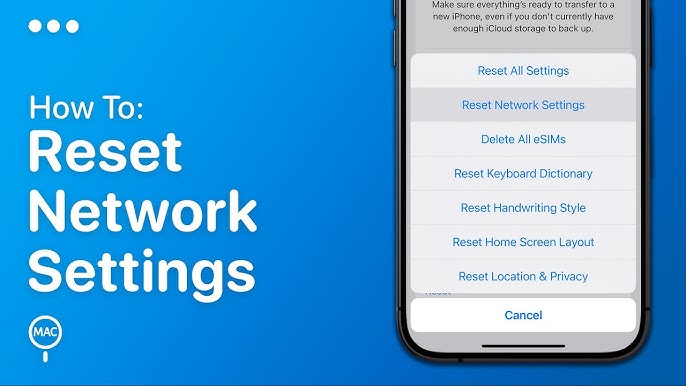
Step 12: Reset Network Settings
If connection errors persist:
- Go to Settings.
- Tap General.
- Select Transfer or Reset iPhone.
- Choose Reset → Reset Network Settings.
This clears Wi-Fi passwords but often fixes Apple Pay verification.
Step 13: Contact Your Bank for Verification
Sometimes banks block Apple Pay activation for security.
Common reasons:
- Suspicious activity
- Identity verification pending
- International usage
- First-time digital wallet registration
Ask your bank to approve Apple Pay manually.
Step 14: Remove Old Cards from Wallet
Too many stored cards may cause conflicts.
To remove:
- Open Wallet app.
- Tap the card.
- Scroll down.
- Select Remove This Card.
Then add it again.
Step 15: Check Screen Time Restrictions
Parental controls may block Wallet.
To verify:
- Open Settings.
- Tap Screen Time.
- Select Content & Privacy Restrictions.
- Ensure Wallet is allowed.
Step 16: Reset All Settings (Advanced Fix)
If nothing works:
- Go to Settings.
- Tap General.
- Select Transfer or Reset iPhone.
- Tap Reset → Reset All Settings.
This won’t delete data but resets system configurations.
Step 17: Factory Reset (Last Resort)
If the error persists, back up your device and perform a full reset.
Only do this if:
- You suspect system corruption
- Apple Support recommends it
Common Error Messages Explained
“Card Not Added – Contact Card Issuer”
Bank approval issue.
“Card Not Valid”
Incorrect details or unsupported card.
“Could Not Add Card”
Network or server error.
“Device Not Eligible”
Hardware or region restriction.
Apple Watch Specific Fix
If adding a card to Apple Watch fails:
- Open Watch app on iPhone.
- Tap Wallet & Apple Pay.
- Add card from there.
- Ensure watchOS is updated.
Security Reasons Behind Card Rejection
Apple Pay uses:
- Tokenization
- Secure Element chip
- Device-specific encryption
- Bank-level authentication
If any security step fails, the card won’t be added.
This strict system protects users from fraud.
Does Apple Pay Work Internationally?
Apple Pay works in many countries but not everywhere.
If traveling:
- Ensure region matches card’s issuing country.
- Confirm your bank allows international transactions.
Business and Corporate Cards Issues
Corporate cards may require:
- Special approval
- Digital wallet activation
- Admin permissions
Contact your employer or card administrator.
Temporary Apple Server Issues
Sometimes the issue isn’t on your side.
Check:
- Apple System Status page
- Social media outage reports
If Apple Pay servers are down, wait and try later.
Preventing Future Apple Pay Errors
To avoid “Card Not Added” in future:
- Keep iOS updated
- Maintain correct region settings
- Avoid VPN during setup
- Keep billing info accurate
- Monitor bank notifications
- Ensure stable internet
Frequently Asked Questions
Why does my bank decline Apple Pay but card works normally?
Banks treat digital wallets as separate authorization channels.
Can I add prepaid cards?
Some prepaid cards are supported; others aren’t. Check issuer policy.
Does jailbreaking cause this issue?
Yes. Modified devices may block Apple Pay entirely.
Can I add multiple cards?
Yes, but your bank may limit how many devices can use the same card.
When to Contact Apple Support
Contact Apple if:
- Card works on another device but not yours
- You see repeated system errors
- Wallet app crashes
- Device says “Unable to set up Apple Pay”
They can run diagnostics remotely.
Summary: Fastest Way to Fix Card Not Added
If you want the quickest fix path:
- Disable VPN
- Check region settings
- Update iOS
- Confirm bank support
- Restart device
- Contact bank
In most cases, the issue is either a bank verification block or incorrect region configuration.
Final Thoughts
The “Card Not Added” error in Apple Pay is usually easy to fix once you understand what’s causing it. Whether it’s a bank verification problem, outdated software, region mismatch, or network issue, the solution typically takes just a few minutes.
Apple Pay is designed with strict security layers, so when a card fails to add, it’s often for protection—not malfunction.
By following this complete troubleshooting guide, you now have every tool needed to:
- Diagnose the problem
- Apply the correct fix
- Restore Apple Pay functionality
- Prevent future issues
If you still experience difficulties, contacting your bank or Apple Support is the next logical step.
With the right setup and proper configuration, Apple Pay should work seamlessly—fast, secure, and convenient wherever you go.
Related Article: What Is TAInstaller.exe and Is It Safe to Use