
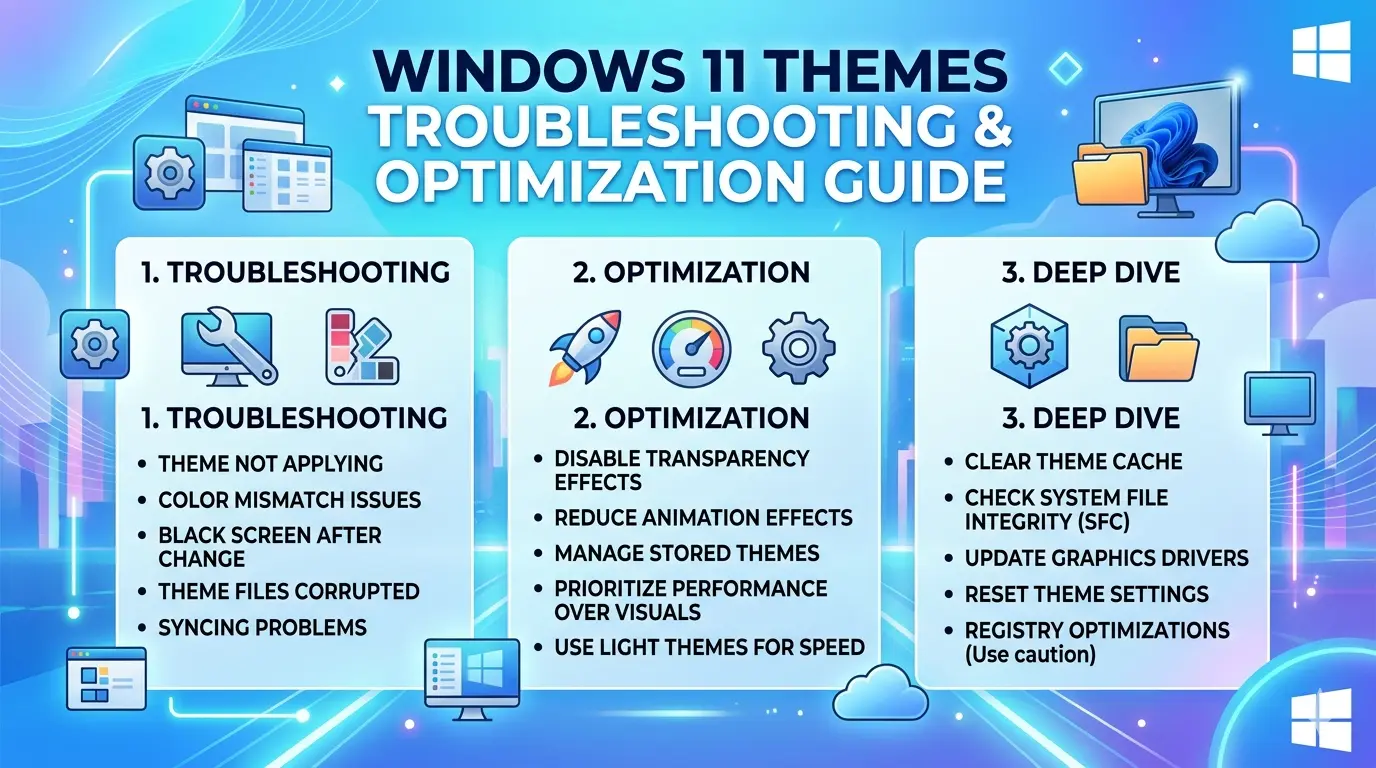
Themes are more than just decoration—they shape the way users interact with their operating system. In Windows 11, themes combine wallpapers, accent colors, sounds, and cursor styles into a unified visual identity. They influence productivity, accessibility, and even mood. A well‑chosen theme can make the desktop feel inviting, reduce eye strain, and help users focus on tasks.
Why Themes Matter
Personalization
Themes allow users to express individuality. Whether it’s a minimalist dark mode for professionals or vibrant colors for creative users, personalization enhances comfort and satisfaction.
Productivity
Visual consistency reduces distractions. A clean, well‑structured theme helps users navigate quickly and focus on work. Dark mode, for example, is preferred by developers and writers for reducing glare during long sessions.
Accessibility
High contrast themes improve readability for users with visual impairments. Custom cursor sizes and color schemes make navigation easier for those with specific needs.
Aesthetics
Themes contribute to the overall user experience. A visually pleasing environment encourages engagement and makes routine tasks more enjoyable.
Windows 11 Theme System
Windows 11 offers several built‑in options:
- Light Theme: Bright, clean interface suitable for daytime use.
- Dark Theme: Reduces eye strain, ideal for low‑light environments.
- Custom Themes: Users can mix wallpapers, accent colors, and sounds.
- High Contrast Themes: Designed for accessibility, improving visibility.
Themes can be applied system‑wide or customized per app, giving users flexibility.
Common Challenges with Themes
Despite improvements, users often face issues:
- Themes not applying correctly.
- Dark mode inconsistencies across apps.
- High contrast glitches after updates.
- Custom themes breaking or resetting.
- Sync problems with Microsoft accounts.
These challenges highlight the need for systematic troubleshooting and optimization.
Case Studies: Impact of Theme Issues
- Business: A designer relies on dark mode for editing but faces inconsistent rendering across apps, slowing workflow.
- Education: Students using high contrast themes encounter glitches after updates, affecting readability.
- Entertainment: Gamers customizing desktops with vibrant themes find settings reset after system updates.
Technical Overview
Themes in Windows 11 are managed through the Personalization settings and stored in configuration files. They interact with system components such as:
- Registry entries for color and style preferences.
- Microsoft account sync for cross‑device consistency.
- App compatibility layers ensuring themes apply across software.
Understanding these mechanisms helps users troubleshoot effectively.
Importance of Systematic Troubleshooting
Theme issues may seem cosmetic, but they affect usability and productivity. A structured approach ensures problems are resolved efficiently:
- Identify symptoms (theme not applying, dark mode glitch).
- Match symptoms to causes (update errors, sync problems).
- Apply targeted fixes (reset personalization, adjust registry).
- Test results to confirm stability.
Why This Guide Matters
This guide empowers Windows 11 users with:
- Practical solutions for theme issues.
- Advanced techniques for persistent problems.
- Preventive strategies to avoid future disruptions.
- A deeper understanding of how themes interact with system settings.
By following this guide, users can maintain a consistent, personalized, and optimized desktop environment that enhances productivity and enjoyment.
Common Issues
Even though Windows 11 offers a polished personalization system, theme‑related problems are surprisingly common. These issues range from minor inconveniences, like a wallpaper not syncing, to major frustrations, such as dark mode breaking across applications. Understanding these recurring problems is the first step toward effective troubleshooting.
1. Theme Not Applying Correctly
Causes
- Corrupted theme files.
- Incomplete installation of custom themes.
- Conflicts between system updates and personalization settings.
Impact
Users select a theme, but the desktop remains unchanged or only partially updates. This undermines personalization and creates confusion.
2. Dark Mode Inconsistencies
Causes
- Apps not fully supporting Windows 11 dark mode.
- Registry conflicts after updates.
- Sync errors between system and app settings.
Impact
Some apps display dark mode correctly, while others remain in light mode. This inconsistency disrupts workflow and reduces visual comfort.
3. High Contrast Mode Glitches
Causes
- Accessibility settings not applying across all apps.
- Outdated drivers affecting rendering.
- Bugs introduced by cumulative updates.
Impact
Users relying on high contrast themes for readability encounter broken interfaces, making navigation difficult.
4. Custom Themes Breaking After Updates
Causes
- Windows updates resetting personalization settings.
- Third‑party theme managers conflicting with system files.
- Unsupported modifications to system UI.
Impact
Carefully designed custom themes disappear or revert to defaults after updates, frustrating users who invested time in customization.
5. Sync Issues with Microsoft Account
Causes
- Cloud sync errors between devices.
- Network interruptions during theme synchronization.
- Conflicts between local and cloud settings.
Impact
Themes fail to sync across multiple devices, forcing users to reconfigure settings manually.
6. Wallpaper and Accent Color Problems
Causes
- Corrupted image files.
- Unsupported formats or resolutions.
- Accent color not applying due to registry conflicts.
Impact
Wallpapers fail to load, or accent colors remain stuck on defaults, reducing personalization.
7. Cursor and Sound Scheme Errors
Causes
- Missing or corrupted resource files.
- Incomplete theme package installations.
- Conflicts with accessibility settings.
Impact
Custom cursors revert to defaults, or sound schemes fail to play, breaking the theme’s consistency.
8. Performance Issues Linked to Themes
Causes
- Heavy animated wallpapers consuming CPU/GPU resources.
- Third‑party theme managers introducing instability.
- Excessive customization conflicting with system updates.
Impact
System slows down, battery drains faster, or apps crash unexpectedly.
Why Identifying Common Issues Matters
Recognizing these problems allows users to troubleshoot logically. Instead of reinstalling Windows or abandoning customization, they can match symptoms to causes and apply targeted fixes. For example:
- Dark mode inconsistencies → check app compatibility and registry settings.
- Custom themes breaking → verify update behavior and third‑party conflicts.
- Sync issues → reset Microsoft account sync and test connectivity.
By understanding the root causes, users save time and preserve their personalized environment.
Step‑by‑Step Fixes
Theme problems in Windows 11 can be frustrating, but most can be resolved through systematic troubleshooting. This section provides detailed, step‑by‑step instructions to fix common theme issues, ensuring personalization works smoothly across your system.
Step 1: Apply and Switch Themes via Settings
- Open Settings → Personalization → Themes.
- Select a built‑in theme (Light, Dark, or Custom).
- If the theme doesn’t apply, click Background and Colors separately to force refresh.
- Restart your PC to confirm changes.
This resolves minor glitches where themes fail to load correctly.
Step 2: Reset Personalization Settings
Sometimes personalization files become corrupted.
- Go to Settings → Personalization → Themes.
- Select Windows Default Theme.
- Restart PC, then reapply your preferred theme.
This resets personalization to a clean state.
Step 3: Fix Dark Mode Inconsistencies
- Open Settings → Personalization → Colors.
- Under Choose your mode, select Dark.
- For apps not switching, check App settings individually (e.g., Office, Edge).
- If issues persist, reset registry entries:
- Press Win + R → regedit.
- Navigate to:
HKEY_CURRENT_USER\Software\Microsoft\Windows\CurrentVersion\Themes\Personalize - Ensure
AppsUseLightThemeis set to0.
Step 4: Troubleshoot High Contrast Mode
- Open Settings → Accessibility → Contrast themes.
- Select a different contrast theme, apply, then switch back.
- Update GPU drivers to ensure proper rendering.
- If glitches remain, run sfc /scannow in Command Prompt to repair system files.
Step 5: Resolve Custom Theme Breaks After Updates
- Reapply custom themes manually after updates.
- If using third‑party theme managers, reinstall them.
- Backup theme files before major updates:
- Copy files from
%LocalAppData%\Microsoft\Windows\Themes.
- Copy files from
- Restore backups if themes reset.
Step 6: Fix Sync Issues with Microsoft Account
- Open Settings → Accounts → Windows backup.
- Ensure Remember my preferences → Personalization is enabled.
- Sign out and back into your Microsoft account.
- Run Network Troubleshooter to confirm connectivity.
Step 7: Repair Wallpaper and Accent Color Problems
- Verify wallpaper file format (JPEG, PNG recommended).
- Resize images to match screen resolution.
- Open Settings → Personalization → Colors.
- Toggle Automatically pick an accent color from my background.
- If stuck, reset registry entries under:
HKEY_CURRENT_USER\Software\Microsoft\Windows\CurrentVersion\Themes
Step 8: Restore Cursor and Sound Schemes
- Open Settings → Personalization → Themes → Mouse cursor.
- Reapply custom cursor scheme.
- For sounds, go to Control Panel → Sound → Sounds tab.
- Select theme sound scheme and click Apply.
- If files are missing, reinstall theme package.
Step 9: Prevent Performance Issues from Themes
- Avoid heavy animated wallpapers.
- Disable third‑party theme managers if system slows down.
- Monitor resource usage via Task Manager → Performance tab.
- Switch to lightweight themes for laptops to conserve battery.
Step 10: Advanced Reset
If all else fails:
- Open Settings → Personalization → Themes.
- Click Use default theme.
- Run DISM /Online /Cleanup-Image /RestoreHealth in Command Prompt.
- This repairs deeper system personalization files.
Practical Example
Imagine a user facing dark mode inconsistencies:
- They apply Dark Mode via Settings.
- Check app settings individually.
- Reset registry entries to enforce dark mode.
- Restart PC to confirm consistency.
Within minutes, the system applies dark mode across all apps, restoring visual comfort.
Why Step‑by‑Step Fixes Work
This structured approach ensures simple solutions are tried first, reducing risk and saving time. It prevents unnecessary reinstalls or reliance on unstable third‑party tools. By following these steps, users can restore personalization and maintain a consistent theme experience in Windows 11.
Advanced Solutions
Basic fixes often resolve theme problems, but persistent or complex issues sometimes require deeper interventions. Advanced solutions involve system policies, registry edits, PowerShell commands, and careful use of third‑party tools. These methods are especially useful for power users, IT administrators, and anyone who wants maximum control over Windows 11 personalization.
Group Policy Tweaks
Group Policy Editor allows administrators to enforce or restrict theme settings across devices.
- Press Win + R → gpedit.msc.
- Navigate to User Configuration → Administrative Templates → Control Panel → Personalization.
- Useful policies:
- Prevent changing theme: Locks theme settings for enterprise consistency.
- Force a specific theme: Ensures all users apply the same corporate theme.
- Disable changing desktop background: Prevents wallpaper changes in restricted environments.
These policies are vital in schools, offices, and shared systems where uniformity is required.
Registry Hacks for Customization
Themes rely on registry entries to store preferences. Editing these can fix stubborn issues or unlock advanced customization.
- Press Win + R → regedit.
- Navigate to:
HKEY_CURRENT_USER\Software\Microsoft\Windows\CurrentVersion\Themes - Common edits:
- ColorPrevalence: Controls whether accent colors apply to title bars.
- AppsUseLightTheme: Switches between dark (0) and light (1) mode.
- Wallpaper path: Ensures correct image file is loaded.
⚠️ Always back up the registry before editing. Incorrect changes can destabilize the system.
PowerShell Commands for Theme Management
PowerShell provides advanced control over themes.
- Export current theme:
Export-WindowsTheme -Path "C:\Users\YourName\Desktop\MyTheme.deskthemepack" - Apply a theme via command:
Set-WindowsTheme -ThemePath "C:\Users\YourName\Desktop\MyTheme.deskthemepack" - Reset personalization settings:
Remove-ItemProperty -Path "HKCU:\Software\Microsoft\Windows\CurrentVersion\Themes" -Name "CurrentTheme"
These commands automate theme management, useful for IT administrators deploying themes across multiple systems.
Advanced Troubleshooting with Event Viewer
Event Viewer logs personalization errors.
- Press Win + X → Event Viewer.
- Navigate to Windows Logs → Application.
- Filter for PersonalizationCSP events.
- Analyze error codes to identify failing components (e.g., sync errors, registry conflicts).
This helps pinpoint root causes that basic troubleshooting may overlook.
Third‑Party Theme Managers
Some users install third‑party tools for deeper customization (e.g., Rainmeter, Stardock WindowBlinds).
- Advantages: Greater flexibility, animated themes, advanced UI tweaks.
- Risks: Compatibility issues after Windows updates, potential instability, and higher resource usage.
- Best practice: Use reputable tools, keep them updated, and avoid modifying core system files.
Preventing Theme Corruption After Updates
Windows updates often reset personalization. To minimize disruption:
- Backup theme files before major updates.
- Export custom themes using PowerShell or Settings.
- Reapply themes manually after updates.
- Avoid unsupported hacks that modify system DLLs.
Case Study: Enterprise Theme Enforcement
A company wants all employees to use a branded theme.
- IT admin creates a custom theme with corporate colors and logos.
- Theme is exported and distributed via Group Policy.
- Registry entries are locked to prevent changes.
- Event Viewer is monitored for sync errors.
Result: A consistent, professional desktop environment across all devices.
Why Advanced Solutions Matter
While everyday users benefit from simple fixes, advanced solutions empower professionals to enforce consistency, automate personalization, and resolve complex conflicts. They ensure themes remain stable even in demanding environments, balancing creativity with reliability.
Preventive Tips
1. Keep Windows Updated
- Install cumulative updates regularly.
- Updates often fix theme rendering bugs and sync issues.
2. Backup Custom Themes
- Export themes before major updates.
- Save copies of wallpapers, cursors, and sound schemes.
- Store backups in OneDrive or external drives.
3. Use Supported Formats
- Stick to JPEG/PNG for wallpapers.
- Avoid oversized or unsupported image formats.
- Ensure resolution matches your display.
4. Avoid Over‑Customization
- Limit third‑party theme managers.
- Heavy modifications risk instability after updates.
- Use official Microsoft Store themes for reliability.
5. Secure Sync Settings
- Enable personalization sync in Settings → Accounts → Windows backup.
- Ensure stable internet connection during sync.
- Sign in with the same Microsoft account across devices.
6. Monitor Performance
- Animated wallpapers and complex themes consume resources.
- Use lightweight themes on laptops to conserve battery.
- Check Task Manager for resource usage.
FAQ
Why does my theme reset after updates?
Answer: Windows updates sometimes overwrite personalization files. Export your theme before updates and reapply afterward.
Why is dark mode inconsistent across apps?
Answer: Some apps don’t fully support system dark mode. Check app settings individually and adjust registry entries if needed.
How do I fix high contrast glitches?
Answer: Switch between contrast themes, update GPU drivers, and run system file checks.
Why won’t my wallpaper load?
Answer: Ensure the image format is supported and resolution matches your display. Corrupted files can prevent loading.
Can I sync themes across devices?
Answer: Yes, if you enable personalization sync in account settings and use the same Microsoft account.
Are third‑party themes safe?
Answer: Reputable tools are generally safe, but they may cause instability after updates. Always back up before installing.
How do I restore default themes?
Answer: Go to Settings → Personalization → Themes and select Windows Default Theme.
Can themes affect performance?
Answer: Yes. Animated wallpapers and heavy customizations can slow down systems or drain battery.
Conclusion
Themes in Windows 11 are more than cosmetic—they shape productivity, accessibility, and user satisfaction. By adopting preventive strategies, users can avoid common pitfalls such as resets, sync errors, and performance issues. With careful management, themes remain consistent, secure, and optimized, ensuring a personalized desktop environment that enhances both work and leisure.