
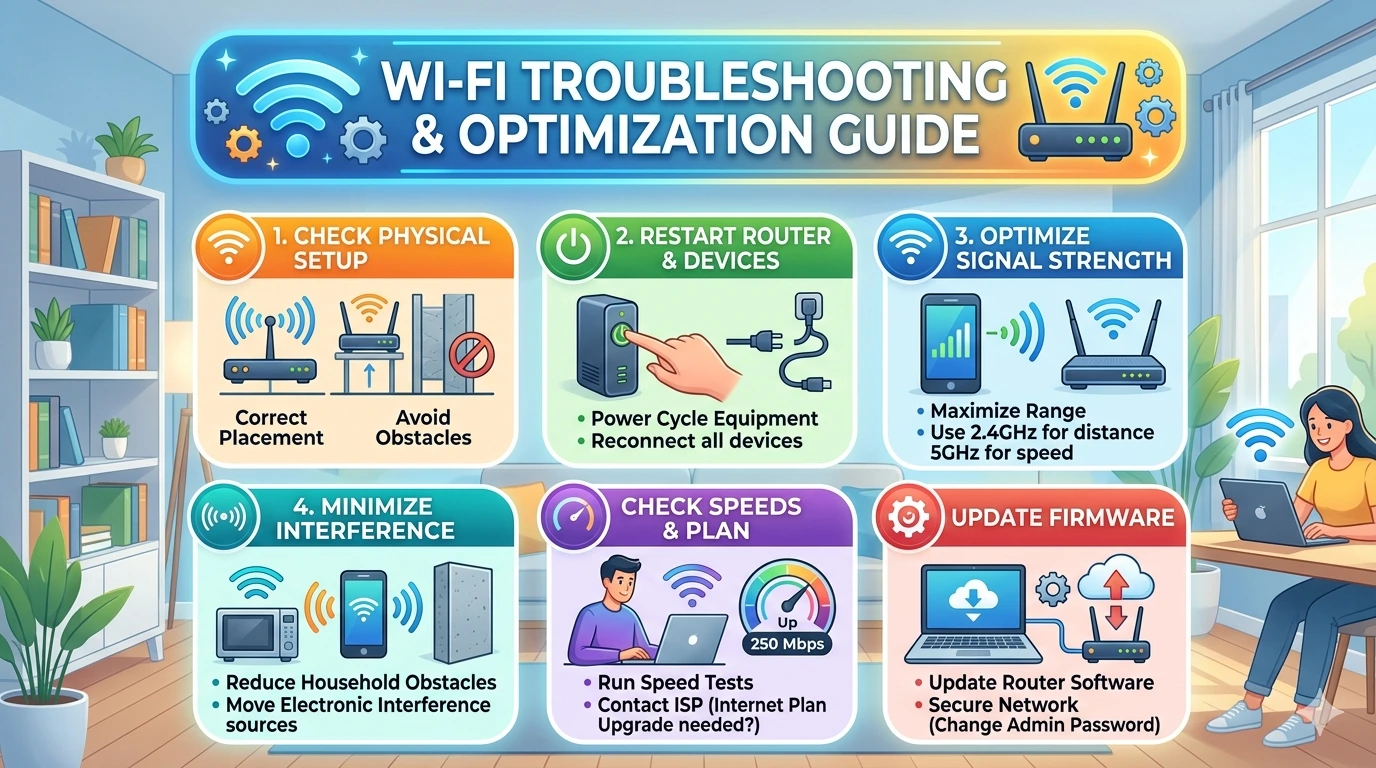
Wi‑Fi has become the invisible infrastructure of modern living. From streaming entertainment and online gaming to remote work and cloud collaboration, wireless connectivity is the backbone of digital productivity. For Windows 11 users, reliable Wi‑Fi is not just a convenience—it is a necessity. A single dropped connection can derail a business meeting, interrupt a lecture, or ruin a gaming session.
Evolution of Wi‑Fi Standards
Understanding the importance of troubleshooting begins with the history of Wi‑Fi:
- 802.11b (1999): Early adoption, speeds up to 11 Mbps.
- 802.11g (2003): Faster at 54 Mbps, backward compatible.
- 802.11n (2009): Introduced MIMO, speeds up to 600 Mbps.
- 802.11ac (2013): Gigabit speeds, popularized 5 GHz.
- 802.11ax (Wi‑Fi 6, 2019): Efficiency in crowded environments, lower latency.
- Wi‑Fi 6E (2021): Expanded into 6 GHz band for faster, cleaner spectrum.
Windows 11 supports Wi‑Fi 6 and 6E, making it future‑ready. However, users must configure their systems correctly to benefit.
Why Wi‑Fi Matters in Windows 11
Productivity
Remote work, online collaboration, and cloud storage depend on uninterrupted connectivity. A single drop in Wi‑Fi can cause delays and miscommunication.
Entertainment
Streaming services and online gaming demand consistent bandwidth. Buffering or lag ruins the experience.
Communication
Video calls, messaging apps, and VoIP rely on stable connections. Wi‑Fi ensures smooth communication across platforms.
Security
Modern Wi‑Fi protocols like WPA3 protect against cyber threats. Without secure Wi‑Fi, sensitive data is exposed.
Windows 11 Networking Enhancements
Microsoft designed Windows 11 with networking improvements:
- Native Wi‑Fi 6/6E support for faster speeds and lower latency.
- WPA3 security protocol for stronger encryption.
- Improved power management balancing battery life and performance.
- Enhanced diagnostics tools like Network Troubleshooter and PowerShell commands.
These features make Windows 11 a robust platform for wireless networking.
Common Wi‑Fi Challenges
Despite advancements, users still face:
- Slow speeds due to congestion or outdated hardware.
- Frequent disconnections from driver issues or router misconfiguration.
- Weak signals caused by poor router placement or obstructions.
- Compatibility problems with legacy devices.
- Security risks from weak encryption or unauthorized access.
Case Studies: The Impact of Wi‑Fi Failures
- Business: A marketing team presenting via Microsoft Teams experiences repeated disconnections, losing client confidence.
- Education: A student attending online classes faces buffering and lag, missing lessons.
- Healthcare: Doctors using telemedicine rely on stable Wi‑Fi; a dropped connection compromises patient care.
- Entertainment: Gamers streaming live face lag and crashes, reducing audience engagement.
Technical Overview: How Wi‑Fi Works
Wi‑Fi transmits data using radio waves across frequency bands (2.4 GHz, 5 GHz, 6 GHz). Routers manage traffic, while devices negotiate connections using protocols. Key concepts include:
- Channels: Overlapping channels cause interference.
- Bandwidth: Determines maximum data transfer rate.
- Latency: Delay between sending and receiving data.
- Encryption: Protects data from unauthorized access.
Importance of Systematic Troubleshooting
Wi‑Fi troubleshooting is a structured process:
- Identify symptoms (slow speed, disconnection, weak signal).
- Match symptoms to likely causes (driver issues, router placement, interference).
- Apply targeted fixes (update drivers, reposition router, change frequency band).
- Test results to confirm stability.
This logical approach saves time and ensures lasting solutions.
Why This Guide Matters
This guide empowers Windows 11 users with:
- Practical solutions for everyday Wi‑Fi problems.
- Advanced techniques for persistent issues.
- Preventive strategies to minimize future disruptions.
- A deeper understanding of how Wi‑Fi interacts with Windows 11.
By following this guide, users can transform their Wi‑Fi experience from frustrating to seamless, ensuring productivity, entertainment, and communication remain uninterrupted.
Common Issues
Even with Windows 11’s networking improvements, Wi‑Fi problems remain one of the most frequent frustrations for users. These issues can stem from hardware limitations, software misconfigurations, environmental interference, or even ISP restrictions. Understanding the most common problems is the foundation for effective troubleshooting.
1. Slow Wi‑Fi Speeds
Causes
- Bandwidth congestion: Multiple devices streaming, gaming, or downloading simultaneously.
- Router limitations: Older routers may not support Wi‑Fi 5/6 standards.
- ISP throttling: Internet providers sometimes limit bandwidth during peak hours.
- Signal interference: Overlapping channels or nearby devices (microwaves, Bluetooth).
Impact
Slow speeds affect streaming quality, file downloads, and cloud synchronization. For professionals, this can delay project delivery; for gamers, it results in lag.
2. Frequent Disconnections
Causes
- Outdated drivers: Network adapter drivers not updated for Windows 11.
- Router misconfiguration: Incorrect DHCP or DNS settings.
- Interference: Competing signals from neighboring Wi‑Fi networks.
- Power management settings: Windows may disable Wi‑Fi to save battery.
Impact
Disconnections disrupt video calls, online classes, and cloud workflows. They also cause frustration during gaming or streaming.
3. Weak Wi‑Fi Signals
Causes
- Router placement: Positioned in corners, behind furniture, or on the floor.
- Physical obstructions: Walls, doors, and appliances block signals.
- Limited antenna range: Budget routers often have weaker antennas.
- Large spaces: Homes or offices with multiple floors need mesh systems.
Impact
Weak signals lead to dead zones where devices cannot connect. Productivity drops when users must move closer to the router.
4. Compatibility Problems
Causes
- Legacy routers: Devices stuck on 2.4 GHz instead of 5 GHz or 6 GHz.
- Mixed environments: Older laptops or IoT devices unable to use modern protocols.
- Driver conflicts: Incompatible drivers cause instability.
Impact
Users cannot fully benefit from Wi‑Fi 6/6E speeds. Compatibility issues also prevent seamless connectivity across devices.
5. Security Risks
Causes
- Weak encryption: Using outdated WEP or WPA2 instead of WPA3.
- Default passwords: Routers left with factory credentials.
- Unauthorized access: Neighbors or hackers exploiting weak security.
Impact
Security breaches expose sensitive data, compromise privacy, and can even allow attackers to hijack bandwidth.
6. ISP‑Related Issues
Causes
- Network congestion: ISP infrastructure overloaded during peak hours.
- Service outages: Temporary downtime due to maintenance.
- Speed caps: ISP plans limit maximum bandwidth.
Impact
Even with a perfect local setup, users experience slow or unstable Wi‑Fi if the ISP is the bottleneck.
7. Device‑Specific Problems
Causes
- Old hardware: Laptops or smartphones with outdated Wi‑Fi chips.
- Background apps: Programs consuming bandwidth silently.
- Misconfigured settings: Incorrect DNS or proxy configurations.
Impact
Individual devices may struggle to connect or maintain stable speeds, even when the network itself is fine.
8. Environmental Interference
Causes
- Microwaves and cordless phones: Operate on 2.4 GHz, interfering with Wi‑Fi.
- Bluetooth devices: Share frequency bands, causing overlap.
- Neighboring networks: Multiple routers using the same channel.
Impact
Interference reduces speed and stability, especially in apartments or offices with dense Wi‑Fi usage.
Why Identifying Common Issues Matters
Recognizing these patterns allows users to troubleshoot logically. Instead of guessing, they can match symptoms to likely causes and apply targeted fixes. For example:
- Slow speeds → check router age and ISP plan.
- Frequent disconnections → update drivers and adjust power settings.
- Weak signals → reposition router or deploy mesh networking.
This structured approach reduces downtime and ensures solutions are effective rather than temporary.
Step‑by‑Step Fixes
Wi‑Fi problems can feel overwhelming, but most issues can be resolved through systematic troubleshooting. This section provides detailed, step‑by‑step instructions for fixing common connectivity problems in Windows 11.
Step 1: Basic Checks
Before diving into advanced fixes, start with simple checks:
- Restart your router and PC. Many temporary glitches clear after a reboot.
- Test another device. If other devices connect fine, the issue is device‑specific.
- Check ISP status. Outages or throttling may be the root cause.
Step 2: Update Wi‑Fi Drivers
Outdated drivers are a leading cause of disconnections and slow speeds.
- Press Win + X → Device Manager.
- Expand Network adapters.
- Right‑click your Wi‑Fi adapter → Update driver.
- Choose Search automatically for drivers.
- For best results, download the latest drivers directly from your laptop or adapter manufacturer’s website.
Step 3: Optimize Router Placement
Signal strength depends heavily on router location.
- Place router centrally, elevated, and away from obstructions.
- Avoid interference from microwaves, cordless phones, or Bluetooth devices.
- For large homes, consider mesh networking to eliminate dead zones.
Step 4: Adjust Windows Settings
Windows 11 includes built‑in tools to reset and repair networking.
- Run Network Troubleshooter:
- Go to Settings → Network & Internet → Status → Network Troubleshooter.
- Reset TCP/IP stack:
- Open Command Prompt (Admin).
- Run:
netsh int ip reset
netsh winsock reset
- Restart PC to apply changes.
Step 5: Switch Frequency Bands
Modern routers support multiple bands:
- 2.4 GHz: Longer range, slower speeds.
- 5 GHz: Faster speeds, shorter range.
- 6 GHz (Wi‑Fi 6E): Ultra‑fast, minimal interference, requires compatible hardware.
Switching bands can reduce congestion and improve performance.
- Open Settings → Network & Internet → Wi‑Fi → Manage known networks.
- Select your network → Properties → Band preference.
Step 6: Configure Power Settings
Windows may disable Wi‑Fi to save battery.
- Open Control Panel → Power Options → Advanced settings.
- Expand Wireless Adapter Settings → Power Saving Mode.
- Set to Maximum Performance.
Step 7: Reset Network Settings
If issues persist, reset all network configurations.
- Go to Settings → Network & Internet → Advanced network settings → Network reset.
- This reinstalls network adapters and restores default settings.
Step 8: Router Configuration
Sometimes the router itself needs adjustment:
- Log into router admin panel (usually
192.168.1.1). - Change Wi‑Fi channel to avoid interference.
- Enable WPA3 encryption for stronger security.
- Update router firmware to latest version.
Step 9: Disable Background Apps
Applications consuming bandwidth silently can slow Wi‑Fi.
- Open Task Manager → Processes.
- Identify apps using high network resources.
- End tasks or configure bandwidth limits.
Step 10: DNS Optimization
Slow browsing may be caused by DNS issues.
- Open Settings → Network & Internet → Wi‑Fi → Properties.
- Scroll to DNS settings → Edit → Manual.
- Use reliable DNS servers (e.g., Google DNS: 8.8.8.8, 8.8.4.4).
Practical Example
Imagine a user facing frequent disconnections during Zoom meetings:
- They update Wi‑Fi drivers.
- Adjust router placement away from interference.
- Reset TCP/IP stack via Command Prompt.
- Configure power settings to prevent Wi‑Fi sleep.
- Switch to 5 GHz band for stability.
Within minutes, the connection stabilizes, ensuring smooth video calls.
Why Step‑by‑Step Fixes Work
This structured approach ensures simple solutions are tried first, reducing risk and saving time. It prevents unnecessary reinstalls or hardware replacements, as most Wi‑Fi problems stem from misconfigured settings, outdated drivers, or environmental interference rather than fundamental system faults.
Advanced Solutions
Basic troubleshooting often resolves everyday Wi‑Fi problems, but persistent issues sometimes require deeper interventions. Advanced solutions target system layers such as registry entries, group policies, PowerShell commands, and router firmware. These methods are especially useful for professionals, enterprises, and power users who demand maximum stability and performance from Windows 11 networking.
Registry Tweaks for Performance
Windows networking behavior can be fine‑tuned through registry modifications.
- Press Win + R → regedit.
- Navigate to:
HKEY_LOCAL_MACHINE\SYSTEM\CurrentControlSet\Services\Tcpip\Parameters - Common tweaks:
- TcpAckFrequency: Reduces acknowledgment delay, improving latency for gaming.
- TcpNoDelay: Forces immediate packet transmission.
- EnableRSS: Enables Receive Side Scaling for multi‑core performance.
⚠️ Note: Always back up the registry before making changes. Incorrect edits can destabilize the system.
Group Policy Adjustments
Enterprise environments often enforce policies that affect Wi‑Fi.
- Press Win + R → gpedit.msc.
- Navigate to Computer Configuration → Administrative Templates → Network → WLAN Service.
- Useful adjustments:
- Configure preferred networks for automatic connection.
- Enforce WPA2/WPA3 security standards.
- Disable auto‑connect to unsecured networks.
These policies ensure consistent and secure Wi‑Fi behavior across multiple devices.
PowerShell Commands for Diagnostics
PowerShell provides powerful tools for diagnosing and resetting Wi‑Fi.
- Restart network adapter:
Get-NetAdapter | Restart-NetAdapter - View detailed Wi‑Fi report:
netsh wlan show wlanreportGenerates an HTML report with connection history, errors, and performance metrics.
- Flush DNS cache:
ipconfig /flushdnsResolves browsing delays caused by outdated DNS entries.
Router Firmware Updates
Routers are the heart of Wi‑Fi networks. Outdated firmware can cause instability, security vulnerabilities, and poor performance.
- Log into router admin panel (usually
192.168.1.1). - Check for firmware updates under Administration → Firmware Upgrade.
- Apply updates carefully; avoid interruptions during installation.
Firmware updates often fix bugs, improve compatibility with Windows 11, and enhance security.
Mesh Networking Deployment
Large homes and offices often suffer from dead zones. Mesh networking solves this by using multiple nodes to distribute Wi‑Fi evenly.
- Place nodes strategically across floors and rooms.
- Ensure nodes connect via Ethernet backhaul for maximum stability.
- Configure mesh system to prioritize high‑bandwidth devices (e.g., PCs, consoles).
Mesh systems like Netgear Orbi, TP‑Link Deco, or Google Nest Wi‑Fi provide seamless roaming and eliminate weak signal areas.
Event Viewer Analysis
Windows Event Viewer logs detailed networking errors.
- Press Win + X → Event Viewer.
- Navigate to Windows Logs → System.
- Filter for WLAN‑AutoConfig events.
- Analyze error codes to identify failing components (e.g., driver crashes, authentication failures).
This method helps pinpoint root causes that basic troubleshooting may overlook.
Clean Boot Troubleshooting
Third‑party software can conflict with Wi‑Fi drivers.
- Press Win + R → msconfig.
- Under Services, check Hide all Microsoft services → Disable all.
- Restart PC and test Wi‑Fi.
- If stable, re‑enable services one by one to identify the culprit.
Clean boot isolates problematic software without reinstalling Windows.
Advanced Router Configuration
For power users, router settings can be fine‑tuned:
- Channel selection: Manually set channels to avoid interference.
- QoS (Quality of Service): Prioritize bandwidth for critical apps (e.g., Teams, Zoom).
- Dual‑band steering: Automatically shift devices between 2.4 GHz and 5 GHz.
- Guest networks: Isolate visitors to prevent bandwidth hogging.
Why Advanced Solutions Matter
While basic fixes address surface‑level problems, advanced solutions tackle deeper conflicts in registry entries, group policies, and system services. For creative professionals, enterprises, and gamers, mastering these techniques ensures reliability and maximizes productivity.
Preventive Tips
Fixing Wi‑Fi problems is important, but preventing them is even more valuable. By adopting proactive habits, users can minimize the risk of crashes, disconnections, and weak signals, ensuring smooth connectivity in Windows 11.
1. Keep Windows and Drivers Updated
- Regularly install Windows updates.
- Update Wi‑Fi adapter drivers from manufacturer websites.
- Prevents compatibility issues and improves stability.
2. Maintain Router Health
- Reboot router weekly to clear cache.
- Update router firmware for security and performance.
- Replace outdated routers that lack Wi‑Fi 5/6 support.
3. Optimize Router Placement
- Place router centrally, elevated, away from obstructions.
- Avoid interference from microwaves, cordless phones, and Bluetooth devices.
- Use mesh networking for large homes or offices.
4. Secure Your Network
- Use WPA3 encryption.
- Disable WPS (Wi‑Fi Protected Setup).
- Set strong, unique passwords.
- Monitor connected devices to prevent unauthorized access.
5. Manage Bandwidth
- Limit background apps consuming bandwidth.
- Configure router QoS (Quality of Service) to prioritize critical tasks (e.g., video calls).
- Disconnect unused devices.
6. Backup and Monitor
- Save router configuration settings.
- Use monitoring tools to track bandwidth usage.
- Detect unusual activity early.
FAQ
Why does my Wi‑Fi disconnect frequently?
Answer: Outdated drivers, router misconfiguration, or interference are common causes. Update drivers, reset router, and adjust power settings.
How can I boost Wi‑Fi speed in Windows 11?
Answer: Switch to 5 GHz or 6 GHz bands, optimize router placement, and enable QoS for bandwidth prioritization.
Why is my signal weak in certain rooms?
Answer: Physical obstructions or distance from router. Consider mesh networking or Wi‑Fi extenders.
How do I secure my Wi‑Fi network?
Answer: Use WPA3 encryption, disable WPS, set strong passwords, and monitor connected devices.
Should I reset my network often?
Answer: Only when persistent issues occur. Routine resets are not necessary if the system is stable.
Why is my Wi‑Fi slower at night?
Answer: ISP congestion during peak hours. Switching frequency bands or upgrading ISP plan may help.
Can Windows 11 improve Wi‑Fi automatically?
Answer: Yes. Built‑in tools like Network Troubleshooter and PowerShell commands can diagnose and repair issues.
Do I need a Wi‑Fi 6 router?
Answer: Not mandatory, but highly recommended. Wi‑Fi 6 offers faster speeds, lower latency, and better performance in crowded environments.
Conclusion
Wi‑Fi optimization in Windows 11 is about balance: speed, stability, security, and adaptability. By combining preventive strategies with systematic troubleshooting, users can ensure reliable connectivity for work, study, and entertainment. Regular updates, careful configuration, and proactive monitoring form the foundation of a seamless wireless experience.