
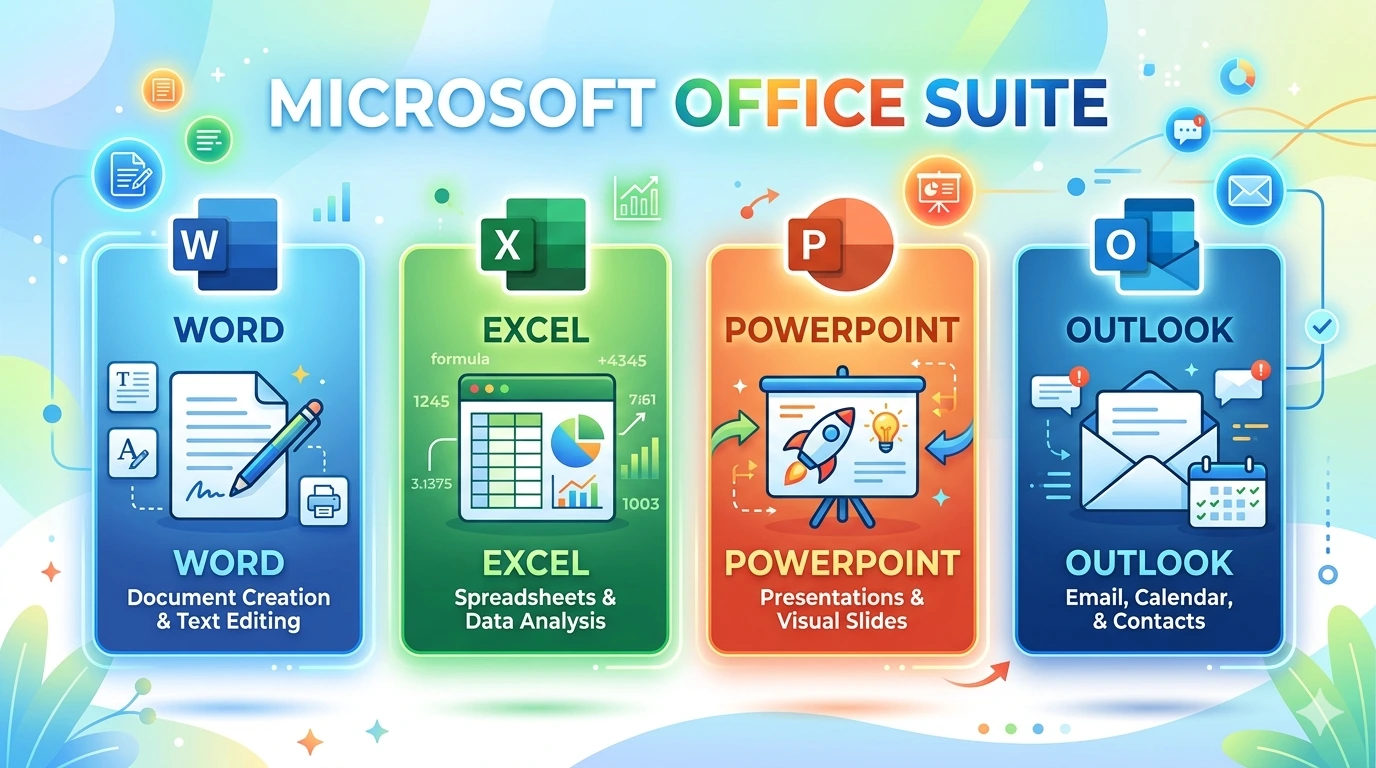
The Microsoft Office Suite is one of the most widely used productivity platforms in the world. On Windows 11, it remains a cornerstone for both personal and professional tasks. Whether drafting reports in Word, analyzing data in Excel, creating presentations in PowerPoint, or managing communication in Outlook, Office applications are deeply integrated into daily workflows.
Why Microsoft Office Matters
- Word enables structured documentation with advanced formatting and collaboration features.
- Excel powers financial modeling, data analysis, and automation through formulas and macros.
- PowerPoint supports professional presentations with multimedia integration.
- Outlook centralizes email, calendar, and task management.
Errors in these applications can disrupt productivity instantly. A crash in Word may delay report submission, a corrupted Excel file can halt financial analysis, a PowerPoint playback error can ruin a presentation, and Outlook sync failures can block communication.
The Growing Complexity of Office Ecosystem
Modern Office is no longer just desktop software. It integrates with:
- Cloud services like OneDrive for real‑time sync.
- Collaboration tools for co‑authoring documents.
- AI features such as predictive text and design suggestions.
- Cross‑platform support across Windows, macOS, mobile, and web.
This complexity increases the likelihood of errors. A single corrupted update or misconfigured sync can destabilize multiple apps simultaneously.
Common Symptoms of Office Errors
Users often encounter:
- Word crashes or formatting inconsistencies.
- Excel formula errors or macro failures.
- PowerPoint missing fonts or multimedia playback issues.
- Outlook sync failures or corrupted PST files.
These issues are disruptive because they affect fundamental productivity tasks.
Importance of Systematic Troubleshooting
Office errors can feel overwhelming, but most are solvable. Windows 11 provides built‑in recovery tools such as Repair Office Installation, Safe Mode, and Compatibility Settings, while Microsoft regularly releases patches to fix bugs. By approaching errors methodically—starting with basic checks and progressing to advanced solutions—users can restore functionality without reinstalling the entire suite.
Why This Guide Matters
This article series will:
- Explain the root causes of common Office errors.
- Provide step‑by‑step instructions for resolving them.
- Offer advanced techniques for persistent problems.
- Share preventive strategies to minimize future disruptions.
By following this guide, users gain practical solutions and a deeper understanding of how Office apps interact with Windows 11. This empowers them to troubleshoot confidently, ensuring that Word, Excel, PowerPoint, and Outlook remain reliable across all environments.
Common Issues
The Microsoft Office Suite is indispensable for productivity, but errors in its applications can disrupt workflows. Below are the most common issues users face with Word, Excel, PowerPoint, and Outlook, along with their causes and impacts.
Word Errors
1. Application Crashes on Startup
- Causes: Corrupted Normal.dotm template, faulty add‑ins, or incomplete updates.
- Impact: Users cannot access documents, delaying work.
2. “Not Responding” Messages
- Causes: Large files, insufficient memory, or background processes interfering.
- Impact: Editing becomes slow or impossible.
3. Formatting Errors
- Causes: Corrupted styles, incompatible fonts, or template conflicts.
- Impact: Documents lose professional appearance.
4. Compatibility Issues
- Causes: Opening legacy .doc files in modern Word versions.
- Impact: Features like SmartArt or advanced formatting fail.
Excel Errors
1. Slow Performance with Large Datasets
- Causes: Excessive formulas, volatile functions, or outdated hardware.
- Impact: Data analysis becomes sluggish.
2. Formula Errors (#VALUE!, #REF!, #DIV/0!)
- Causes: Incorrect references, missing data, or invalid inputs.
- Impact: Calculations produce inaccurate results.
3. Macro Failures
- Causes: Disabled VBA environment, corrupted scripts, or security restrictions.
- Impact: Automation tasks fail, increasing manual workload.
4. File Corruption
- Causes: Improper shutdowns, malware, or storage errors.
- Impact: Spreadsheets cannot be opened or data is lost.
PowerPoint Errors
1. Presentation Crashes
- Causes: Large multimedia files, outdated graphics drivers, or corrupted templates.
- Impact: Users cannot deliver presentations smoothly.
2. Missing Fonts
- Causes: Fonts not installed on the system.
- Impact: Slides lose intended design and readability.
3. Multimedia Playback Issues
- Causes: Unsupported formats, codec errors, or hardware limitations.
- Impact: Videos or audio fail during presentations.
4. Compatibility Problems
- Causes: Opening legacy .ppt files in modern PowerPoint versions.
- Impact: Animations or transitions fail to render correctly.
Outlook Errors
1. Sync Failures
- Causes: Corrupted OST/PST files, server issues, or misconfigured accounts.
- Impact: Emails fail to send/receive, disrupting communication.
2. Application Freezes
- Causes: Large mailboxes, faulty add‑ins, or outdated updates.
- Impact: Users cannot access emails efficiently.
3. Corrupted PST Files
- Causes: Improper shutdowns, malware, or storage errors.
- Impact: Emails and contacts become inaccessible.
4. Authentication Errors
- Causes: Incorrect credentials, expired certificates, or server misconfigurations.
- Impact: Users cannot log in to accounts.
Cross‑Office Issues
1. Licensing Problems
- Causes: Expired subscriptions, activation errors, or misconfigured accounts.
- Impact: Apps switch to read‑only mode.
2. Update Failures
- Causes: Network instability, insufficient storage, or corrupted update files.
- Impact: Security patches and new features fail to install.
3. Add‑in Conflicts
- Causes: Third‑party add‑ins interfering with Office apps.
- Impact: Apps crash or slow down.
4. Cloud Integration Failures
- Causes: OneDrive sync errors, outdated authentication protocols, or network instability.
- Impact: Documents fail to save or sync across devices.
Why Identifying Common Issues Matters
Recognizing these patterns allows users to troubleshoot logically. Instead of guessing, they can match symptoms to likely causes and apply targeted fixes. This structured approach reduces downtime and ensures that solutions are effective rather than temporary.
Step‑by‑Step Fixes
Errors in Microsoft Office can feel overwhelming, but most are solvable with systematic troubleshooting. This section provides structured, step‑by‑step instructions for fixing issues in Word, Excel, PowerPoint, and Outlook, as well as cross‑suite problems.
Word – Step‑by‑Step Fixes
Step 1: Start Word in Safe Mode
- Press Win + R, type
winword /safe, and hit Enter. - If Word runs normally, the issue is likely caused by add‑ins.
Step 2: Disable Add‑ins
- Go to File → Options → Add‑ins.
- Select COM Add‑ins → Go.
- Uncheck all add‑ins and restart Word.
Step 3: Reset Normal.dotm Template
- Close Word.
- Navigate to
%appdata%\Microsoft\Templates. - Rename Normal.dotm to Normal.old.
- Restart Word to generate a fresh template.
Step 4: Repair Office Installation
- Open Control Panel → Programs → Programs and Features.
- Select Microsoft Office → Change → Quick Repair.
- If issues persist, run Online Repair.
Excel – Step‑by‑Step Fixes
Step 1: Check Formulas
- Review cells showing errors (#REF!, #VALUE!, #DIV/0!).
- Correct references or inputs.
Step 2: Enable Macros
- Go to File → Options → Trust Center → Trust Center Settings → Macro Settings.
- Select Enable all macros (temporarily for troubleshooting).
Step 3: Recover Corrupted Files
- Open Excel → File → Open → Browse.
- Select the file → click the arrow next to Open → Open and Repair.
- Choose Repair or Extract Data.
Step 4: Optimize Performance
- Break large datasets into smaller sheets.
- Replace volatile functions (e.g., NOW, RAND) with static values.
- Update hardware drivers for better performance.
PowerPoint – Step‑by‑Step Fixes
Step 1: Reinstall Missing Fonts
- Download and install missing fonts from trusted sources.
- Restart PowerPoint to apply changes.
Step 2: Convert Multimedia Files
- Convert videos to MP4 (H.264) and audio to MP3 for maximum compatibility.
- Reinsert converted files into slides.
Step 3: Update Graphics Drivers
- Open Device Manager → Display adapters.
- Right‑click GPU → Update driver.
Step 4: Repair PowerPoint Installation
- Use the same Quick Repair / Online Repair process as Word.
Outlook – Step‑by‑Step Fixes
Step 1: Run Inbox Repair Tool (ScanPST)
- Locate ScanPST.exe in the Office installation folder.
- Run the tool and select the corrupted PST file.
- Click Repair.
Step 2: Recreate Outlook Profile
- Open Control Panel → Mail → Show Profiles.
- Add a new profile and configure account settings.
- Set the new profile as default.
Step 3: Clear Outlook Cache
- Navigate to
%localappdata%\Microsoft\Outlook. - Delete cache files.
- Restart Outlook.
Step 4: Check Account Settings
- Go to File → Account Settings → Account Settings.
- Verify server details, credentials, and ports.
Cross‑Office Fixes
Step 1: Repair Entire Office Suite
- Open Control Panel → Programs → Programs and Features.
- Select Microsoft Office → Change → Quick Repair.
- Run Online Repair if Quick Repair fails.
Step 2: Update Office
- Open any Office app → File → Account → Update Options → Update Now.
- Ensure latest patches are installed.
Step 3: Disable Conflicting Add‑ins
- In each app, go to File → Options → Add‑ins.
- Disable third‑party add‑ins that cause instability.
Step 4: Check Licensing Status
- Open any Office app → File → Account.
- Verify subscription status and sign in with correct Microsoft account.
Practical Example
Imagine a user facing multiple issues:
- Word crashes on startup.
- Excel shows #REF errors.
- PowerPoint fails to play videos.
- Outlook cannot sync emails.
By following these steps:
- Start Word in Safe Mode, disable add‑ins, and reset Normal.dotm.
- Correct Excel formulas and use Open and Repair for corrupted files.
- Convert PowerPoint videos to MP4 and update graphics drivers.
- Run ScanPST for Outlook and recreate the profile.
- Finally, repair the entire Office suite to ensure stability.
Within a few hours, all apps are restored without reinstalling Windows.
Why Step‑by‑Step Fixes Work
This structured approach ensures that simple solutions are tried first, reducing risk and saving time. It also prevents unnecessary reinstalls, as most Office problems stem from corrupted settings, outdated components, or add‑in conflicts rather than fundamental system faults.
Advanced Solutions
Basic troubleshooting often resolves Microsoft Office errors, but some cases require deeper interventions. These advanced solutions target system layers such as registry entries, group policies, and PowerShell commands. They are especially useful for persistent or complex issues that survive standard fixes.
Word – Advanced Solutions
1. Registry Cleanup
- Press Win + R → regedit.
- Navigate to:
HKEY_CURRENT_USER\Software\Microsoft\Office\16.0\Word - Delete corrupted subkeys related to add‑ins or templates.
- Restart Word.
2. Compatibility Mode
- Right‑click the Word executable → Properties → Compatibility tab.
- Run in compatibility mode for Windows 10 if legacy documents fail.
3. PowerShell Reset
- Open PowerShell (Admin).
- Run:
Get-AppxPackage -Name Microsoft.Office.Desktop.Word | Reset-AppxPackage - This resets Word settings without reinstalling Office.
Excel – Advanced Solutions
1. Registry Fixes
- Press Win + R → regedit.
- Navigate to:
HKEY_CURRENT_USER\Software\Microsoft\Office\16.0\Excel - Remove corrupted entries related to add‑ins or startup options.
2. Group Policy Adjustments
- Press Win + R → gpedit.msc.
- Navigate to User Configuration → Administrative Templates → Microsoft Excel.
- Ensure macros and add‑ins are allowed if required by enterprise policies.
3. PowerShell Diagnostics
- Open PowerShell (Admin).
- Run:
Get-Process Excel | Stop-Process -Force - Restart Excel to clear memory conflicts.
PowerPoint – Advanced Solutions
1. Registry Cleanup
- Press Win + R → regedit.
- Navigate to:
HKEY_CURRENT_USER\Software\Microsoft\Office\16.0\PowerPoint - Delete corrupted subkeys related to templates or multimedia.
2. Codec Installation
- Install missing codecs via trusted packs (e.g., K‑Lite Codec Pack).
- Restart PowerPoint to enable playback of unsupported formats.
3. Compatibility Mode
- Run PowerPoint in compatibility mode for older presentations.
- Right‑click executable → Properties → Compatibility tab.
Outlook – Advanced Solutions
1. Registry Cleanup
- Press Win + R → regedit.
- Navigate to:
HKEY_CURRENT_USER\Software\Microsoft\Office\16.0\Outlook - Delete corrupted entries related to profiles or accounts.
2. Group Policy Adjustments
- Press Win + R → gpedit.msc.
- Navigate to User Configuration → Administrative Templates → Microsoft Outlook.
- Ensure policies allow PST/OST file usage and account sync.
3. PowerShell Reset
- Open PowerShell (Admin).
- Run:
Get-AppxPackage -Name Microsoft.Office.Desktop.Outlook | Reset-AppxPackage - Resets Outlook settings without full reinstall.
Cross‑Office Advanced Solutions
1. Clean Boot Troubleshooting
Third‑party software can conflict with Office apps.
- Press Win + R → msconfig.
- Under Services, check Hide all Microsoft services → Disable all.
- Restart the PC and test Office apps.
2. Event Viewer Analysis
- Press Win + X → Event Viewer.
- Review Application logs for Office error codes.
- Use logs to identify failing components.
3. PowerShell Reinstallation
- Open PowerShell (Admin).
- Run:
Get-AppxPackage -Name Microsoft.Office.Desktop | Remove-AppxPackage Get-AppxPackage -AllUsers -Name Microsoft.Office.Desktop | Install-AppxPackage - This reinstalls Office components without wiping user data.
4. Cloud Sync Troubleshooting
- Ensure OneDrive is updated.
- Reset OneDrive by running:
%localappdata%\Microsoft\OneDrive\onedrive.exe /reset - Reconnect Office apps to OneDrive for stable sync.
Why Advanced Solutions Matter
These methods target the root causes of persistent Office failures. While basic fixes address surface‑level problems, advanced solutions tackle deeper conflicts in registry entries, group policies, and system services. For professionals, students, and enterprises, mastering these techniques ensures reliability and maximizes productivity in both personal and corporate environments.
Preventive Tips
Fixing Microsoft Office errors is essential, but preventing them is even more important. By adopting proactive habits, users can minimize the risk of crashes, corruption, and sync failures, ensuring smooth productivity in Windows 11.
1. Keep Office Updated
Regularly install updates via File → Account → Update Options → Update Now. Updates often include bug fixes and security patches.
2. Maintain Driver and System Health
Update graphics, network, and storage drivers. Run SFC and DISM scans periodically to repair corrupted system files.
3. Backup Critical Files
- For Outlook, back up PST/OST files.
- For Word, Excel, and PowerPoint, store documents in OneDrive or external drives.
4. Limit Add‑ins
Install only trusted add‑ins. Disable unused ones to reduce conflicts.
5. Avoid Registry Tampering
Do not edit registry entries unless guided by official documentation. Incorrect changes can destabilize Office apps.
6. Optimize Performance
- Break large Excel datasets into smaller sheets.
- Compress multimedia in PowerPoint.
- Archive old emails in Outlook to reduce mailbox size.
7. Secure Cloud Integration
Ensure OneDrive is updated and properly synced. Misconfigured cloud settings often cause save and sync errors.
8. Create Restore Points
Before major updates, create a system restore point. This allows quick rollback if new patches cause instability.
FAQ
Why does Word crash on startup?
Answer: Corrupted templates or faulty add‑ins are common causes. Start Word in Safe Mode and reset the Normal.dotm template.
How do I fix Excel formula errors (#REF!, #VALUE!, #DIV/0!)?
Answer: Check cell references and inputs. Use Formula Auditing tools to trace errors.
Why do macros fail in Excel?
Answer: Macros may be disabled in Trust Center settings. Enable macros temporarily for troubleshooting.
Why does PowerPoint fail to play videos?
Answer: Unsupported formats or missing codecs. Convert videos to MP4 (H.264) and reinsert them.
Why does Outlook fail to sync emails?
Answer: Corrupted PST/OST files or misconfigured accounts. Run ScanPST.exe and recreate the Outlook profile.
How can I prevent Office update failures?
Answer: Ensure stable internet, sufficient storage, and disable third‑party antivirus temporarily during updates.
Why do licensing errors occur?
Answer: Expired subscriptions or incorrect Microsoft account sign‑in. Verify account status under File → Account.
Should I clear cache regularly?
Answer: Yes. Clearing cache in Outlook and temporary files in Word/Excel reduces corruption risks.
Conclusion
Microsoft Office is central to productivity in Windows 11, but errors in Word, Excel, PowerPoint, and Outlook can disrupt workflows. By combining systematic troubleshooting with preventive strategies, users can maintain reliability and efficiency. Regular updates, careful configuration, and proactive monitoring form the foundation of stable Office performance.