
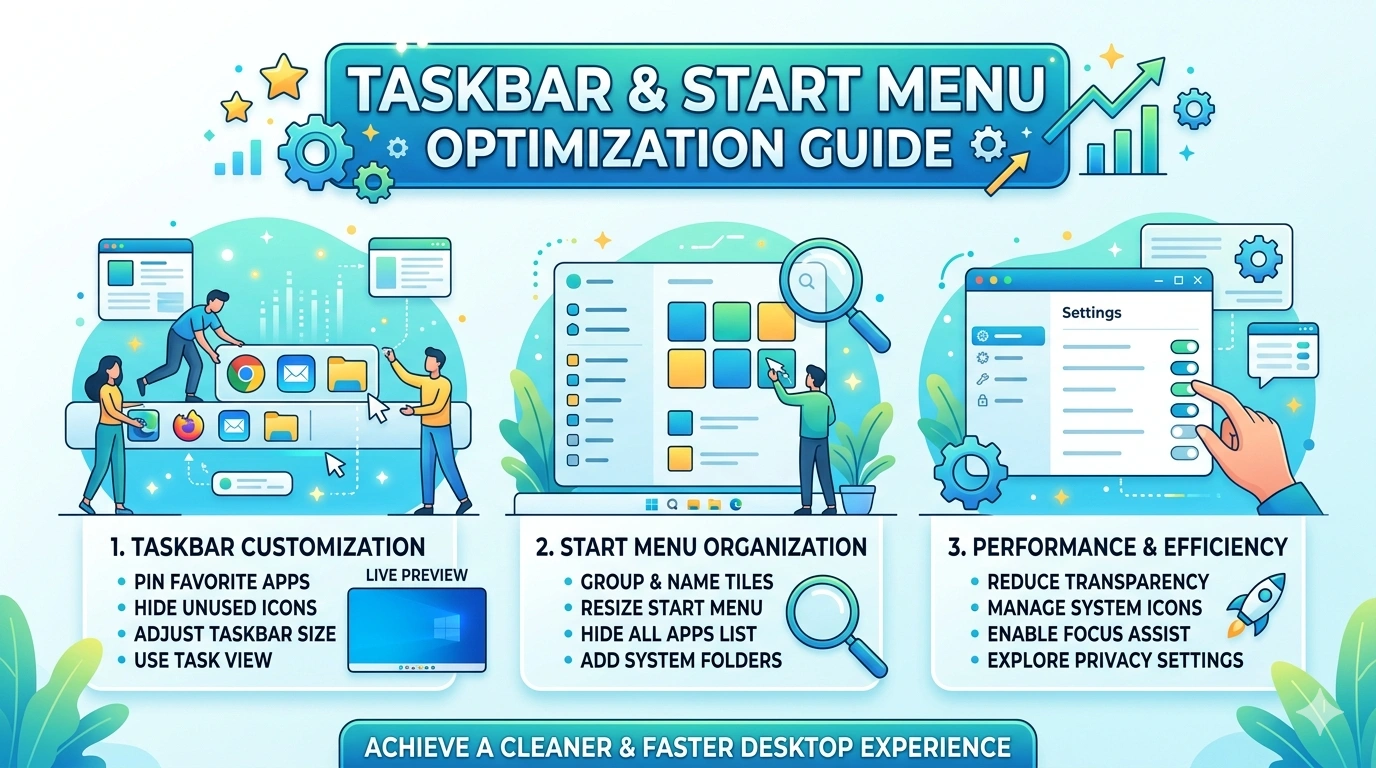
The Taskbar and Start Menu are the beating heart of Windows 11. They are not just navigation tools—they are the command center for productivity, multitasking, and personalization. Every time a user launches an app, searches for a file, or checks system status, they interact with these two components. Optimizing them is therefore essential for efficiency and user satisfaction.
Why Taskbar & Start Menu Matter
Productivity
The Taskbar provides instant access to pinned apps, system notifications, and quick settings. A well‑organized Taskbar reduces wasted time and streamlines workflows. The Start Menu, redesigned in Windows 11, centralizes app launching and search, making it easier to find tools quickly.
Multitasking
Windows 11 emphasizes multitasking with features like Snap Layouts and virtual desktops. The Taskbar supports this by showing active apps and enabling seamless switching. The Start Menu complements multitasking by offering quick access to frequently used apps and documents.
Personalization
Both components can be customized to reflect user preferences. Taskbar alignment, icon size, and pinned apps allow users to tailor their workspace. The Start Menu supports personalized layouts, recommended files, and integration with Microsoft accounts.
Accessibility
For users with specific needs, the Taskbar and Start Menu provide accessibility shortcuts. High contrast modes, larger icons, and simplified layouts make navigation easier for everyone.
Windows 11 Changes
Windows 11 introduced significant updates:
- Centered Taskbar: Icons are aligned centrally by default, offering a modern look.
- Redesigned Start Menu: Simplified layout with pinned apps and recommended files.
- Integrated Search: Unified search bar for apps, files, and web results.
- Streamlined System Tray: Cleaner design with fewer distractions.
These changes modernize the interface but also introduce new challenges, especially for users accustomed to Windows 10.
Common User Concerns
- Taskbar feels restrictive compared to older versions.
- Start Menu’s recommended section sometimes clutters the interface.
- Missing customization options (e.g., Taskbar on top/side).
- Sync issues with pinned apps across devices.
These concerns highlight the importance of optimization and troubleshooting.
Case Studies: Impact of Taskbar & Start Menu Issues
- Business: Employees waste time searching for apps due to cluttered Start Menu layouts.
- Education: Students struggle with missing icons or frozen Taskbars during online classes.
- Creative Work: Designers prefer left‑aligned Taskbars but face limitations in Windows 11.
Technical Overview
The Taskbar and Start Menu are managed through system processes like Explorer.exe and configuration files stored in the registry. They interact with:
- ShellExperienceHost.exe for Start Menu rendering.
- Registry entries for layout and personalization.
- Microsoft account sync for cross‑device consistency.
Understanding these components helps users troubleshoot effectively.
Importance of Systematic Optimization
Optimizing the Taskbar and Start Menu ensures:
- Faster access to apps and files.
- Reduced system errors and freezes.
- Consistent personalization across devices.
- Improved productivity and multitasking.
Why This Guide Matters
This guide provides:
- Practical solutions for common Taskbar & Start Menu issues.
- Advanced techniques for customization and troubleshooting.
- Preventive strategies to avoid corruption after updates.
- A deeper understanding of how these components interact with Windows 11.
By following this guide, users can transform the Taskbar and Start Menu into powerful productivity tools rather than sources of frustration.
Common Issues
Even though Windows 11 modernizes the Taskbar and Start Menu, users frequently encounter problems that disrupt productivity. These issues range from minor inconveniences, like missing icons, to major frustrations, such as the Start Menu refusing to open. Understanding these recurring problems is the foundation for effective troubleshooting.
1. Taskbar Not Responding or Freezing
Causes
- Explorer.exe crashes or hangs.
- Corrupted system files.
- Conflicts with third‑party customization tools.
Impact
Users cannot access pinned apps, notifications, or system tray functions. Productivity stalls until the Taskbar is restored.
2. Start Menu Not Opening or Crashing
Causes
- ShellExperienceHost.exe errors.
- Damaged Start Menu database.
- Registry corruption after updates.
Impact
Users lose access to app launching and search, forcing them to rely on manual navigation.
3. Missing Icons or Pinned Apps
Causes
- Corrupted icon cache.
- Sync errors with Microsoft account.
- Updates resetting personalization settings.
Impact
Pinned apps disappear, requiring manual reconfiguration. This disrupts workflows and frustrates users who rely on quick access.
4. Taskbar Positioning Limitations
Causes
- Windows 11 restricts Taskbar placement to the bottom by default.
- Registry hacks required for top/side positioning.
Impact
Users accustomed to top or side Taskbars feel constrained, reducing personalization and comfort.
5. Search Bar Glitches
Causes
- Cortana/SearchUI process errors.
- Indexing service malfunction.
- Network interruptions affecting web search integration.
Impact
Search bar fails to return results or crashes, slowing down navigation and file access.
6. Start Menu Sync Issues
Causes
- Microsoft account sync errors.
- Conflicts between local and cloud settings.
- Network instability during synchronization.
Impact
Pinned apps and layouts fail to sync across devices, forcing users to reconfigure manually.
7. Taskbar Transparency and Visual Bugs
Causes
- GPU driver incompatibility.
- Bugs introduced by cumulative updates.
- Conflicts with accessibility settings.
Impact
Taskbar transparency fails, icons overlap, or visual glitches appear, reducing usability and aesthetics.
8. Performance Issues Linked to Taskbar & Start Menu
Causes
- Excessive pinned apps slowing down rendering.
- Third‑party customization tools consuming resources.
- Corrupted system files affecting Explorer.exe.
Impact
System slows down, Start Menu lags, or Taskbar becomes unresponsive.
Why Identifying Common Issues Matters
Recognizing these problems allows users to troubleshoot logically. Instead of reinstalling Windows or abandoning customization, they can match symptoms to causes and apply targeted fixes. For example:
- Taskbar freezing → restart Explorer.exe and clear icon cache.
- Start Menu not opening → reset ShellExperienceHost and repair system files.
- Search bar glitches → rebuild indexing service and check Cortana process.
By understanding the root causes, users save time and preserve their personalized environment.
Step‑by‑Step Fixes
Theme and layout problems in the Taskbar and Start Menu can be frustrating, but most can be resolved with systematic troubleshooting. This section provides detailed, step‑by‑step instructions to fix common issues, ensuring smooth navigation and personalization in Windows 11.
Step 1: Restart Explorer.exe to Fix Taskbar Freezes
- Press Ctrl + Shift + Esc to open Task Manager.
- Locate Windows Explorer under Processes.
- Right‑click → Restart.
- Taskbar should refresh and become responsive again.
This resolves temporary freezes caused by Explorer crashes.
Step 2: Reset Start Menu Layout
- Open Settings → Personalization → Start.
- Toggle off Show recently added apps and Show most used apps.
- Re‑enable them to refresh layout.
- If still broken, run PowerShell command:
Get-AppxPackage Microsoft.Windows.StartMenuExperienceHost | Reset-AppxPackage
This resets the Start Menu database.
Step 3: Re‑Pin Apps and Icons
- Open Start Menu → Right‑click app → Pin to Start or Pin to Taskbar.
- Drag icons directly to Taskbar for quick access.
- If icons disappear, clear icon cache:
- Press Win + R → cmd.
- Run:
ie4uinit.exe -ClearIconCache
taskkill /IM explorer.exe /F
start explorer.exe
Step 4: Adjust Taskbar Alignment and Size
- Open Settings → Personalization → Taskbar.
- Under Taskbar behaviors, choose Left or Center alignment.
- Adjust icon size via Taskbar settings → Use small taskbar buttons.
This restores preferred positioning and improves usability.
Step 5: Troubleshoot Search Bar Errors
- Open Settings → Privacy & security → Searching Windows.
- Ensure Enhanced indexing is enabled.
- Rebuild search index:
- Control Panel → Indexing Options → Advanced → Rebuild.
- Restart SearchUI.exe process in Task Manager.
Step 6: Repair Start Menu with PowerShell
- Open PowerShell as Administrator.
- Run:
Get-AppxPackage -AllUsers | Foreach {Add-AppxPackage -DisableDevelopmentMode -Register "$($_.InstallLocation)\AppXManifest.xml"} - This reinstalls core apps including Start Menu components.
Step 7: Fix Taskbar Transparency and Visual Bugs
- Open Settings → Personalization → Colors.
- Toggle Transparency effects off and on.
- Update GPU drivers via Device Manager.
- Run sfc /scannow to repair corrupted system files.
Step 8: Resolve Sync Issues with Microsoft Account
- Open Settings → Accounts → Windows backup.
- Enable Remember my preferences → Personalization.
- Sign out and back into Microsoft account.
- Test sync across devices.
Step 9: Prevent Performance Issues
- Limit pinned apps to essential ones.
- Disable third‑party Taskbar customization tools.
- Monitor resource usage via Task Manager → Performance tab.
- Switch to lightweight Start Menu layouts for faster response.
Step 10: Advanced Reset
If all else fails:
- Open Settings → Personalization → Taskbar/Start.
- Restore defaults.
- Run DISM command:
DISM /Online /Cleanup-Image /RestoreHealth - Restart PC to confirm stability.
Practical Example
Imagine a user facing Start Menu crashes:
- They reset layout via Settings.
- Run PowerShell reset command.
- Rebuild search index to restore functionality.
- Restart Explorer.exe to refresh UI.
Within minutes, the Start Menu becomes stable and responsive again.
Why Step‑by‑Step Fixes Work
This structured approach ensures simple solutions are tried first, reducing risk and saving time. It prevents unnecessary reinstalls or reliance on unstable third‑party tools. By following these steps, users can restore Taskbar and Start Menu functionality and maintain a consistent, optimized workspace.
Advanced Solutions
Basic fixes often restore functionality, but persistent or complex Taskbar and Start Menu problems sometimes require deeper interventions. Advanced solutions involve registry edits, Group Policy adjustments, PowerShell scripts, and careful use of third‑party tools. These methods are especially useful for IT administrators, power users, and anyone who wants maximum control over Windows 11 personalization.
Registry Tweaks for Taskbar Positioning
Windows 11 restricts Taskbar placement to the bottom by default, but registry edits can unlock other positions.
- Press Win + R → regedit.
- Navigate to:
HKEY_CURRENT_USER\Software\Microsoft\Windows\CurrentVersion\Explorer\StuckRects3 - Modify binary values to reposition Taskbar (top, left, right).
- Restart Explorer.exe to apply changes.
⚠️ Note: These tweaks are unofficial and may break after updates. Always back up registry before editing.
Group Policy Adjustments
Group Policy Editor allows administrators to enforce or restrict Taskbar and Start Menu settings across devices.
- Press Win + R → gpedit.msc.
- Navigate to User Configuration → Administrative Templates → Start Menu and Taskbar.
- Useful policies:
- Lock all Taskbar settings: Prevents users from altering layout.
- Force Start Menu layout: Ensures consistent app arrangement in enterprise environments.
- Disable context menus: Restricts customization in shared systems.
These policies are vital in schools, offices, and enterprise deployments where uniformity is required.
PowerShell Scripts for Start Menu Reset
PowerShell provides advanced control over Start Menu components.
- Reinstall Start Menu package:
Get-AppxPackage Microsoft.Windows.StartMenuExperienceHost | Reset-AppxPackage - Re‑register all apps (fixes broken Start Menu):
Get-AppxPackage -AllUsers | Foreach {Add-AppxPackage -DisableDevelopmentMode -Register "$($_.InstallLocation)\AppXManifest.xml"} - Automate layout deployment:
Import-StartLayout -LayoutPath "C:\Layout.xml" -MountPath C:\
These commands are especially useful for IT teams managing multiple systems.
Advanced Troubleshooting with Event Viewer
Event Viewer logs personalization errors that affect Taskbar and Start Menu.
- Press Win + X → Event Viewer.
- Navigate to Windows Logs → Application.
- Filter for ShellExperienceHost or Explorer.exe events.
- Analyze error codes to identify failing components (e.g., sync errors, registry conflicts).
This helps pinpoint root causes that basic troubleshooting may overlook.
Third‑Party Tools for Customization
Some users install third‑party tools to bypass Windows 11 limitations.
- Start11 (Stardock): Restores classic Start Menu layouts.
- ExplorerPatcher: Unlocks Taskbar positioning and advanced tweaks.
- Rainmeter: Adds custom widgets and Taskbar enhancements.
Advantages
- Greater flexibility and personalization.
- Ability to mimic Windows 10 or earlier layouts.
Risks
- Compatibility issues after updates.
- Potential instability or performance impact.
- Security risks if tools are not from reputable sources.
Best practice: Use trusted tools, keep them updated, and avoid modifying core system files.
Preventing Corruption After Updates
Windows updates often reset Taskbar and Start Menu settings. To minimize disruption:
- Backup Start Menu layout using PowerShell.
- Export Taskbar pinned apps configuration.
- Reapply layouts manually after updates.
- Avoid unsupported hacks that modify system DLLs.
Case Study: Enterprise Deployment
A company wants all employees to use a standardized Taskbar and Start Menu layout.
- IT admin creates a custom XML layout.
- Layout is deployed via Group Policy.
- Registry entries are locked to prevent changes.
- Event Viewer is monitored for sync errors.
Result: A consistent, professional interface across all devices, improving productivity and reducing support requests.
Why Advanced Solutions Matter
While everyday users benefit from simple fixes, advanced solutions empower professionals to enforce consistency, automate personalization, and resolve complex conflicts. They ensure Taskbar and Start Menu remain stable even in demanding environments, balancing flexibility with reliability.
Preventive Tips
1. Keep Windows Updated
- Install cumulative updates regularly.
- Updates often fix Taskbar rendering bugs and Start Menu crashes.
2. Backup Layouts
- Export Start Menu layout using PowerShell (
Export-StartLayout). - Save Taskbar pinned apps configuration before major updates.
- Restore backups if personalization resets.
3. Limit Third‑Party Tools
- Use trusted customization apps only.
- Avoid unsupported hacks that modify system DLLs.
- Keep third‑party tools updated to prevent conflicts.
4. Optimize Pinned Apps
- Pin only essential apps to Taskbar.
- Organize Start Menu into logical groups.
- Remove unused shortcuts to reduce clutter.
5. Secure Sync Settings
- Enable personalization sync in Settings → Accounts → Windows backup.
- Ensure stable internet connection during sync.
- Use the same Microsoft account across devices.
6. Monitor Performance
- Heavy customizations can slow down Explorer.exe.
- Check Task Manager for resource usage.
- Switch to lightweight layouts for laptops to conserve battery.
FAQ
Why does my Taskbar freeze?
Answer: Explorer.exe crashes or corrupted system files are common causes. Restart Explorer.exe via Task Manager to restore functionality.
Why won’t my Start Menu open?
Answer: Damaged Start Menu database or ShellExperienceHost errors. Reset Start Menu using PowerShell commands.
Why are my pinned apps missing?
Answer: Updates or sync errors may reset personalization. Re‑pin apps manually and back up layouts before updates.
Can I move the Taskbar to the top or side?
Answer: Windows 11 restricts Taskbar placement to the bottom. Registry hacks or third‑party tools can unlock other positions, but they may break after updates.
Why is my search bar not working?
Answer: Indexing service errors or Cortana/SearchUI glitches. Rebuild search index and restart SearchUI process.
Can I sync Start Menu across devices?
Answer: Yes, if personalization sync is enabled and the same Microsoft account is used.
Are third‑party Taskbar tools safe?
Answer: Reputable tools are generally safe, but they may cause instability after updates. Always back up before installing.
How do I restore default Taskbar & Start Menu?
Answer: Go to Settings → Personalization → Taskbar/Start and select default options. Run DISM and SFC commands if corruption persists.
Conclusion
The Taskbar and Start Menu are central to Windows 11 productivity. By adopting preventive strategies—regular updates, backups, cautious customization, and performance monitoring—users can avoid common pitfalls such as freezes, crashes, and sync errors. With careful management, these components remain consistent, secure, and optimized, ensuring a smooth and personalized desktop experience.