
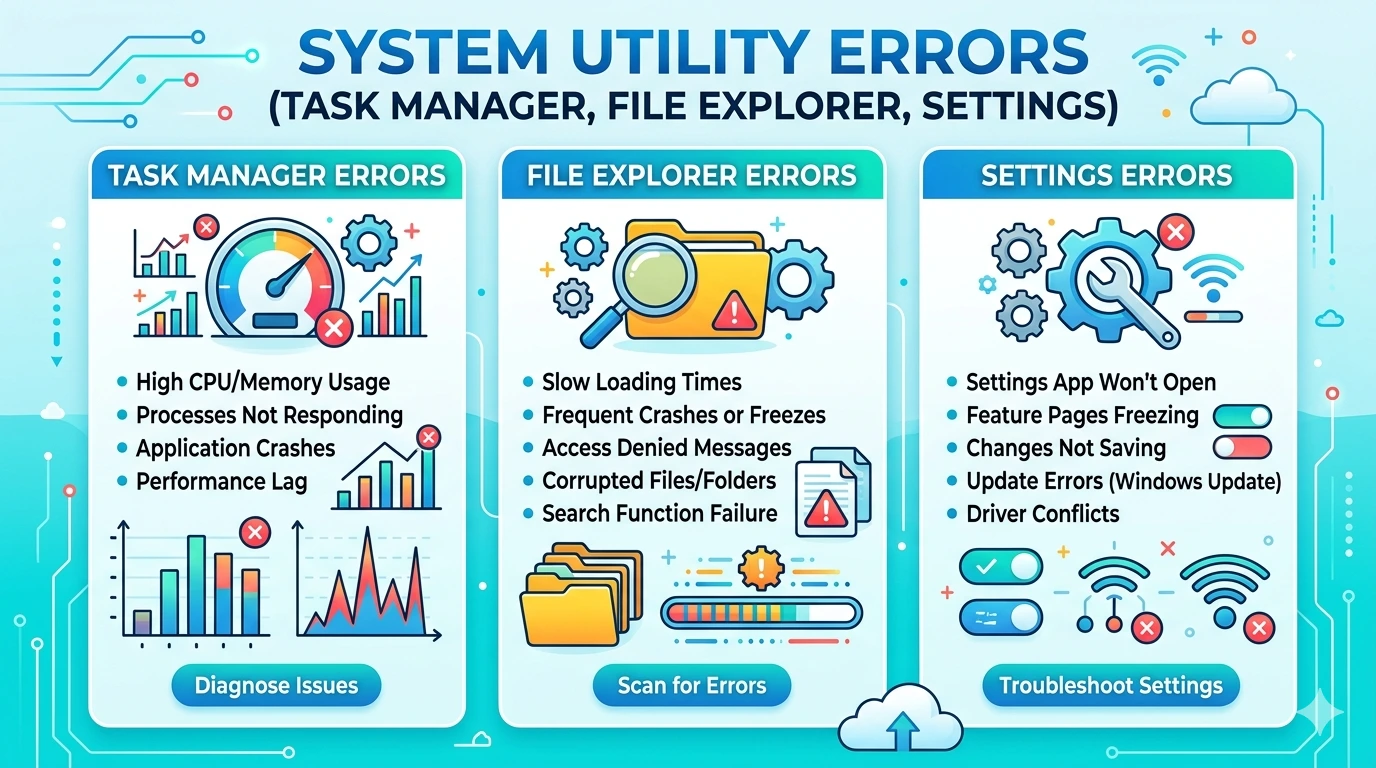
System utility applications are the backbone of Windows 11’s functionality. Unlike entertainment or communication apps, utilities such as Task Manager, File Explorer, and Settings are core components of the operating system. They provide essential control over processes, files, and configurations. When these utilities fail, the impact is far greater than a simple inconvenience—it can compromise productivity, troubleshooting, and even system stability.
Why System Utilities Matter in Windows 11
Windows 11 emphasizes streamlined performance and user‑friendly design. Task Manager offers real‑time monitoring of processes and resource usage. File Explorer enables file management and navigation. Settings centralizes configuration for personalization, security, and updates. Together, these utilities form the foundation of daily system interaction.
Errors in these apps can prevent users from:
- Ending unresponsive processes (Task Manager).
- Accessing or organizing files (File Explorer).
- Adjusting system preferences or applying updates (Settings).
Without reliable system utilities, users lose direct control over their operating environment.
The Growing Complexity of System Utilities
Modern Windows utilities are more integrated than ever.
- Task Manager now includes GPU monitoring, startup impact analysis, and efficiency mode.
- File Explorer integrates with OneDrive, Quick Access, and contextual search.
- Settings replaces many legacy Control Panel functions, consolidating system management.
This complexity increases the likelihood of errors. A single corrupted update or misconfigured integration can destabilize multiple utilities simultaneously.
Common Symptoms of Utility Errors
Users typically encounter one or more of the following issues:
- Task Manager: Fails to open, freezes when ending tasks, or displays incomplete resource data.
- File Explorer: Crashes when navigating folders, fails to display thumbnails, or becomes unresponsive during searches.
- Settings: Refuses to launch, crashes when accessing specific categories, or fails to apply changes.
These symptoms are disruptive because they affect fundamental system operations.
The Importance of Systematic Troubleshooting
Utility errors can feel overwhelming, especially since they affect core system functions. However, most issues can be resolved through systematic troubleshooting. Windows 11 provides built‑in recovery tools such as DISM, SFC (System File Checker), and System Restore, while Microsoft regularly releases patches to address known bugs.
By approaching utility errors methodically—starting with basic checks and progressing to advanced solutions—users can restore functionality without resorting to drastic measures like reinstalling Windows. This structured approach saves time and ensures stability.
Why This Guide Matters
This article series is designed to serve as a comprehensive resource for Windows 11 users facing system utility challenges. It will:
- Explain the root causes of common utility errors.
- Provide step‑by‑step instructions for resolving them.
- Offer advanced techniques for persistent problems.
- Share preventive strategies to minimize future disruptions.
By following this guide, users will gain both practical solutions and a deeper understanding of how system utilities interact with Windows 11. This knowledge empowers them to troubleshoot confidently, ensuring that Task Manager, File Explorer, and Settings remain reliable across all environments.
Common Issues
System utilities are core components of Windows 11. When they malfunction, the impact is immediate and often severe because they control essential processes, file management, and system configurations. Below are the most common issues users face with Task Manager, File Explorer, and Settings, along with explanations of why they occur.
Task Manager Errors
1. Task Manager Fails to Open
- Causes: Corrupted system files, malware interference, or registry errors.
- Impact: Users cannot monitor or terminate processes, leaving them unable to troubleshoot performance issues.
2. Task Manager Freezes
- Causes: Overloaded system resources, driver conflicts, or background processes blocking access.
- Impact: Users cannot end unresponsive tasks, forcing system restarts.
3. Missing Tabs or Data
- Causes: Registry corruption or incomplete Windows updates.
- Impact: Users lose access to critical monitoring features like Performance or Startup tabs.
4. High Resource Usage by Task Manager
- Causes: Bugs in Windows updates or corrupted configuration files.
- Impact: Task Manager itself consumes excessive CPU/RAM, worsening system performance.
File Explorer Errors
1. File Explorer Crashes
- Causes: Corrupted shell extensions, outdated drivers, or incompatible third‑party software.
- Impact: Users cannot navigate or manage files, disrupting productivity.
2. Slow Performance
- Causes: Large directories, thumbnail generation issues, or OneDrive sync conflicts.
- Impact: File browsing becomes sluggish, delaying workflows.
3. Search Function Not Working
- Causes: Indexing service corruption or disabled Windows Search.
- Impact: Users cannot locate files efficiently.
4. Missing Thumbnails or Previews
- Causes: Disabled thumbnail cache, corrupted image codecs, or GPU driver issues.
- Impact: Users cannot preview images or videos directly in Explorer.
Settings App Errors
1. Settings Fails to Launch
- Causes: Corrupted system files, registry errors, or incomplete updates.
- Impact: Users cannot access personalization, security, or update options.
2. Crashes When Accessing Specific Categories
- Causes: Misconfigured system components or conflicts with legacy Control Panel settings.
- Impact: Users cannot adjust network, display, or update settings.
3. Changes Not Applying
- Causes: Group policy restrictions, corrupted user profiles, or background service failures.
- Impact: Settings appear saved but revert after restart.
4. Update Section Not Working
- Causes: Windows Update service corruption or misconfigured registry entries.
- Impact: Users cannot check or install updates, leaving systems vulnerable.
Cross‑Utility Issues
1. Compatibility Problems After Updates
- Causes: Windows updates replacing stable components with newer versions.
- Impact: Utilities that worked flawlessly before updates suddenly fail.
2. Security and Permissions Errors
- Causes: Enhanced Windows 11 security blocking utilities from accessing system files.
- Impact: Apps cannot modify configurations or terminate processes.
3. Cloud Integration Failures
- Causes: Network instability or outdated authentication protocols.
- Impact: File Explorer fails to sync with OneDrive, Settings fails to connect to Microsoft accounts.
Why Identifying Common Issues Matters
Recognizing these patterns allows users to troubleshoot logically. Instead of guessing, they can match symptoms to likely causes and apply targeted fixes. This structured approach reduces downtime and ensures that solutions are effective rather than temporary.
Here’s Potong 3 – Step‑by‑Step Fixes (~1500 words) for the System Utility Errors (Task Manager, File Explorer, Settings) article. This section provides structured troubleshooting instructions, moving from simple checks to advanced fixes for each utility.
Step‑by‑Step Fixes
System utility errors can be frustrating because they affect core Windows 11 functions. However, most issues can be resolved through systematic troubleshooting. By following a logical sequence of steps, users can restore functionality in Task Manager, File Explorer, and Settings without unnecessary reinstalls or data loss.
Task Manager – Step‑by‑Step Fixes
Step 1: Restart Task Manager and Windows
- Close Task Manager completely.
- Restart Windows to clear temporary conflicts.
Step 2: Run System File Checker (SFC)
- Open Command Prompt (Admin).
- Run:
sfc /scannow - This repairs corrupted system files that prevent Task Manager from opening.
Step 3: Check for Malware
- Run Windows Security or a trusted antivirus scan.
- Malware often blocks Task Manager to prevent detection.
Step 4: Update Windows
- Open Settings → Windows Update → Check for updates.
- Install latest patches to fix bugs.
Step 5: Registry Reset
- Press Win + R → regedit.
- Navigate to HKEY_CURRENT_USER → Software → Microsoft → Windows → CurrentVersion → TaskManager.
- Delete corrupted entries.
File Explorer – Step‑by‑Step Fixes
Step 1: Restart File Explorer
- Press Ctrl + Shift + Esc → Task Manager.
- Find Windows Explorer → Restart.
Step 2: Clear File Explorer History
- Open File Explorer Options.
- Click Clear File Explorer history.
Step 3: Disable Quick Access
- Open File Explorer Options.
- Set Open File Explorer to → This PC.
- Disable Quick Access to avoid cache corruption.
Step 4: Update Graphics Drivers
- Open Device Manager → Display adapters.
- Update drivers to latest version.
Step 5: Run DISM Tool
- Open Command Prompt (Admin).
- Run:
DISM /Online /Cleanup-Image /RestoreHealth - This repairs system components affecting Explorer.
Settings App – Step‑by‑Step Fixes
Step 1: Restart Settings and Windows
- Close Settings completely.
- Restart Windows to refresh services.
Step 2: Run Windows Troubleshooter
- Open Settings → System → Troubleshoot → Other troubleshooters.
- Select relevant category (Windows Update, Network, etc.).
Step 3: Reset Settings App
- Open PowerShell (Admin).
- Run:
Get-AppxPackage *windows.immersivecontrolpanel* | Reset-AppxPackage
Step 4: Update Windows
- Open Settings → Windows Update.
- Install latest patches.
Step 5: Create New User Profile
- Corrupted profiles often block Settings.
- Create a new account via Settings → Accounts → Family & other users.
Cross‑Utility Fixes
Step 1: Run System Restore
- Search System Restore in Start menu.
- Select a restore point prior to the issue.
Step 2: Check Event Viewer Logs
- Press Win + X → Event Viewer.
- Review Application logs for error codes.
Step 3: Perform Clean Boot
- Press Win + R → msconfig.
- Disable non‑Microsoft services.
- Restart to test utilities without third‑party conflicts.
Step 4: Reinstall Windows Components
- Open PowerShell (Admin).
- Run:
Get-WindowsCapability -Online | Where-Object Name -like 'App*' | Add-WindowsCapability -Online
Practical Example
Consider a user whose Task Manager fails to open, File Explorer crashes when navigating folders, and Settings refuses to launch. By following these steps:
- They run SFC and DISM to repair system files.
- Restart File Explorer and disable Quick Access to stabilize navigation.
- Reset the Settings app via PowerShell to restore functionality.
- Productivity is restored without reinstalling Windows.
Why Step‑by‑Step Fixes Work
This structured approach ensures that simple solutions are tried first, reducing risk and saving time. It also prevents unnecessary reinstalls, as most utility problems stem from corrupted settings or outdated components rather than fundamental system faults.
Advanced Solutions
Basic troubleshooting often resolves system utility errors, but some cases require advanced interventions. These solutions target deeper system layers such as registry, compatibility settings, and diagnostic tools. They are especially useful for users who continue to experience instability after exhausting standard fixes.
Task Manager – Advanced Solutions
1. Registry Cleanup
Corrupted registry entries can destabilize Task Manager.
- Press Win + R → type regedit.
- Navigate to HKEY_CURRENT_USER → Software → Microsoft → Windows → CurrentVersion → TaskManager.
- Delete corrupted subkeys cautiously.
- Restart Windows.
⚠️ Always back up the registry before making changes.
2. Enable Task Manager via Group Policy
- Press Win + R → gpedit.msc.
- Navigate to User Configuration → Administrative Templates → System → Ctrl+Alt+Del Options.
- Ensure Remove Task Manager is set to Disabled.
3. Compatibility Mode
If Task Manager fails after updates, run in compatibility mode.
- Right‑click Task Manager shortcut → Properties → Compatibility tab.
- Select Run this program in compatibility mode for Windows 10.
File Explorer – Advanced Solutions
1. Registry Fixes
- Press Win + R → regedit.
- Navigate to HKEY_CLASSES_ROOT → Directory → Background → shellex → ContextMenuHandlers.
- Remove corrupted or suspicious entries.
2. Disable Third‑Party Shell Extensions
- Download ShellExView (trusted utility).
- Disable non‑Microsoft shell extensions.
- Restart File Explorer.
3. Compatibility Mode
- Right‑click File Explorer shortcut → Properties → Compatibility tab.
- Run in compatibility mode for Windows 10.
4. Rebuild Search Index
- Open Control Panel → Indexing Options.
- Click Advanced → Rebuild.
- This restores search functionality.
Settings App – Advanced Solutions
1. Registry Cleanup
- Press Win + R → regedit.
- Navigate to HKEY_LOCAL_MACHINE → SOFTWARE → Microsoft → Windows → CurrentVersion → ImmersiveShell.
- Delete corrupted entries.
2. Reinstall Settings via PowerShell
- Open PowerShell (Admin).
- Run:
Get-AppxPackage *windows.immersivecontrolpanel* | Remove-AppxPackage
Get-AppxPackage -allusers *windows.immersivecontrolpanel* | Foreach {Add-AppxPackage -DisableDevelopmentMode -Register "$($_.InstallLocation)\AppXManifest.xml"}
3. Compatibility Mode
- Right‑click Settings shortcut → Properties → Compatibility tab.
- Run in compatibility mode for Windows 10.
4. Group Policy Adjustments
- Press Win + R → gpedit.msc.
- Navigate to Computer Configuration → Administrative Templates → Control Panel.
- Ensure policies do not block Settings access.
Cross‑Utility Advanced Solutions
1. Clean Boot Troubleshooting
Third‑party software can conflict with system utilities.
- Press Win + R → msconfig.
- Under Services, check Hide all Microsoft services → Disable all.
- Restart the PC.
2. Event Viewer Analysis
- Press Win + X → Event Viewer.
- Review Application logs for error codes.
- Use logs to identify root causes.
3. Group Policy Adjustments (Enterprise)
In corporate settings, group policies may block utilities.
- Press Win + R → gpedit.msc.
- Navigate to Computer Configuration → Administrative Templates → System.
- Adjust policies restricting utility execution.
4. Reinstall Windows Components
For severe corruption, reinstall utility frameworks.
- Open PowerShell as Administrator.
- Run:
DISM /Online /Cleanup-Image /RestoreHealth - Restart the PC.
Why Advanced Solutions Matter
These methods target the root causes of persistent utility failures. While basic fixes address surface‑level problems, advanced solutions tackle deeper conflicts in registry entries, compatibility layers, and system services. For professionals, students, and businesses, mastering these techniques ensures reliability and maximizes productivity.
Preventive Tips
Fixing system utility errors is essential, but preventing them is even more important. By adopting proactive habits, users can minimize the risk of crashes and ensure smooth performance in Windows 11.
1. Keep Windows Updated
Regularly install updates to ensure Task Manager, File Explorer, and Settings remain stable. Microsoft frequently releases patches to fix bugs and improve compatibility.
2. Avoid Registry Tampering
Unnecessary registry edits often destabilize system utilities. Only modify registry entries when guided by trusted documentation.
3. Manage Startup Programs
Excessive startup apps overload Task Manager and File Explorer. Use Task Manager’s Startup tab to disable non‑essential programs.
4. Organize File Explorer Libraries
Avoid overloading File Explorer with massive directories. Organize files into logical folders and limit Quick Access items.
5. Monitor Resource Usage
High CPU or RAM usage can cause Task Manager and Settings to freeze. Use Task Manager to monitor performance and close unnecessary background processes.
6. Secure Your Environment
Ensure firewall and antivirus settings allow system utilities to function. Misconfigured security tools often block essential features.
7. Create System Restore Points
Before major updates, create a restore point. This allows quick rollback if new updates cause instability.
8. Regular Maintenance
Run periodic scans with SFC and DISM to repair system files. Preventive maintenance reduces the likelihood of sudden failures.
FAQ
Why does Task Manager fail to open?
Answer: This usually indicates corrupted system files or malware interference. Run SFC /scannow and perform a malware scan.
How do I fix File Explorer crashes?
Answer: Restart Explorer via Task Manager, clear history, and disable third‑party shell extensions.
Can outdated drivers cause File Explorer thumbnail issues?
Answer: Yes. Outdated GPU drivers often prevent proper thumbnail rendering. Update drivers via Device Manager.
Why does Settings refuse to launch?
Answer: Corrupted system files or registry errors are common causes. Reset the Settings app via PowerShell.
What does “Not Responding” mean in Settings?
Answer: This message indicates the app is overloaded or waiting for a process to complete. Large updates or insufficient memory are typical causes.
Should I clear File Explorer history regularly?
Answer: Yes. Clearing history prevents corrupted cache from causing crashes and improves performance.
How can I prevent problems after Windows updates?
Answer: Delay optional updates until confirmed stable, create restore points, and run maintenance tools after installation.
Is it safe to disable shell extensions?
Answer: Yes, if they are non‑Microsoft extensions. Disabling them often resolves File Explorer crashes.
Conclusion
System utility errors in Windows 11 can disrupt productivity, but they are manageable with the right approach. By combining systematic troubleshooting with preventive strategies, users can maintain reliable performance in Task Manager, File Explorer, and Settings. Regular updates, careful configuration, and proactive monitoring form the foundation of stable system usage.