
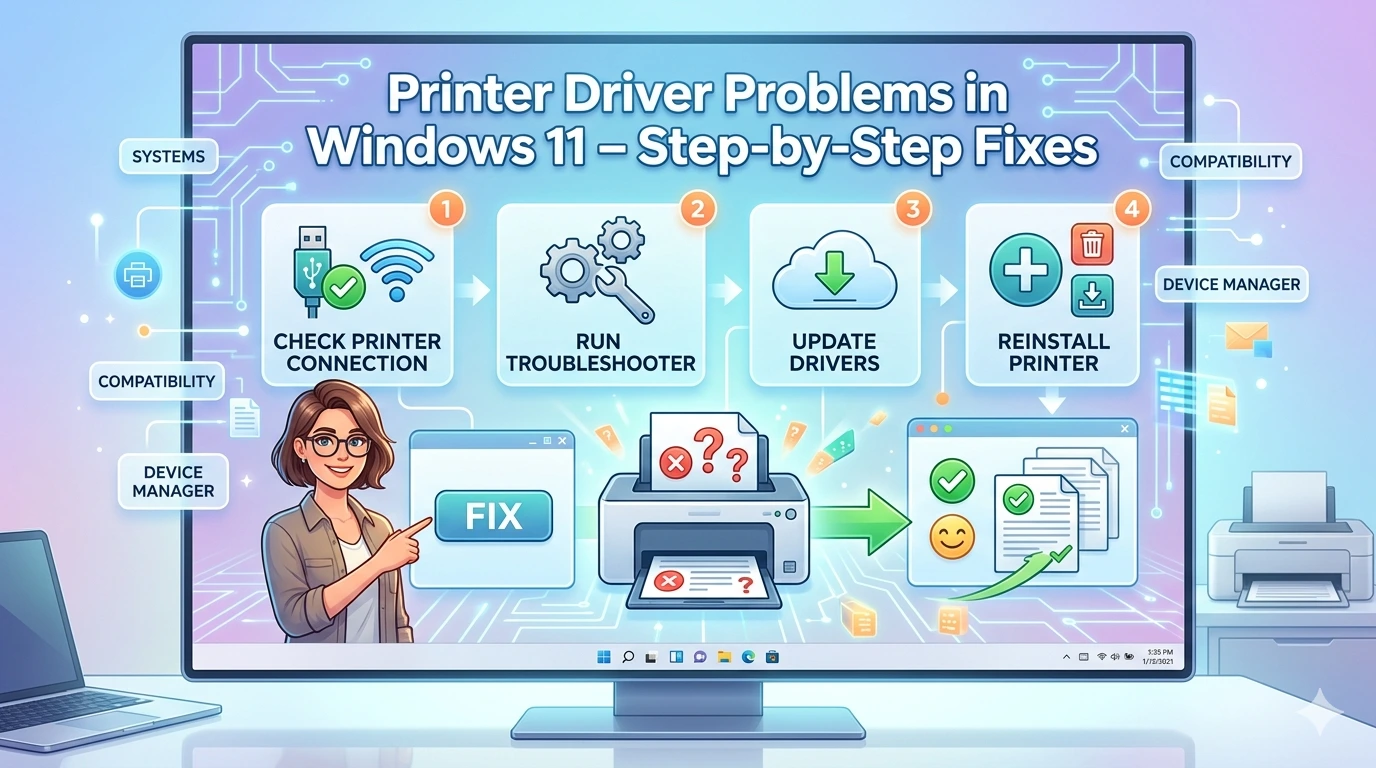
Printers remain a vital part of both professional and personal computing environments. Whether you are producing business reports, academic assignments, or simple household documents, reliable printing is essential. In Windows 11, printer functionality depends heavily on stable drivers. These drivers act as the bridge between the operating system and the printer hardware, ensuring that commands are translated into accurate print jobs.
When printer drivers malfunction, the impact is immediate. Users may encounter stalled print queues, devices not being detected, or error messages that prevent documents from being printed. Unlike minor inconveniences such as cosmetic glitches, printer driver problems directly affect productivity, often at critical moments when deadlines are looming.
Why Printer Drivers Matter in Windows 11
Drivers are software components that allow hardware to communicate with the operating system. For printers, drivers interpret Windows 11’s print commands into instructions that the printer understands. Without a functioning driver, the printer cannot process jobs correctly, leading to failed or incomplete prints.
Windows 11 emphasizes seamless device integration, offering features such as cloud printing, wireless connectivity, and improved spooler management. These features depend entirely on driver stability. A corrupted or outdated driver can disable advanced functions, leaving users unable to print efficiently.
The Growing Complexity of Printer Ecosystems
Modern printers are more than simple output devices. They often include scanning, faxing, and wireless connectivity features. Each of these functions requires proper driver support. Furthermore, users may connect multiple printers—USB, Wi‑Fi, or networked—each introducing potential conflicts.
This complexity increases the likelihood of driver issues. For example, installing a new wireless printer may overwrite existing drivers, or Windows updates may replace manufacturer drivers with generic versions that lack advanced features. Understanding these dynamics is crucial for troubleshooting.
Common Symptoms of Printer Driver Problems
Users typically encounter one or more of the following issues:
- Printer not detected: Windows fails to recognize the device, even when connected.
- Print queue stuck: Jobs remain pending without being processed.
- Error messages: Codes such as “Driver unavailable” or “Printer not responding.”
- Incomplete or distorted prints: Pages may be missing, misaligned, or corrupted.
- Slow printing performance: Jobs take unusually long to process.
These symptoms are disruptive and can halt workflows entirely.
The Importance of Systematic Troubleshooting
Printer driver problems can feel overwhelming, especially when they occur during urgent tasks. However, most issues can be resolved through systematic troubleshooting. Windows 11 provides built‑in tools such as the Printer Troubleshooter and Device Manager, which allow users to identify and correct driver errors. Manufacturers like HP, Epson, and Canon also release updated drivers to address compatibility concerns.
By approaching printer driver problems methodically—starting with basic checks and progressing to advanced solutions—users can restore functionality without resorting to drastic measures like reinstalling the operating system. This structured approach saves time and reduces frustration.
Why This Guide Matters
This article is designed to serve as a comprehensive resource for Windows 11 users facing printer driver challenges. It will:
- Explain the root causes of common printer issues.
- Provide step‑by‑step instructions for resolving them.
- Offer advanced techniques for persistent problems.
- Share preventive strategies to minimize future disruptions.
By following this guide, users will gain both practical solutions and a deeper understanding of how printer drivers function within Windows 11. This knowledge empowers them to troubleshoot confidently, ensuring that printing remains reliable across all applications.
Common Issues
Printer driver problems in Windows 11 can appear in many forms, ranging from minor inconveniences to complete printing failures. Because drivers are the essential communication link between the operating system and the printer hardware, even small errors can disrupt workflows. Below are the most common issues users face, along with explanations of why they occur.
1. Printer Not Detected
One of the most frustrating problems is when Windows 11 fails to recognize a connected printer.
- Causes:
- Missing or corrupted drivers.
- USB connection faults or unstable Wi‑Fi links.
- Windows Update replacing manufacturer drivers with generic versions.
- Impact: Users cannot print at all until the printer is detected, halting productivity.
2. Print Queue Stuck
Jobs may remain pending in the print queue without being processed.
- Causes:
- Driver conflicts with the Windows Print Spooler service.
- Corrupted print jobs blocking the queue.
- Outdated drivers unable to handle complex documents.
- Impact: Documents pile up, forcing users to manually clear the queue or restart the spooler.
3. Error Messages
Windows often displays error codes such as “Driver unavailable,” “Printer not responding,” or “Cannot connect to printer.”
- Causes:
- Incompatible drivers after updates.
- Incorrect installation of printer software.
- Registry corruption affecting driver entries.
- Impact: Users waste time troubleshooting instead of printing, especially during deadlines.
4. Incomplete or Distorted Prints
Pages may print with missing text, misaligned graphics, or corrupted formatting.
- Causes:
- Drivers failing to interpret complex print commands.
- Incorrect paper size or resolution settings.
- Conflicts between printer firmware and Windows drivers.
- Impact: Wasted paper, ink, and time, especially in professional environments.
5. Slow Printing Performance
Even when printing works, jobs may take unusually long to process.
- Causes:
- Outdated drivers lacking performance optimizations.
- Large print jobs overwhelming the spooler.
- Wireless connectivity issues slowing communication.
- Impact: Reduced efficiency, particularly in offices with high printing demands.
6. Compatibility Issues After Updates
Many users report printer problems immediately after installing Windows updates.
- Causes:
- Windows replacing manufacturer drivers with generic versions.
- Incomplete migration of driver settings.
- Conflicts with new system features such as enhanced spooler security.
- Impact: Printers that worked flawlessly before updates suddenly fail.
7. Wireless Printer Problems
Wi‑Fi printers often suffer from detection and stability issues.
- Causes:
- Drivers not optimized for wireless communication.
- Network conflicts or unstable connections.
- Incorrect configuration of IP addresses.
- Impact: Users experience intermittent failures, forcing repeated reconnections.
8. Multi‑Function Printer Failures
Modern printers often include scanning and faxing features. These functions may fail even if printing works.
- Causes:
- Drivers installed only for printing, not for scanning/faxing.
- Incomplete installation of manufacturer software suites.
- Impact: Users lose access to essential features, reducing device utility.
9. Security and Permissions Issues
Windows 11 includes enhanced security features that can block printer access.
- Causes:
- Drivers lacking proper digital signatures.
- User accounts without sufficient permissions.
- Group policies restricting printer installation.
- Impact: Printers may be inaccessible in corporate environments until permissions are corrected.
10. Cloud Printing Failures
With the rise of cloud printing, users may encounter issues connecting to services like Microsoft Universal Print.
- Causes:
- Drivers not updated for cloud integration.
- Authentication errors blocking access.
- Impact: Remote printing becomes unreliable, undermining modern workflows.
Why Identifying Common Issues Matters
Recognizing these patterns allows users to troubleshoot logically. Instead of guessing, they can match symptoms to likely causes and apply targeted fixes. This structured approach reduces downtime and ensures that solutions are effective rather than temporary.
Printer Driver Problems in Windows 11 – Step‑by‑Step Fixes
Printer driver problems can be frustrating, but most can be resolved through systematic troubleshooting. By following a logical sequence of steps, users can restore printing functionality without unnecessary hardware replacements or full system reinstalls.
Step 1: Verify Printer Connections
- For USB printers, ensure the cable is securely connected.
- For wireless printers, confirm the device is connected to the same Wi‑Fi network as the PC.
- Check the printer’s display panel for connectivity status.
Connection issues often mimic driver problems, so this is the first step.
Step 2: Confirm Printer Settings in Windows
- Open Settings → Devices → Printers & scanners.
- Ensure the printer is listed and set as the default device.
- If missing, click Add device to reinstall.
Incorrect settings can prevent jobs from reaching the printer.
Step 3: Run the Windows Printer Troubleshooter
Windows 11 includes a built‑in tool for diagnosing printer issues.
- Navigate to Settings → System → Troubleshoot → Other troubleshooters.
- Select Printer → Run.
- Follow prompts as Windows scans for problems.
The troubleshooter can reset spooler services, reconfigure drivers, and apply quick fixes automatically.
Step 4: Check Device Manager
Device Manager provides direct insight into driver status.
- Press Win + X → Device Manager.
- Expand Printers.
- Look for warning icons next to devices.
- Right‑click → Update driver or Uninstall device.
If uninstalled, restart the PC. Windows will attempt to reinstall the driver automatically.
Step 5: Update or Reinstall Drivers
Outdated drivers are a leading cause of printer failures.
- Visit the manufacturer’s website (HP, Epson, Canon, Brother).
- Download the latest drivers for your printer model.
- Install manually, following on‑screen instructions.
Manual installation ensures compatibility and restores advanced features such as duplex printing or scanning.
Step 6: Clear the Print Queue
Stuck jobs can block new ones.
- Open Control Panel → Devices and Printers.
- Right‑click the printer → See what’s printing.
- Cancel all jobs.
- Restart the Print Spooler service via services.msc.
Clearing the queue often resolves “printer not responding” errors.
Step 7: Roll Back Drivers
If problems began after a recent update, revert to the previous version.
- In Device Manager, right‑click printer → Properties.
- Navigate to Driver → Roll Back Driver.
- Confirm and restart.
Rolling back restores stability when new drivers introduce incompatibility.
Step 8: Reset Printer Settings
Many printers include a reset option.
- Access the printer’s control panel.
- Select Restore factory defaults.
- Reconnect to Windows and reinstall drivers.
Resetting clears misconfigurations that may block communication.
Step 9: Test with Another Application
Sometimes printing fails only in specific apps.
- Try printing from Notepad or WordPad.
- If successful, the issue lies in the application, not the driver.
This step helps isolate the problem.
Step 10: Use System Restore
If problems began after a recent change, revert to a restore point.
- Search System Restore in Start menu.
- Select a restore point prior to the issue.
- Follow prompts to roll back system changes.
System Restore is a last resort but can undo problematic updates.
Practical Example
Consider an office worker whose HP printer stops responding after a Windows update. By following these steps:
- They confirm the printer is connected via Wi‑Fi.
- Run the troubleshooter, which resets spooler services.
- Device Manager shows a corrupted driver.
- They reinstall the driver from HP’s website.
- Printing functionality is restored without replacing hardware.
Why Step‑by‑Step Fixes Work
This structured approach ensures that simple solutions are tried first, reducing risk and saving time. It also prevents unnecessary hardware replacements, as most printer problems stem from software conflicts rather than physical faults.
Advanced Solutions
While most printer driver problems can be resolved through basic troubleshooting, some cases require advanced interventions. These solutions target deeper system layers such as the registry, spooler services, and network configurations. They are particularly useful for users who continue to experience issues after exhausting standard fixes.
1. Reset the Print Spooler Service
The Print Spooler manages all print jobs in Windows. Corruption here can block drivers from functioning.
- Press Win + R → type services.msc.
- Locate Print Spooler.
- Right‑click → Stop.
- Navigate to C:\Windows\System32\spool\PRINTERS and delete all files.
- Return to Services and Start the Print Spooler.
Resetting the spooler clears stuck jobs and restores driver communication.
2. Registry Tweaks
Corrupted registry entries can destabilize printer drivers.
- Press Win + R → type regedit.
- Navigate to HKEY_LOCAL_MACHINE → SYSTEM → CurrentControlSet → Control → Print.
- Review subkeys for corrupted or duplicate entries.
- Delete cautiously, then reinstall drivers.
⚠️ Always back up the registry before making changes.
3. Install Drivers in Compatibility Mode
Some printers may not yet be fully optimized for Windows 11. Installing drivers in compatibility mode can restore functionality.
- Right‑click the driver installer → Properties.
- Navigate to Compatibility tab.
- Select Run this program in compatibility mode for Windows 10.
- Apply and run the installer.
This approach is effective for legacy printers whose manufacturers have not released dedicated Windows 11 drivers.
4. Use Manufacturer Utilities
Many printer manufacturers provide specialized tools:
- HP Print and Scan Doctor for diagnosing HP devices.
- Epson Printer Utility for firmware and driver updates.
- Canon IJ Printer Assistant Tool for configuration.
These utilities often resolve issues faster than generic Windows tools.
5. Network Troubleshooting for Wireless Printers
Wireless printers introduce unique challenges.
- Assign a static IP address to the printer via its control panel.
- Ensure the printer and PC are on the same subnet.
- Disable firewall temporarily to test connectivity.
- Reinstall drivers with proper network configuration.
Network troubleshooting ensures stable communication between Windows and wireless printers.
6. Group Policy Adjustments (Enterprise Environments)
In corporate settings, group policies may block printer installations.
- Press Win + R → type gpedit.msc.
- Navigate to Computer Configuration → Administrative Templates → Printers.
- Adjust policies such as “Prevent addition of printers.”
Correcting group policies restores driver installation permissions.
7. Firmware Updates
Printer firmware interacts directly with drivers. Outdated firmware can cause incompatibility.
- Visit the manufacturer’s support page.
- Download and apply firmware updates.
- Reinstall drivers after updating.
Firmware updates ensure compatibility with Windows 11’s evolving print stack.
8. Clean Boot Troubleshooting
Third‑party software can conflict with printer drivers.
- Press Win + R → type msconfig.
- Under Services, check Hide all Microsoft services → Disable all.
- Restart the PC.
If printing works in clean boot, re‑enable services one by one to identify the culprit.
9. Advanced Diagnostic Tools
Windows includes diagnostic utilities for printing analysis.
- Press Win + R → type printui /s.
- Review installed drivers and ports.
- Remove corrupted entries and reinstall drivers.
This tool provides technical insights that guide deeper troubleshooting.
10. Reinstall Windows Printing Components
For severe corruption, reinstalling printing components may be necessary.
- Open PowerShell as Administrator.
- Run:
Get-WindowsCapability -Online | Where-Object Name -like 'Print*' | Add-WindowsCapability -Online - Restart the PC.
This reinstalls core printing frameworks without requiring a full OS reinstall.
Why Advanced Solutions Matter
These methods target the root causes of persistent printer driver failures. While basic fixes address surface‑level problems, advanced solutions tackle deeper conflicts in spooler services, registry entries, and network layers. For offices, students, and professionals, mastering these techniques ensures reliability and minimizes downtime.
Preventive Tips
Fixing printer driver problems is essential, but preventing them is even more important. By adopting proactive habits, users can minimize the risk of printing failures and ensure smooth performance in Windows 11.
1. Keep Drivers Updated
Regularly download drivers from official sources such as HP, Epson, Canon, or Brother. Manufacturer drivers are optimized for specific models and often include bug fixes and performance improvements.
2. Use Windows Update Carefully
Windows Update may push generic drivers. Review optional updates before installation. If your printer is stable, consider delaying updates until compatibility is confirmed.
3. Avoid Third‑Party Driver Packs
Unverified driver bundles can introduce malware or incompatible files. Always rely on official drivers or trusted manufacturer utilities.
4. Create System Restore Points
Before major updates, create a restore point. This allows quick rollback if new drivers cause instability.
5. Monitor Network Stability
For wireless printers, ensure your Wi‑Fi network is stable. Assign static IP addresses to prevent detection issues.
6. Manage Multiple Printers Properly
If you use several printers, configure them carefully in Printers & scanners settings. Avoid leaving unused devices enabled, as they may conflict with default outputs.
7. Regular Maintenance
Run periodic scans with the Windows Printer Troubleshooter and manufacturer utilities. Preventive maintenance reduces the likelihood of sudden failures.
FAQ
Why does my printer show “Driver unavailable” in Windows 11?
Answer: This error indicates that the driver is missing or corrupted. Reinstall the driver from the manufacturer’s website or use Device Manager to update.
How do I clear a stuck print queue?
Answer:
- Open Control Panel → Devices and Printers.
- Right‑click the printer → See what’s printing.
- Cancel all jobs.
- Restart the Print Spooler service via services.msc.
Can outdated drivers cause slow printing?
Answer: Yes. Outdated drivers may lack optimizations for complex documents, leading to delays. Updating drivers usually improves performance.
Is it safe to use manufacturer utilities?
Answer: Yes. Tools like HP Print and Scan Doctor or Epson Printer Utility are designed to diagnose and fix issues quickly.
Why is my wireless printer not detected?
Answer: Wireless printers rely on stable network connections. Ensure the printer and PC are on the same Wi‑Fi network, assign a static IP, and reinstall drivers with proper configuration.
What does “Printer not responding” mean?
Answer: This message usually indicates a communication failure between Windows and the printer. Causes include corrupted drivers, spooler issues, or network instability.
Should I update printer firmware?
Answer: Yes, if recommended by the manufacturer. Firmware updates improve compatibility with Windows 11 and fix known bugs.
How can I prevent problems after Windows updates?
Answer: Delay optional driver updates until confirmed stable, create restore points, and keep manufacturer drivers installed instead of generic ones.
Conclusion
Printer driver problems in Windows 11 can disrupt productivity, but they are manageable with the right approach. By combining systematic troubleshooting with preventive strategies, users can maintain reliable printing across all devices. Regular updates, careful configuration, and proactive monitoring form the foundation of stable printer performance.