
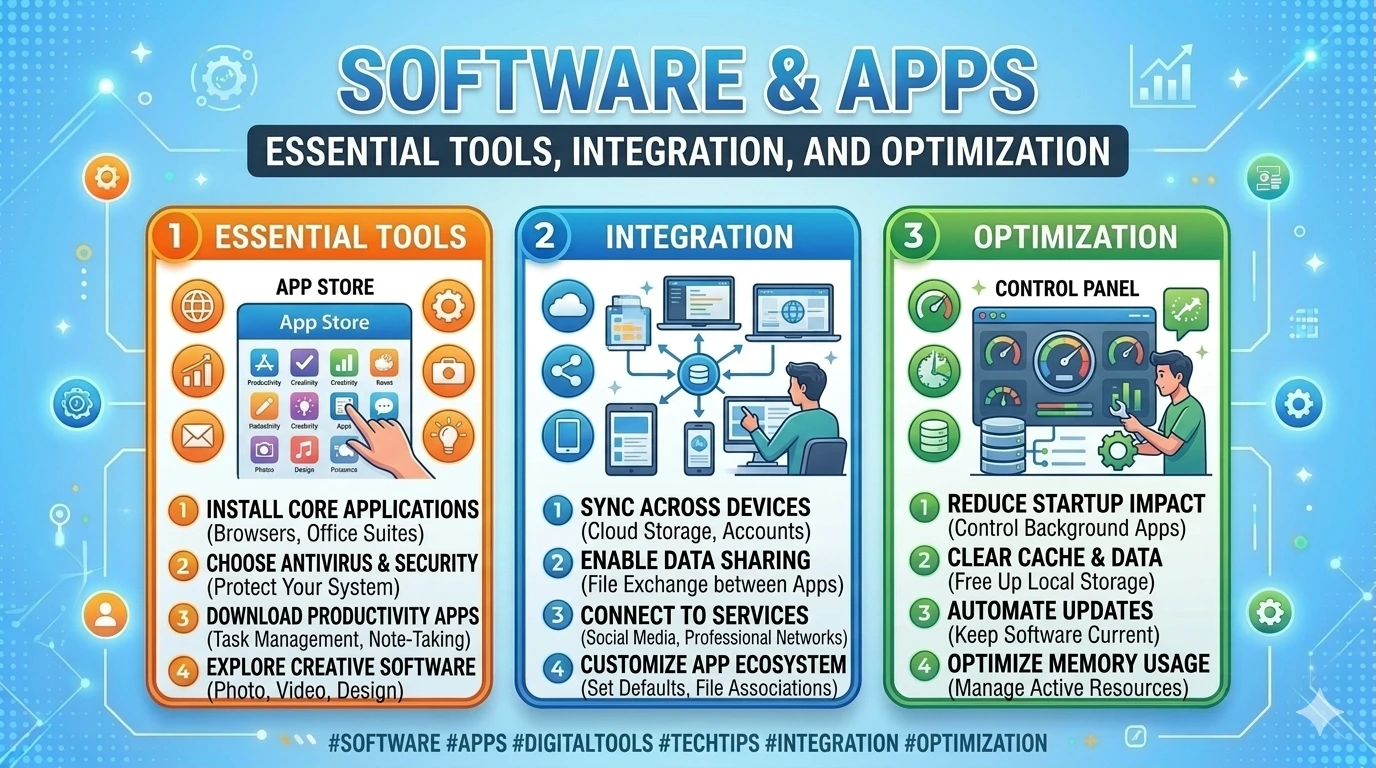
Software and applications are the lifeblood of any operating system. While hardware provides the foundation, it is software that enables productivity, creativity, communication, and entertainment. In Windows 11, Microsoft has reimagined the software ecosystem to deliver a seamless blend of built‑in tools, third‑party applications, and cloud integration. For beginners and advanced users alike, understanding the role of software and apps is crucial to unlocking the full potential of the operating system.
Why Software & Apps Matter in Windows 11
Windows 11 is not just an upgrade in design—it is a platform built to support modern workflows. Apps are the bridge between users and their goals:
- Productivity: Word processors, spreadsheets, and collaboration tools streamline work and study.
- Creativity: Photo editors, video tools, and design apps empower artistic expression.
- Entertainment: Streaming services, gaming platforms, and media players provide relaxation and fun.
- Customization: Utilities and personalization apps allow users to tailor their system to unique preferences.
By combining Microsoft’s built‑in apps with third‑party solutions, Windows 11 creates a versatile environment that adapts to diverse needs.
Built‑in Apps: The Starting Point
Windows 11 ships with a suite of built‑in applications designed to cover essential tasks:
- Microsoft Edge: A fast, secure browser optimized for integration with Windows features.
- Teams: Embedded in the Taskbar for instant communication and video conferencing.
- OneDrive: Cloud storage for automatic backup and synchronization across devices.
- Photos & Media Player: Simplified tools for managing and enjoying media.
- Snipping Tool: Enhanced screenshot utility for capturing and editing images.
These apps provide a strong foundation, ensuring that users can begin working, studying, or connecting immediately after installation.
The Microsoft Store: Gateway to Apps
The redesigned Microsoft Store is central to Windows 11’s app ecosystem. It offers:
- Verified Apps: Safe downloads without malware risks.
- Android App Support: Access to mobile apps via Amazon Appstore integration.
- Entertainment Hub: Movies, TV shows, and games available for purchase or streaming.
- Automatic Updates: Ensures apps remain secure and up to date.
For beginners, the Store simplifies app discovery, while advanced users benefit from a curated, secure environment.
Integration with Cloud & Services
Windows 11 emphasizes cloud connectivity. OneDrive, Microsoft 365, and Teams are deeply integrated, enabling:
- Cross‑device synchronization: Files and settings available anywhere.
- Collaboration: Real‑time document editing and communication.
- Backup & Security: Automatic protection against data loss.
This integration reflects Microsoft’s vision of a connected ecosystem, where apps are not isolated but part of a broader workflow.
Challenges for Beginners
New users often face hurdles when managing software:
- App Overload: Difficulty choosing between built‑in and third‑party apps.
- Security Risks: Downloading from unsafe sources.
- Updates & Licenses: Confusion over managing app versions and subscriptions.
- Customization: Uncertainty about how to personalize apps for efficiency.
This guide addresses these challenges by providing clear explanations and best practices.
The Role of Optimization
Software optimization ensures apps run smoothly without draining resources. Beginners should learn to:
- Disable unnecessary startup apps.
- Use Storage Sense to manage space.
- Keep apps updated for performance and security.
- Configure privacy settings to control data sharing.
Optimization transforms Windows 11 from a basic system into a reliable, efficient platform.
What You’ll Gain from This Guide
By exploring Windows 11’s software and apps, readers will:
- Understand the strengths of built‑in apps.
- Learn safe installation practices via Microsoft Store.
- Discover productivity, creativity, and entertainment tools.
- Apply optimization techniques for smoother performance.
- Gain confidence in managing updates, licenses, and personalization.
Summary
Software and apps define the Windows 11 experience. From built‑in tools like Edge and Teams to third‑party solutions via Microsoft Store, the ecosystem is designed to support productivity, creativity, and entertainment. Beginners who understand how to install, manage, and optimize apps will unlock the full potential of their system, while advanced users can leverage integration and customization for maximum efficiency.
Built‑in Apps
Windows 11 arrives with a suite of built‑in applications designed to cover everyday needs right out of the box. These apps are tightly integrated into the operating system, ensuring that users can begin working, communicating, and enjoying media without immediately searching for third‑party solutions. For beginners, understanding these default tools is the first step toward mastering Windows 11.
1. Microsoft Edge
- Purpose: Default web browser, replacing Internet Explorer and competing with Chrome and Firefox.
- Features:
- Built on Chromium for speed and compatibility.
- Collections for organizing research.
- Vertical tabs for multitasking.
- Built‑in security tools like SmartScreen.
- Strengths: Fast, secure, and optimized for Windows 11.
- Limitations: Some users prefer Chrome or Firefox for broader extension ecosystems.
2. Microsoft Teams
- Purpose: Communication and collaboration platform integrated into the Taskbar.
- Features:
- Video calls, chat, and file sharing.
- Integration with Outlook and Office apps.
- Quick access via Taskbar icon.
- Strengths: Ideal for remote work and online classes.
- Limitations: May feel redundant for users who already rely on Zoom or Slack.
3. OneDrive
- Purpose: Cloud storage service for backup and synchronization.
- Features:
- Automatic syncing of Desktop, Documents, and Pictures.
- Access files across devices.
- Integration with File Explorer.
- Strengths: Seamless backup and recovery.
- Limitations: Free storage limited to 5 GB; subscription required for more.
4. Photos & Media Player
- Photos App:
- Simplified interface for viewing and editing images.
- Basic tools for cropping, filters, and adjustments.
- Media Player:
- Modern replacement for Groove Music and Movies & TV.
- Supports audio and video playback with a clean design.
- Strengths: Lightweight and easy to use.
- Limitations: Advanced editing requires third‑party apps like Photoshop or VLC.
5. Paint & Snipping Tool
- Paint: Classic app refreshed with modern design. Still useful for quick sketches and edits.
- Snipping Tool: Enhanced screenshot utility.
- Capture full screen, windows, or custom areas.
- Annotate and save directly.
- Strengths: Simple, fast, and built‑in.
- Limitations: Limited compared to advanced design or screenshot tools.
6. Settings & Control Apps
- Settings App: Redesigned for clarity, replacing much of the old Control Panel.
- Features:
- Centralized access to personalization, system updates, and security.
- Search bar for quick navigation.
- Strengths: Beginner‑friendly layout.
- Limitations: Some advanced options still hidden in Control Panel.
7. Utility Apps
- Calculator: Includes scientific, programmer, and financial modes.
- Clock: Focus Sessions feature integrates with Spotify and To Do for productivity.
- Mail & Calendar: Lightweight apps for email and scheduling.
- Strengths: Cover essential daily tasks without extra downloads.
- Limitations: Advanced users may prefer Outlook or third‑party alternatives.
Summary
Windows 11’s built‑in apps—Edge, Teams, OneDrive, Photos, Media Player, Paint, Snipping Tool, and utilities—provide a strong foundation for productivity, communication, and entertainment. While they may not replace specialized third‑party software, they ensure that beginners can start using their system immediately with reliable, integrated tools.
Microsoft Store & App Installation
The Microsoft Store is the central hub for discovering, installing, and managing applications in Windows 11. Redesigned with speed, usability, and security in mind, it provides a safe environment for beginners while offering advanced features for experienced users. Understanding how to use the Store effectively ensures that your system remains secure, optimized, and equipped with the right tools.
1. The Redesigned Microsoft Store
The Store has undergone a major overhaul in Windows 11:
- Modern Interface: Clean design with intuitive navigation.
- Broader App Selection: Includes traditional Win32 apps, Progressive Web Apps (PWAs), and Android apps via Amazon Appstore.
- Entertainment Hub: Movies, TV shows, and games available for purchase or streaming.
- Developer Friendly: Easier publishing process encourages more developers to bring apps to the Store.
This redesign makes the Store more versatile, bridging the gap between desktop and mobile ecosystems.
2. Safe Installation Practices
Installing apps safely is critical to avoid malware and performance issues.
- Use Verified Sources: Always prefer the Microsoft Store for downloads.
- Check Publisher Credentials: Ensure apps are from trusted developers.
- Read Reviews & Ratings: User feedback helps identify reliable apps.
- Avoid Third‑Party Sites: Downloading from unofficial websites increases risk of viruses.
Beginners should treat the Store as their primary source, while advanced users may occasionally install apps directly from developer websites after verifying authenticity.
3. Android App Support
One of Windows 11’s most exciting features is Android app integration.
- Amazon Appstore: Available within the Microsoft Store, enabling Android apps on Windows.
- Windows Subsystem for Android (WSA): Provides the framework for running mobile apps.
- Use Cases:
- Productivity apps like Evernote or Kindle.
- Entertainment apps like TikTok or mobile games.
- Limitations: Availability depends on region and hardware compatibility.
This feature blurs the line between PC and mobile, offering flexibility for users who rely on mobile‑first applications.
4. Managing Updates & Licenses
Keeping apps updated ensures security and performance.
- Automatic Updates: Enabled by default in the Store.
- Manual Updates: Microsoft Store → Library → Get Updates.
- Licenses:
- Linked to Microsoft account for easy reinstallation.
- Purchased apps can be installed on multiple devices.
- Subscription Management: Apps like Office 365 require active subscriptions, managed via account settings.
Beginners benefit from automatic updates, while advanced users may prefer manual control to avoid disruptions.
5. Installing Apps Step‑by‑Step
- Open Microsoft Store from the Taskbar or Start Menu.
- Use the Search Bar to find apps.
- Select the app and review details (publisher, ratings, screenshots).
- Click Install or Get.
- Access installed apps via Start Menu or Taskbar.
This process ensures that apps are installed securely and efficiently.
6. Uninstalling & Managing Apps
Removing unused apps frees storage and improves performance.
- Uninstall via Start Menu: Right‑click app → Uninstall.
- Uninstall via Settings: Settings → Apps → Installed Apps.
- Storage Management: Use Storage Sense to clear residual files.
Beginners should regularly review installed apps to avoid clutter.
7. Benefits of Using Microsoft Store
- Security: Apps are verified and scanned for malware.
- Convenience: Centralized hub for apps, games, and entertainment.
- Cross‑Device Sync: Licenses tied to Microsoft account for easy reinstallation.
- Integration: Store apps update automatically and integrate with Windows features.
8. Limitations & Alternatives
While the Store is powerful, it has limitations:
- Regional Restrictions: Some apps unavailable in certain countries.
- App Variety: Not all developers publish apps in the Store.
- Advanced Tools: Professionals may still rely on direct downloads from developer sites.
Alternatives include official developer websites, but users must verify authenticity before installation.
Summary
The Microsoft Store in Windows 11 is a secure, versatile hub for app installation and management. With Android app support, automatic updates, and integration with Microsoft services, it simplifies the process for beginners while offering flexibility for advanced users. Safe installation practices, update management, and regular app reviews ensure that your system remains optimized and secure.
Productivity Apps
Productivity is at the heart of Windows 11. Whether you are a student, professional, or casual user, the right apps transform your PC into a powerful workstation. Microsoft has built a strong ecosystem of productivity tools, while also supporting third‑party applications that integrate seamlessly with the operating system.
1. Microsoft Office Suite
The Microsoft Office suite remains the gold standard for productivity.
- Word: Word processing with advanced formatting, templates, and collaboration features.
- Excel: Data analysis, charts, and formulas for business and academic use.
- PowerPoint: Presentation design with animations, transitions, and real‑time collaboration.
- Outlook: Email and calendar management integrated with Teams and OneDrive.
- Strengths: Deep integration with Windows 11, cloud syncing via OneDrive, and cross‑platform availability.
- Limitations: Subscription required for full features (Microsoft 365).
2. Note‑Taking Tools
Windows 11 offers several options for capturing ideas and organizing information.
- OneNote:
- Digital notebook with sections and pages.
- Supports handwriting, audio notes, and collaboration.
- Syncs across devices via OneDrive.
- Sticky Notes:
- Lightweight app for quick reminders.
- Integrates with Outlook and OneNote.
- Third‑Party Alternatives: Evernote, Notion, and Google Keep provide additional flexibility.
- Benefit: Beginners can start with Sticky Notes, while advanced users leverage OneNote or Notion for structured workflows.
3. Collaboration Platforms
Collaboration is essential in modern work and study environments.
- Microsoft Teams:
- Integrated into Windows 11 Taskbar.
- Video calls, chat, and file sharing.
- Works seamlessly with Office apps.
- Zoom & Slack: Popular third‑party alternatives for meetings and team communication.
- Benefit: Windows 11 ensures that users can connect instantly, whether through Teams or external platforms.
4. Cloud Integration
Cloud services enhance productivity by ensuring files are accessible anywhere.
- OneDrive:
- Built into File Explorer.
- Automatic backup of Desktop, Documents, and Pictures.
- Real‑time collaboration with Office apps.
- Google Drive & Dropbox: Supported via web apps and desktop clients.
- Benefit: Cloud integration reduces reliance on local storage and protects against data loss.
5. Task & Project Management
Windows 11 supports apps for organizing tasks and projects.
- Microsoft To Do:
- Simple task lists with reminders and recurring events.
- Syncs with Outlook tasks.
- Planner & Project (Microsoft 365):
- Advanced project management tools for teams.
- Third‑Party Options: Trello, Asana, and ClickUp offer visual boards and integrations.
- Benefit: Beginners can start with To Do, while professionals adopt Planner or Trello for complex workflows.
6. File & Document Management
Managing documents efficiently is key to productivity.
- File Explorer: Redesigned with tabs and OneDrive integration.
- PDF Tools: Microsoft Edge includes a built‑in PDF reader.
- Third‑Party Apps: Adobe Acrobat and Foxit PDF provide advanced editing.
- Benefit: Beginners can rely on built‑in tools, while advanced users integrate specialized apps.
7. Communication & Email
Email remains a cornerstone of productivity.
- Outlook: Full‑featured email client with calendar integration.
- Mail & Calendar App: Lightweight alternative for casual users.
- Third‑Party Clients: Thunderbird or web‑based Gmail for flexibility.
- Benefit: Beginners can use Mail & Calendar, while professionals benefit from Outlook’s advanced features.
8. Integration & Automation
Windows 11 supports automation to streamline workflows.
- Power Automate: Automates repetitive tasks across apps and services.
- IFTTT & Zapier: Third‑party platforms for connecting apps and automating actions.
- Benefit: Saves time and reduces manual effort, especially for professionals managing multiple tools.
Summary
Windows 11’s productivity ecosystem includes the Office suite, note‑taking tools, collaboration platforms, cloud integration, task management apps, file/document utilities, and automation services. Beginners benefit from built‑in apps like OneNote, To Do, and Mail, while advanced users can expand with third‑party solutions like Trello, Slack, and Adobe Acrobat. By leveraging these tools, Windows 11 becomes a powerful platform for work, study, and personal organization.
Entertainment & Creative Apps
Windows 11 is not only about productivity—it also provides a rich ecosystem for entertainment and creativity. With built‑in tools, Microsoft Store offerings, and third‑party applications, users can transform their PC into a hub for music, movies, gaming, and design. Beginners benefit from accessible apps, while advanced users can explore professional‑grade creative software.
1. Media & Streaming Apps
Entertainment begins with media consumption, and Windows 11 supports a wide range of apps.
- Spotify: Popular music streaming service with playlists, podcasts, and offline playback.
- Netflix & Disney+: Streaming platforms for movies and TV shows, available via Microsoft Store or web apps.
- VLC Media Player: Free, open‑source player that supports nearly all audio and video formats.
- Microsoft Media Player: Built‑in app for simple playback of music and videos.
- Benefit: Beginners can rely on Media Player, while advanced users enjoy VLC’s versatility.
2. Creative Tools
Windows 11 supports creativity through both built‑in and third‑party apps.
- Paint & Paint 3D: Lightweight tools for drawing and basic 3D modeling.
- Photos App: Simple editing features like cropping, filters, and adjustments.
- Canva: Online design platform for graphics, presentations, and social media content.
- Adobe Creative Cloud: Professional suite including Photoshop, Illustrator, and Premiere Pro.
- Benefit: Beginners can start with Paint or Canva, while professionals leverage Adobe tools for advanced projects.
3. Gaming Platforms
Gaming is a major part of Windows 11’s entertainment ecosystem.
- Xbox App & Game Pass: Subscription service offering hundreds of games.
- Steam: Largest PC gaming platform with community features and sales.
- Epic Games Store: Alternative marketplace with exclusive titles and free games.
- Microsoft Store Games: Casual and indie titles available directly.
- Benefit: Beginners can explore Game Pass for variety, while enthusiasts use Steam for extensive libraries.
4. Video & Audio Editing
Creative users often need tools for editing media.
- Clipchamp (Microsoft): Built‑in video editor with templates and easy sharing.
- Audacity: Free audio editing software for podcasts and music.
- Adobe Premiere Pro & Audition: Professional video and audio editing solutions.
- Benefit: Beginners can use Clipchamp, while advanced creators adopt Adobe or Audacity for detailed control.
5. Social & Communication Apps
Entertainment often overlaps with social interaction.
- Discord: Popular platform for gaming communities, voice chat, and streaming.
- Skype: Classic video calling app still supported in Windows 11.
- Social Media Apps: Twitter, Instagram, and TikTok available via web or Android integration.
- Benefit: Beginners can use Teams or Skype, while gamers prefer Discord for community engagement.
Summary
Windows 11’s entertainment and creative ecosystem includes streaming apps, design tools, gaming platforms, editing software, and social apps. Beginners benefit from built‑in tools like Media Player, Paint, and Clipchamp, while advanced users can explore professional solutions like Adobe Creative Cloud or Steam. By combining productivity with entertainment, Windows 11 becomes a versatile platform for both work and leisure.
FAQ
How do I install apps safely on Windows 11?
The safest way is through the Microsoft Store, which verifies apps before publishing. If you must download from a developer’s website, ensure it is the official source and check digital signatures. Avoid third‑party sites that may contain malware.
Can I run Android apps on Windows 11?
Yes. Windows 11 supports Android apps via the Amazon Appstore integrated into the Microsoft Store. This requires the Windows Subsystem for Android (WSA). Availability depends on your region and hardware compatibility.
What’s the best free media player for Windows 11?
While Windows Media Player is built‑in, VLC Media Player is widely recommended because it supports nearly all audio and video formats, offers advanced playback controls, and is free.
Do I need Microsoft 365 to use Office apps?
You can use free web versions of Word, Excel, and PowerPoint via Office.com. However, full desktop versions with advanced features require a Microsoft 365 subscription.
How do I update apps in Windows 11?
Apps installed via the Microsoft Store update automatically. To check manually:
- Open Microsoft Store → Library → Get Updates.
For third‑party apps, use the app’s built‑in updater or download updates from the official website.
What’s the easiest way to uninstall apps?
- Start Menu: Right‑click the app → Uninstall.
- Settings: Settings → Apps → Installed Apps → Select app → Uninstall.
This removes the app and frees storage space.
Which apps are best for note‑taking?
- OneNote: Full‑featured digital notebook with cloud sync.
- Sticky Notes: Lightweight for quick reminders.
- Alternatives: Notion, Evernote, or Google Keep for cross‑platform flexibility.
How do I manage subscriptions for apps?
Subscriptions like Microsoft 365 or Spotify are linked to your Microsoft account or the app provider’s account. Manage them via Settings → Accounts → Subscriptions or directly through the app’s website.
What apps are recommended for creative beginners?
- Paint & Photos App: For basic editing.
- Canva: Easy online design tool.
- Clipchamp: Beginner‑friendly video editor included in Windows 11.
These apps are simple yet powerful enough for casual creative projects.
How do I optimize app performance?
- Disable unnecessary startup apps (Settings → Apps → Startup).
- Use Storage Sense to clear temporary files.
- Keep apps updated for stability and security.
- Close unused apps to free memory.
Summary
These FAQs address common beginner concerns about installing, updating, uninstalling, and optimizing apps in Windows 11. By relying on the Microsoft Store, managing subscriptions, and choosing the right productivity or creative tools, users can enjoy a secure and efficient software ecosystem.
Conclusion
Software and applications are the true drivers of the Windows 11 experience. While the operating system provides the framework, it is the apps—built‑in, third‑party, and cloud‑integrated—that empower users to work, create, and enjoy entertainment seamlessly.
From the start, Windows 11 equips users with essential built‑in apps like Edge, Teams, OneDrive, Photos, and Media Player. These tools ensure that even beginners can immediately browse the web, communicate, manage files, and enjoy media without additional downloads. For those who need more advanced capabilities, the Microsoft Store opens the door to a vast ecosystem of apps, ranging from productivity suites to creative tools and entertainment platforms.
The redesigned Microsoft Store is particularly significant. It not only provides a secure environment for app installation but also expands possibilities with Android app support. This integration bridges the gap between mobile and desktop, allowing users to access their favorite mobile apps directly on their PC. Combined with automatic updates and license management, the Store simplifies app discovery and maintenance.
Productivity apps remain the backbone of Windows 11. The Microsoft Office suite, OneNote, Sticky Notes, and collaboration platforms like Teams or Zoom enable efficient work and study. Cloud integration through OneDrive ensures that files are always accessible, while task management tools like Microsoft To Do or Trello help users stay organized. Beginners benefit from lightweight apps, while professionals can adopt advanced solutions for complex workflows.
Entertainment and creativity are equally well supported. Streaming apps like Spotify and Netflix, creative tools like Canva and Adobe Creative Cloud, and gaming platforms such as Xbox Game Pass and Steam transform Windows 11 into a versatile hub. Whether users want to relax with movies, design graphics, or immerse themselves in gaming, the ecosystem provides options for every interest.
Optimization plays a critical role in ensuring smooth performance. By managing startup apps, enabling Storage Sense, and keeping software updated, users can maintain efficiency and security. Privacy settings and subscription management further enhance control, allowing users to tailor their experience while safeguarding data.
The FAQs addressed common beginner concerns, from safe app installation to subscription management and creative tool selection. These answers empower users to navigate the software ecosystem confidently, avoiding pitfalls and maximizing benefits.
In conclusion, Windows 11’s software and apps ecosystem is designed to balance accessibility with power. Beginners can rely on built‑in tools and the Microsoft Store for a secure start, while advanced users can explore professional apps and integrations for specialized needs. By combining productivity, creativity, entertainment, and optimization, Windows 11 becomes more than an operating system—it becomes a complete platform for modern digital life.