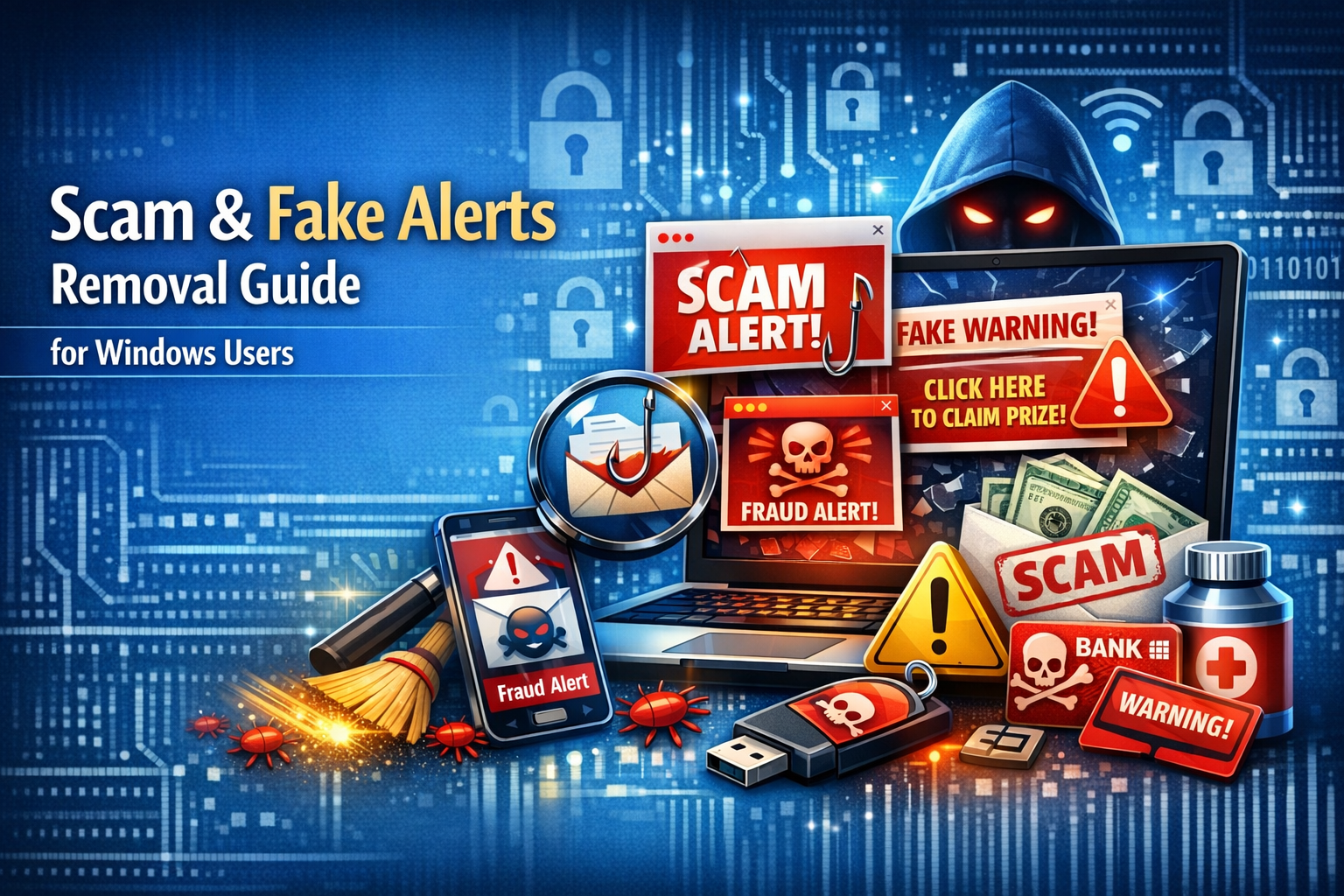
If you’ve ever seen alarming pop-ups saying your PC is infected or urging you to call a number immediately, you may be dealing with Scam & Fake Alerts. These deceptive messages are designed to trick users into downloading malware or giving away sensitive information on systems like Microsoft Windows.
In this complete guide for PC-Status readers, you’ll learn how to identify, remove, and prevent Scam & Fake Alerts, along with step-by-step solutions to keep your computer secure.
Scam & Fake Alerts: What They Are and Why They’re Dangerous
The keyword Scam & Fake Alerts refers to fraudulent warnings that mimic legitimate system notifications.
Common Types of Scam Alerts:
- Fake virus warnings
- “Your PC is infected” pop-ups
- Fake Windows Security alerts
- Browser lock scams
- Tech support scams
These alerts are not real—they are designed to scare you into taking harmful actions.
Problem: Why Scam & Fake Alerts Appear
Understanding the root causes helps prevent future attacks.
Common Causes:
- Visiting unsafe websites
- Clicking malicious ads
- Installing suspicious extensions
- Downloading pirated software
- Malware infection
👉 Remove Malware & Virus Guide
👉 Fix Windows Security Errors Guide
Signs You Are Seeing Scam & Fake Alerts
Warning Indicators:
- Loud warning sounds
- Full-screen browser pop-ups
- Requests to call support numbers
- Urgent messages demanding action
- Fake system scans
⚠️ Real Windows alerts never ask you to call a phone number.
How to Remove Scam & Fake Alerts (Step-by-Step)
Step 1: Close the Browser Immediately
If the alert appears in your browser:
- Press Alt + F4
- Or use Task Manager to close browser
Step 2: Do NOT Click Anything
Avoid:
- Clicking “Fix Now”
- Downloading suggested software
- Calling fake numbers
Step 3: Clear Browser Data
Steps:
- Open browser settings
- Go to Privacy & Security
- Clear:
- Cache
- Cookies
- History
Step 4: Remove Suspicious Extensions
Steps:
- Open Extensions page
- Remove unknown add-ons
Step 5: Run Windows Security Scan
Use built-in protection:
- Open Windows Security
- Run Full Scan
Run Windows Security Scan to protect your PC from viruses, malware, and other online threats that can harm your system and compromise your data. Using built-in tools like Microsoft Defender Antivirus in Microsoft Windows, you can quickly check your device for suspicious files, harmful programs, and security vulnerabilities. A regular scan helps detect issues early, preventing potential damage and keeping your system running smoothly. Whether you choose a quick scan, full scan, or custom scan, this process ensures your files and personal information stay safe. Learning how to Run Windows Security Scan is essential for maintaining strong cybersecurity, improving performance, and ensuring your PC remains secure, stable, and protected from evolving digital threats.
Step 6: Use Offline Scan
Offline scan detect hidden threats by running a deep security check outside the active operating system environment. This method helps identify malware, rootkits, and persistent threats that often evade regular scans while the system is running. Tools like Microsoft Defender Antivirus can perform offline scans before Windows fully loads, allowing more effective detection and removal of dangerous files. By using an offline scan, you reduce the risk of interference from malicious processes and improve overall system security. Offline scan detect hidden threats more effectively than standard scans, making it an essential step for users experiencing unusual behavior, unexplained slowdowns, or suspected infections on their PC
Step 7: Delete Temporary Files
Temporary files may store malicious scripts.
Learn how to clean temporary files in Windows with this simple guide to improve performance and free up disk space. Temporary files often build up over time, causing slowdowns and system errors. By using tools like Disk Cleanup, Storage Sense, or manual methods, you can safely remove unnecessary data. Discover how to clean temporary files in Windows step by step to boost speed, enhance stability, and keep your PC running efficiently every day.
Step 8: Run System File Checker
sfc /scannow
Learn how to Run System File Checker in Windows to scan and repair corrupted or missing system files that may cause errors, crashes, or slow performance. The System File Checker (SFC) is a built-in tool in Microsoft Windows that helps maintain system integrity by restoring essential files. By using simple Command Prompt commands, you can quickly detect issues and fix them without reinstalling the OS. This process is especially useful for resolving system glitches, startup problems, and unexpected behavior. Whether you’re troubleshooting errors or optimizing performance, knowing how to Run System File Checker in Windows is a valuable skill for keeping your PC stable, secure, and running smoothly over time.
Step 9: Update Windows
Security updates block known scam techniques.
Step 10: Reset Browser Settings
Reset browser to remove unwanted changes.
Advanced Scam & Fake Alerts Removal Methods
1. Use Anti-Malware Tools
Examples:
- Malwarebytes
- AdwCleaner
2. Check Startup Programs
Disable suspicious startup apps.
3. Reset Network Settings
Remove malicious DNS settings.
4. Reset Windows (Last Option)
Use if infection persists.
How to Prevent Scam & Fake Alerts
1. Avoid Suspicious Websites
2. Do Not Click Unknown Ads
3. Install Trusted Software Only
4. Keep Windows Updated
5. Use Antivirus Protection
Benefits of Removing Scam & Fake Alerts
- Prevents malware infection
- Protects personal data
- Improves browsing safety
- Reduces system risk
- Enhances user confidence
Common Mistakes to Avoid
- Calling fake support numbers
- Downloading unknown tools
- Ignoring security warnings
- Using outdated browsers
Real-World Example
A user encountered a full-screen alert claiming their PC was infected. After closing the browser, clearing cache, and running a full scan, the issue was resolved without damage.
Key Insight
Most Scam & Fake Alerts are browser-based and not actual system infections. However, ignoring them or interacting with them can lead to serious security risks.
Frequently Asked Questions
What are Scam & Fake Alerts?
They are fake warnings designed to trick users into downloading malware or sharing personal data.
Are Scam & Fake Alerts real?
No, they are fraudulent messages, not real system alerts.
How do I remove Scam & Fake Alerts?
Close the browser, clear data, remove extensions, and run a security scan.
Can Scam Alerts install malware?
Yes, if you click or download anything from them.
Why do I keep seeing fake alerts?
You may have visited unsafe websites or installed malicious extensions.
Do I need antivirus software?
Yes, antivirus helps detect and prevent threats.
Conclusion
Learning how to handle Scam & Fake Alerts is essential for protecting your computer and personal data. By following the steps in this guide—closing suspicious pop-ups, scanning your system, and maintaining safe browsing habits—you can stay secure.
For PC-Status readers, keeping your system running Microsoft Windows safe from scams ensures long-term performance, security, and peace of mind.
By combining awareness, proper tools, and regular maintenance, you can effectively eliminate and prevent scam alerts from affecting your system.