If your computer is freezing, crashing, or showing unexpected messages, this Fix Windows Errors Guide will help you solve the most common issues quickly and safely. Many system problems in Microsoft Windows are caused by corrupted files, outdated drivers, or software conflicts—and most of them can be fixed without reinstalling the system.
In this complete guide for PC-Status readers, we will explore the Fix Windows Errors Guide, including causes, step-by-step solutions, advanced troubleshooting, and prevention tips to keep your system stable.
Fix Windows Errors Guide (What It Means)
The Fix Windows Errors Guide refers to a structured approach to diagnosing and resolving system issues in Windows. These errors can appear in many forms:
- Blue Screen of Death (BSOD): Learn how to fix Blue Screen of Death Windows with simple steps, causes, and proven solutions to stop crashes and restore system stability.
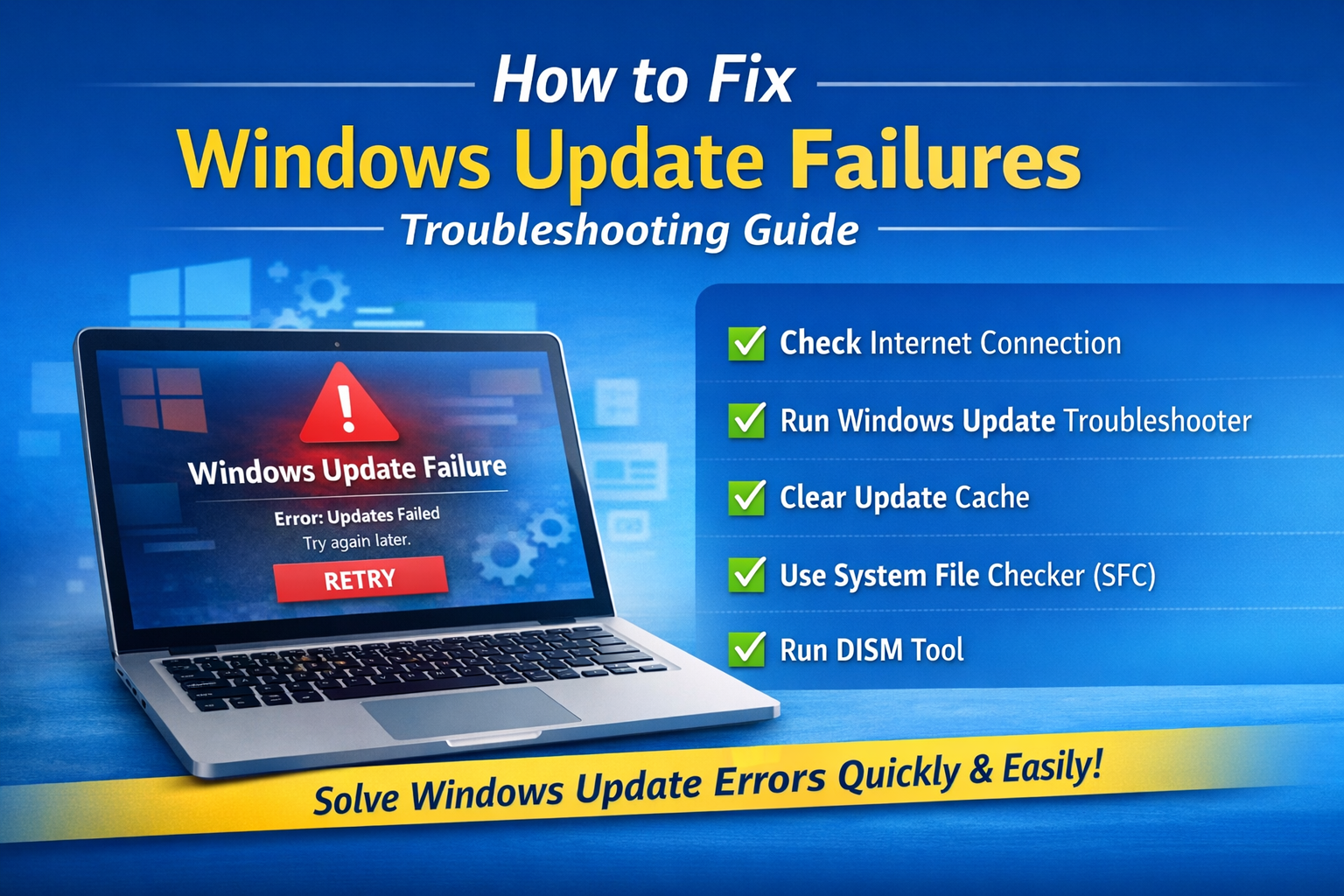
- Update failures
- Application crashes
- Missing system files
- Performance lag
Problem: Why Windows Errors Occur
Before applying the Fix Windows Errors Guide, it’s important to understand the root causes.
Common Causes:
- Corrupted system files
- Outdated drivers
- Malware infections
- Failed Windows updates
- Hardware issues
- Low disk space
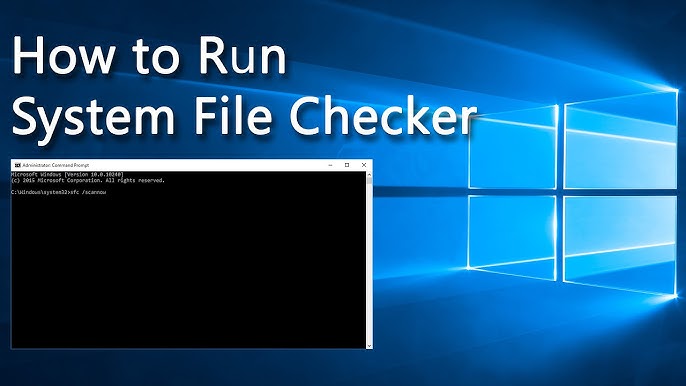
👉 Run System File Checker Guide
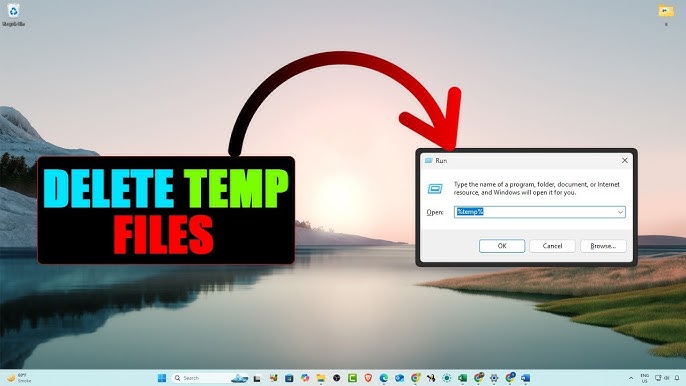
👉 How to Clean Temporary Files in Windows
Fix Windows Errors Guide (Step-by-Step Solutions)
Step 1: Restart Your Computer
A simple restart can fix temporary system glitches.
Step 2: Run System File Checker (SFC)
SFC repairs corrupted system files.
sfc /scannow
👉 Run System File Checker Guide
Step 3: Use DISM Tool
If SFC fails, use DISM:
DISM /Online /Cleanup-Image /RestoreHealth
👉 Repair a Windows Image:
https://learn.microsoft.com/en-us/windows-hardware/manufacture/desktop/repair-a-windows-image
Step 4: Update Windows
Go to:
- Settings → Windows Update → Check for updates
👉 https://support.microsoft.com/windows/windows-update
Step 5: Update Drivers
Outdated drivers often cause errors.
👉 How to Check Driver Version in Windows
👉 Best Ways to Update Drivers Automatically
Step 6: Run Disk Check
chkdsk /f /r
Step 7: Scan for Malware
Use Windows Security or trusted antivirus software.
Step 8: Free Up Disk Space
Delete temporary files and cache. Learn how to clean temporary files in Windows to free up space, boost speed, and fix errors with simple step-by-step methods.
Advanced Fix Windows Errors Guide Methods
1. Safe Mode Troubleshooting
Boot into Safe Mode to isolate issues.
2. Clean Boot Windows
Disable startup apps to identify conflicts.
3. System Restore
Restore your system to a previous working state.
4. Reset This PC
Last option if errors persist.
Types of Windows Errors
1. System Errors
Caused by corrupted system files.
2. Application Errors
Apps crashing or not opening.
3. Update Errors
Windows update failures.
4. Driver Errors
Hardware not working properly.
5. Blue Screen Errors
Critical system crashes.
Benefits of Using Fix Windows Errors Guide
- Improves system performance
- Reduces crashes
- Fixes hidden system issues
- Extends PC lifespan
- Enhances stability
Common Mistakes to Avoid
1. Ignoring updates
2. Installing unknown software
3. Skipping backups
4. Not checking drivers
Real-World Example
A user experienced repeated system crashes due to corrupted system files. After applying SFC, DISM, and driver updates from the Fix Windows Errors Guide, the system became stable again without reinstalling Windows.
Key Insight
The Fix Windows Errors Guide is essential for maintaining a healthy system. Most Windows problems are software-related and can be solved with built-in tools.
Frequently Asked Questions
What is Fix Windows Errors Guide?
It is a set of methods used to diagnose and repair common Windows system problems.
What causes Windows errors?
Corrupted files, outdated drivers, malware, and system conflicts.
How do I fix Windows errors quickly?
Use SFC, DISM, Windows Update, and driver updates.
Is it safe to use Windows repair tools?
Yes, they are official tools provided by Microsoft.
Do I need to reinstall Windows?
Only if all repair methods fail.
Can drivers cause Windows errors?
Yes, outdated or corrupted drivers are a major cause.
Conclusion
The Fix Windows Errors Guide provides a complete solution to most common PC problems. By using tools like SFC, DISM, Windows Update, and driver management, you can quickly restore system stability.
For readers of PC-Status, following this guide ensures your system running Microsoft Windows stays fast, secure, and error-free.