If your computer is slowing down, crashing, or experiencing hardware issues, learning the Best Ways to Update Drivers Automatically can significantly improve performance. Drivers are essential components that allow your operating system, such as Microsoft Windows, to communicate effectively with hardware devices.
In this comprehensive guide, we will explore the Best Ways to Update Drivers Automatically, including built-in tools, third-party solutions, and expert tips to keep your system running smoothly without manual effort.
Best Ways to Update Drivers Automatically Explained
Understanding the Best Ways to Update Drivers Automatically is crucial for maintaining a stable and efficient PC. Instead of manually searching for updates, automatic tools can scan, detect, and install the latest drivers effortlessly.
Why Automatic Driver Updates Matter
- Save time and effort
- Prevent outdated driver issues
- Improve system performance
- Reduce crashes and errors
- Enhance hardware compatibility
Common Problems Caused by Outdated Drivers
1. System Lag and Slow Performance
2. Hardware Not Working Properly
3. Frequent Crashes and BSOD
4. Poor Gaming Performance
5. Network Connectivity Issues
Best Ways to Update Drivers Automatically (Step-by-Step)
1. Use Windows Update (Built-in Method)
One of the safest ways to update drivers automatically.
Steps:
- Open Settings
- Click Windows Update
- Select Check for updates
- Install optional driver updates
👉 Windows Update official guide
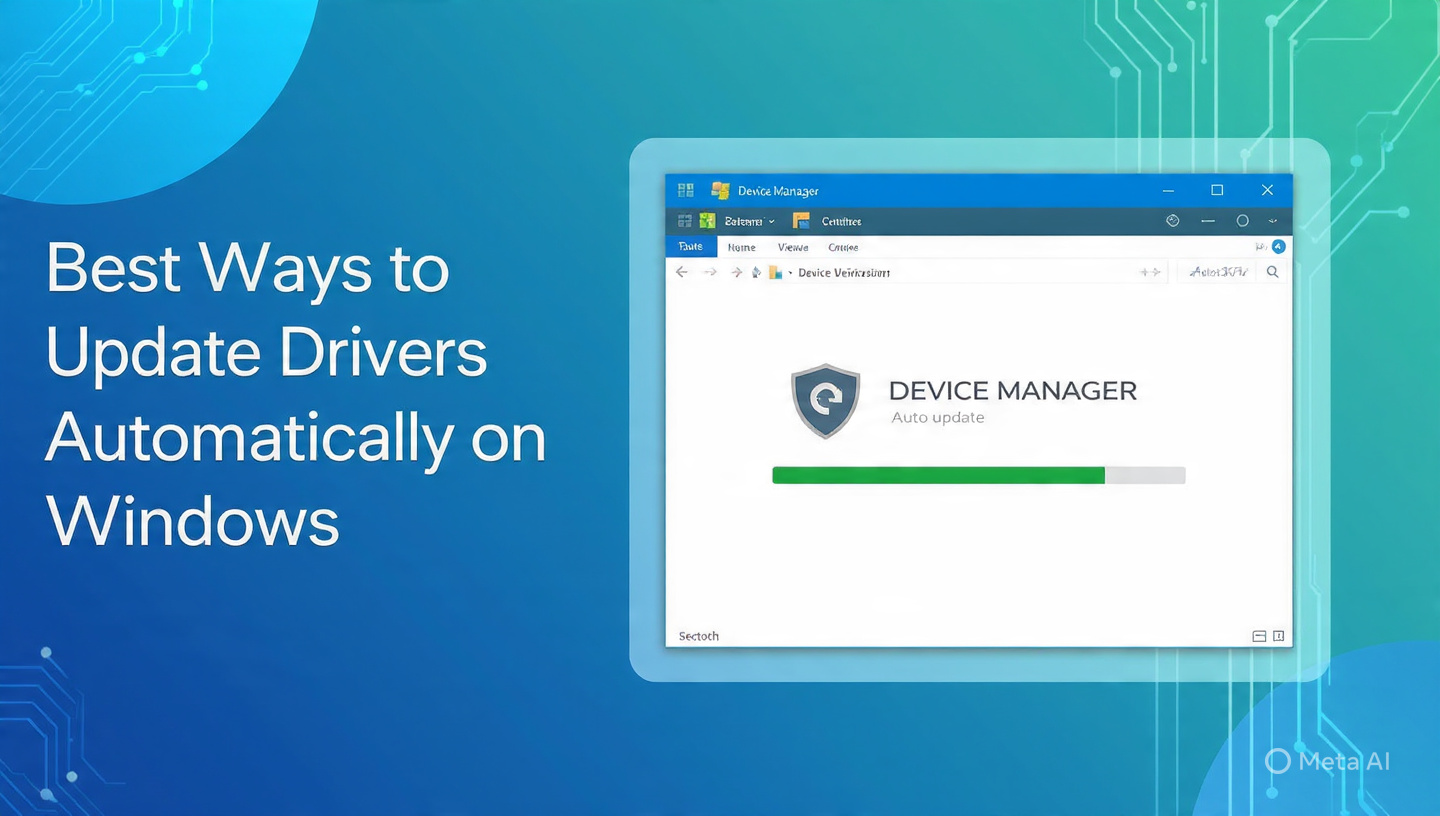
2. Use Device Manager Auto Update
Steps:
- Press Win + X
- Select Device Manager
- Right-click device
- Choose Update Driver
- Select automatic search
3. Use Manufacturer Tools
Official tools provide optimized drivers.
Examples:
- Intel Driver & Support Assistant
👉 Intel Driver Center - NVIDIA GeForce Experience
👉 NVIDIA Drivers - AMD Software Adrenalin
👉 AMD Drivers
4. Use Third-Party Driver Update Software
Some tools automate scanning and updating:
- Driver Booster
- Driver Easy
- Snappy Driver Installer
⚠️ Always download from official websites.
5. Enable Automatic Driver Updates in Windows
Steps:
- Control Panel
- System → Advanced system settings
- Hardware tab
- Device Installation Settings
- Enable automatic updates
Advanced Automatic Driver Update Methods
1. Use PowerShell Commands
Automate system updates via scripts.
2. Group Policy Settings
Control driver updates in enterprise environments.
3. Windows Insider Updates
Access early driver updates.
Benefits of Updating Drivers Automatically
1. Time Efficiency
2. Improved System Stability
3. Better Hardware Performance
4. Enhanced Security
Common Mistakes to Avoid
1. Using Untrusted Software
2. Ignoring Driver Updates
3. Updating All Drivers Unnecessarily
4. Not Creating Restore Points
Real-World Example
A user experiences lag due to outdated drivers. After enabling automatic updates through Windows Update, system performance improves significantly without manual intervention.
Tips for Managing Driver Updates
- Schedule regular updates
- Use official tools only
- Monitor system performance
- Backup important drivers
Key Insight
The Best Ways to Update Drivers Automatically ensure that your system remains optimized without requiring constant manual intervention. Automation reduces errors and keeps your PC running efficiently.
External Resources
- Microsoft Driver Documentation:
👉 Microsoft Drivers Guide
Frequently Asked Questions
What are automatic driver updates?
They are tools or features that update drivers without manual input.
Are automatic updates safe?
Yes, when using trusted sources like Windows Update.
Do automatic updates improve performance?
Yes, especially for graphics and network drivers.
Can I disable automatic updates?
Yes, through system settings.
Should I use third-party tools?
Only if they are reputable and trusted.
Conclusion
Understanding the Best Ways to Update Drivers Automatically is essential for maintaining a fast, stable, and secure system. By using built-in tools, manufacturer software, or trusted third-party applications, you can ensure your drivers are always up to date.
With proper driver management, your system running Microsoft Windows will perform optimally without lag or compatibility issues.