Although modern browsers have taken the spotlight, many users still rely on Internet Explorer 11 for legacy applications and enterprise environments. However, like many Windows applications, it isn’t without flaws. One of the most common and frustrating issues users encounter is the error:
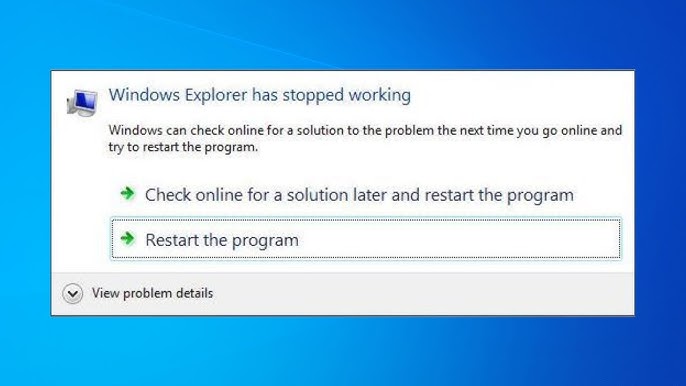
“Internet Explorer has stopped working.”
When this happens, the browser freezes, becomes unresponsive, and eventually crashes—leaving users with no option but to close it. While this may seem alarming, the good news is that this issue is quite common and, in most cases, easily fixable.
In this comprehensive guide, we’ll explore why Internet Explorer 11 crashes, what causes it to stop responding, and provide step-by-step solutions to fix the issue effectively.
Why Does Internet Explorer 11 Stop Working?
Internet Explorer 11 (IE11) is an older browser that was not designed to handle many modern web technologies. As a result, it can struggle under certain conditions.
Common Causes Include:
- Corrupted browser cache or temporary files
- Faulty add-ons or extensions
- Outdated system or browser components
- Conflicts with third-party software
- Malware or adware infections
- Graphics rendering issues
- Damaged system files
In many cases, the issue arises from minor glitches that can be resolved quickly.
Quick Fix: Restart Internet Explorer
Before diving into advanced solutions, try the simplest fix:
- Close Internet Explorer completely
- Reopen it
In many situations, a simple restart clears temporary issues and restores normal functionality.
Method 1: Clear Browser Cache and Temporary Files
Corrupted cache files are a major cause of browser crashes.
Steps:
- Open Internet Explorer
- Click the Gear icon (Settings)
- Select Internet Options
- Under the General tab, click Delete
- Check:
- Temporary Internet files
- Cookies
- History
- Click Delete
Restart the browser and test again.
Method 2: Disable Add-ons
Faulty or incompatible add-ons can cause IE to crash.
Steps:
- Open Internet Explorer
- Click Gear icon > Manage add-ons
- Select Toolbars and Extensions
- Disable all add-ons
- Restart IE
If the browser works fine, re-enable add-ons one by one to identify the culprit.
Method 3: Reset Internet Explorer Settings
Resetting IE restores it to default settings.
Steps:
- Open Internet Options
- Go to the Advanced tab
- Click Reset
- Check Delete personal settings
- Click Reset again
Restart your computer after the process.
Method 4: Update Windows
Outdated system components can cause compatibility issues.
Steps:
- Open Settings
- Go to Update & Security
- Click Check for updates
- Install all available updates
Updating Windows ensures IE has the latest patches.
Method 5: Run System File Checker (SFC)
Corrupted system files can affect browser performance.
Steps:
- Open Command Prompt as Administrator
- Type:
sfc /scannow - Press Enter and wait for completion
Restart your computer afterward.
Method 6: Check for Malware
Malicious software can interfere with Internet Explorer.
Steps:
- Run a full system scan using antivirus software
- Remove detected threats
- Restart your system
Keeping your system clean improves stability.
Method 7: Disable Hardware Acceleration
Graphics rendering issues can cause crashes.
Steps:
- Open Internet Options
- Go to the Advanced tab
- Check Use software rendering instead of GPU rendering
- Click Apply and OK
Restart IE and test performance.
Method 8: Reinstall Internet Explorer 11
If the issue persists, reinstalling IE may help.
Steps:
- Open Control Panel
- Go to Programs > Turn Windows features on or off
- Uncheck Internet Explorer 11
- Restart your computer
- Re-enable IE11 and restart again
Method 9: Check Compatibility View Settings
Some websites may not work properly with IE11.
Steps:
- Open IE
- Click Gear icon > Compatibility View settings
- Add problematic websites
- Apply changes
Method 10: Perform a Clean Boot
A clean boot helps identify software conflicts.
Steps:
- Press Windows + R, type
msconfig - Go to the Services tab
- Check Hide all Microsoft services
- Click Disable all
- Restart your computer
Test IE in this state.
Method 11: Update Graphics Drivers
Outdated drivers can cause rendering issues.
Steps:
- Open Device Manager
- Expand Display adapters
- Right-click your GPU
- Select Update driver
Method 12: Use Event Viewer for Diagnosis
Advanced users can check crash logs.
Steps:
- Press Windows + X
- Select Event Viewer
- Go to Windows Logs > Application
- Look for IE-related errors
This helps identify deeper issues.
Preventing Internet Explorer Crashes
To avoid future issues:
- Regularly clear browser cache
- Keep Windows updated
- Avoid installing unnecessary add-ons
- Use reliable antivirus software
- Limit usage of outdated web apps
When to Consider Switching Browsers
While IE11 can be fixed, it is outdated. Modern browsers offer:
- Better performance
- Improved security
- Compatibility with modern websites
Consider alternatives for a smoother experience.
Common Mistakes to Avoid
- Ignoring updates
- Installing too many extensions
- Using untrusted software
- Skipping regular maintenance
Final Thoughts
The “Internet Explorer has stopped working” error may seem disruptive, but it is usually easy to fix. In many cases, a simple restart resolves the issue. For persistent problems, clearing cache, disabling add-ons, or resetting the browser can restore functionality.
While Internet Explorer 11 still serves a purpose in legacy environments, it’s important to maintain it properly to avoid crashes. By following the steps in this guide, you can ensure a more stable browsing experience.
If the problem continues despite trying all solutions, consider upgrading your workflow to a modern browser or consulting a professional for deeper system analysis.
With the right approach, you can keep Internet Explorer running smoothly—even in today’s fast-evolving web environment.