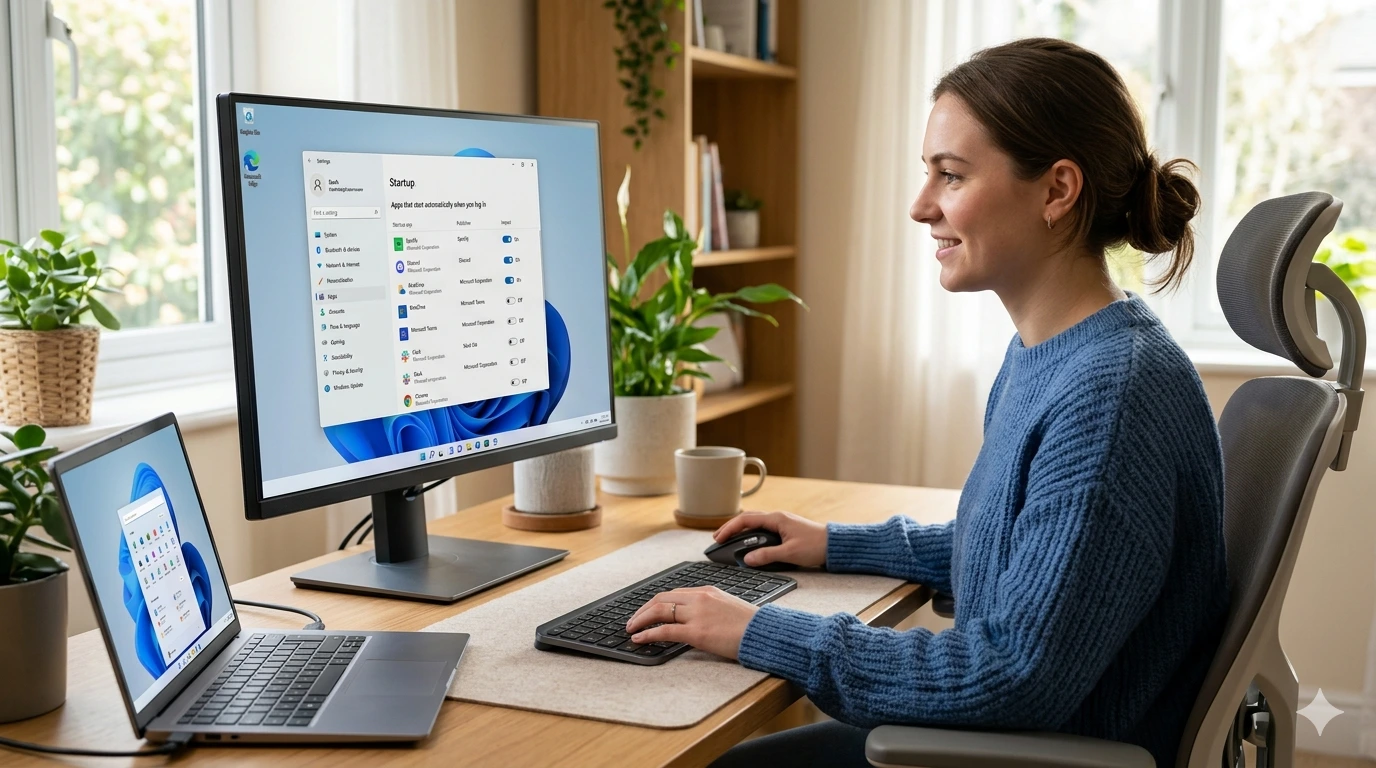
If your computer feels slow right after turning it on, the issue often lies in startup programs. Learning how to Change Startup Apps in Windows can dramatically improve your system’s performance.
Startup apps are programs that automatically launch when your computer boots. While some are essential, many are unnecessary and consume valuable system resources.
What Are Startup Programs
Startup programs are applications configured to run automatically during system boot in Microsoft Windows operating system. These can include:
- Messaging apps
- Cloud storage tools
- Software updaters
- Antivirus programs
Why Startup Apps Matter for Performance
Too many startup apps can:
- Slow down boot time
- Reduce available RAM
- Increase CPU usage
- Cause lag during login
Managing them effectively is key to a smoother computing experience.
👉 Windows Slow Performance Fix Guide Speed Up PC Now
Benefits of Managing Startup Apps
Faster Boot Time
When you Change Startup Apps in Windows, your system starts faster because fewer programs load at once.
Improved System Performance
Reducing startup load helps:
- Free up memory
- Improve multitasking
- Enhance responsiveness
How to Change Startup Apps in Windows Using Task Manager
One of the easiest ways to manage startup programs is through Task Manager.
Step-by-Step Guide
- Press Ctrl + Shift + Esc
- Click on the Startup tab
- Review the list of apps
- Right-click any app
- Select Disable
Identifying High Impact Apps
Task Manager shows a “Startup Impact” column:
- High: Slows boot significantly
- Medium: Moderate impact
- Low: Minimal effect
Focus on disabling high-impact apps first.
Change Startup Apps in Windows via Settings
Another simple method is through the Settings panel.
Using Windows Settings Panel
- Open Settings
- Go to Apps → Startup
- Toggle apps on or off
This method is user-friendly and ideal for beginners.
Using Startup Folder Method
This classic approach still works effectively.
Accessing Startup Folder
- Press Win + R
- Type
shell:startup - Press Enter
Adding and Removing Apps
- Add: Drag shortcut into the folder
- Remove: Delete shortcut
This directly controls what launches at startup.
Change Startup Apps in Windows Using Registry Editor
This method is for advanced users.
Advanced Configuration
- Press Win + R
- Type
regedit - Navigate to:
HKEY_CURRENT_USER\Software\Microsoft\Windows\CurrentVersion\Run
Here you can manually add or remove startup entries.
Warning: Incorrect changes can affect system stability.
Using Third-Party Tools
Several tools help manage startup apps more efficiently.
Pros and Cons
Pros:
- Detailed insights
- Easier control
- Performance analytics
Cons:
- May include ads
- Some require installation
For reliable tools, visit “Microsoft official support page”.
Common Mistakes to Avoid
Disabling Essential Programs
Be careful not to disable:
- Antivirus software
- System drivers
- Security tools
Doing so can compromise your system.
Tips to Optimize Startup Performance
Prioritizing Critical Apps
Only allow essential apps such as:
- Security software
- Necessary drivers
- Work-related tools
Disable everything else unless needed.
Troubleshooting Startup Issues
Fixing Apps Not Disabling
If apps keep re-enabling:
- Check app settings
- Update Windows
- Scan for malware
Security Considerations
Identifying Malware Startup Entries
Some malicious programs hide in startup lists.
Watch for:
- Unknown app names
- No publisher information
- Suspicious file paths
Use antivirus tools to scan regularly.
Frequently Asked Questions
1. What happens if I disable all startup apps?
Your system will boot faster, but some apps may not function until manually opened.
2. Is it safe to change startup apps in Windows?
Yes, as long as you avoid disabling critical system or security programs.
3. How often should I manage startup apps?
Check every few months or after installing new software.
4. Why do startup apps re-enable themselves?
Some apps have built-in settings that allow them to restart automatically.
5. Can startup apps affect gaming performance?
Yes, background apps consume resources that could otherwise be used for gaming.
6. What is the best method to change startup apps?
Task Manager is the easiest and safest method for most users.
Conclusion
Learning how to Change Startup Apps in Windows is one of the simplest yet most powerful ways to improve your computer’s performance. By managing which programs run at startup, you can reduce boot time, free up resources, and enjoy a smoother experience.
Whether you use Task Manager, Settings, or advanced tools, regularly reviewing startup apps ensures your system stays fast and efficient.