Gaming on Windows has always been a balancing act between hardware power and software optimization. Windows 11, with its modern design and enhanced features, promises smoother gameplay, faster load times, and better integration with gaming technologies like DirectStorage and Auto HDR. Yet, many gamers still face performance bottlenecks—lag, stuttering, long load times, or inconsistent frame rates.
Why Gaming Optimization Matters
For casual players, optimization ensures a seamless experience without interruptions. For competitive gamers, every millisecond counts—whether it’s faster reaction times or smoother frame pacing. And for streamers, optimized performance means delivering high‑quality content without sacrificing gameplay.
Common Gaming Performance Issues in Windows 11
- Background Processes – Apps running in the background consume CPU and RAM.
- Outdated Drivers – Graphics and audio drivers directly affect frame rates and stability.
- Storage Bottlenecks – Slow HDDs or nearly full SSDs increase load times.
- Power Settings – Windows defaults to balanced power plans, which may throttle performance.
- Network Latency – Poor connectivity impacts online gaming responsiveness.
- System Updates – Background updates can cause sudden frame drops.
Windows 11 Gaming Features
Microsoft introduced several features designed specifically for gamers:
- DirectStorage: Reduces load times by allowing games to access GPU directly.
- Auto HDR: Enhances visuals by adding HDR effects to older titles.
- Xbox Game Bar: Provides quick access to performance monitoring and recording tools.
- Game Mode: Prioritizes system resources for gaming.
These features are powerful, but they need proper configuration to deliver maximum benefit.
Why a Comprehensive Guide Is Needed
Most optimization tips focus on one area—like updating drivers or enabling Game Mode. But true performance gains come from a holistic approach: hardware settings, software tweaks, and preventive maintenance. This guide will cover everything from basic adjustments to advanced configurations, ensuring gamers can unlock the full potential of Windows 11.
Setting the Stage
We’ll begin by analyzing performance bottlenecks, then move into step‑by‑step fixes such as disabling background apps, updating drivers, and adjusting power settings. Advanced solutions like BIOS/UEFI tweaks, GPU control panel optimization, and DirectStorage configuration will also be explored. Finally, we’ll provide preventive strategies to maintain peak gaming performance over time.
By the end of this tutorial, readers will have a complete roadmap to transform Windows 11 into a gaming powerhouse—whether they’re casual players, competitive esports enthusiasts, or streamers.
Understanding Gaming Bottlenecks
Before diving into fixes, it’s important to understand why gaming performance suffers on Windows 11. Bottlenecks can occur at different levels—hardware, software, or system configuration—and identifying them helps you apply the right optimization strategy.
1. CPU Bottlenecks
The CPU handles game logic, AI, and background processes.
- Cause: Too many background tasks, outdated drivers, or insufficient cores/threads.
- Impact: Stuttering, low frame rates, and delayed responses in CPU‑heavy games (e.g., strategy or simulation titles).
2. GPU Bottlenecks
The GPU renders graphics and visual effects.
- Cause: Outdated drivers, incorrect settings, or underpowered hardware.
- Impact: Frame drops, poor textures, and lag during graphically intensive scenes.
Windows 11’s DirectX 12 Ultimate improves GPU utilization, but only if drivers and settings are properly configured.
3. RAM Limitations
Games require sufficient memory to load assets smoothly.
- Cause: Limited RAM or background apps consuming memory.
- Impact: Long load times, stuttering, or crashes when memory runs out.
4. Storage Bottlenecks
Storage speed directly affects how quickly games load assets.
- Cause: Using HDDs instead of SSDs, or SSDs that are nearly full.
- Impact: Long loading screens, delayed texture streaming, and sluggish responsiveness.
Windows 11’s DirectStorage reduces these delays, but only works with NVMe SSDs and supported GPUs.
5. Power Settings
Windows defaults to a balanced power plan, which may throttle performance.
- Cause: CPU and GPU not running at full potential.
- Impact: Lower frame rates and inconsistent performance.
Switching to High Performance or Ultimate Performance mode ensures hardware runs at maximum capacity.
6. Network Latency
For online gaming, network performance is as critical as hardware.
- Cause: Weak Wi‑Fi, outdated drivers, or background downloads.
- Impact: Lag spikes, rubber‑banding, and delayed inputs.
7. Background Processes
Apps like browsers, cloud sync tools, or update managers consume resources.
- Cause: Too many background tasks running during gameplay.
- Impact: Reduced FPS and slower responsiveness.
8. System Updates and Security Tools
Windows updates and antivirus scans can trigger during gaming sessions.
- Cause: Poorly scheduled updates or aggressive antivirus settings.
- Impact: Sudden frame drops or interruptions mid‑game.
Key Takeaway
Gaming bottlenecks in Windows 11 arise from multiple sources—CPU, GPU, RAM, storage, power settings, network, and background processes. By identifying which bottleneck affects your system most, you can apply targeted optimizations for smoother gameplay.
How to Optimize Windows 11 for Gaming Performance – Step‑by‑Step Fixes
Now that we’ve identified the bottlenecks, let’s move into actionable solutions. These fixes are arranged from basic to advanced so you can apply them progressively until your system delivers the performance you expect.
1. Enable Game Mode
Windows 11 includes a built‑in Game Mode that prioritizes system resources for gaming.
Steps:
- Press Win + I to open Settings.
- Go to Gaming → Game Mode.
- Toggle it On.
This ensures CPU and GPU resources are directed toward your game rather than background tasks.
2. Disable Background Apps
Background apps consume RAM and CPU cycles.
Steps:
- Open Settings → Apps → Apps & features.
- Identify apps you don’t need running.
- Disable background permissions.
This reduces resource competition during gameplay.
3. Update Graphics Drivers
GPU drivers are critical for performance.
Steps:
- Visit NVIDIA, AMD, or Intel’s official site.
- Download the latest drivers for your card.
- Install and restart your PC.
Updated drivers often include performance boosts for new titles.
4. Adjust Power Settings
Windows defaults to balanced power plans, which may throttle performance.
Steps:
- Open Control Panel → Power Options.
- Select High Performance or Ultimate Performance.
This ensures your CPU and GPU run at full potential.
5. Optimize Storage
Games load faster on SSDs, especially NVMe drives.
Steps:
- Move games from HDD to SSD.
- Keep SSDs below 80% capacity.
- Run Optimize Drives monthly.
Windows 11’s DirectStorage works best with NVMe SSDs, reducing load times dramatically.
6. Configure GPU Control Panel
Both NVIDIA and AMD offer control panels for fine‑tuning performance.
- NVIDIA Control Panel: Set Power Management Mode to Prefer Maximum Performance.
- AMD Radeon Software: Enable Radeon Chill and Anti‑Lag for smoother gameplay.
These settings ensure your GPU delivers consistent frame rates.
7. Disable Visual Effects
Windows animations consume resources.
Steps:
- Press Win + R, type
sysdm.cpl. - Go to Advanced → Performance Settings.
- Select Adjust for best performance.
This frees up CPU cycles for gaming.
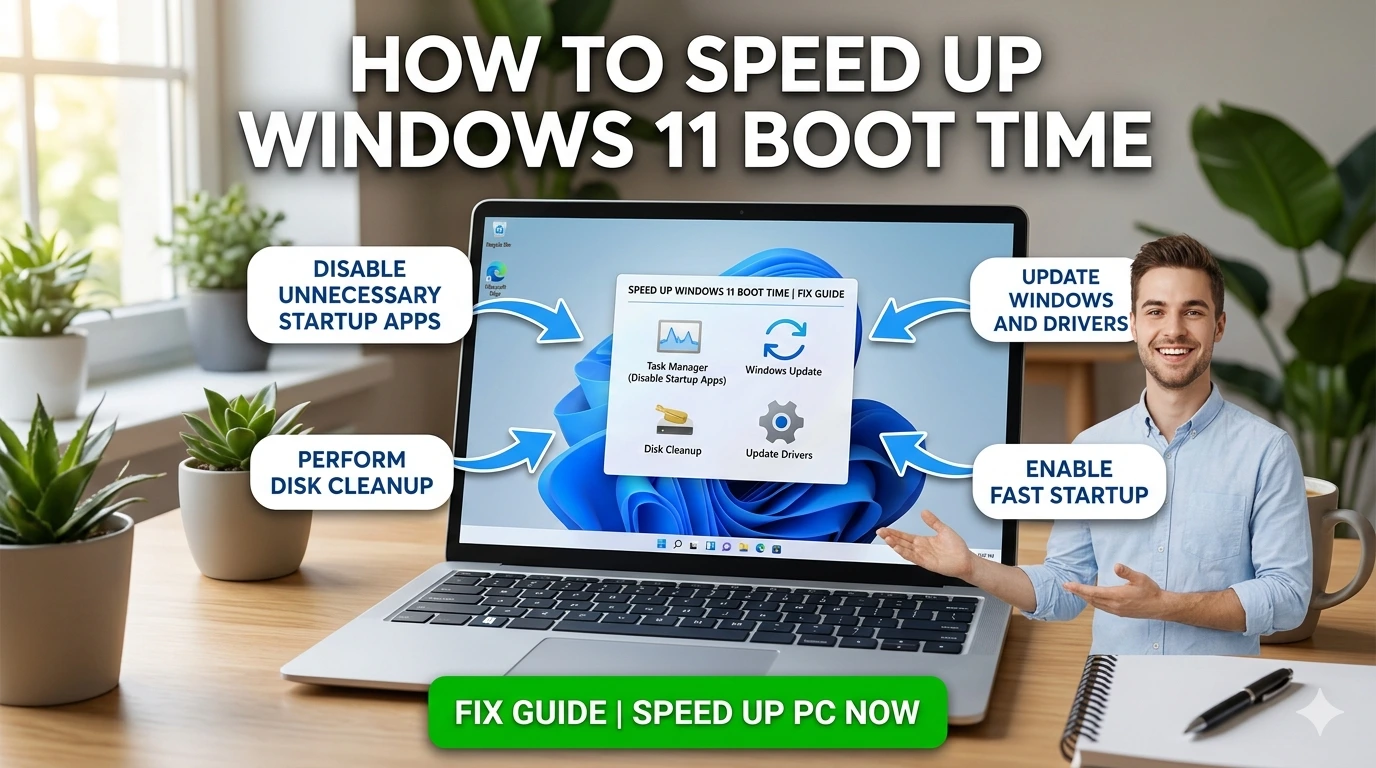
8. Manage Startup Programs
Unnecessary startup programs slow down both boot and gaming performance.
Steps:
- Press Ctrl + Shift + Esc to open Task Manager.
- Go to Startup.
- Disable non‑essential apps.
9. Optimize Network for Online Gaming
Stable connectivity is crucial for multiplayer games.
Steps:
- Use a wired Ethernet connection instead of Wi‑Fi.
- Update network drivers.
- Disable background downloads during gameplay.
10. Adjust In‑Game Settings
Sometimes the bottleneck is within the game itself.
- Lower resolution or graphics settings if hardware struggles.
- Enable V‑Sync or G‑Sync for smoother frame pacing.
- Experiment with DLSS (NVIDIA) or FSR (AMD) for higher FPS.
11. Disable Xbox Game Bar (Optional)
While useful for recording, Xbox Game Bar can consume resources.
Steps:
- Open Settings → Gaming → Xbox Game Bar.
- Toggle it Off if you don’t use it.
12. Perform Regular Maintenance
- Run SFC and DISM scans every few months.
- Clear temporary files with Storage Sense.
- Keep antivirus scans scheduled outside gaming hours.
Key Takeaway
These step‑by‑step fixes cover the essentials: enabling Game Mode, updating drivers, optimizing storage, adjusting power settings, and fine‑tuning GPU control panels. Together, they ensure Windows 11 delivers smooth, responsive, and high‑performance gaming.
Advanced Solutions
If the basic fixes don’t deliver the performance boost you’re looking for, advanced optimizations can help push Windows 11 to its full gaming potential. These methods require more technical steps but can significantly improve frame rates, reduce latency, and shorten load times.
1. BIOS/UEFI Tweaks
Your system’s firmware plays a major role in performance.
Steps:
- Enter BIOS/UEFI (usually Del or F2 during boot).
- Enable XMP/DOCP to maximize RAM speed.
- Set boot priority to your NVMe SSD for faster game loading.
- Enable Fast Boot to reduce initialization delays.
- Disable unused controllers (legacy USB, SATA ports not in use).
These tweaks ensure hardware runs at optimal speed before Windows even loads.
2. Overclocking CPU and GPU
Overclocking can deliver noticeable performance gains.
- CPU Overclocking: Increases clock speed for better game logic processing.
- GPU Overclocking: Boosts frame rates in graphically demanding titles.
Tools:
- Use BIOS/UEFI for CPU overclocking.
- Use GPU software (MSI Afterburner, AMD Adrenalin, NVIDIA Control Panel).
⚠️ Note: Overclocking increases heat and power consumption. Always monitor temperatures and stability.
3. DirectStorage Configuration
Windows 11’s DirectStorage reduces load times by allowing games to access GPU directly.
Requirements:
- NVMe SSD.
- DirectX 12 Ultimate GPU.
- Supported games.
Steps:
- Ensure your GPU drivers are updated.
- Install games on NVMe SSDs.
- Enable DirectStorage in supported titles.
This dramatically reduces loading screens and texture streaming delays.
4. Latency Reduction Techniques
For competitive gaming, latency is as important as FPS.
Steps:
- Use a wired Ethernet connection.
- Enable Low Latency Mode in NVIDIA Control Panel or Anti‑Lag in AMD Radeon Software.
- Disable background downloads and cloud sync during gameplay.
- Optimize router settings (QoS for gaming traffic).
5. Registry and Group Policy Tweaks
Advanced users can fine‑tune Windows behavior.
Registry:
- Disable
ClearPageFileAtShutdownto avoid delays. - Adjust
MenuShowDelayfor faster UI responsiveness.
Group Policy:
- Press Win + R, type
gpedit.msc. - Navigate to Computer Configuration → Administrative Templates → System.
- Disable unnecessary startup scripts.
6. GPU Control Panel Advanced Settings
Fine‑tuning GPU settings can yield smoother gameplay.
- NVIDIA:
- Set Power Management Mode to Prefer Maximum Performance.
- Enable Low Latency Mode.
- Adjust Texture Filtering Quality to High Performance.
- AMD:
- Enable Radeon Chill and Anti‑Lag.
- Use Radeon Boost for dynamic resolution scaling.
7. Audio and Peripheral Optimization
Even peripherals can affect performance.
- Disable unused audio devices in Device Manager.
- Update drivers for gaming mice/keyboards.
- Use lightweight headset drivers to reduce CPU load.
8. Advanced Storage Management
- Use NVMe SSDs for games.
- Enable AHCI Mode in BIOS for optimal SSD performance.
- Keep drives defragmented (HDD) or optimized (SSD).
Key Takeaway
Advanced solutions like BIOS/UEFI tweaks, overclocking, DirectStorage, and latency reduction push Windows 11 beyond basic optimization. These methods require careful configuration but deliver substantial gains in frame rates, responsiveness, and load times—especially for competitive and high‑end gaming.
Prevention Tips
Once you’ve optimized your system for peak gaming, the next challenge is keeping it that way. Without preventive measures, performance can gradually decline due to clutter, outdated drivers, or misconfigured settings. Here are practical strategies to maintain consistently high gaming performance in Windows 11.
1. Regularly Update Drivers and Windows
- GPU Drivers: Keep NVIDIA, AMD, or Intel drivers updated for the latest performance improvements.
- Windows Updates: Install updates promptly to avoid background interruptions during gaming.
- Peripheral Drivers: Update controllers, headsets, and keyboards to ensure smooth compatibility.
2. Monitor Background Apps
New apps often add themselves to startup or run silently in the background.
- Check Task Manager monthly for unnecessary processes.
- Disable cloud sync or auto‑update tools during gaming sessions.
- Keep only essential apps active (e.g., Discord, Steam).
3. Maintain Storage Health
Storage directly impacts load times and responsiveness.
- Keep SSDs below 80% capacity.
- Run Optimize Drives monthly.
- Store games on NVMe SSDs for maximum DirectStorage benefits.
4. Protect Against Malware and Bloatware
Malware and unwanted software can silently consume resources.
- Run weekly scans with Windows Security or Malwarebytes.
- Uninstall trialware or manufacturer utilities you don’t use.
- Avoid downloading mods or tools from unverified sources.
5. Optimize Power Settings
Ensure your system stays in high‑performance mode.
- Verify High Performance or Ultimate Performance is active.
- Recheck settings after major updates, as Windows may reset defaults.
6. Schedule Maintenance
Consistency is key to long‑term performance.
- Run SFC and DISM scans quarterly.
- Clear temporary files with Storage Sense.
- Audit startup programs and services every few months.
7. Network Hygiene for Online Gaming
Stable connectivity is critical for competitive play.
- Use wired Ethernet whenever possible.
- Restart your router periodically.
- Limit background downloads during gaming sessions.
8. Backup and Restore Points
System changes can sometimes reduce performance unexpectedly.
- Create restore points before major updates.
- Use File History or OneDrive for personal file backups.
- Roll back quickly if performance declines.
Key Takeaway
Preventing performance loss in Windows 11 gaming requires ongoing attention. By updating drivers, monitoring background apps, maintaining storage health, and practicing good network hygiene, you can ensure your system remains optimized. Combined with regular maintenance and backups, these habits create a stable environment where gaming performance stays consistently high.
Comparisons
To understand how Windows 11 performs as a gaming platform, it helps to compare it with earlier versions of Windows and other operating systems. Each generation introduced improvements, but also carried forward certain challenges. These comparisons highlight where Windows 11 excels and where it still requires careful optimization.
Windows 7 vs. Windows 11
- Windows 7: Popular among gamers for stability, but lacked modern gaming features. Boot times and load speeds were heavily dependent on HDDs, and DirectX support was limited.
- Windows 11: Offers DirectX 12 Ultimate, Auto HDR, and DirectStorage, which dramatically improve visuals and reduce load times on modern hardware.
Key Difference: Windows 11 is built for SSDs and modern GPUs, while Windows 7 relied on legacy hardware. Performance gains in Windows 11 are tied to newer technologies.
Windows 8/8.1 vs. Windows 11
- Windows 8/8.1: Introduced Fast Startup and better resource management, but its interface was unpopular with gamers. Driver support was inconsistent, leading to performance issues.
- Windows 11: Refines resource allocation with Game Mode and integrates Xbox services seamlessly.
Key Difference: Windows 11 improves usability and stability, making optimization easier compared to Windows 8’s fragmented ecosystem.
Windows 10 vs. Windows 11
- Windows 10: Strong gaming support with DirectX 12, but suffered from background update interruptions and inconsistent Game Mode performance.
- Windows 11: Enhances Game Mode, integrates Auto HDR, and supports DirectStorage for faster asset streaming.
Key Difference: Windows 11 builds on Windows 10’s foundation but reduces interruptions and adds features that directly benefit modern titles.
Windows 11 vs. macOS
- macOS: Known for stability and efficiency, but limited in gaming due to fewer supported titles and weaker GPU options.
- Windows 11: Supports a vast library of games, advanced GPUs, and technologies like ray tracing.
Key Difference: macOS offers smoother integration but lacks the breadth of gaming support that Windows 11 provides.
Windows 11 vs. Linux
- Linux: Lightweight distributions can deliver fast performance, but gaming support depends on compatibility layers like Proton.
- Windows 11: Native support for most titles, plus Xbox Game Pass integration.
Key Difference: Linux can be faster in raw performance, but Windows 11 offers broader compatibility and easier optimization for mainstream gamers.
Why Comparisons Matter
By comparing Windows 11 with earlier versions and other platforms, we see that gaming performance has steadily improved. Windows 11’s strengths lie in modern hardware integration and gaming‑specific features. Its weaknesses are tied to background processes and user‑side misconfigurations, not fundamental flaws.
Key Takeaway
Windows 11 is the most gaming‑ready version of Windows yet, offering features like DirectStorage, Auto HDR, and Game Mode. Compared to earlier versions, it delivers smoother performance and faster load times—provided users optimize their systems. Against macOS and Linux, Windows 11 stands out for compatibility and breadth of support, making it the dominant choice for gamers worldwide.
FAQ
Even after applying fixes and advanced optimizations, gamers often have lingering questions about performance in Windows 11. Here are clear answers to the most common concerns.
1. Does enabling Game Mode always improve performance?
Game Mode prioritizes resources for gaming, but its impact varies. On high‑end systems, the difference may be minimal. On mid‑range or older PCs, it can reduce background interruptions and stabilize frame rates.
2. Should I disable the Xbox Game Bar?
If you don’t use Game Bar for recording or monitoring, disabling it can free up resources. However, if you stream or capture gameplay, keep it enabled—it’s optimized for Windows 11.
3. Is DirectStorage worth it?
Yes, but only if you have an NVMe SSD and a DirectX 12 Ultimate GPU. Supported games load assets much faster, reducing loading screens and improving texture streaming.
4. How much RAM do I need for smooth gaming?
- 8 GB: Minimum for casual gaming.
- 16 GB: Recommended for most modern titles.
- 32 GB+: Ideal for heavy multitasking, streaming, or AAA games with large assets.
5. Can overclocking damage my system?
Overclocking boosts performance but increases heat and power consumption. If done carefully with proper cooling and monitoring, it’s safe. Aggressive overclocking without safeguards can shorten hardware lifespan.
6. Why does my FPS drop after updates?
Major Windows updates sometimes reset settings or introduce driver conflicts. Re‑enable performance options (Game Mode, power plan) and update GPU drivers to restore stability.
7. Is an SSD enough, or do I need NVMe?
SSDs already improve load times compared to HDDs. NVMe SSDs, however, unlock DirectStorage and deliver the fastest performance. For competitive gaming, NVMe is highly recommended.
8. Should I use wired or wireless internet for gaming?
Wired Ethernet provides lower latency and more stable connections. Wi‑Fi is fine for casual play, but competitive gamers should always use wired connections.
9. Do antivirus programs slow down gaming?
Some antivirus tools run background scans that consume resources. Configure your antivirus to avoid scanning during gameplay, or use Windows Security, which is lightweight and optimized for Windows 11.
10. What’s the ultimate fix if nothing works?
If performance issues persist after all optimizations, a clean reinstall of Windows 11 may be necessary. This removes deep system clutter and restores default performance settings.
Key Takeaway
Windows 11 offers powerful gaming features, but performance depends on proper configuration. By enabling Game Mode, updating drivers, using SSD/NVMe storage, and managing background processes, most gamers can achieve smooth, responsive gameplay. Advanced tweaks like DirectStorage and overclocking provide additional gains for those seeking peak performance.
Conclusion
Gaming on Windows 11 can be a transformative experience when the system is properly optimized. Throughout this guide, we’ve explored the full spectrum of strategies—from basic fixes to advanced tweaks—that ensure smoother gameplay, faster load times, and more consistent frame rates.
Summarizing the Fixes
We began with step‑by‑step optimizations:
- Enabling Game Mode to prioritize resources.
- Disabling background apps and startup programs.
- Updating GPU drivers and Windows itself.
- Adjusting power settings to High Performance.
- Moving games to SSDs or NVMe drives for faster loading.
- Fine‑tuning GPU control panels for maximum efficiency.
Then we advanced into deeper solutions:
- BIOS/UEFI tweaks like enabling XMP and Fast Boot.
- Safe CPU/GPU overclocking for extra performance.
- Configuring DirectStorage for lightning‑fast asset streaming.
- Reducing latency with wired connections and GPU low‑latency modes.
- Registry and Group Policy adjustments for leaner startup behavior.
Preventive Practices
Optimization isn’t a one‑time task—it requires ongoing maintenance. Preventive strategies include:
- Regular driver and Windows updates.
- Monitoring background processes.
- Keeping SSDs healthy and below 80% capacity.
- Running malware scans and removing bloatware.
- Scheduling system maintenance (SFC, DISM, storage cleanup).
- Maintaining stable network connections for online play.
These habits ensure performance gains remain consistent over time.
Comparisons and Context
Compared to earlier versions, Windows 11 is the most gaming‑ready OS yet. It refines features introduced in Windows 10, adds Auto HDR and DirectStorage, and integrates Xbox services seamlessly. Against macOS and Linux, Windows 11 stands out for its vast compatibility and support for cutting‑edge GPUs, making it the dominant choice for mainstream and competitive gamers alike.
Final Thoughts
Windows 11 offers the tools and features to deliver exceptional gaming performance, but the responsibility lies with the user to configure and maintain the system. By applying the fixes, advanced solutions, and preventive practices outlined in this guide, you can transform your PC into a true gaming powerhouse.
Whether you’re a casual player seeking smoother sessions, a competitive gamer chasing every millisecond, or a streamer balancing performance with content creation, these strategies ensure Windows 11 meets your needs. With the right setup, your system won’t just run games—it will elevate your entire gaming experience.