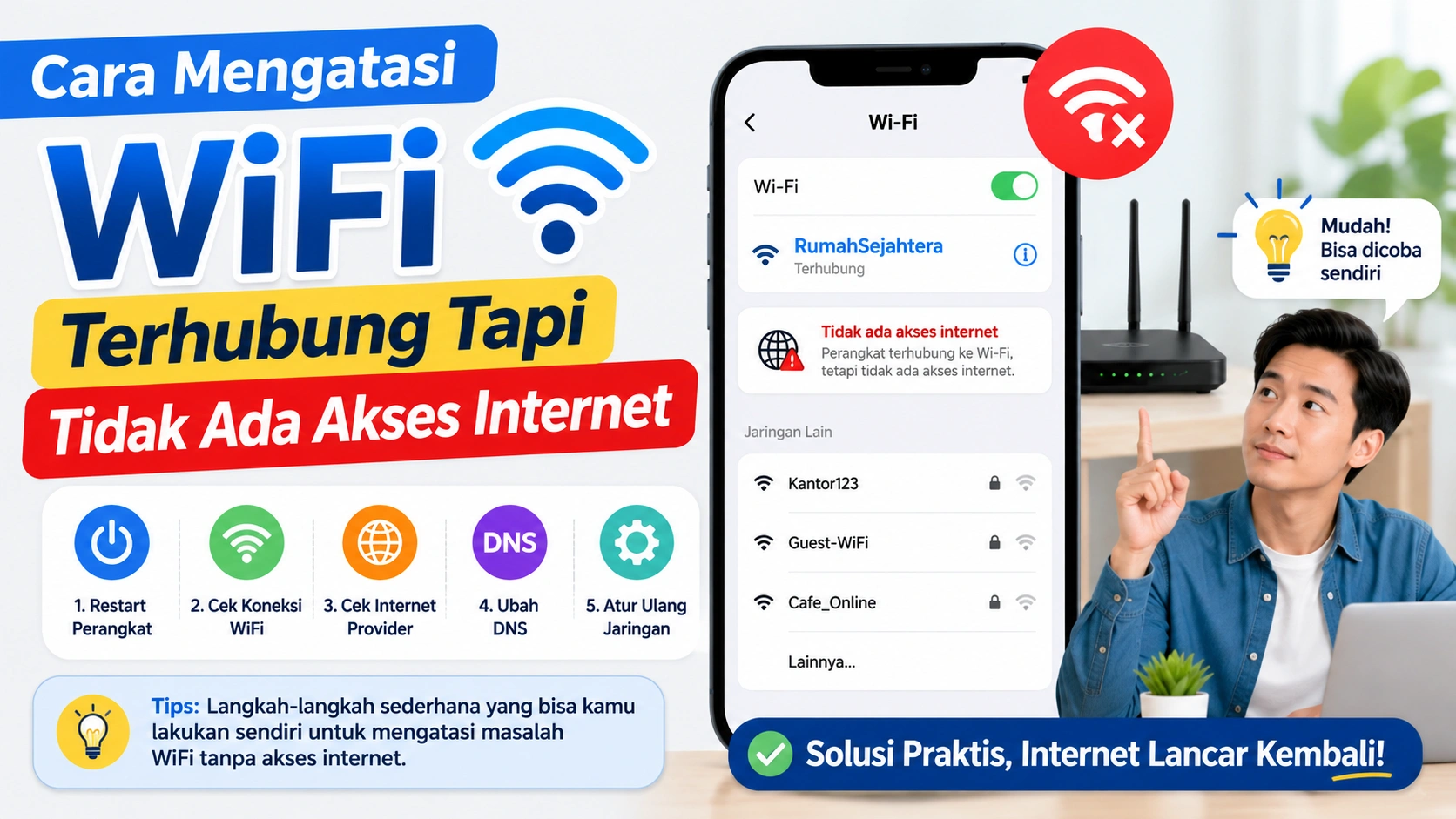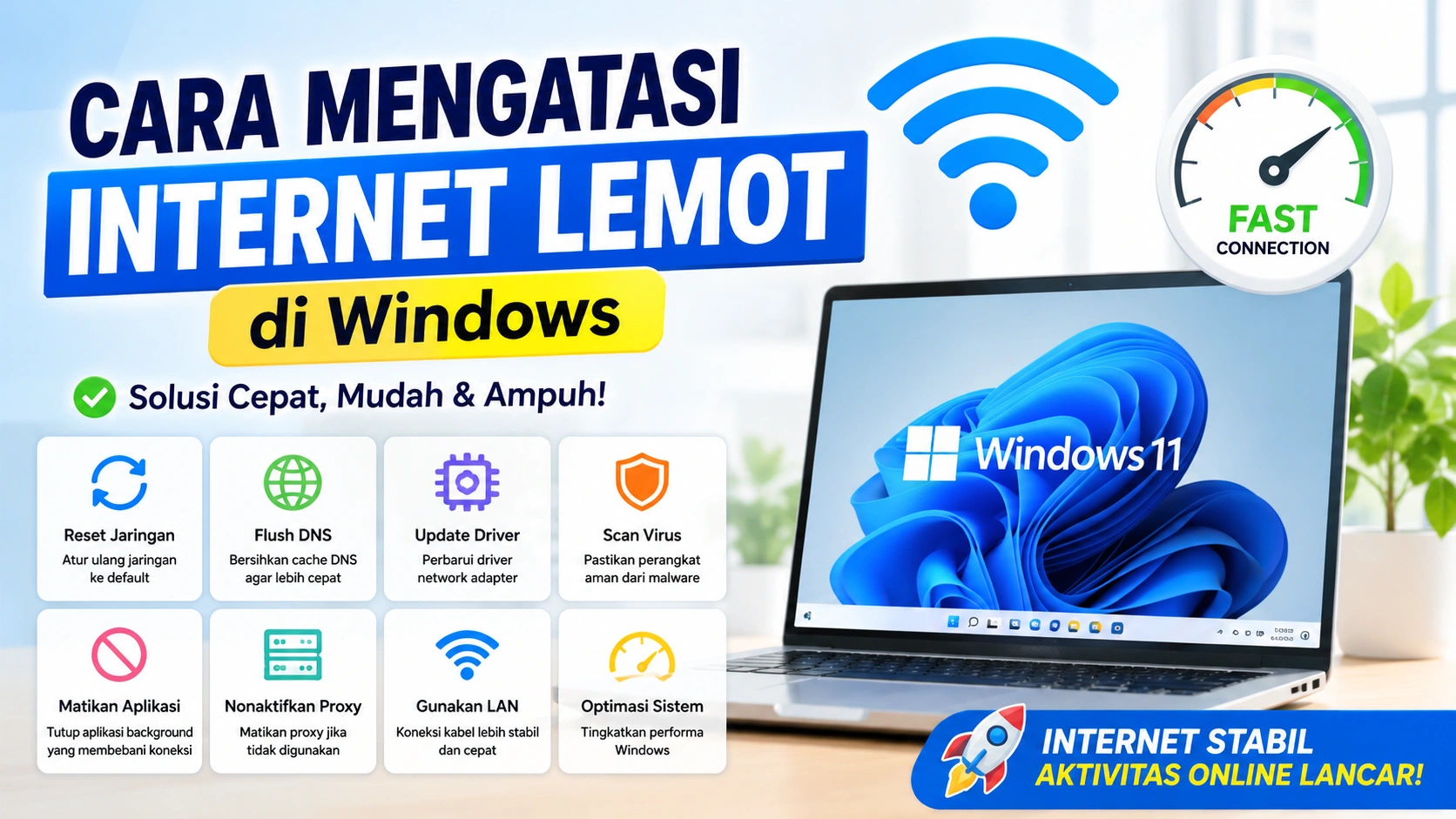





Masalah “No Internet Access” di Windows adalah salah satu gangguan yang paling sering dialami pengguna komputer. Biasanya, ikon WiFi tetap terhubung, tetapi internet tidak bisa digunakan. Akibatnya, browser tidak dapat membuka website, aplikasi online gagal berjalan, dan pekerjaan menjadi terganggu.
Masalah ini bisa disebabkan oleh banyak hal, mulai dari gangguan jaringan, driver rusak, pengaturan IP yang salah, hingga error pada sistem Windows. Kabar baiknya, sebagian besar masalah ini bisa diperbaiki tanpa perlu membawa komputer ke teknisi.
Berikut panduan lengkap untuk mengatasi masalah No Internet Access di Windows.
Apa Itu Error “No Internet Access”?
“No Internet Access” adalah kondisi ketika komputer berhasil terhubung ke jaringan WiFi atau LAN, tetapi tidak dapat mengakses internet.
Biasanya muncul tanda seperti:
- Ikon globe di taskbar
- Status “Connected, No Internet”
- Browser tidak bisa membuka website
- Aplikasi online tidak terhubung
Masalah ini dapat terjadi pada Windows 10 maupun Windows 11.
Penyebab No Internet Access di Windows
Sebelum memperbaiki, penting untuk mengetahui beberapa penyebab umum masalah ini. Dengan memahami sumbernya, proses perbaikan menjadi lebih cepat, tepat, dan tidak membuang waktu mencoba solusi yang salah.
1. Gangguan Router atau Modem
Router yang bermasalah dapat menyebabkan koneksi internet tidak berjalan normal. Kondisi ini membuat perangkat tetap terhubung ke WiFi, tetapi tidak bisa mengakses internet sama sekali.
2. Driver WiFi Bermasalah
Driver jaringan yang rusak atau sudah usang sering menyebabkan koneksi internet gagal. Memperbarui atau menginstal ulang driver dapat membantu memulihkan koneksi agar kembali normal dan stabil.
3. Pengaturan IP Salah
Windows mungkin gagal mendapatkan alamat IP yang benar, sehingga koneksi internet tidak dapat berfungsi dengan baik. Hal ini bisa menyebabkan perangkat terhubung ke jaringan, tetapi tidak bisa mengakses internet.
4. DNS Error
DNS yang bermasalah dapat membuat website tidak bisa diakses meskipun koneksi internet terlihat tersambung. Mengganti atau memperbaiki pengaturan DNS biasanya dapat memulihkan akses ke internet secara normal.
5. Windows Update Bermasalah
Kadang update Windows dapat menyebabkan konflik pada pengaturan jaringan, sehingga koneksi internet menjadi tidak stabil atau bahkan tidak berfungsi sama sekali setelah proses update selesai.
6. Antivirus atau Firewall
Software keamanan tertentu dapat memblokir koneksi internet tanpa disadari. Hal ini bisa menyebabkan perangkat terlihat terhubung ke jaringan, tetapi tidak bisa mengakses internet sama sekali.
Cara Mengatasi No Internet Access di Windows
Setelah melakukan Windows Update, sebagian pengguna mengalami masalah “No Internet Access” atau koneksi internet tiba-tiba tidak berfungsi. Padahal sebelumnya jaringan berjalan normal. Masalah ini cukup umum terjadi dan biasanya disebabkan oleh perubahan sistem, driver yang tidak kompatibel, atau konfigurasi jaringan yang terganggu setelah update.
Berikut beberapa cara yang bisa Anda lakukan untuk mengatasinya.
1. Restart Router dan Komputer
Langkah pertama yang paling sederhana adalah restart perangkat. Cara ini membantu mengatasi error sementara dengan memulai ulang sistem dan menyegarkan koneksi internet di Windows.
Cara:
- Matikan router/modem selama 30 detik
- Nyalakan kembali
- Restart komputer
Kenapa penting:
Restart membantu menyegarkan koneksi jaringan dengan menghentikan proses yang bermasalah dan memuat ulang sistem. Cara ini sering efektif memperbaiki gangguan sementara pada koneksi internet di Windows.
2. Periksa Apakah Internet Bermasalah
Coba hubungkan perangkat lain ke jaringan yang sama untuk memastikan sumber masalah. Jika perangkat lain juga tidak bisa internet, kemungkinan masalah ada pada router atau koneksi dari penyedia layanan.
Jika perangkat lain juga tidak bisa internet:
Masalah kemungkinan berasal dari router atau ISP jika semua perangkat tidak bisa terhubung ke internet. Dalam kondisi ini, gangguan bukan dari Windows, melainkan dari jaringan utama atau penyedia layanan internet.
Jika hanya komputer Anda:
Masalah ada pada sistem Windows jika perangkat lain bisa terhubung ke internet tetapi komputer Anda tidak. Ini menandakan gangguan berasal dari pengaturan jaringan atau komponen Windows itu sendiri.
3. Jalankan Network Troubleshooter
Windows memiliki tool otomatis bernama Network Troubleshooter yang dapat mendeteksi dan memperbaiki masalah jaringan secara langsung. Alat ini membantu mengatasi error koneksi tanpa perlu pengaturan manual yang rumit.
Langkah:
- Buka Settings
- Pilih Network & Internet
- Klik Advanced Network Settings
- Pilih Network Troubleshooter
Fungsi:
Windows akan mendeteksi masalah dan mencoba memperbaikinya otomatis.
4. Forget dan Sambungkan Ulang WiFi
Profil jaringan yang rusak dapat menyebabkan koneksi internet gagal terhubung di Windows. Menghapus dan menyambungkan ulang jaringan dapat membuat sistem membangun profil baru yang lebih stabil dan berfungsi normal kembali.
Cara:
- Buka Settings
- Pilih WiFi
- Klik Manage Known Networks
- Pilih jaringan Anda
- Klik Forget
- Sambungkan ulang
Hasil:
Windows akan membuat konfigurasi jaringan baru.
5. Restart Adapter Jaringan
Merestart adapter jaringan dapat membantu memperbaiki koneksi internet yang bermasalah. Proses ini menyegarkan koneksi jaringan di Windows sehingga error sementara bisa hilang dan koneksi kembali stabil.
Langkah:
- Tekan
Windows + R - Ketik:
ncpa.cpl - Klik kanan adapter WiFi
- Pilih Disable
- Tunggu beberapa detik
- Klik Enable
Kenapa efektif:
Menyegarkan koneksi adapter jaringan.
6. Update Driver WiFi
Driver yang sudah lama atau rusak dapat menyebabkan koneksi internet tidak berfungsi dengan baik. Memperbarui atau menginstal ulang driver jaringan membantu mengembalikan koneksi agar stabil dan normal kembali.
Cara update:
- Klik kanan Start
- Pilih Device Manager
- Buka Network Adapters
- Klik kanan driver WiFi
- Pilih Update Driver
Tips:
Unduh driver terbaru dari website resmi laptop jika diperlukan.
7. Reset TCP/IP dan DNS
Reset TCP/IP dan DNS adalah cara memperbaiki masalah jaringan di Windows dengan mengatur ulang konfigurasi internet ke kondisi default. Langkah ini membantu mengatasi koneksi error, DNS bermasalah, dan internet yang tidak stabil.
Cara:
Buka Command Prompt sebagai Administrator lalu jalankan:
netsh winsock reset
netsh int ip reset
ipconfig /release
ipconfig /renew
ipconfig /flushdns
Setelah selesai:
Restart komputer.
Fungsi:
Perintah ini mereset konfigurasi jaringan Windows.
8. Ganti DNS ke Google DNS
DNS bawaan ISP kadang bermasalah.
Cara:
- Buka Network Connections
- Klik kanan WiFi
- Pilih Properties
- Klik Internet Protocol Version 4 (TCP/IPv4)
- Pilih Use the following DNS server addresses
Isi:
- Preferred DNS:
8.8.8.8 - Alternate DNS:
8.8.4.4
Kenapa membantu:
Google DNS lebih stabil dan cepat.
9. Nonaktifkan VPN atau Antivirus Sementara
VPN dan antivirus tertentu dapat memblokir koneksi internet.
Cara:
- Matikan VPN
- Nonaktifkan antivirus sementara
- Tes koneksi internet
Catatan:
Aktifkan kembali setelah selesai.
10. Reset Network Settings Windows
Jika semua cara gagal, reset jaringan bisa menjadi solusi.
Langkah:
- Buka Settings
- Pilih Network & Internet
- Klik Advanced Network Settings
- Pilih Network Reset
Hasil:
Semua pengaturan jaringan akan kembali ke default.
Cara Mengatasi No Internet Setelah Windows Update
Cara mengatasi No Internet setelah Windows Update dengan restart perangkat, reset network, update driver, flush DNS, atau uninstall update terbaru untuk mengembalikan koneksi internet Windows agar stabil kembali.
Solusi:
- Rollback update terbaru
- Update driver jaringan
- Jalankan Windows Troubleshooter
Cara rollback:
- Settings
- Windows Update
- Update History
- Uninstall Updates
Tanda Masalah Ada di Router
Tanda masalah ada di router terlihat saat semua perangkat tidak bisa terhubung internet, lampu indikator internet merah atau mati, serta koneksi sering putus atau sangat lambat meskipun WiFi tersambung.
Berikut tanda bahwa masalah bukan di Windows:
- Semua perangkat tidak bisa internet
- Lampu internet di router merah
- Router sering restart sendiri
- Kecepatan internet sangat lambat
Jika ini terjadi, hubungi provider internet Anda.
Tips Agar Internet Windows Tetap Stabil
Jaga koneksi internet Windows tetap stabil dengan rutin update driver, restart router secara berkala, menggunakan DNS yang cepat, serta menghindari aplikasi yang mengganggu jaringan. Pengaturan jaringan yang baik membantu koneksi lebih lancar, cepat, dan minim gangguan saat bekerja, browsing, atau meeting online setiap hari.
1. Update Driver Secara Berkala
Update driver secara berkala membantu menjaga koneksi internet tetap stabil, meningkatkan kompatibilitas perangkat, memperbaiki bug, dan mengurangi masalah jaringan pada Windows.
2. Hindari Install Banyak VPN
Terlalu banyak aplikasi VPN dapat menyebabkan konflik jaringan, memperlambat koneksi internet, dan mengganggu pengaturan network pada Windows.
3. Restart Router Secara Berkala
Restart router secara berkala membantu menyegarkan koneksi internet, mengurangi gangguan jaringan, dan menjaga performa WiFi tetap stabil setiap hari.
4. Gunakan Antivirus Ringan
Gunakan antivirus ringan agar performa Windows tetap cepat dan koneksi internet tidak terganggu oleh proses keamanan yang terlalu berat.
5. Hindari Software Tidak Jelas
Hindari menginstal software tidak jelas karena dapat mengubah pengaturan jaringan, membawa malware, dan menyebabkan koneksi internet menjadi tidak stabil.
Kesimpulan
Masalah No Internet Access di Windows memang sangat mengganggu, tetapi biasanya dapat diperbaiki dengan langkah sederhana. Penyebabnya bisa berasal dari router, driver jaringan, DNS, hingga konfigurasi Windows yang bermasalah.
Dengan mencoba solusi seperti restart jaringan, reset TCP/IP, update driver, dan mengganti DNS, koneksi internet biasanya bisa kembali normal.
Jika semua cara sudah dicoba tetapi masalah tetap muncul, kemungkinan ada gangguan hardware atau masalah dari provider internet.