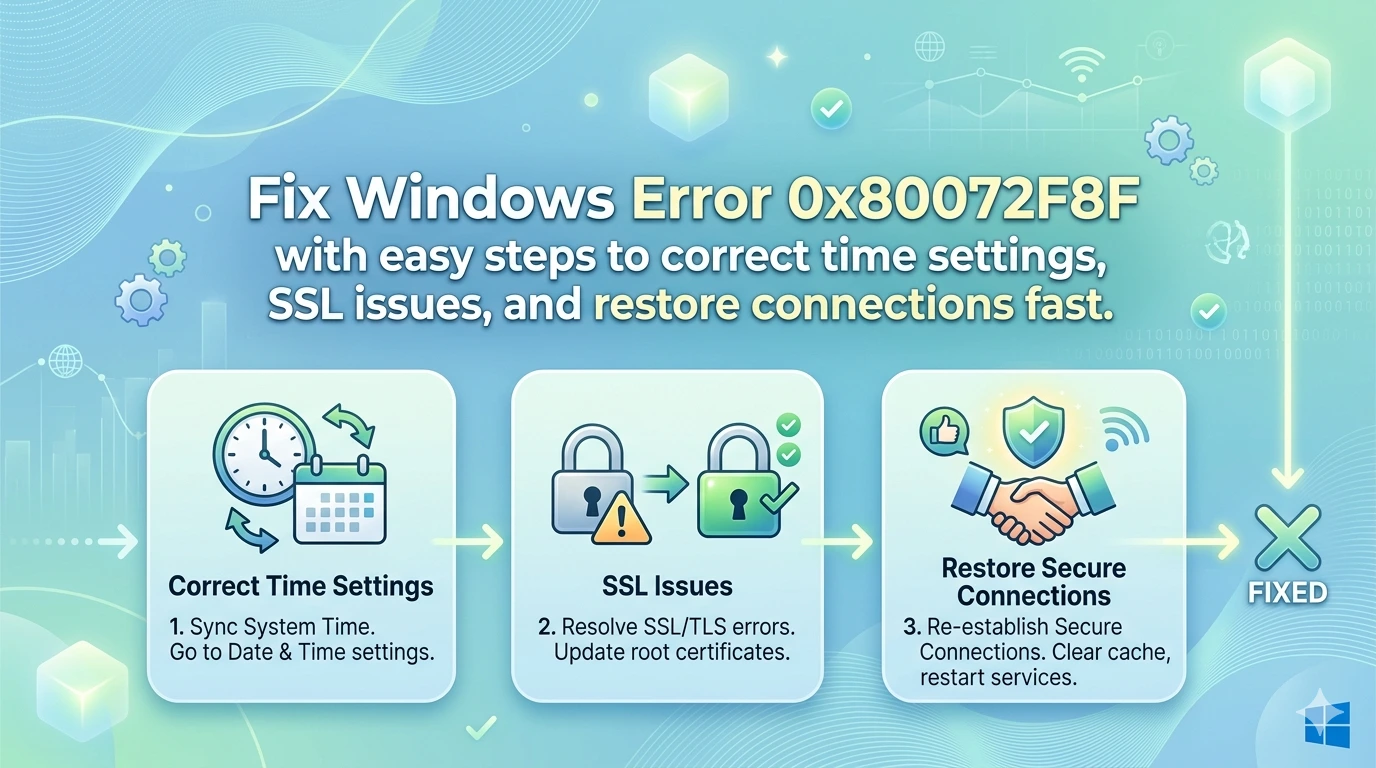
If you encounter Windows Error 0x80072F8F, it usually indicates a problem with secure connections, incorrect date and time settings, or SSL certificate validation failures. This error commonly appears when updating or activating Microsoft Windows and can prevent your system from connecting to Microsoft servers.
Understanding how to fix Windows Error 0x80072F8F is essential to restore updates, activation, and secure communication.
What Is Windows Error 0x80072F8F?
Windows Error 0x80072F8F is a security-related issue that occurs when your system cannot establish a secure SSL connection. It often affects:
- Windows Update
- Windows Activation
- Microsoft Store access
This error is commonly linked to incorrect system time or certificate issues.
Common Causes of Windows Error 0x80072F8F
1. Incorrect Date and Time
If your system clock is wrong, SSL certificates cannot be validated.
2. SSL/TLS Configuration Issues
Disabled or misconfigured protocols block secure connections.
3. Corrupted System Files
Damaged files interfere with Windows services.
4. Firewall or Antivirus Interference
Security software may block Microsoft servers.
5. Outdated Windows Version
Older builds may lack updated certificates.
Fix Windows Error 0x80072F8F Step-by-Step
Method 1: Correct Date and Time Settings
Incorrect time is the most common cause.
Steps:
- Right-click the clock on the taskbar
- Select Adjust date/time
- Enable:
- Set time automatically
- Set time zone automatically
- Click Sync now
This ensures proper SSL validation.
Method 2: Enable SSL and TLS Protocols
Ensure secure protocols are active.
Steps:
- Press
Win + R - Type
inetcpl.cpl - Go to Advanced tab
- Enable:
- TLS 1.2
- TLS 1.3 (if available)
- Click Apply → OK
Method 3: Run Windows Update Troubleshooter
Built-in tools can fix update issues.
Steps:
- Open Settings
- Go to System → Troubleshoot → Other troubleshooters
- Run Windows Update Troubleshooter
Method 4: Run System File Checker (SFC)
Repair corrupted system files.
Steps:
- Open Command Prompt as Administrator
- Run:
sfc /scannow
- Restart your PC
Method 5: Use DISM Tool
Fix deeper system issues.
Steps:
- Open Command Prompt as Admin
- Run:
DISM /Online /Cleanup-Image /RestoreHealth
Method 6: Check Firewall and Antivirus
Temporarily disable firewall or antivirus to test connection issues. Ensure Microsoft servers are not blocked.
Method 7: Update Windows
Keeping Windows updated ensures valid certificates.
Steps:
- Open Settings
- Go to Windows Update
- Click Check for updates
Microsoft Windows Update Support
Method 8: Reset Windows Update Components
If the error persists, reset update services.
Steps:
- Open Command Prompt as Admin
- Run commands:
net stop wuauserv
net stop cryptSvc
net stop bits
net stop msiserver
- Restart services afterward
Advanced Fixes for Windows Error 0x80072F8F
Check Proxy Settings
Disable incorrect proxy configurations:
- Go to Settings → Network & Internet → Proxy
- Turn off manual proxy setup
Verify Root Certificates
Ensure your system has updated root certificates.
Use Correct Region Settings
Mismatch between region and time zone can cause SSL issues.
Prevent Windows Error 0x80072F8F
Best Practices:
- Keep system time synchronized
- Regularly update Windows
- Use trusted security software
- Avoid modifying SSL settings unnecessarily
- Maintain system file integrity
Impact of Error 0x80072F8F
This error can:
- Block Windows updates
- Prevent activation
- Disable Microsoft Store
- Interrupt secure connections
Fixing it quickly restores system functionality.
When to Reset Windows
If all methods fail:
- Reset Windows (Keep files option)
- Perform clean installation
This ensures a fresh system environment.
Frequently Asked Questions (FAQ)
1. What causes Windows Error 0x80072F8F?
It is usually caused by incorrect system time or SSL certificate issues.
2. Is this error related to internet connection?
Yes, it affects secure connections to Microsoft servers.
3. Can antivirus cause this error?
Yes, it may block secure connections.
4. Does changing time fix the error?
In most cases, yes.
5. Is this error dangerous?
No, but it prevents updates and activation.
6. Can outdated Windows cause this issue?
Yes, missing certificates can trigger it.
7. Should I reinstall Windows?
Only if all other fixes fail.
Conclusion
Fixing Windows Error 0x80072F8F is crucial for restoring secure communication between your PC and Microsoft servers. Since this error is often caused by incorrect date/time settings or SSL issues, simple fixes like syncing your clock or enabling TLS protocols can resolve it quickly.
For more persistent cases, tools like SFC, DISM, and Windows Update Troubleshooter provide deeper repair options. By following the steps in this guide and maintaining proper system settings, you can prevent this error from recurring and ensure a smooth Windows experience.