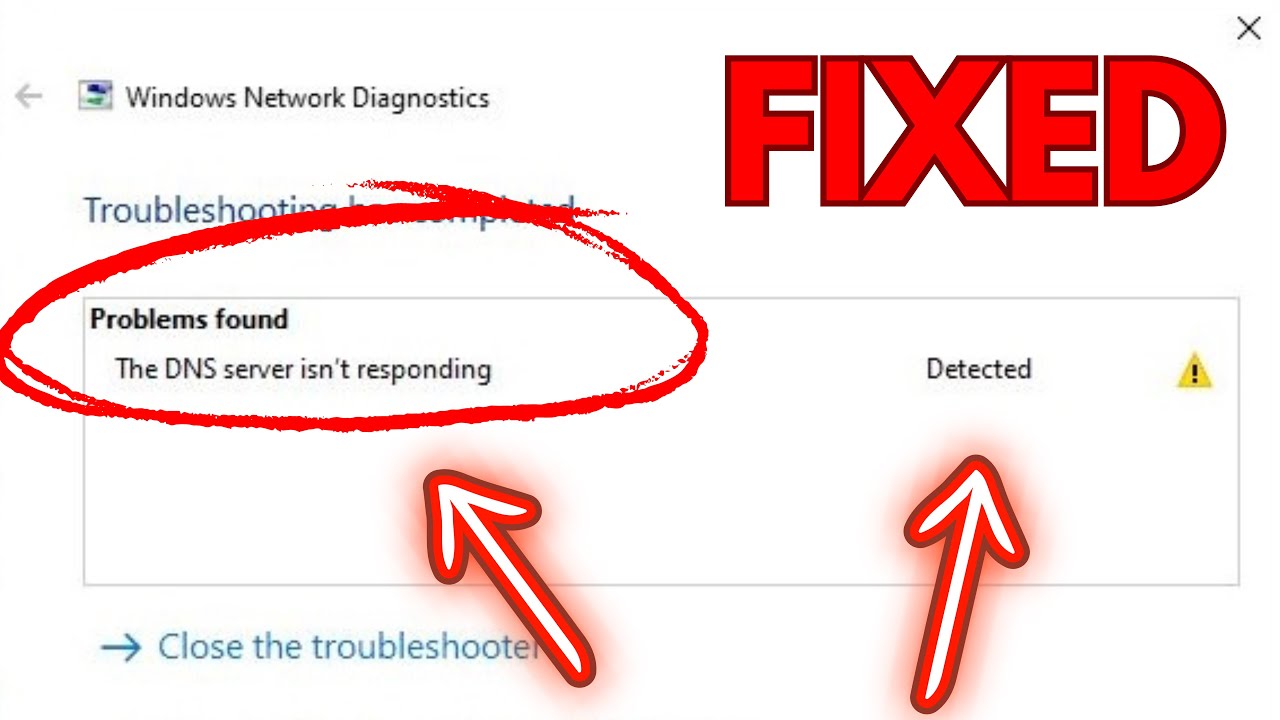
Windows Error 0x80072EE7 occurs when your system cannot resolve the server name required to connect to Microsoft services. This issue commonly affects Windows Update, Microsoft Store, and system activation.
The error is typically related to DNS configuration problems, network issues, or blocked connections. Fortunately, it can be resolved with a few practical troubleshooting steps.
What Causes Windows Error 0x80072EE7?
This error is usually triggered by one or more of the following:
- Incorrect or unreachable DNS servers
- No internet connection or unstable network
- Proxy or VPN interference
- Firewall blocking Microsoft services
- Corrupted system files or settings
How to Fix Windows Error 0x80072EE7
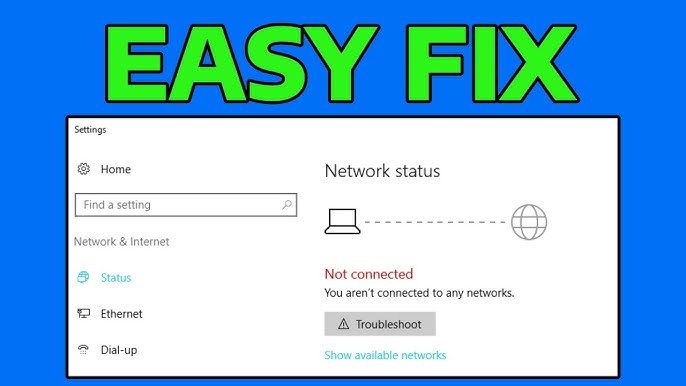
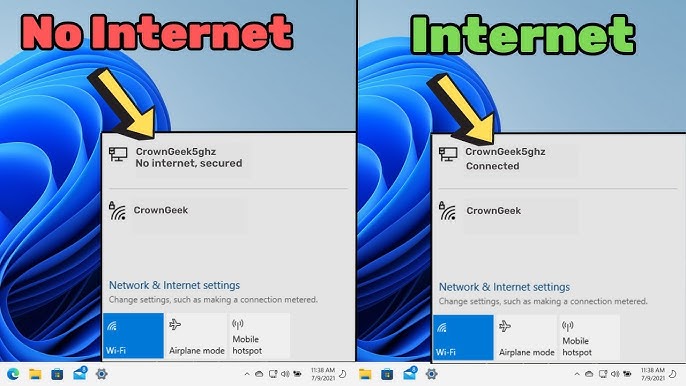
1. Check Internet Connectivity
Ensure your device is properly connected to the internet.
- Restart your router and modem
- Try accessing websites to confirm connectivity
- Switch to another network if possible
2. Change DNS Server Settings
Switching to a reliable DNS provider can resolve this issue.
Steps:
- Open Control Panel
- Navigate to Network and Sharing Center
- Click your active connection
- Select Properties
- Open Internet Protocol Version 4 (IPv4)
- Choose “Use the following DNS server addresses”
- Enter:
- Preferred DNS: 8.8.8.8
- Alternate DNS: 8.8.4.4
These DNS servers are provided by Google.
For detailed instructions, visit
3. Disable Proxy Settings
Steps:
- Press
Win + R, typeinetcpl.cpl - Go to the Connections tab
- Click LAN Settings
- Uncheck “Use a proxy server for your LAN”
- Click OK
4. Reset Windows Update Components
Resetting update services often fixes connectivity errors.
Run Command Prompt as Administrator:
net stop wuauserv
net stop cryptSvc
net stop bits
net stop msiserver

ren C:\Windows\SoftwareDistribution SoftwareDistribution.old
ren C:\Windows\System32\catroot2 Catroot2.old

net start wuauserv
net start cryptSvc
net start bits
net start msiserver
5. Flush DNS Cache
Clearing the DNS cache removes outdated or corrupted entries.
Command:
ipconfig /flushdns
6. Repair System Files
Use built-in tools to fix corrupted system files.
Commands:
sfc /scannow
DISM /Online /Cleanup-Image /RestoreHealth
7. Check Firewall and Antivirus Settings
Temporarily disable your firewall or antivirus software to ensure they are not blocking Microsoft servers. Re-enable them after testing.
8. Edit the Hosts File
Incorrect entries in the hosts file can block access.
Location:
C:\Windows\System32\drivers\etc\hosts
Remove any entries related to Microsoft domains.
Best Practices to Prevent Error 0x80072EE7
To prevent Windows Error 0x80072EE7, keep your system updated, use reliable DNS like Google DNS, avoid unstable VPNs or proxies, regularly scan for malware, and ensure your firewall or antivirus does not block Microsoft services.
Frequently Asked Questions (FAQ)
What is Windows Error 0x80072EE7?
It is a network-related error indicating that your system cannot resolve the server name required to connect to Microsoft services.
Does this error affect Windows Update?
Yes, it often prevents Windows Update from downloading and installing updates.
Can DNS settings cause error 0x80072EE7?
Yes, incorrect DNS configuration is one of the most common causes.
Will resetting Windows Update fix the issue?
In many cases, resetting update components resolves the error successfully.
Is this error caused by malware?
Not typically, but malware can interfere with network settings and cause similar issues.
Conclusion
Windows Error 0x80072EE7 is primarily caused by DNS or network-related problems that prevent your system from reaching Microsoft servers. By adjusting DNS settings, resetting services, and checking system configurations, you can resolve the issue efficiently.